How to connect Amazon with easySales: a complete setup guide
Connect your Amazon storefronts to easySales: authorize in Seller Central, save the settings, link your existing offers, send new ones, and how orders, tracking and invoices sync.
What connecting Amazon gives you
easySales connects to your Amazon seller account and brings your Amazon orders in next to every other order you take, so you can invoice them, ship them and pack them in one place. It sends your offers' stock and prices to Amazon, tells Amazon when an order has shipped, with its tracking number, and uploads your invoices to the order.
Three things to know before you begin:
- Every Amazon storefront is a connection of its own. Amazon.de, Amazon.fr, Amazon.pl and the others each have their own card in easySales, and each one is authorized separately — with the same Seller Central login.
- There are no API keys to copy. You authorize easySales in Seller Central with one button, and then save the connection's settings in easySales. Until you save them, the connection is not complete.
- The authorization has to stay valid. Amazon asks you to renew it once a year, and when Amazon stops accepting it, the connection stops syncing — orders included — until you authorize again. It takes one button: Reauthenticate with Amazon.
Before you start
An Amazon seller account
Active on the storefronts you want to connect.
Your Seller Central login
To approve easySales for each storefront.
An EAN on your products
So easySales can find them in Amazon's catalogue.
Step 1 — Choose the storefront
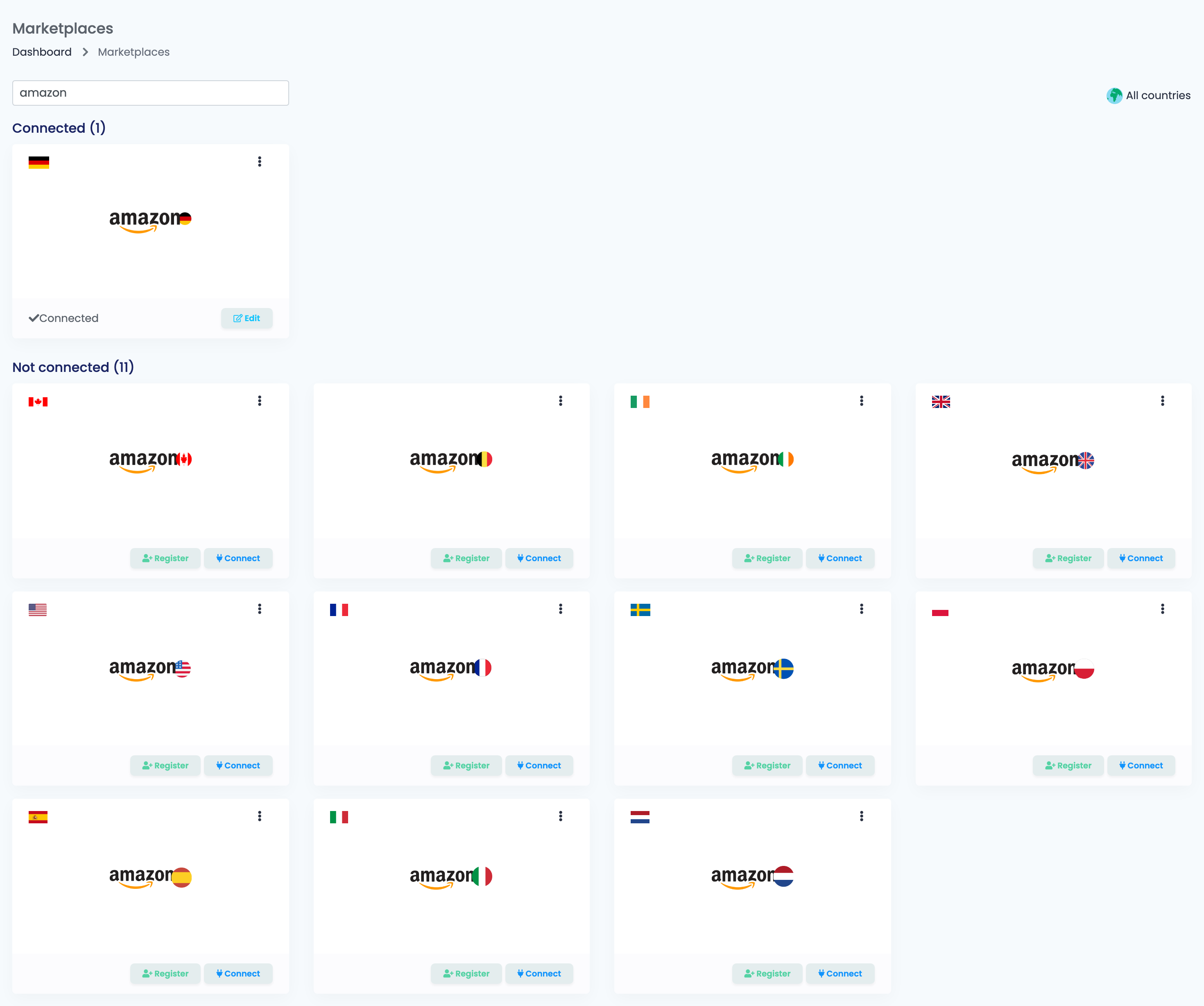
Go to Integrations → Marketplaces and search for amazon. Each storefront has its own card: the United Kingdom, Germany, France, Italy, Spain, the Netherlands, Belgium, Ireland, Sweden, Poland, the United States and Canada. Press Connect on the storefront you sell on.
Step 2 — Authorize easySales in Seller Central
Press Authenticate with Amazon. Seller Central opens for that storefront: log in and approve easySales. Amazon then sends you back to easySales, and the connection's settings appear under the button — which now reads Reauthenticate with Amazon.
Step 3 — Main settings
Fill in the settings and press Save. easySales checks the authorization with Amazon when you save.
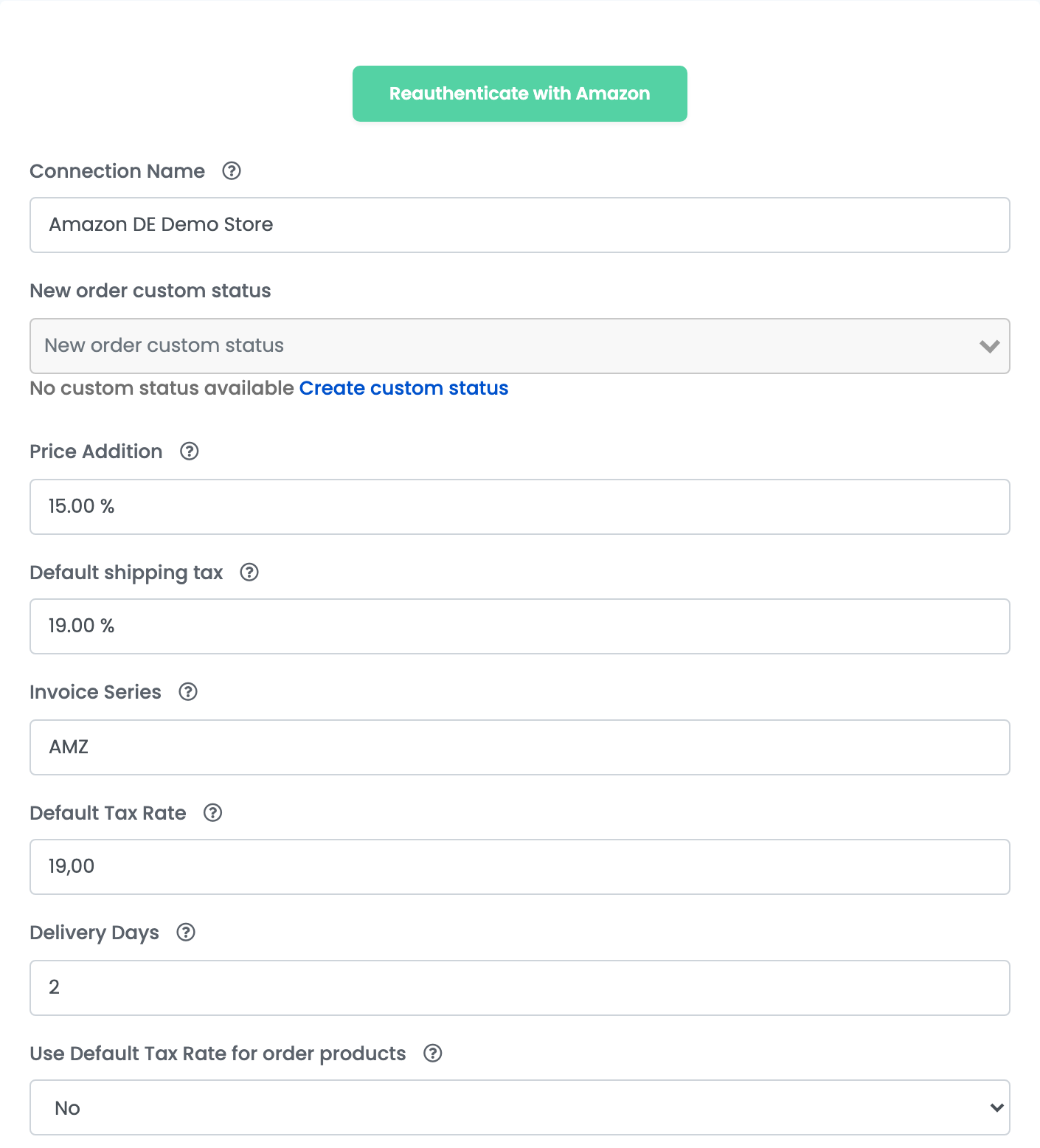
| Field | What goes in it |
|---|---|
| Connection Name | A name for this storefront inside easySales. |
| New order custom status | Optional. A status of your own that every order from this storefront starts in. |
| Price Addition | A percentage added to your product price for this storefront. 0 sends the product price as it is. |
| Default shipping tax | The VAT rate on shipping. |
| Invoice Series | The series invoices for this storefront's orders are issued on. |
| Default Tax Rate | The VAT rate of your offers. Set 0 if you are not a VAT payer. |
| Delivery Days | How many days you need to ship, sent with new offers. |
| Use Default Tax Rate for order products | Yes puts the Default Tax Rate on the products of every order — for when you issue your own invoices. |
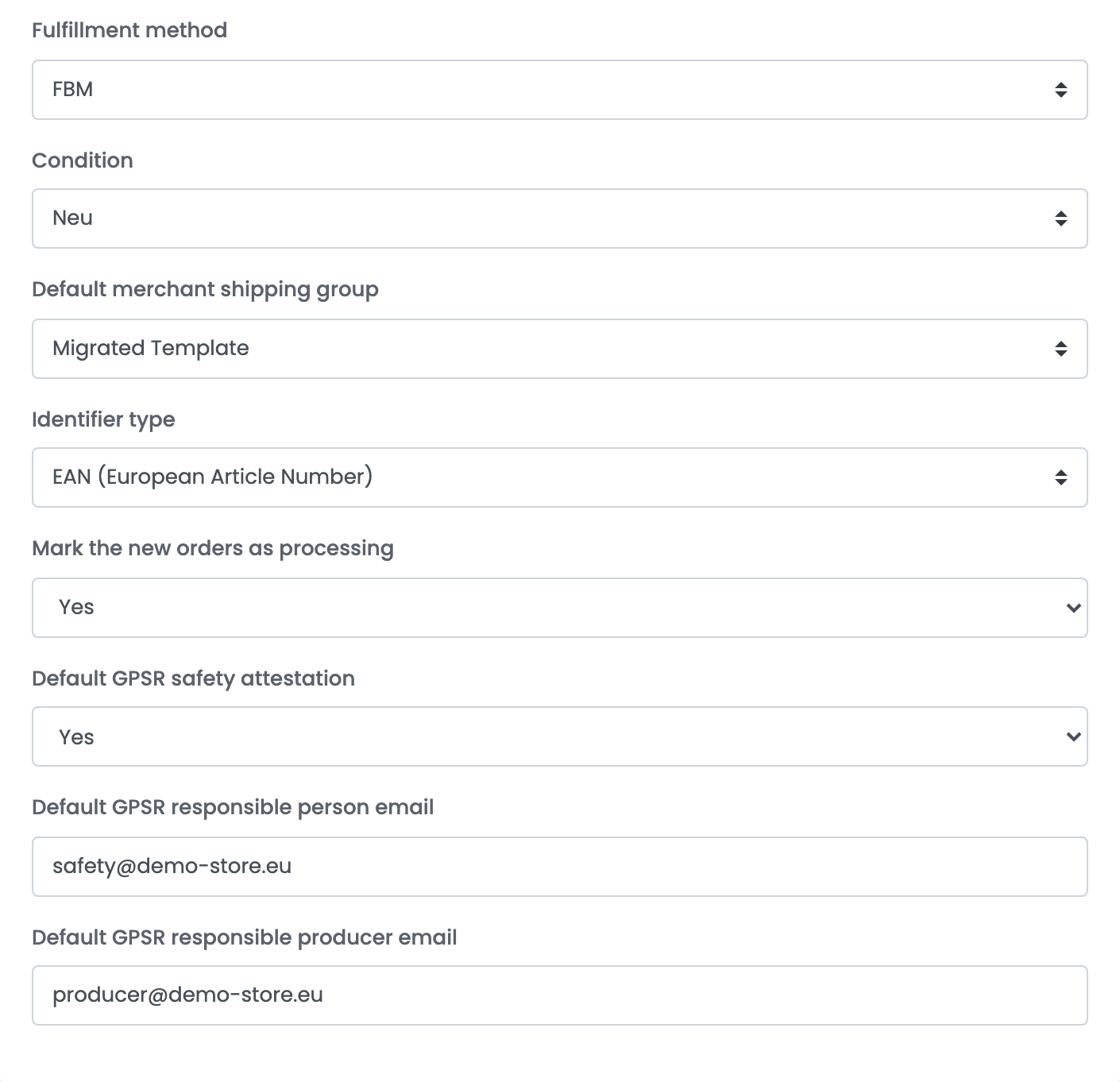
| Field | What goes in it |
|---|---|
| Fulfillment method | FBM when you ship the orders yourself, FBA when Amazon does. It is the default for new offers. |
| Condition | The condition new offers are listed in — usually new. The list comes from the storefront, in its own language. |
| Default merchant shipping group | The shipping template from Seller Central that new offers use. |
| Identifier type | The code easySales looks a product up by in Amazon's catalogue — usually EAN. |
| Mark the new orders as processing | Yes confirms every new order to Amazon as soon as it arrives in easySales. |
| Default GPSR safety attestation and the two GPSR e-mails | The product-safety details Amazon requires in the EU, copied onto every new offer. |
Step 4 — Additional settings
The Additional settings tab decides what easySales sends to Amazon and which orders it brings in.
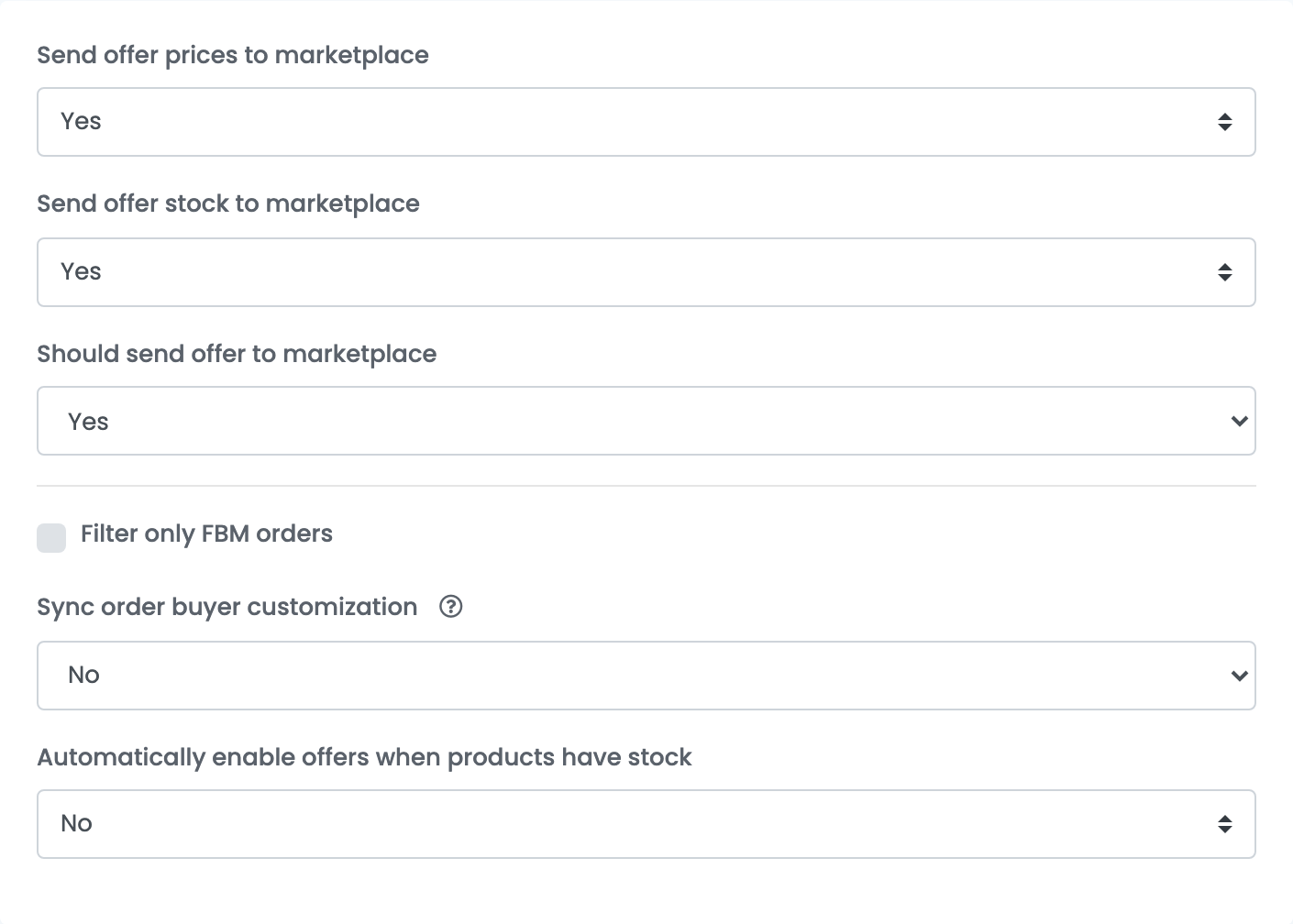
| Option | What it does |
|---|---|
| Send offer prices to marketplace | Keeps your prices on Amazon up to date. |
| Send offer stock to marketplace | Keeps your stock on Amazon up to date. |
| Should send offer to marketplace | Sends your offers to Amazon at all. Turn it off to stop sending anything. |
| Filter only FBM orders | Brings in only the orders you ship yourself, and leaves out those Amazon fulfils. |
| Sync order buyer customization | Brings in the personalisation a buyer added to a product. |
| Automatically enable offers when products have stock | Turns an offer back on when its product comes back in stock. |
Step 5 — Link the offers you already have on Amazon
After you connect, easySales reads the offers you already sell on Amazon and lists them under Offers, on the storefront's tab. They arrive unlinked: easySales does not yet know which of your products each one is. Link every offer to its product — by hand, or with automatic linking. An order line whose Amazon SKU has no linked product arrives without a product, and its stock does not go down.
Step 6 — Send new products to Amazon
When you add an offer for one of your products, easySales first looks for the product in Amazon's catalogue by its EAN — or the Identifier type you chose. When Amazon already has it, your offer joins that product page. When it does not, easySales creates a new listing, and then the product needs an Amazon category and the characteristics Amazon requires for it.
To attach a product to a specific Amazon page yourself, use Associate offer on the product and search Amazon by ASIN, EAN or name.
Orders from Amazon
Orders are read every minute. The first sync brings in the orders of the last day; after that, every new and changed order.
| On Amazon | In easySales |
|---|---|
| Pending, Unshipped | New |
| Shipped | Completed |
| Canceled | Canceled |
| Unshipped, Shipped | Marked as paid |
| Currency | The storefront's currency |
Orders that Amazon fulfils for you (FBA) arrive already shipped, as Completed. To keep them out of easySales, turn on Filter only FBM orders.
Shipping and invoices
- Tracking: when an order gets an AWB in easySales — generated or added by hand — easySales sends the courier and the tracking number to Amazon, marks the order as shipped there, and the order becomes Completed. GLS, DPD, DHL and FedEx are sent under their own names; any other courier is sent by name as another carrier.
- Invoices: the invoice issued for an Amazon order is uploaded to the order on Amazon, and so is a storno invoice. The order has to be shipped first. If you let Amazon issue invoices for you, easySales does not upload any, and the order says Amazon will generate invoice.
- Amazon Easy Ship (Amazon.pl and Amazon.nl): with an Amazon Easy Ship courier connection linked to the storefront, the shipping label and the pick-up slot come from Amazon itself.
When an offer is refused
The reason is shown on the offer, in Amazon's own words:
| What Amazon says | What to do |
|---|---|
| Unauthorized - Access to requested resource is denied. | Authorize again with Reauthenticate with Amazon, then Save. |
| You need approval to list in this brand. | Ask Amazon for approval for the brand in Seller Central. |
| … you must provide ERN information to comply with the Extended Producer Responsibility (EPR) Regulations. | Add your EPR registration number in Seller Central. |
| … information required to comply with our General Product Safety Regulation (GPSR) policy. | Fill in the GPSR settings of the connection, or on the offer. |
| Condition: 'Item Condition' is required but missing. | Choose a Condition in the main settings and save. |
| Your selling price is below your minimum price threshold | Change the price, or the offer's minimum and maximum price. |