How to connect 2Performant with easySales: product feed setup
Give 2Performant affiliates your catalogue with an easySales feed: currency, categories, the Feed URL, mapping the columns and feed rules.
What the 2Performant feed does
2Performant is an affiliate network: affiliates promote your products and earn a commission on the sales they bring. They need your product catalogue for that. easySales builds it as a CSV file from your online shop — names, descriptions, prices, categories, images and links — and keeps it at a fixed address, the Feed URL, which you add in your 2Performant advertiser account.
Three things to know before you begin:
- The file has no header row. When 2Performant asks whether the first row holds the column names, answer no, then map the columns by their position — see Step 3.
- Create the feed on your online shop's tab, not on Virtual Shop. Affiliates send shoppers to each product's page in your shop, and only your online shop's products carry that link.
- The feed only carries your catalogue. Tracking, sales and commissions stay in 2Performant.
Before you start
A 2Performant advertiser account
Your shop running a program in 2Performant.
Your online shop connected to easySales
The feed takes its products, links and images from it.
Products with SKUs and stock
The SKU identifies each product in 2Performant; products without stock stay out of the file.
Step 1 — Connect the feed
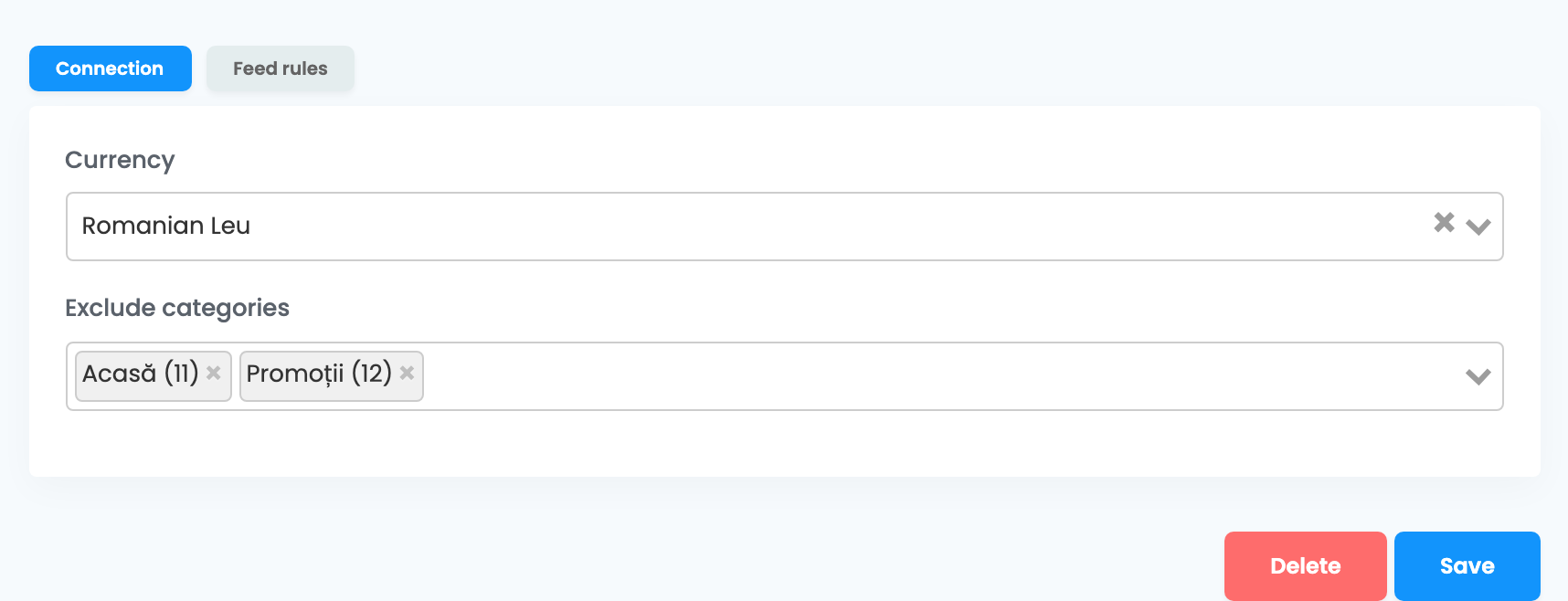
Go to Products → Online Shops → Feed and choose the tab of your online shop. Press Connect on the 2Performant card. The Connection tab has two fields:
| Field | What goes in it |
|---|---|
| Currency | The currency your prices are converted to. Choose the currency of the 2Performant network you work with — Romanian Leu for Romania. Left empty, prices are in RON. |
| Exclude categories | Optional. A product in several categories gets the first one that is not excluded. Exclude broad parent categories — such as Home or Promotions — so the more specific category is the one sent. |
Press Save.
Step 2 — Copy the Feed URL
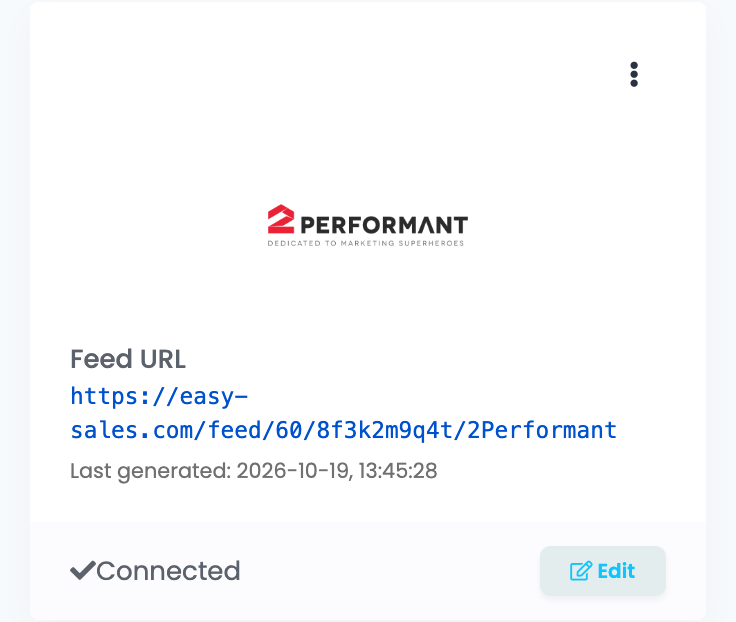
Back on the Feed page, the card shows the Feed URL and, once the file is ready, Last generated with its date and time. The first file is ready within the hour after you save. Wait for Last generated before you add the address in 2Performant.
Step 3 — Add the feed in 2Performant
- In your 2Performant advertiser account, open Tools → Product feeds and create a new feed.
- Give it a name and a description — affiliates see both.
- Paste the Feed URL.
- In the preview, keep the comma as the separator and the double quote as the text delimiter. The first row is a product, not column names: leave the headers option off.
- Map the columns by their position:
| Column | Map it to |
|---|---|
| 1 | Title |
| 2 | Description |
| 3 | Leave unmapped |
| 4 | Sale price |
| 5 | Category |
| 6 | Leave unmapped |
| 7 | Product URL |
| 8 | Images — all the product's images, separated by commas |
| 9 | Product ID — the product's SKU |
| 10 | Leave unmapped |
| 11 | Brand |
| 12 | Availability — 1 for in stock |
What goes into the file
Each active product of the shop with stock is one line in the file. Products without stock stay out. The price is the sale price with VAT, converted to the Currency of the feed. The file is updated every hour while 2Performant reads it, and at least once a day — as long as the shop connection stays enabled.
Step 4 — Fine-tune with feed rules
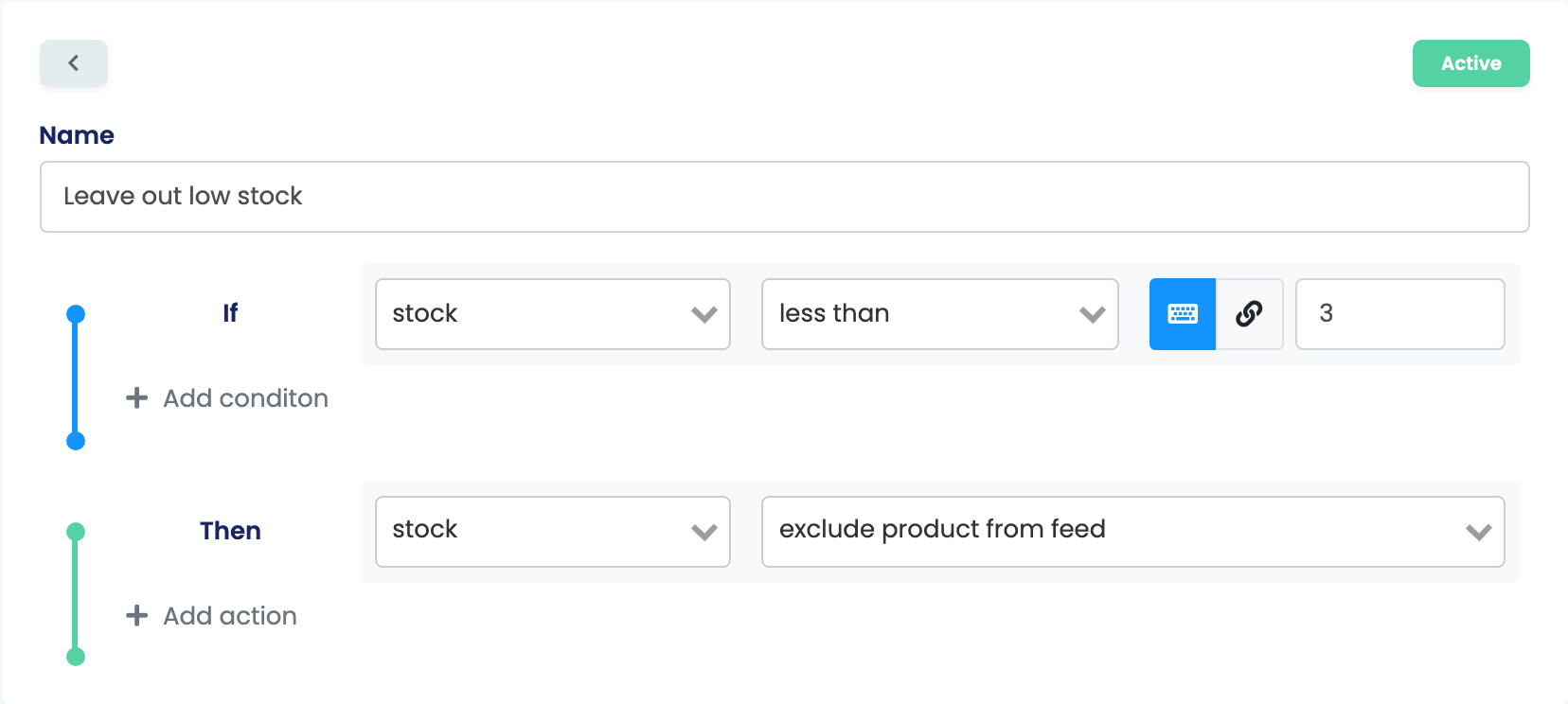
Feed rules change what goes into this feed without touching your products. Open the feed with Edit, then Feed rules → Create a new rule. A rule has a condition — If — and an action — Then.
Useful rules for 2Performant:
- Leave out low stock: If stock is less than 3 → exclude product from feed.
- Leave out a brand: If brand is equal with that brand → exclude product from feed.
- Leave out a category: If category is equal with that category → exclude product from feed.
- Change the price for 2Performant: write the rule on sale price, full price or tax rate.
When something does not look right
| Symptom | What to do |
|---|---|
| The Feed URL answers "Feed generation in progress..." | The first file is not ready yet. Wait until Last generated appears on the card. |
| The first product is missing in 2Performant | The headers option was on in the preview. Edit the feed in 2Performant, turn it off and map the columns again. |
| A product is missing from the feed | Check that it is active and has stock, and that no rule excludes it. |
| Products have no link in 2Performant | The feed was created on the Virtual Shop tab. Delete it and connect it on your online shop's tab. |
| Prices or stock in 2Performant are old | Check that your online shop's connection is enabled. |