Product Updates October 2026
In October we released more than 100 updates in easySales. The biggest are warehouse locations with batches and a 2D and 3D warehouse map, rebuilt picking and packing screens, a new orders list, new channels such as Media Expert, Super-Pharm, SHEIN on eleven markets and BOX NOW, and returns that arrive by themselves from six more channels.
Below you will find the most important updates, explained simply: what they do, how they help and where to find them in the platform.
In short, the most important launches
- Warehouse locations, batches and a warehouse map Keep stock on real locations, draw your warehouse in 2D and 3D, and print on every label exactly where to pick each product.
- Picking and packing, rebuilt Both screens now run as full-screen modes for scanners and desktops, with sessions that are never lost, carts with baskets and one-tap shortcuts.
- A new orders list Choose your columns and row density, manage tags in one place, complete orders in bulk and see which emails and messages reached the buyer.
- New channels in Poland and beyond Media Expert, Super-Pharm, SHEIN on eleven markets, OLX Poland orders, Comarch ERP Optima and five new couriers, among them BOX NOW and Geis.
- Returns from six more channels arrive by themselves Allegro, Skroutz, Decathlon, Empik, Kaufland and MerchantPro returns now come into easySales automatically.
- PulseAI on OLX and Decathlon PulseAI, the easySales AI, now completes your new OLX and Decathlon offers and holds them for your review.
Warehouse locations, batches and a map
The biggest warehouse release so far: stock on real locations, a map of your warehouse and labels that tell the picker where to go.
Keep your stock in batches, on real locations
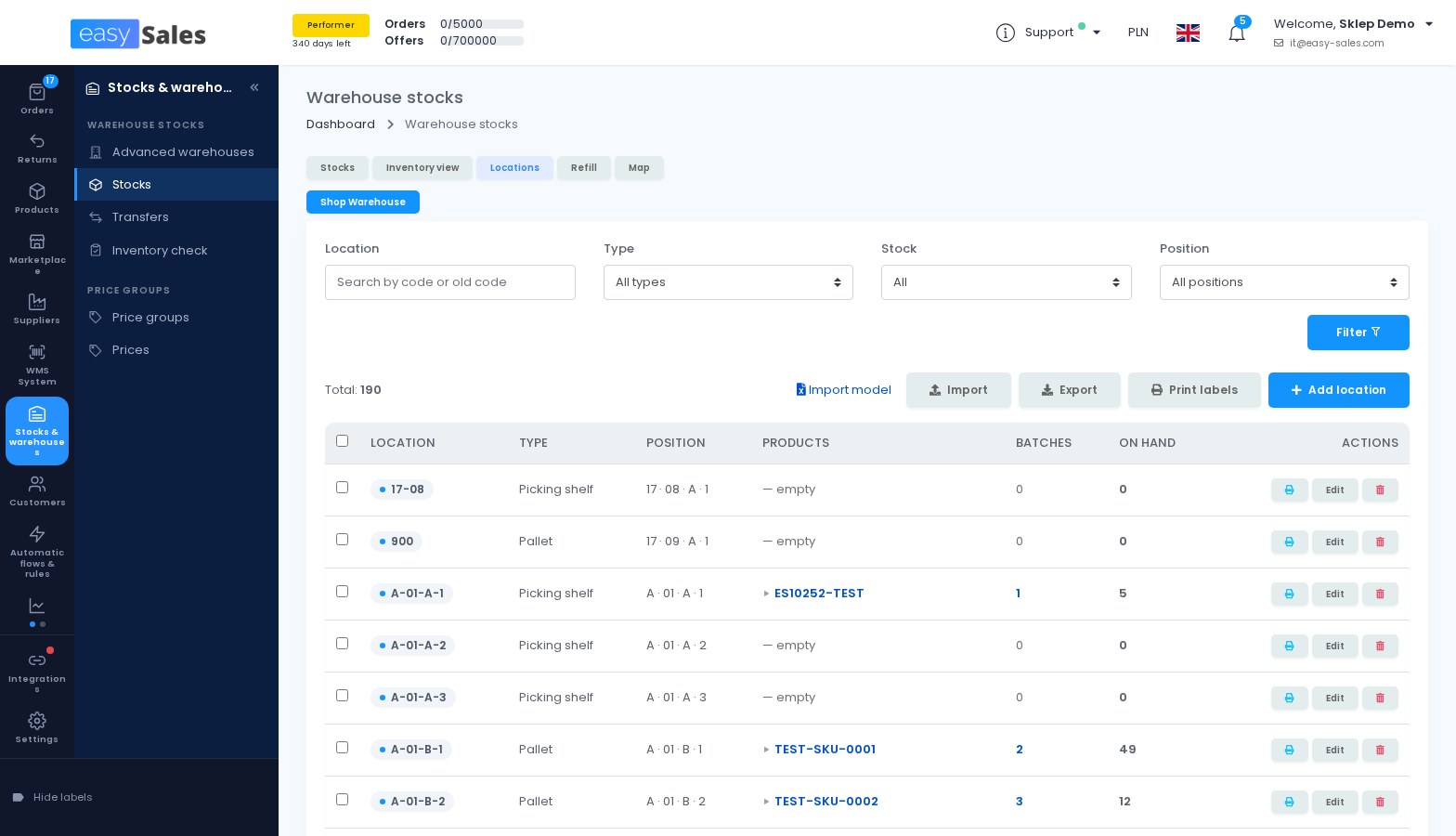
A manual advanced warehouse can now keep its stock in batches. Each batch has its own location, acquisition price and, if you want, an expiry date. When you switch it on, every existing stock line becomes one batch, with its current quantity, location and acquisition price, so nothing changes until you act.
Locations become real objects, each with a type, such as picking shelf or pallet place, and a barcode label. You see which products sit at each location, import and export the location list, and import or export your stock by location, with a column preview, a progress bar and a report for every row. You also decide the order in which orders take stock from your locations, picking shelves first by default, and a Refill list shows which picking shelves are running empty and where to refill them from.
Where to find it: Stocks & warehouses → Advanced warehouses → Track stock in batches, then Stocks & warehouses → Warehouse stocks → Locations
Draw your warehouse on a map, in 2D and 3D
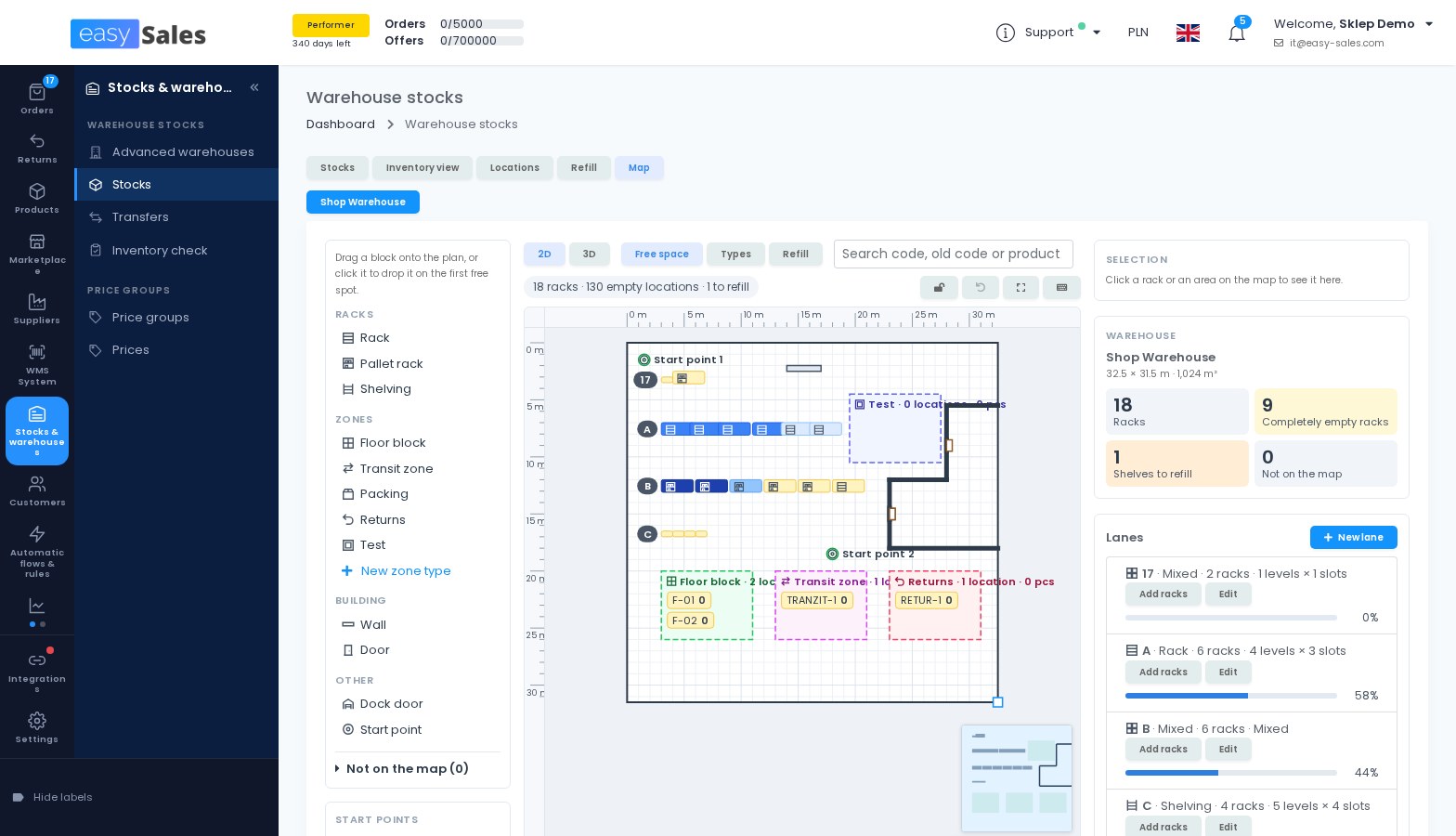
Describe your lanes, racks, levels and slots, and easySales generates the location codes, or keeps your own codes on the slots. Racks can have several picking levels under pallet levels.
The floor plan is drawn at real size, with racks, zones, walls, doors and start points, and you can drag racks onto it from a palette. A 3D view lets you walk around the plan. The map is optional: you switch it on per warehouse with "Use a warehouse map".
Where to find it: Stocks & warehouses → Warehouse stocks → Map
Scan a location to move or count its stock
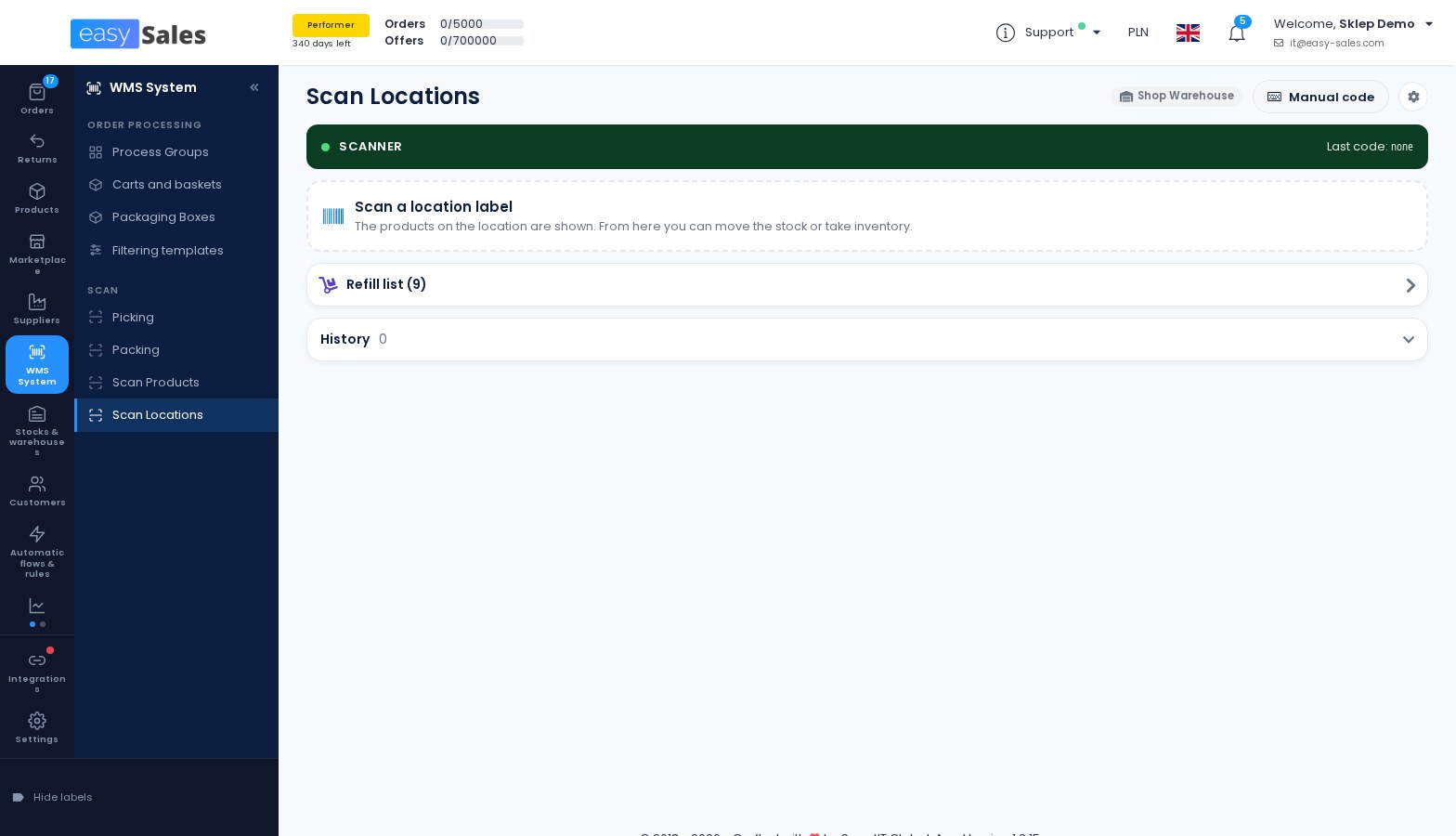
On a handheld scanner or on a desktop, you scan a location and then move products in, move them out, count it or move everything to another location in one step. Pieces already set aside for orders are shown, with a warning before you move them.
The page is built for scanners: scanning does not open the phone keyboard, large buttons replace typing, and every location keeps a history of who moved what, from where and to where. Scan Locations works only in warehouses that track stock in batches.
Where to find it: WMS System → Scan → Scan Locations
Labels and picking screens show where to pick
New variables print the pick locations of each product on the shipping label: all of them, or only the first. The Picking and Packing screens show the same locations.
In a warehouse that tracks batches, each order is given its pieces when they are first needed, for example when its label is printed, so two orders never count on the same shelf. The order history shows when pieces were set aside, changed or freed, and why. Without batches, the variables print the product's own location.
Where to find it: Integrations → Delivery → Couriers, in the notes of the courier connection, and in the flow actions that write text on the shipping label
Receive supplier goods in several deliveries
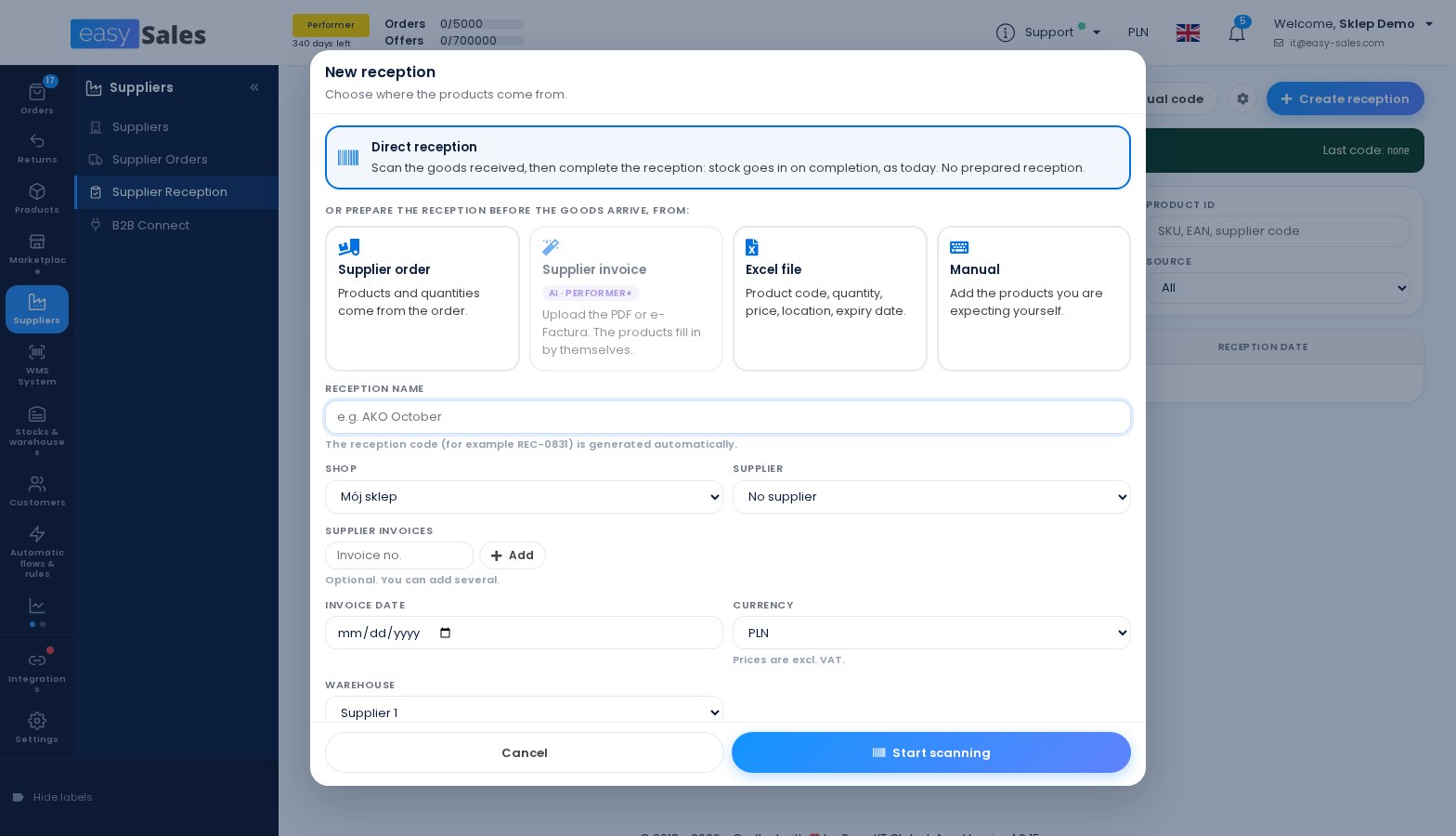
Supplier Reception has been rebuilt for desktop and handheld. You create a reception with the products you expect, and nothing goes into stock yet. The goods can arrive in one or more deliveries: you scan the products and their locations, confirm each delivery, and only the confirmed quantities go into stock.
You can complete a reception with part of the goods still missing, or cancel it when the goods are not coming. Surplus items and products that are not on the document are flagged, and each reception keeps the delivery note number, the supplier invoices and a log of who did what. Four new permissions let you decide which team members may view, receive, complete or cancel receptions.
Where to find it: Suppliers → Supplier Reception
Smaller warehouse changes
- Switch a shop to advanced warehouses in one save: you pick the warehouses on the same form, and the shop's stock no longer drops to zero while you set up the rules.
- Export several inventory check sessions into one Excel file.
- Filter locations by their position on the map, and delete several locations at once.
- Location labels in two more thermal formats, 80 × 60 mm and a large 100 × 150 mm for pallet places.
Picking and packing, rebuilt
The two screens your warehouse team uses most are now full-screen modes for scanners and desktops.
Picking, built for scanners and teams
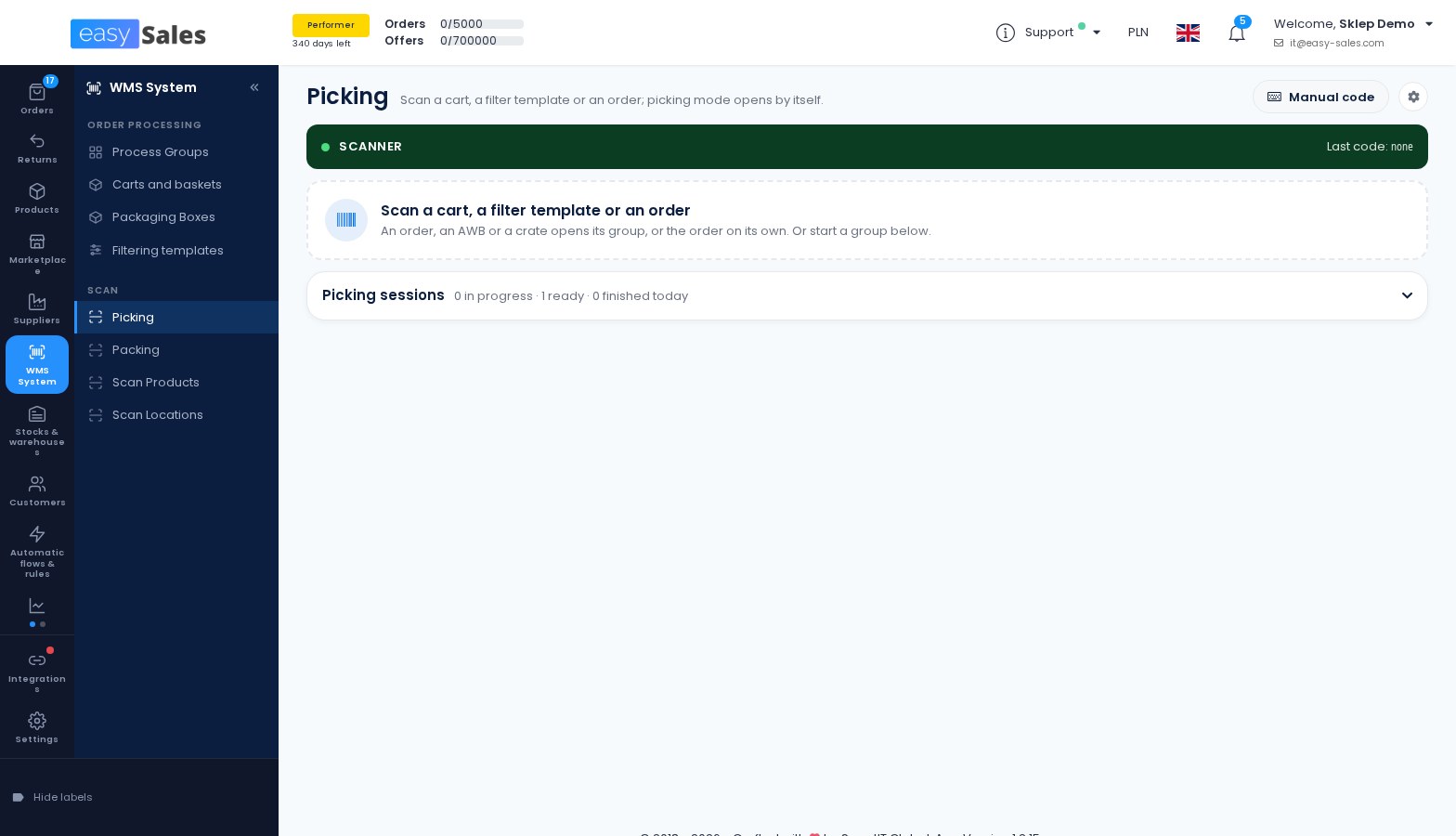
You scan a cart, a filter template, an order or an AWB, and picking opens. Products are picked by scanning them, and quantities count down. Picking sessions are kept on the server, so you can continue where you left off, several pickers can work on the same group, and every session keeps its history.
You can now pick with carts: each order gets its own basket and you sort at the shelf. When a product cannot be picked, you mark the reason: not in the location, not enough pieces, damaged or other. You can add more orders to a session by scanning their AWBs, and you can print action barcodes that mark the next product as damaged, short or not in its location with a single scan.
Where to find it: WMS System → Scan → Picking, and WMS System → Order Processing → Carts and baskets
Packing that keeps every session
Packing sessions and every packing action are now kept on the server, with a summary of each finished session and a history of past sessions. You can add more orders to an open session by scanning their AWBs, order numbers or crates, and get one picking list for the whole session.
A Run flow button can run one of your flows on the order you are packing. It is off until you switch it on.
Where to find it: WMS System → Scan → Packing
Set up packing with a live preview
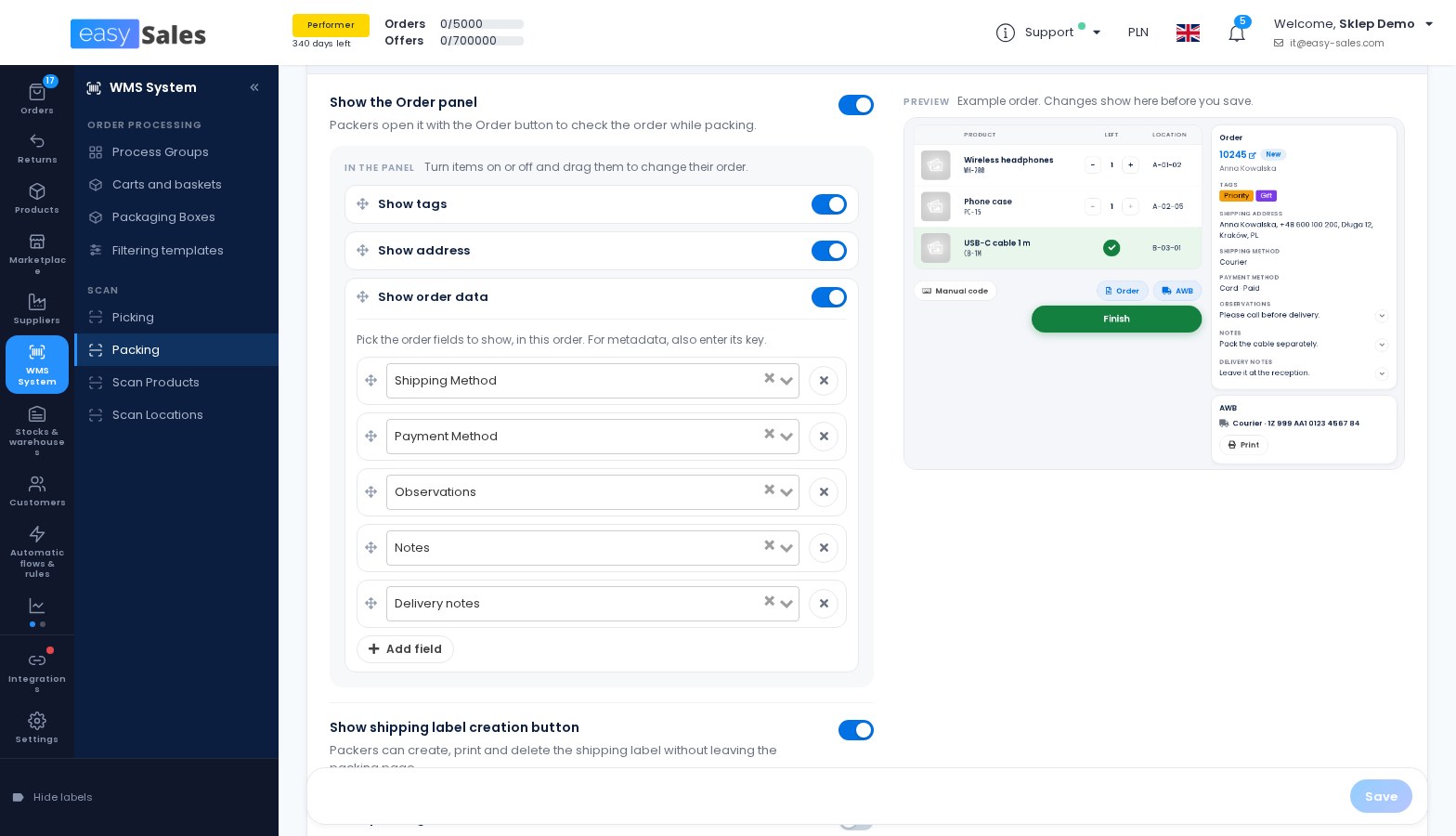
Packing settings are now one page with a live preview of the packing screen: every change shows in the preview before you save. You choose the order of the side panels and the box sizes that appear as one-tap buttons.
Under Shortcuts and barcodes you set a key combination or a barcode for each box size, for Finish, Take a picture, Print the shipping label again and for your flows, and print them all on one sheet.
Where to find it: Settings → Page settings → Packing
Switch accounts at a station by scanning a badge
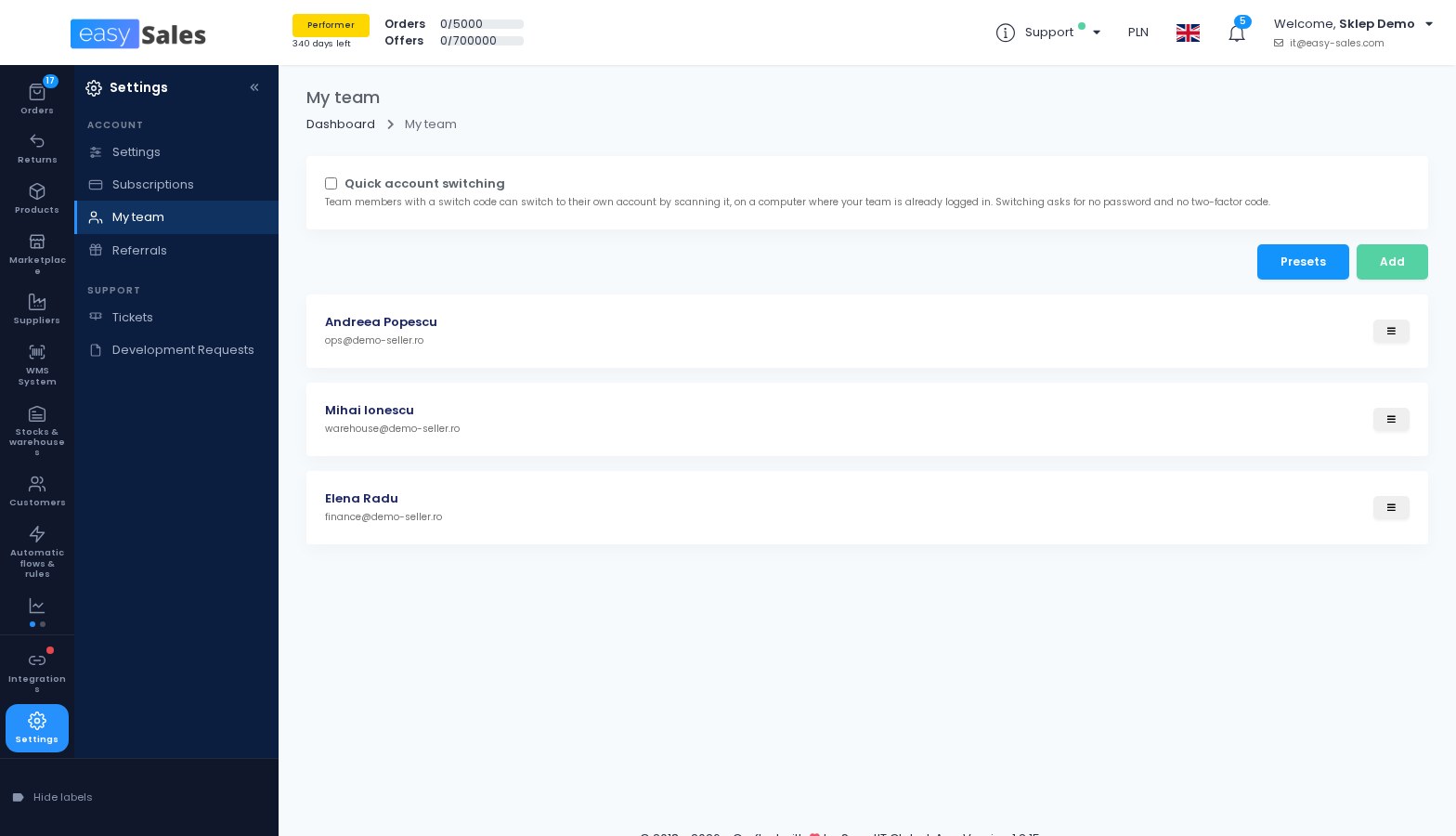
Team members who share a computer no longer need to log out and in. Each member gets a badge with a switch code; scanning it moves the station to their account, with no password and no two-factor code. You can ask for a PIN as well, and generating a new code cancels the old badge.
Quick switching is off until the account owner switches it on.
Where to find it: Settings → Account → My team → Quick account switching
Print product and shelf labels, straight to a printer
Print labels with the product name, the price with tax and a barcode of the EAN, or of the SKU when there is no EAN, plus optionally the SKU, location and brand. Choose A4 sheets or thermal labels, one label per product or one per unit, download them as PDF or send them to a printer connected to easySales.
A new flow action, Print product labels, prints a product's labels once, for example when the product is created.
Where to find it: Products → select products → Print labels
Every page's settings in one place
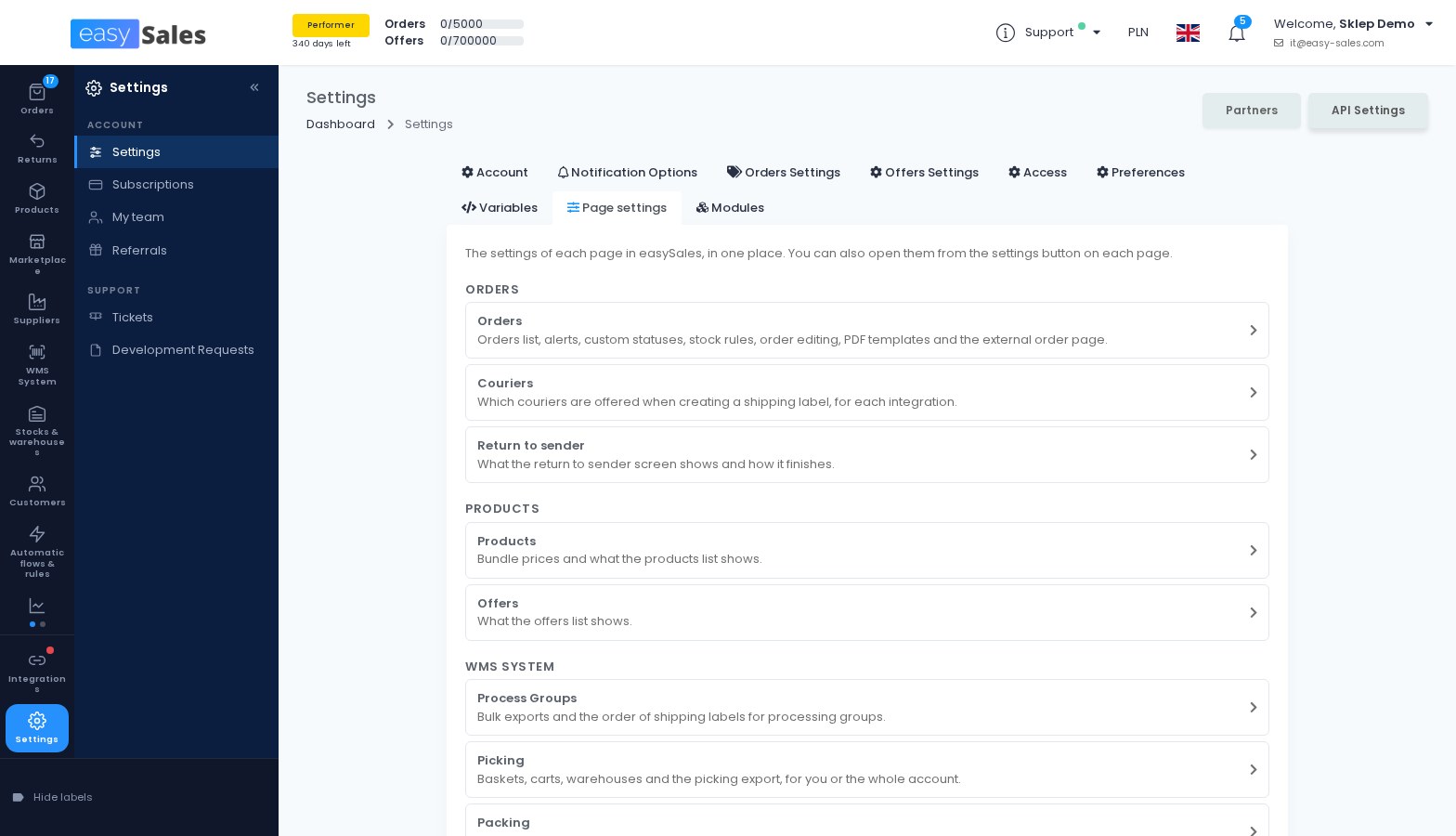
A new Page settings tab lists the settings of every page you can open, from Orders and Couriers to Picking, Packing, Supplier Reception and Tickets, each with a one-line description. You can still open them from the settings button on each page.
Where to find it: Settings → Page settings
A new orders list
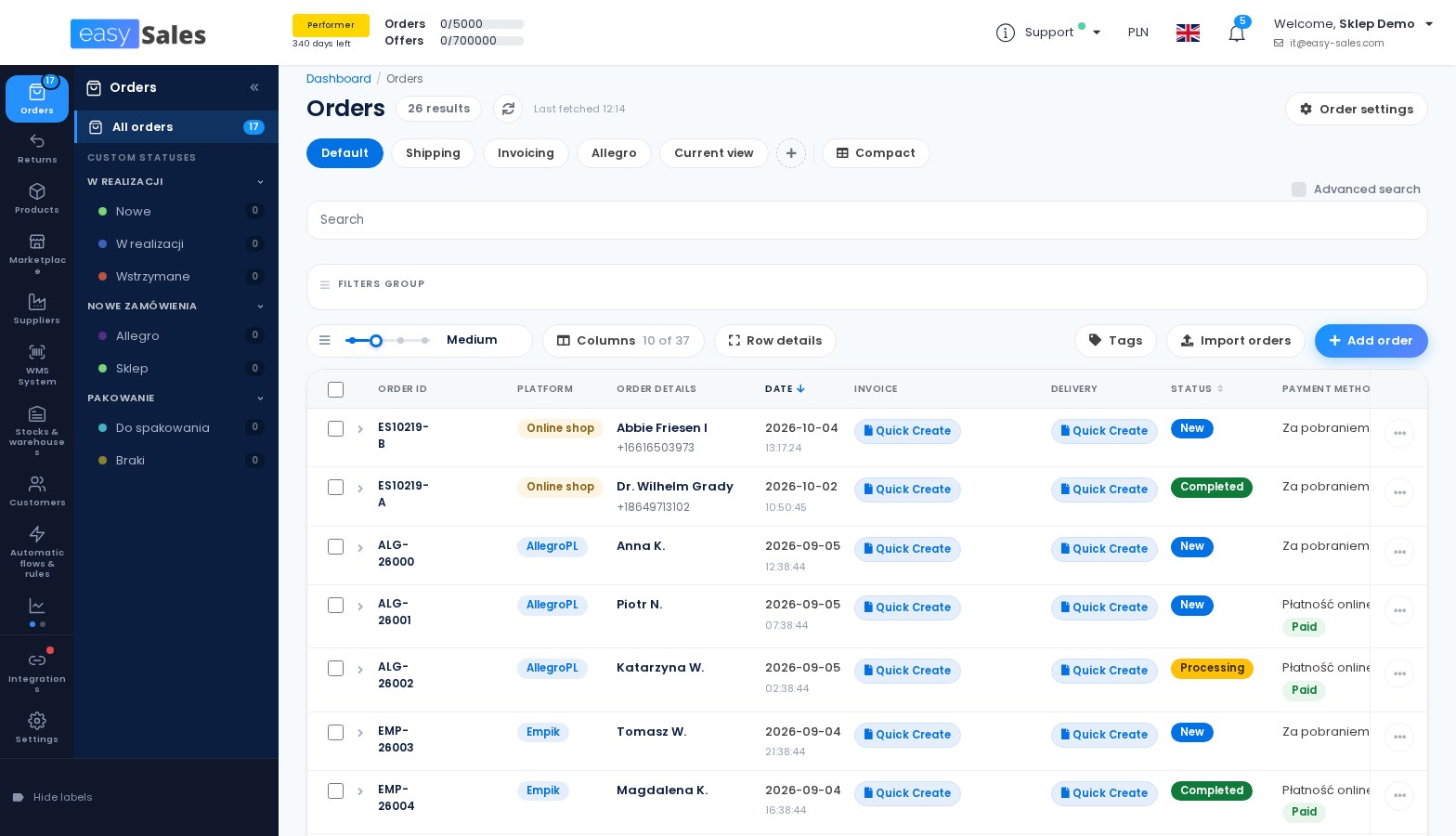
The orders list has been rebuilt for every account, around the way you actually work through orders.
Your columns, your density, your views
A new toolbar and a bulk action bar for the orders you select. A columns drawer lets you show, hide and reorder columns, saved per user and per view, and the rows come in four densities. Each row has its own actions menu with Print label, Print invoice and Open order, and you can select all orders across pages at once.
Tags are managed from one place: search for a tag or create it by typing its name, tick it on or off for the selected orders, preview what will be added or removed, then apply everything at once.
Where to find it: Orders
See which emails and messages reached the buyer
Two new columns show, for each order, whether the emails and the SMS or WhatsApp messages sent to the buyer went out, failed or are still waiting. New filters find the orders with a failed email or a failed message in one click.
Where to find it: Orders → Columns, and the Emails & messages filters
Change the product on an order line, and keep the price
Replace the product on an order line with a variant of the same product, or with any product found by SKU, name or EAN. The order price is kept by default, so the order total and the cash on delivery amount stay the same, and the reserved stock follows the new product.
Where to find it: the order page → a product line → Actions → Change product
Smaller changes on orders
- Complete orders from the row menu, or many at once from the bulk action bar. Orders that cannot be completed are skipped and counted.
- Search by up to 200 invoice numbers at once, pasted straight from Excel.
- Sort by the time an order arrived in easySales, with a hint when it arrived late.
- Show the internal order ID in the list instead of the marketplace or shop number.
- Column headers and pagination stay in view while you scroll, and a larger product image appears when you rest the mouse on a thumbnail.
- A link next to each offer ID opens the product's public page on the marketplace.
- Under each amount converted to your currency, the order page can show the amount in the order's own currency.
- Orders from online shops show the payment status exactly as the shop sent it, and flows can filter on it.
- The orders Excel export can include the delivery date, the delivery history and the maximum delivery date.
New channels and connections
Two new marketplaces in Poland, SHEIN across Europe, OLX Poland orders and a new ERP.
Sell on Media Expert and Super-Pharm in Poland
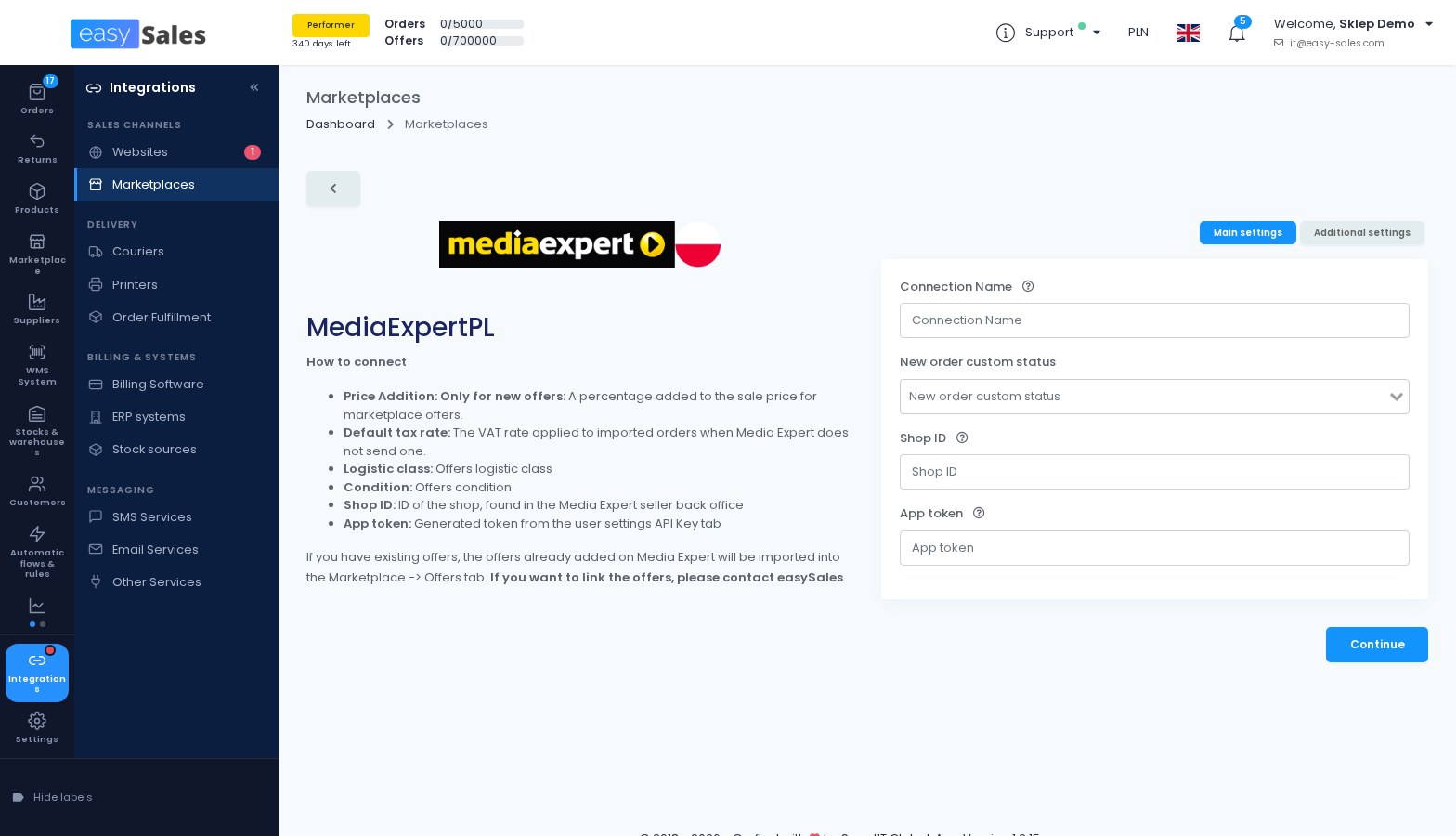
Media Expert, the Polish consumer electronics and home appliances marketplace, connects with the Shop ID and API key from your Media Expert account. easySales publishes your offers, keeps price and stock in sync, imports the offers you already have and your orders, and sends tracking numbers and invoices back to Media Expert.
Super-Pharm Partner connects with the Shop ID and API token from the Super-Pharm Partner panel. easySales publishes your offers, syncs price and stock, imports your orders and sends tracking numbers. Invoices are not sent, because Super-Pharm invoices the customer itself.
Where to find it: Integrations → Sales channels → Marketplaces
SHEIN on eleven European markets, from one connection
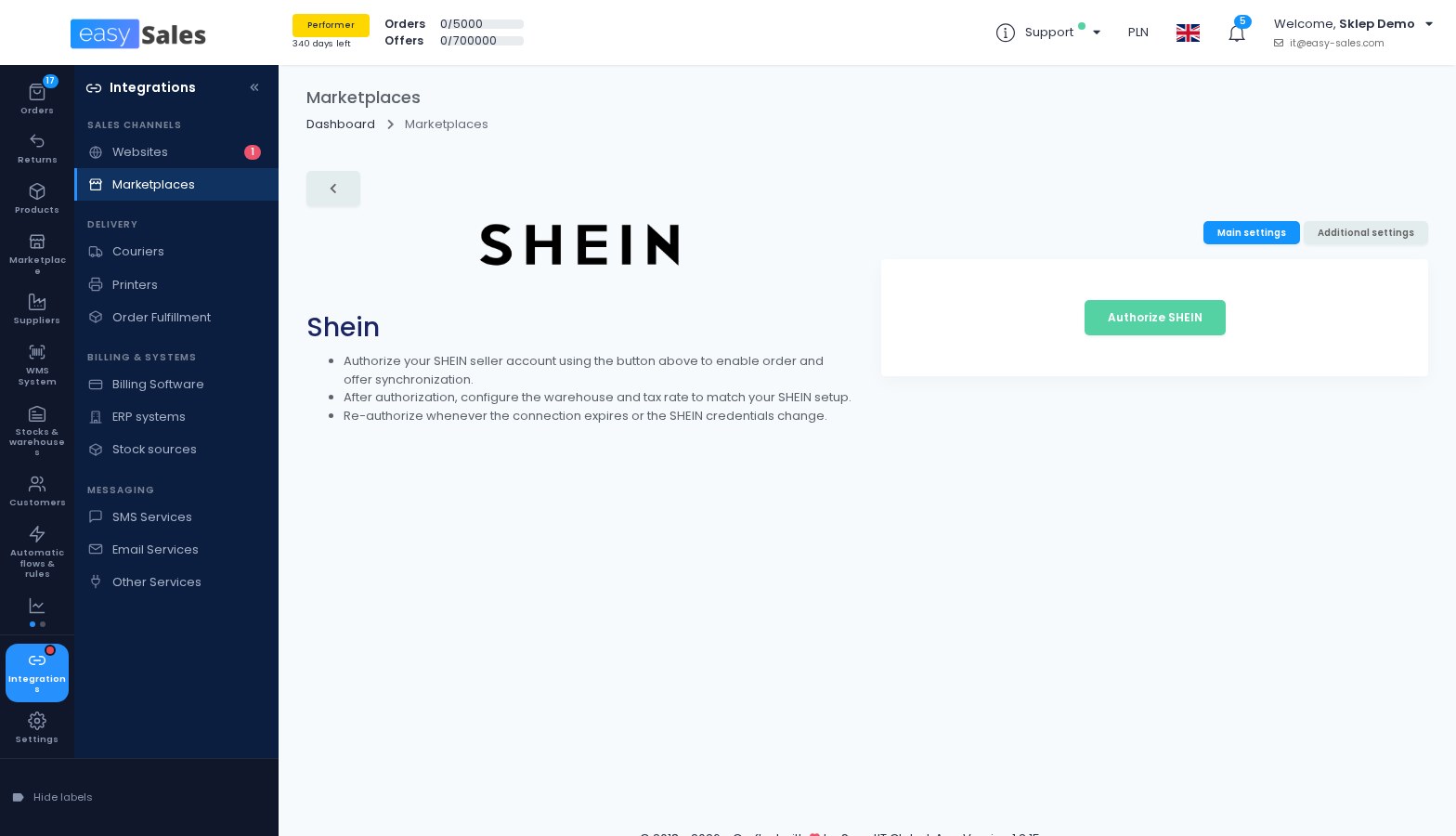
One SHEIN connection now sells on every SHEIN market approved for your store: Romania, Austria, Switzerland, Germany, Spain, France, Italy, the Netherlands, Poland, Portugal and Sweden. Each market has its own VAT rate, price addition, delivery days and warehouse, and each offer carries a price per market.
SHEIN offers also carry an EAN, taken from the product, which is sent to SHEIN as the listing barcode.
Where to find it: Integrations → Sales channels → Marketplaces → SHEIN
OLX Poland orders, labels and stock
Orders bought with OLX delivery in Poland now come into easySales. You accept them automatically or by hand, and easySales downloads the OLX shipping label as the AWB. You can also send your available stock, up to 1,000 pieces, to the adverts that use OLX delivery. All three options are off until you switch them on.
Where to find it: Integrations → Sales channels → Marketplaces → OLX Poland
Comarch ERP Optima, for orders, invoices and stock
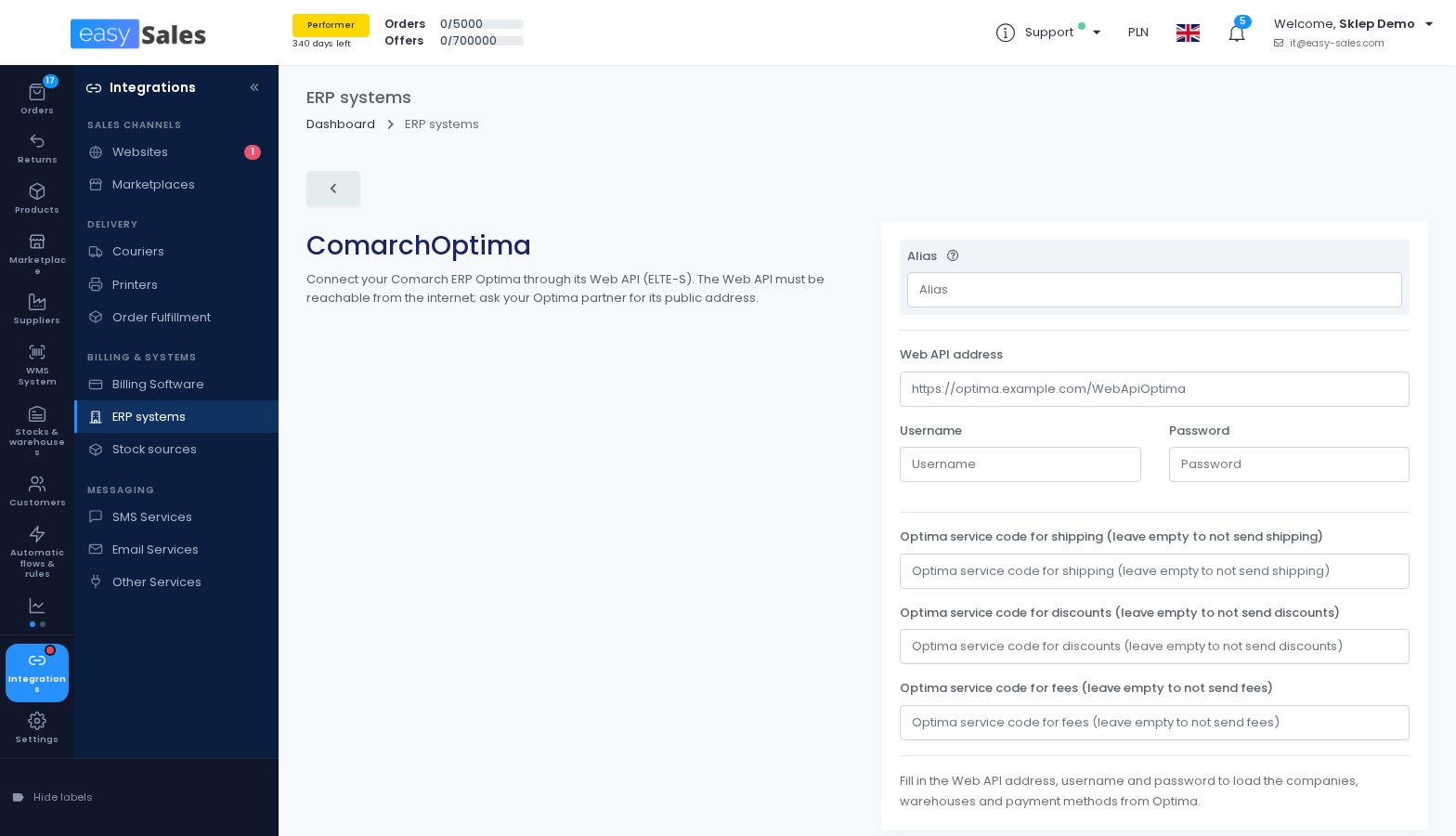
Connect Comarch ERP Optima through its Web API. easySales sends your orders to Optima as sales orders and issues invoices and receipts in Optima, with the WZ stock release if you want it, and the PDF comes back to easySales and to the marketplace. Optima stock can also be used as a stock source.
Products are matched on the Optima code, then the SKU, then the EAN. Invoices issued in Optima are sent to KSeF by Optima itself.
Where to find it: Integrations → Billing & systems → ERP systems
Subiekt nexo PRO: more invoice options and new products imported
Invoicing through Subiekt nexo PRO gets the options Subiekt GT already had, among them the VAT operation type, currency conversion for orders not in PLN, receipt fiscalisation and the invoice author. Both Subiekt GT and nexo PRO can now find products by SKU, EAN or supplier SKU.
Products you mark for the online shop in Subiekt nexo PRO are created in easySales once, hourly or on demand, either in the Virtual Shop or directly in a connected Shopify store.
Where to find it: Integrations → Billing & systems → ERP systems and Billing Software
New couriers and shipping
Five new courier integrations, Poczta Polska abroad and more control over which couriers you are offered.
Paxy, for parcels from Poland to other countries
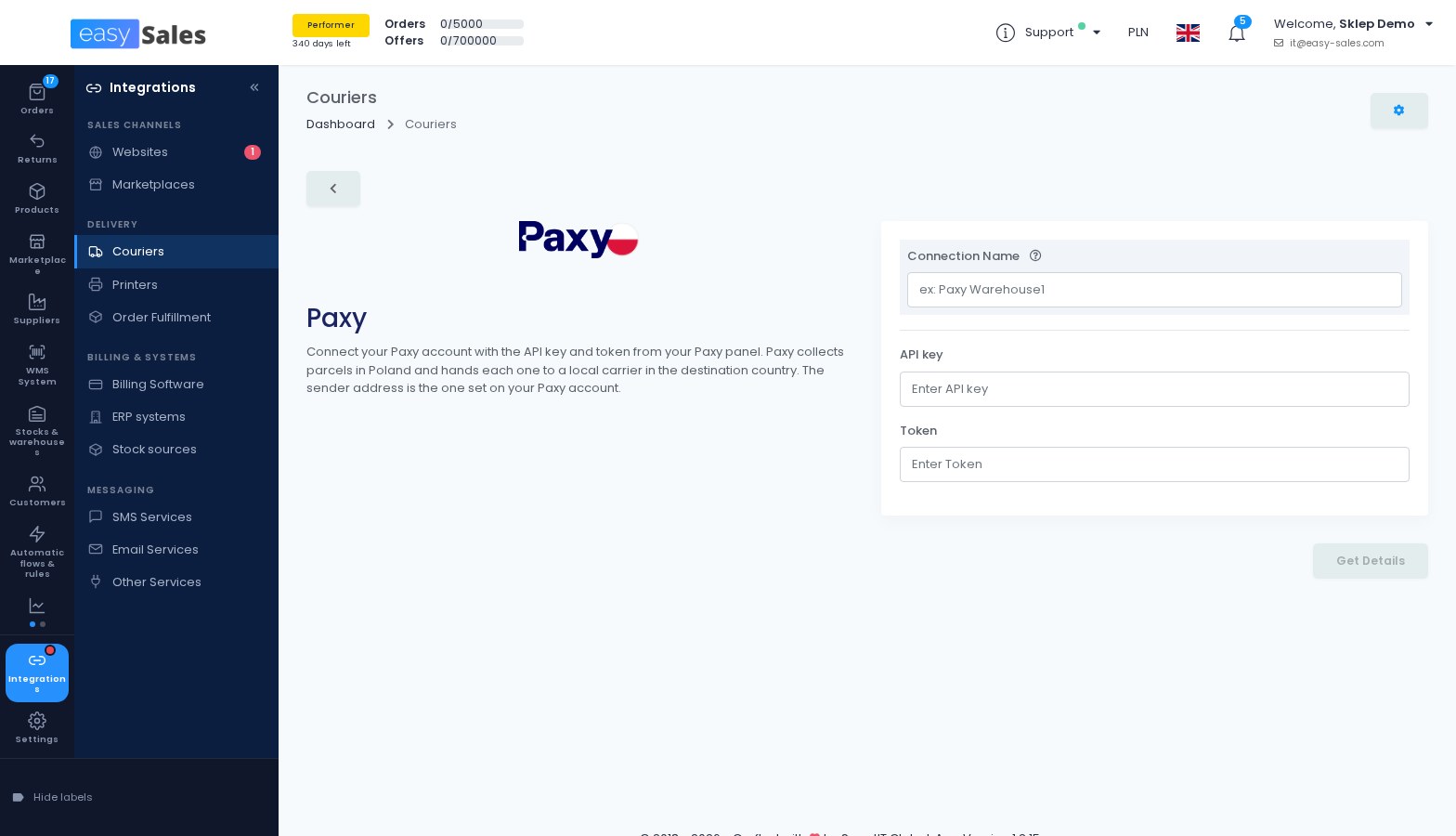
Paxy collects your parcels in Poland and hands each one to a local carrier in the destination country. You choose a carrier and a package type for each destination country your Paxy account offers, and easySales groups the parcels into one book per country. Cash on delivery is supported and converted to the destination country's currency.
Where to find it: Integrations → Delivery → Couriers
Menedżer Wysyłek, on your own contract
Connect your Menedżer Wysyłek account and add one connection for each service you use. easySales creates the labels, orders the courier pickup after each AWB and follows the delivery status. Locker services deliver to InPost Paczkomaty and to DHL Packstations, and on Allegro orders the tracking is reported under the real carrier.
Where to find it: Integrations → Delivery → Couriers
Geis, for pallets and groupage
Geis Poland, Czech Republic and Slovakia are now available for freight on pallets and groupage, with standard or home delivery. easySales creates the labels, books the daily pickup by itself and prints the pickup list per day. Cash on delivery is available to recipients in Poland, the Czech Republic, Slovakia and Hungary.
Where to find it: Integrations → Delivery → Couriers
BOX NOW lockers in Bulgaria, Greece, Cyprus and Croatia
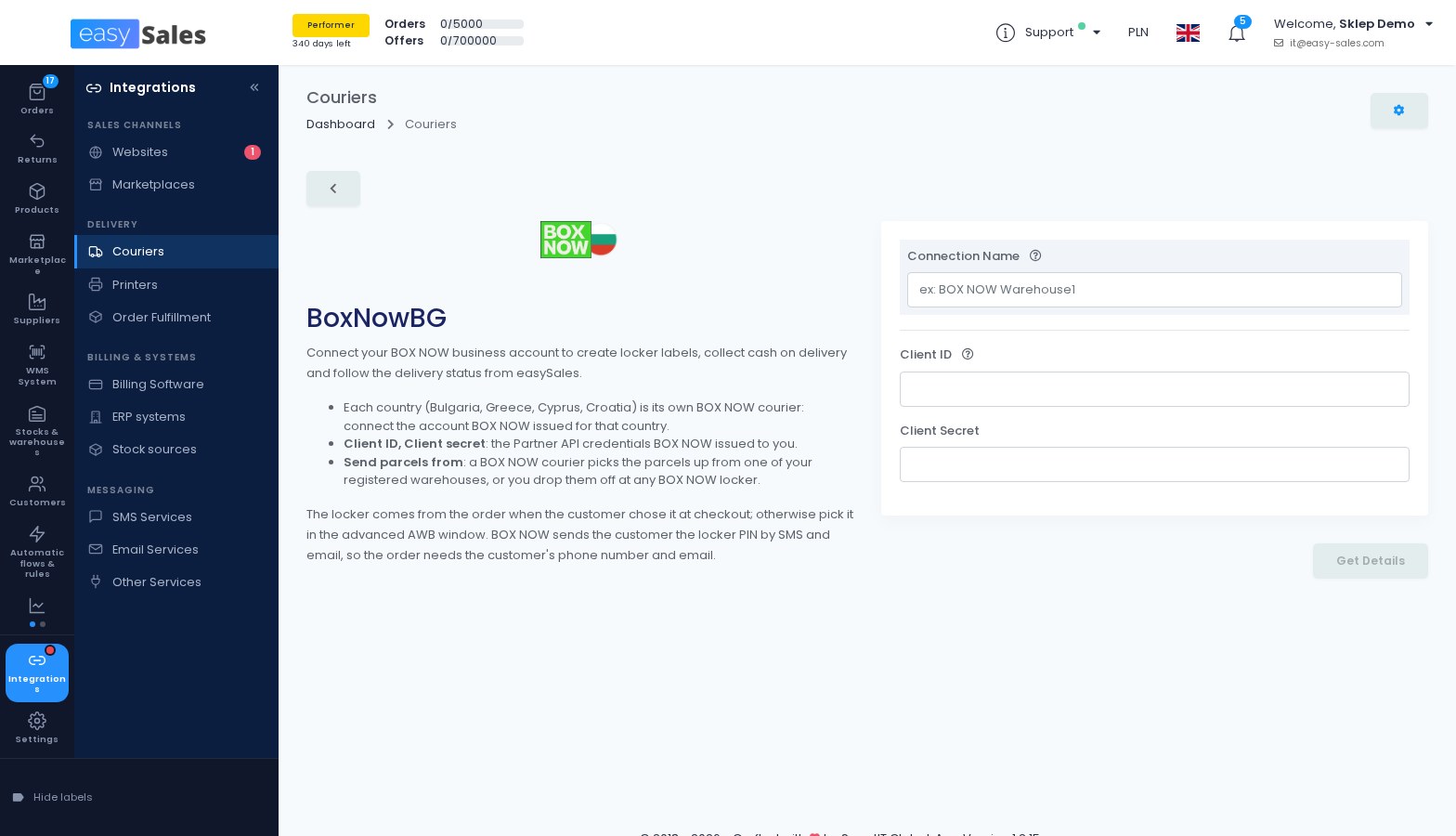
Create BOX NOW locker labels, collect cash on delivery and follow the delivery status. You choose whether a BOX NOW courier picks up from your warehouse or you drop parcels off at any BOX NOW locker, and set a default compartment size. The locker comes from the order when the buyer chose it at checkout, otherwise you pick it when creating the AWB.
BOX NOW sends the locker PIN by SMS and email, so the order needs the buyer's phone and email.
Where to find it: Integrations → Delivery → Couriers
Poczta Polska ships abroad
Poczta Polska now sends registered and ordinary letters abroad, international parcels, EMS, GLOBAL Expres and declared-value letters. With customs clearance switched on, the declaration for destinations outside the EU is built from the order and sent automatically. Labels are also available in ZPL for thermal printers.
You can also collect the day's shipments in one batch, send it to the post office when you are ready and download its dispatch book.
Where to find it: Integrations → Delivery → Couriers → Poczta Polska
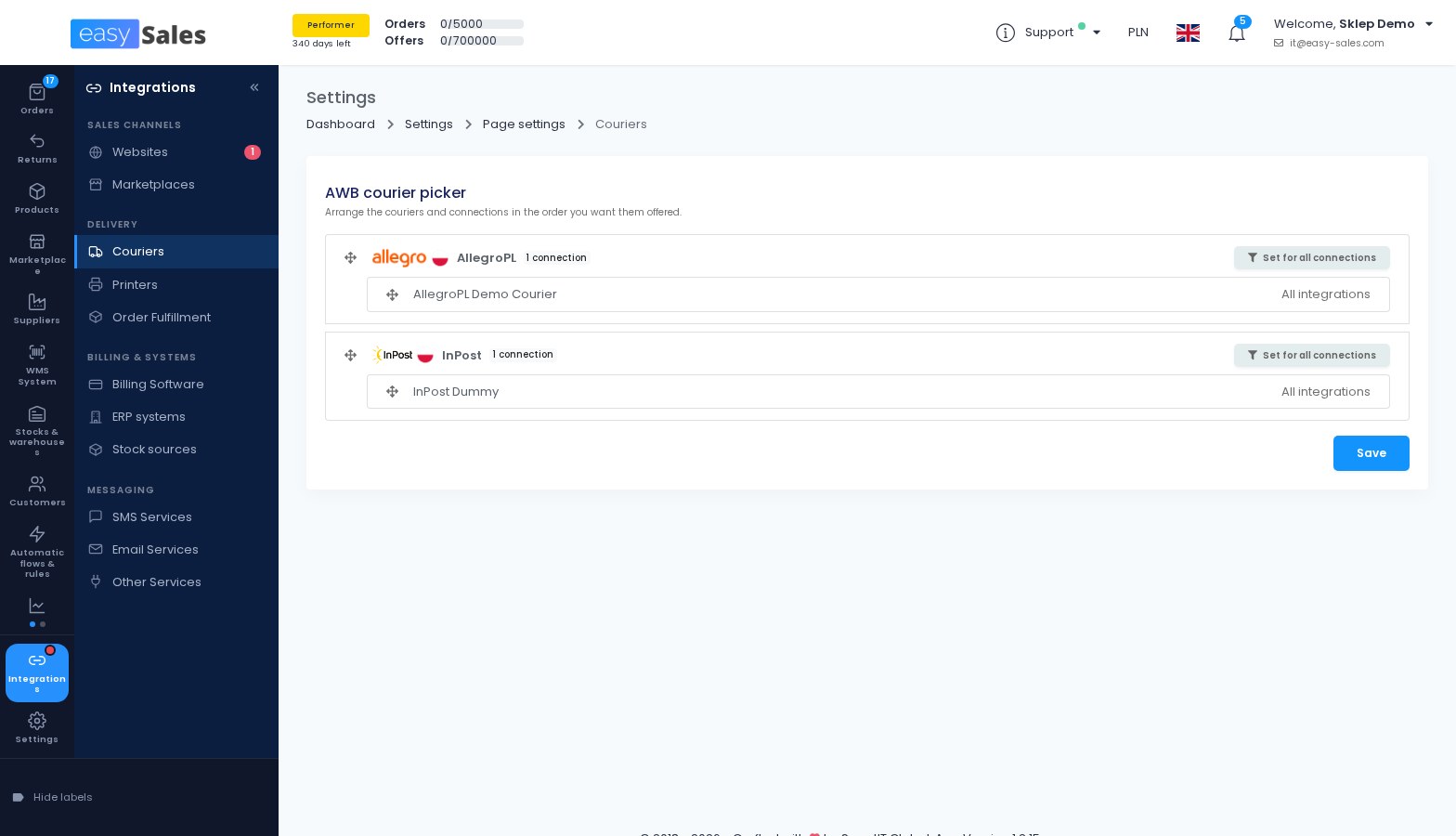
Choose which couriers you are offered, and in what order
Arrange your couriers and their connections in the order you want them offered wherever you create an AWB: on orders, in process groups, on returns and service requests. For each connection you can also choose the marketplaces and online shops it is offered for.
Where to find it: Integrations → Delivery → Couriers → settings button → AWB courier picker
Smaller shipping changes
- DHL24 can call the courier automatically after each AWB, in the next pickup window DHL24 offers.
- Allegro shipping can book the courier pickup for the same day when the AWB is created before the end of pickup hours.
- Global24 moves to its new API when you add an API token, with customs data for the United Kingdom and Ukraine.
- FAN Courier fulfillment can use a phone number of your choice for orders that come without one.
- Scanning a FAN Courier return label on the Return to sender page now finds the original order, even when FAN Courier sent the parcel back on a new AWB.
- Process groups can print single-product AWBs grouped by product, so identical parcels are packed together.
Returns
More returns come in by themselves, and the products you do not put back on the shelf are no longer forgotten.
Returns from six more channels arrive by themselves
Return requests from Allegro, Skroutz, Decathlon, Empik and Kaufland are now imported automatically, attached to the original order, with the reason and status. On Allegro, Decathlon, Empik and Kaufland, your decision in easySales is sent to the marketplace. MerchantPro returns can be imported too, once you switch it on in the shop's preferences.
Importing a return never changes stock: the stock goes back only when you complete the return.
Where to find it: Returns
Keep track of returned products you did not restock
When a return is completed without putting the stock back, its products are listed on a new page as Pending. You then mark each one, or several at once, as resealed, discarded or processed. The page lists returns completed from 14 October onwards.
On returns and service requests, you can also record the AWB number alone, without a PDF, and pick the courier from a list.
Where to find it: Returns → Returned products not restocked
Online shops and suppliers
More shops receive your orders, and Shopify shows your invoices.
Send orders to PrestaShop, MerchantPro and Gomag
Orders from your marketplaces and manual orders can now be sent into your PrestaShop, MerchantPro or Gomag shop, by hand or with a flow, with a mapping of your payment methods. PrestaShop also maps your order statuses, and a new flow action sets the PrestaShop status of a shop order.
This joins the Shopify, Shoper and IdoSell shops from September.
Where to find it: Integrations → Sales channels → Websites → your shop → Submissions
Smaller changes for online shops and suppliers
- Shopify: the easySales invoice number, date and link are written on the Shopify order and kept up to date.
- Shopify: GLS lockers chosen through the Xconnector app arrive as locker deliveries.
- MerchantPro: import orders in the currency the buyer paid, and choose whether to import exchange orders.
- Shoper: the delivery method, pickup point and payment status come in with the order.
- Additional descriptions you list once per shop appear on every product, ready to fill.
- B2B Connect: choose whether supplier products are created in your Virtual Shop or only linked by SKU, and a new import keeps the mappings you already made.
Marketplaces day to day
More control over prices, invoices and product data on your marketplaces.
Decide when invoices go to the marketplace
On about ninety marketplaces you can now choose whether an invoice is sent automatically once it is generated. When you switch it off, the invoice waits, and you send it later from the order or with a new flow action. It stays on by default, so nothing changes unless you decide.
Where to find it: Integrations → Sales channels → Marketplaces → your connection → Send invoice to marketplace after generating
Take the sale price from a price group
A marketplace connection can now take its offers' sale price from a price group instead of the catalog price. When a price in the group changes, the offers are re-priced and sent automatically. The price addition of the connection is not applied to prices from the group.
Where to find it: Integrations → Sales channels → Marketplaces → your connection → Sale price source
Enter GPSR details once, on the product
Product safety information, the manufacturer and the EU representative can now be filled in on the product, by hand or by import. They are copied to the product's offers on eMAG Romania, Bulgaria and Hungary, Fulfilled by eMAG included, and FashionDays Romania, Bulgaria and Hungary.
Where to find it: Products → a product → Product safety (GPSR)
Smaller marketplace changes
- eMAG and FashionDays offers can feed your own custom feeds, with the best price, your buy-button position, lost buy button and stock on the marketplace, and the offers list shows your buy-button position as "2 of 7".
- Allegro: import draft offers as disabled offers, filter offers by their Allegro status, and copy the images of products imported from Allegro Poland into easySales.
- Trendyol Romania and Greece can receive your titles and descriptions exactly as written, in the local language.
- Compari offers can carry the Oversize, BasketDisabled and DeliveryCostByProduct settings.
- The Erli feed now includes inactive and out-of-stock products, and feeds built from Allegro offers carry the Allegro VAT rate and stock.
PulseAI
PulseAI, the easySales AI, now covers more marketplaces and tells you more about its work.
PulseAI completes your OLX and Decathlon offers
New offers on OLX Poland, OLX Romania and the Decathlon marketplaces can now be completed by PulseAI and held for your review before they are sent, as on eMAG, Trendyol and Allegro. The Autofill values with PulseAI button on these channels uses the same improved engine, and checks before sending catch offers the marketplace would refuse.
Where to find it: Integrations → Sales channels → Marketplaces → your connection → AI offer generation
PulseAI can correct the category and the product state
On eMAG, Trendyol and Allegro, PulseAI can move a new offer to a clearly better category and fill in its characteristics again. When you press Autofill values with PulseAI, it only suggests the other category and you accept or ignore it. On OLX, PulseAI can propose the product state, new, used or damaged, from the product data. Both options are off until you switch them on.
Where to find it: Integrations → Sales channels → Marketplaces → your connection → AI offer generation
See every AI completion of the last 30 days
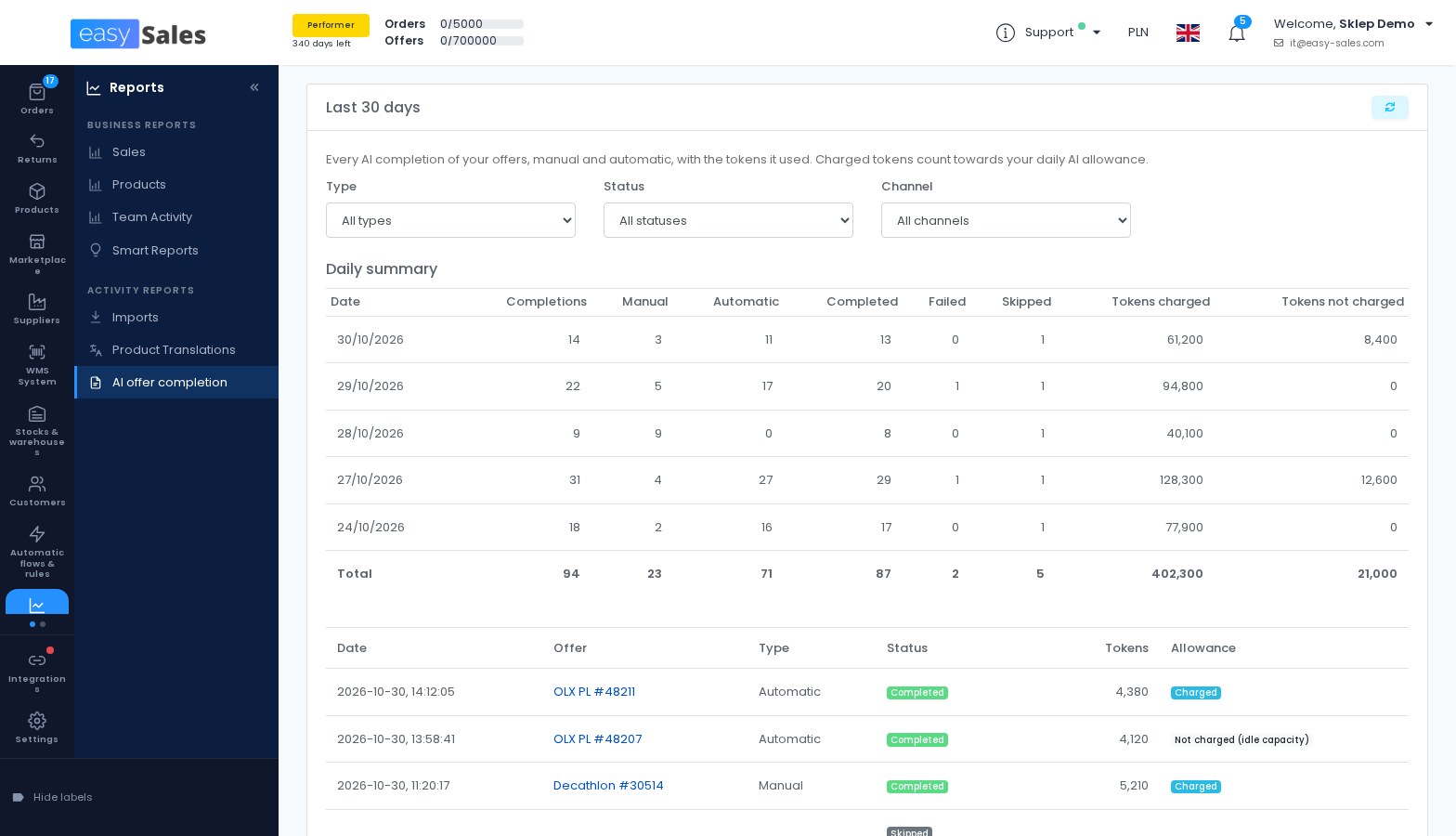
A new page lists every completion of your offers, manual and automatic, with the tokens it used and whether they counted towards your daily AI allowance, along with a daily summary and the reason when an offer was skipped.
When PulseAI has spare capacity, offers waiting because your daily allowance ran out are now completed anyway, without counting towards it.
Where to find it: Reports → Activity reports → AI offer completion
Invoicing
More control over languages, exchange rates and stock on your invoices.
The second invoice language follows the delivery country
With easySales Billing, the second language printed on invoices, credit notes and proformas can now follow the order's delivery country, across 26 languages. Countries outside the list use a fallback language you choose, and an order delivered to a country that uses the invoice's main language gets a single-language invoice.
Where to find it: Integrations → Billing & systems → Billing Software → easySales → Secondary invoice language
Choose the exchange rate date
For invoices that also show amounts in another currency, you choose which date's rate is used: the order date, the payment date or the invoice date, or the day before each. For HUF you also choose the central bank, and the invoice prints the source of the rate. Orders now store the payment date given by the marketplace.
Where to find it: Integrations → Billing & systems → Billing Software → easySales
Proformas that keep stock reserved
When stock is decreased on a new invoice, you can now list the document series, such as your proforma series, that do not decrease stock. Products on those orders stay reserved instead.
Where to find it: Orders → settings → Stocks → Series that do not decrease stock
An invoice recipient on any order
You can add, edit or remove an invoice recipient separate from the buyer, the odbiorca used in Poland, on any order. A recipient you enter is kept when the order syncs again. Erli orders now bring their recipient automatically, as Allegro orders do, and wFirma joins easySales Billing in printing the recipient when you switch that on.
Where to find it: Orders → settings → Orders → Allow adding and editing the invoice recipient
Smaller invoicing changes
- easySales Billing: set your own name for the shipping line, and print the country on the buyer and recipient details.
- KSeF: invoices for consumer sales to other EU countries are sent with the buyer country's VAT rate, declared under OSS.
- Nexus ERP: set a payment account and IBAN for each currency.
- SmartBill can receive the client's country as a country code, and NeoSys can use a separate management for the shipping line.
- Fakturownia now works without its warehouse module.
Automation flows
Flows now reach your products and offers, and you decide what happens when something fails.
List new products on your marketplaces automatically
A new action, Create product offers, lists a new product on the marketplace connections you choose as soon as it is created. When a listing cannot be created, for example because the offer already exists, the reason is written in the flow history.
Where to find it: Automatic flows & rules → Flows → Create product offers
Link imported offers to your products by themselves
A new trigger runs when an offer is imported from a marketplace, and a new action links it to a product by SKU, EAN or ID, with the same rules as the manual Auto-link.
Where to find it: Automatic flows & rules → Flows → Auto-link offer to product
Run a flow when you choose, also with a keyboard shortcut
Run an offer flow on one offer from its page, or on many from Mass Edit. A new Manual run trigger lets you build offer flows that never run by themselves. On orders, give a flow a keyboard shortcut and press it on the Orders list, on the order page or while packing.
Where to find it: Automatic flows & rules → Flows → edit a flow → Keyboard shortcut
Decide what happens when an AWB or an invoice fails
The Create AWB and Create invoice actions now have an "If it fails" section. Each case can look for a text in the error message and then set a custom status or add tags to the order, so failed orders are easy to find and can be routed automatically. The cases also run when an invoice fails later in your billing software or ERP.
Where to find it: Automatic flows & rules → Flows → Create AWB or Create invoice → If it fails
Smaller flow changes
- A new trigger runs when a product could not be picked, with the reason as a filter.
- Conditions on product names, product tags and delivery notes accept a list of values, and a new filter checks the invoice series.
- Emails sent by flows are retried automatically when the mail server refuses them for a moment.
- Autofill company details can also set the billing address to the company's registered office from ANAF.
Customers, team and everything else
Smaller changes that make everyday work easier.
A price group per customer and per manual order
Choose a price group when you create a manual order, and every product takes its price from that group. A customer can have a default price group, which is selected automatically on their manual orders, and order templates remember their group too.
Where to find it: Customers → a customer → Price group, and the manual order form
Tickets: WhatsApp files, notifications and a default agent
Photos, videos, documents and voice notes a customer sends on WhatsApp are saved on the ticket, and locations, button replies and contacts appear as text. You can be notified, in the app and by email, when a customer writes, and each channel can assign new conversations to a default team member.
When a buyer asks to stop SMS or WhatsApp messages, you switch off that channel for them on the customer page, and the automatic messages on it stop.
Where to find it: Settings → Notification Options → New ticket message, and Customers → Tickets → Settings
Team Activity counts labels and invoices
Team Activity now counts the shipping labels and invoices each team member opened and printed. Work done by flows is credited to the person who started the flow, otherwise to a separate Automations row, and API actions get their own row. Two new exports count packed orders and shipping labels per courier.
Where to find it: Reports → Business reports → Team Activity
Guides inside the app, and a changelog
Setup guides now appear where you need them, on an integration's connection screen and on feature pages, and you can hide them one by one or all at once. The Support menu has Guides and Changelog entries, and the changelog lists new features as they ship.
Where to find it: the Support menu, and Settings → Preferences
More in the API
Through the API you can now change an offer's status and details, resend offers and read the requests sent to the marketplace for an offer, and change the category and characteristics of eMAG offers. Offers return their minimum and maximum price, images, errors and buy-button position.
Returns can be read through the API, with webhooks when a return is created or changes, and order events tell you when an order was picked, packed or moved to another custom status.
Everything else
- "Select all" on the Products list can select every product matching the filter, and the Products and Offers lists load faster on large catalogues.
- Sort customers by number of orders or total spent, to find your best buyers.
- A new permission shows the plan and usage to team members, while plan and subscription changes stay with the account owner.
- Supplier orders show the product image on each line, and the products export has a Stock code column.