How to Connect IdoSell to easySales — Setup, Sync & Webhooks
Step-by-step guide to connecting your IdoSell store to easySales. Covers API key setup, preferences, real-time webhooks, and shipment tracking.
easySales connects directly to your IdoSell store, importing your orders and products automatically so you can manage everything from a single dashboard. This guide walks you through the full setup — from generating your API key in IdoSell to enabling real-time webhooks and shipment tracking.
Why Connect IdoSell to easySales
If you sell on multiple channels — your own IdoSell store plus marketplaces like Allegro, Amazon, eMag, Kaufland, or eBay — managing orders and inventory across all of them quickly becomes overwhelming. Connecting IdoSell to easySales gives you:
- Centralized order management — orders from your IdoSell store appear alongside marketplace orders in one place. Process, fulfill, and track everything from a single dashboard
- Automatic inventory sync — when stock changes in easySales (from a marketplace sale, a manual adjustment, or a return), the updated quantity is pushed back to IdoSell automatically. No more overselling
- Multi-channel product management — manage your product catalog once and publish to IdoSell and 100+ marketplaces simultaneously. Update prices, descriptions, and images from one place
- Unified shipping and fulfillment — generate shipping labels, track deliveries, and manage returns across all channels without switching between platforms
- Automation flows — set up rules that trigger automatically when orders arrive from IdoSell: assign couriers, change statuses, notify your team, apply tags, and more
- ERP and invoicing — connect your accounting or ERP system (such as wFirma, Fakturownia, or SmartBill) to easySales and automatically generate invoices for IdoSell orders alongside all your other channels. You can also use easySales Billing to generate invoices directly within the platform, or connect to KSeF for eInvoicing compliance in Poland
Whether you are expanding from IdoSell to new marketplaces or consolidating existing channels into one workflow, the integration eliminates the manual work of keeping everything in sync.
Interactive tour
Don't feel like reading? Take the interactive tour.
What You Need Before Starting
Before connecting IdoSell to easySales, make sure you have:
- An active IdoSell account with admin privileges
- Access to the IdoSell administration panel
- An easySales account (free trial works)
You will need to generate an API key in your IdoSell panel. This key allows easySales to securely read your orders, products, and inventory data.
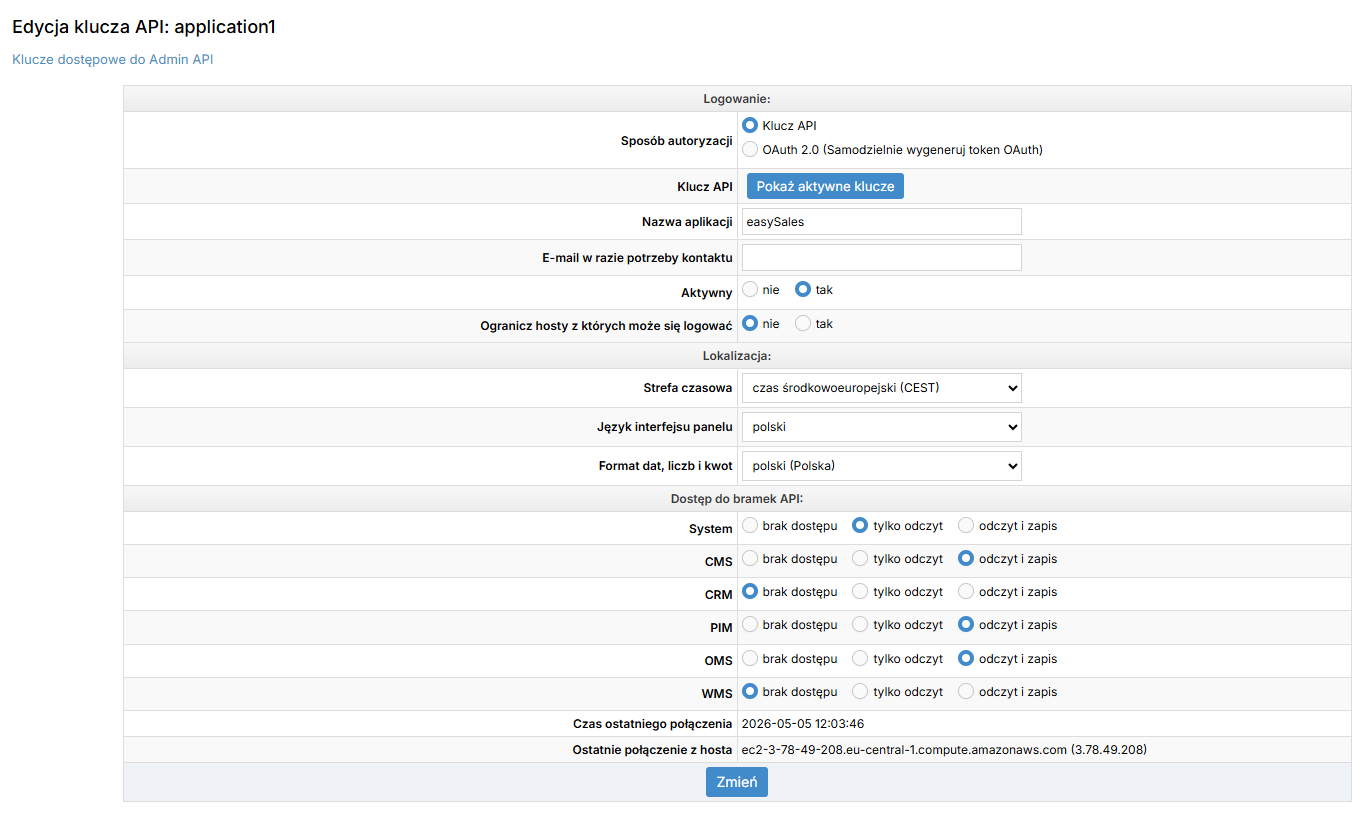
Generating Your API Key in IdoSell
- Log in to your IdoSell administration panel
- Navigate to Settings → API → Admin API Access Keys
- Click Add new key (or edit an existing one)
- Make sure the key has read permissions for OMS (orders), PIM (products), and CMS (customers)
- Copy the generated API key — you will paste it into easySales in the next step
Connecting IdoSell to easySales
Once you have your API key, connecting takes less than a minute.
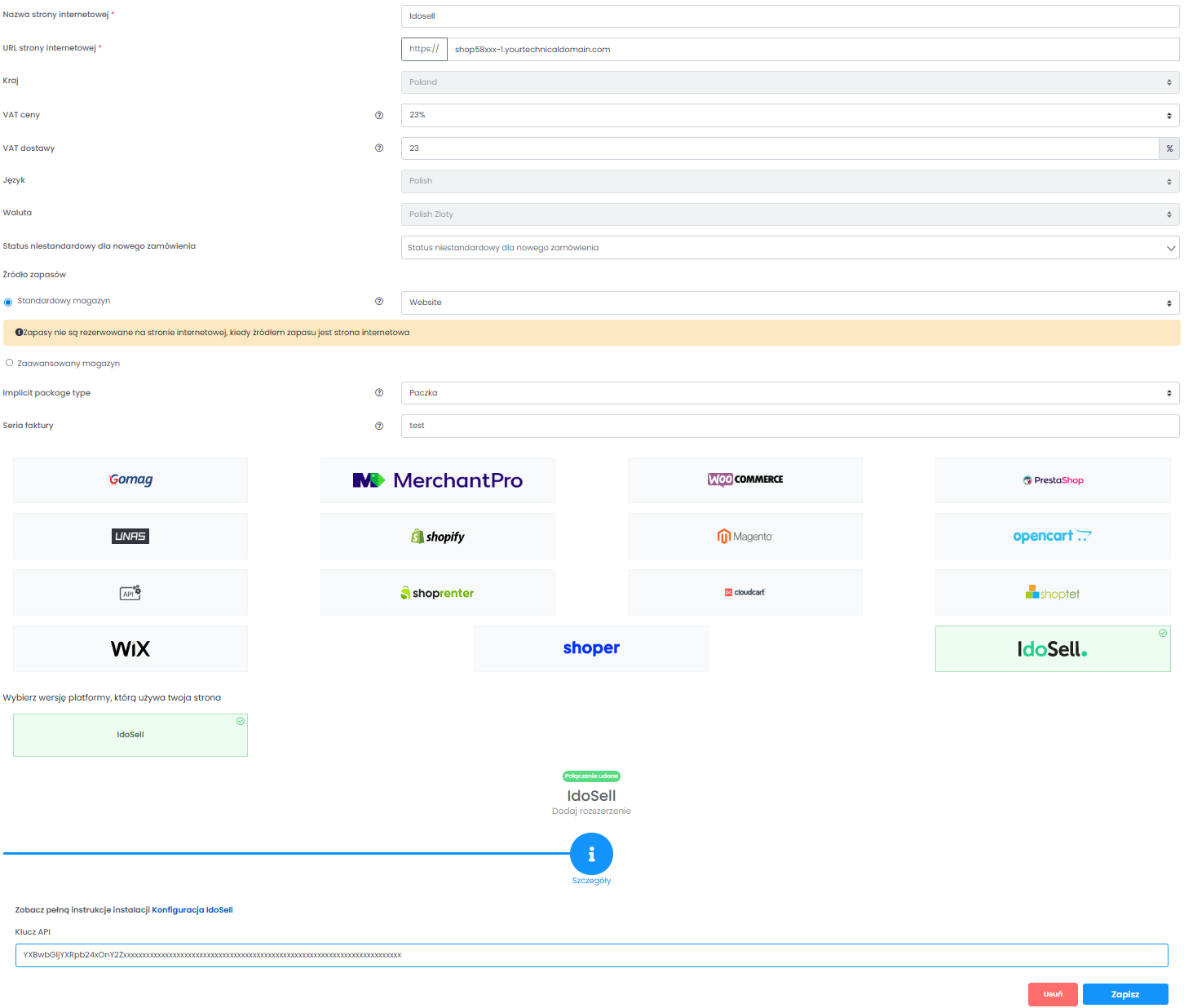
- In your easySales account, go to Integrations → Websites
- Click Connect a Website
- Select IdoSell from the platform list
- Enter your IdoSell store URL (e.g.,
https://yourshop.idosell.com) - Paste the API key you generated in the previous step
Before saving, configure the general website settings:
- Language — select the language of your IdoSell store (this determines how product names and descriptions are imported)
- Country — select the country your store operates in
- Default VAT rate — set the default tax rate applied to products and shipping (e.g., 23% for Poland, 21% for Romania)
- Currency — select the store currency
- Inventory source — choose how easySales manages stock for this website. Classic warehouse uses a single stock value per product, while Advanced stock sources lets you manage stock from multiple warehouses or locations independently
- Default custom status — if you use custom order statuses in easySales, select which status new orders from IdoSell should receive by default
If you have not yet defined custom statuses or warehouse stock sources in easySales, you can skip these fields for now and configure them later in the website settings. However, if you already have them set up, selecting them during the initial connection saves you from editing the settings afterward.
Once all settings are filled in, click Save. easySales will validate the connection and begin importing your data. Orders sync every minute, while products and categories sync every few hours.
Configuring Preferences
After connecting, you can fine-tune how easySales syncs with your IdoSell store. Go to Integrations → Websites, find your IdoSell connection, and click the edit (pencil) icon to open the Preferences tab.
Shop Scope
If your IdoSell account manages multiple shops (e.g., yourshop.pl, yourshop.ro, yourshop.hu), you can choose whether to sync data from all shops or only a specific one.
- All shops — orders and products from every shop under your IdoSell account are imported
- Selected shop — only data from the shop you pick is imported
This is useful when you have separate easySales connections per country or storefront.
Products Stock Source
This setting applies when your Inventory source is set to Classic warehouse. It controls how easySales reads your IdoSell inventory levels:
- Single warehouse — stock values come from one specific warehouse in your IdoSell account. A dropdown appears where you pick which warehouse to use
- Sum of all warehouses — stock values are the combined total across all your warehouses
How Synchronization Works
Once connected, easySales automatically keeps your data in sync:
- Orders (IdoSell → easySales) — every 1 minute
- Products (IdoSell → easySales) — every 6 hours
- Stock levels (IdoSell → easySales) — every 30 minutes
- Stock updates (easySales → IdoSell) — as changes happen
- Categories (IdoSell → easySales) — every 6 hours
You do not need to do anything to start synchronization — it begins automatically after connecting. If you want even faster updates, you can enable webhooks (described in the next section).
These sync operations are configurable. In the Sync Preferences section of your IdoSell website settings, you can enable or disable individual sync directions — for example, you can turn off order fetching if you only need product sync, or disable stock updates to IdoSell if you manage inventory elsewhere.
Setting Up Webhooks for Real-Time Sync
By default, easySales polls your IdoSell store at regular intervals. Webhooks add a faster layer on top: IdoSell pushes changes to easySales the moment they happen, so new orders and product updates appear within seconds.
Webhooks work alongside polling — you do not need to choose one or the other. Polling continues running as a safety net even when webhooks are active.
Step 1: Enable Webhooks in easySales
- Go to Integrations → Websites
- Click the edit icon on your IdoSell connection
- Open the Preferences tab
- Turn on Enable IdoSell Webhooks
- Two webhook URLs will appear — one for orders, one for products
- Copy both URLs using the copy button next to each
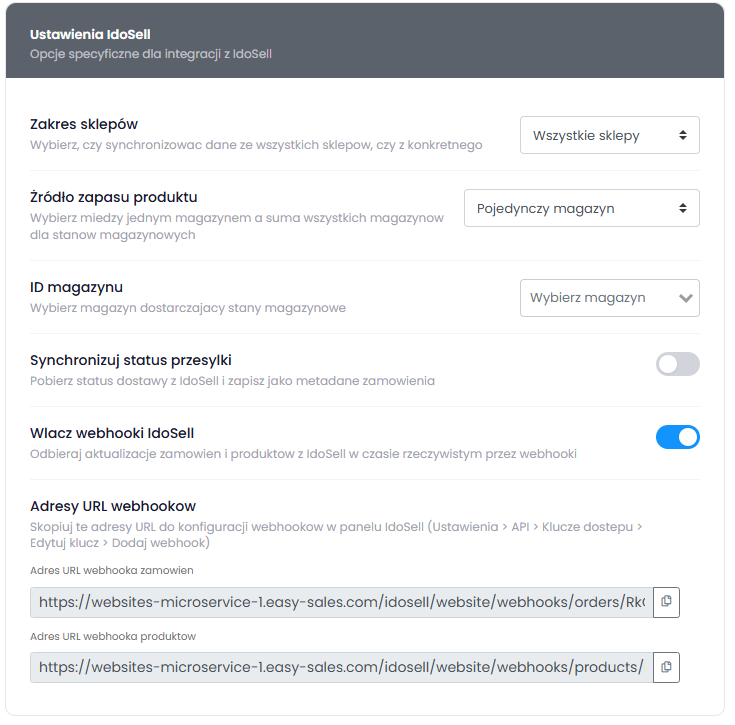
Step 2: Configure Webhooks in IdoSell
Now you need to tell IdoSell where to send notifications.
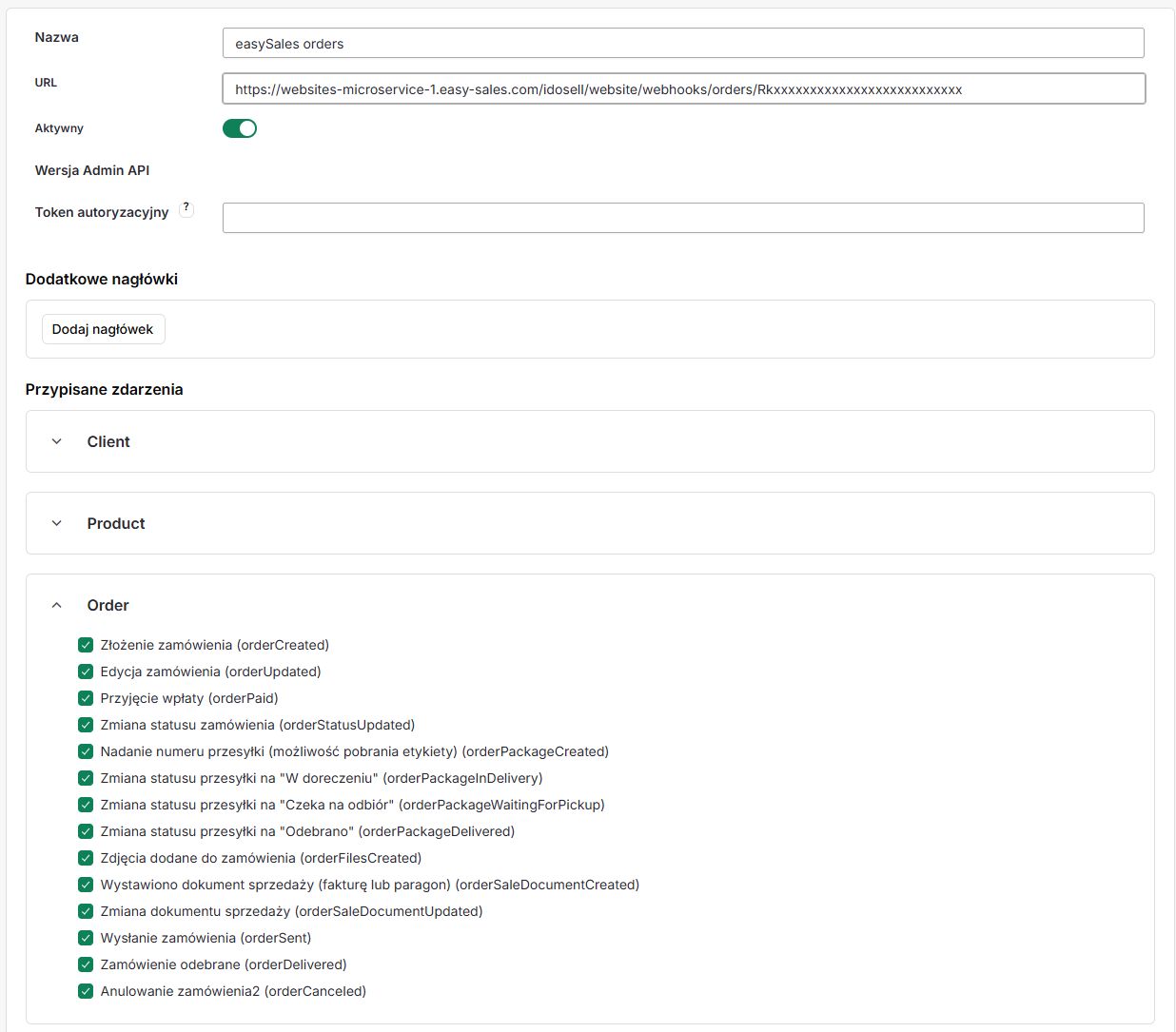
- In your IdoSell administration panel, go to Settings → API → Admin API Access Keys
- Edit the API key you use for easySales
- Click Add webhook
- For the orders webhook:
- Name: easySales Orders (or any name you prefer)
- URL: paste the orders webhook URL you copied from easySales
- Events: select all order events —
orderCreated,orderUpdated,orderPaid,orderStatusUpdated,orderPackageCreated,orderSent,orderDelivered,orderCanceled
- Save, then add a second webhook for products:
- Name: easySales Products
- URL: paste the products webhook URL from easySales
- Events: select all product events —
productCreated,productPriceUpdated,productStockUpdated,productDispositionUpdated
- Save your changes
That is it. IdoSell will now push real-time updates to easySales whenever an order is placed, a product changes, or a shipment is dispatched.
Testing Your Webhooks
IdoSell provides a built-in test feature for webhooks. After saving your webhook configuration, click the Test button next to it. You can send sample data or use a real order/product ID to verify that easySales receives the notification correctly.
If a webhook fails to deliver (network error, server unavailable), IdoSell automatically retries — every 10 minutes for the first hour, then hourly for the next 23 hours.
Tracking Shipment Status
If you manage shipping through IdoSell's built-in courier integrations (InPost, DHL, GLS, and others), easySales can display the delivery status of each parcel directly on the order.
Enabling Shipment Status Sync
- Go to your IdoSell connection Preferences tab
- Turn on Sync shipment status
Once enabled, easySales reads delivery tracking information during each sync cycle and stores it as order metadata. Each parcel appears as a separate metadata entry on the order. For example:
- delivery_62099969xxxxxx — Delivered (InPost)
- delivery_PKG-98xxx — Shipped (GLS)
The status updates automatically as the delivery progresses — from Label created to Shipped to Delivered.
This feature only applies to shipments created through IdoSell's courier integrations. If you handle shipping outside of IdoSell, no metadata will be generated.
Connect your IdoSell store to easySales
Start syncing orders, products, and shipments in minutes. Free 14-day trial — no credit card required.