How barcode scanning works in easySales: products, warehouse locations, returns and packing
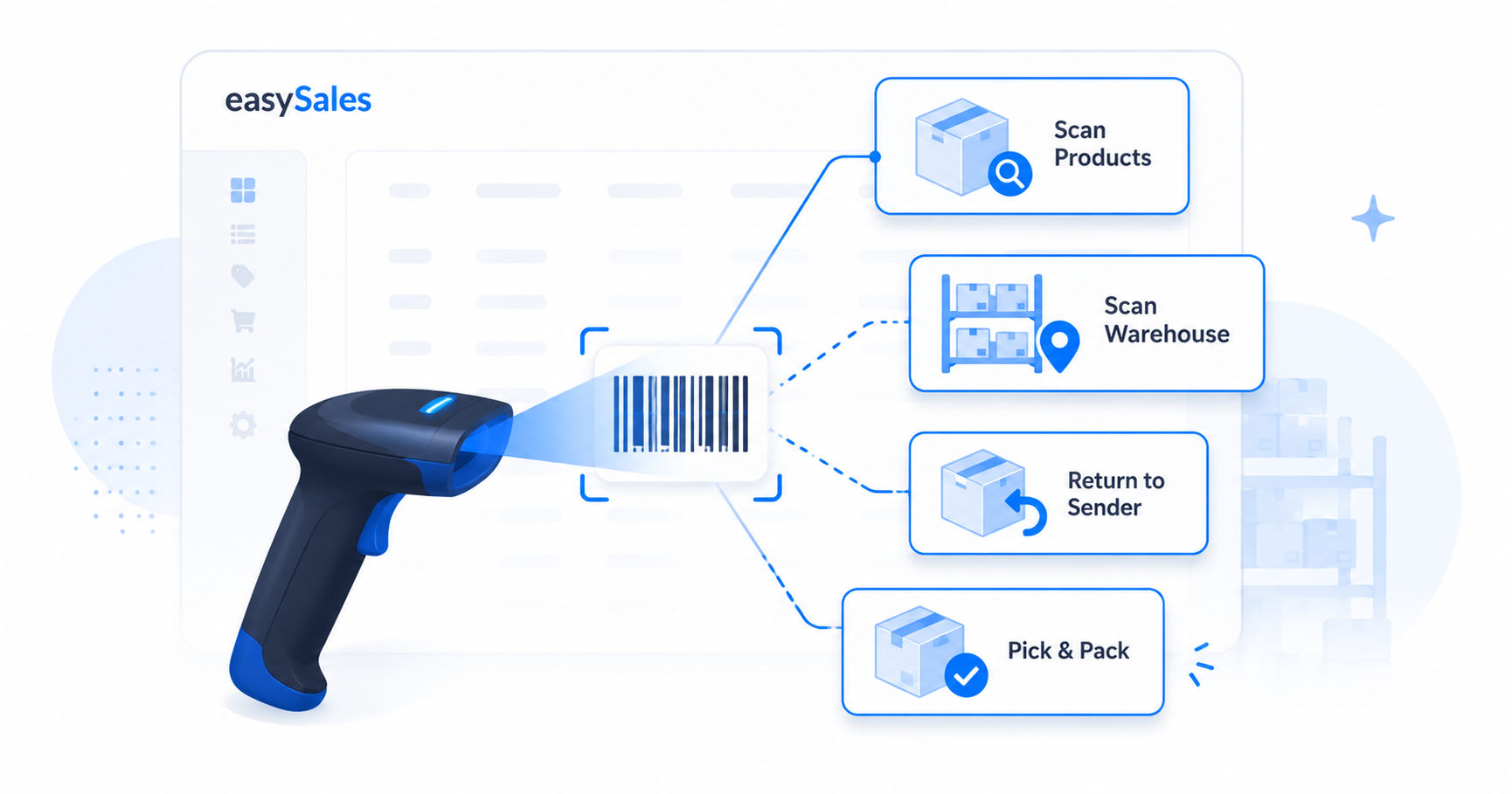
The Scan menu in easySales groups four barcode tools — find a product, tag shelf locations, handle parcels that came back, and pick & pack orders. Here's what each one does and when to use it.
A barcode scanner replaces slow, error-prone catalog work with a single quick scan. easySales groups its scanning tools under one Scan section in the left-hand menu — four tools that each solve a different warehouse problem, from looking up a single product to picking and packing a whole batch of orders.
This guide explains what each tool does, what it matches when you scan, and when to reach for which. Packing has its own in-depth guide; the other three are covered in full here.
The Scan menu — four tools at a glance
Open the Scan section (the barcode icon) in the left menu and you'll see four entries. They look similar but do very different jobs:
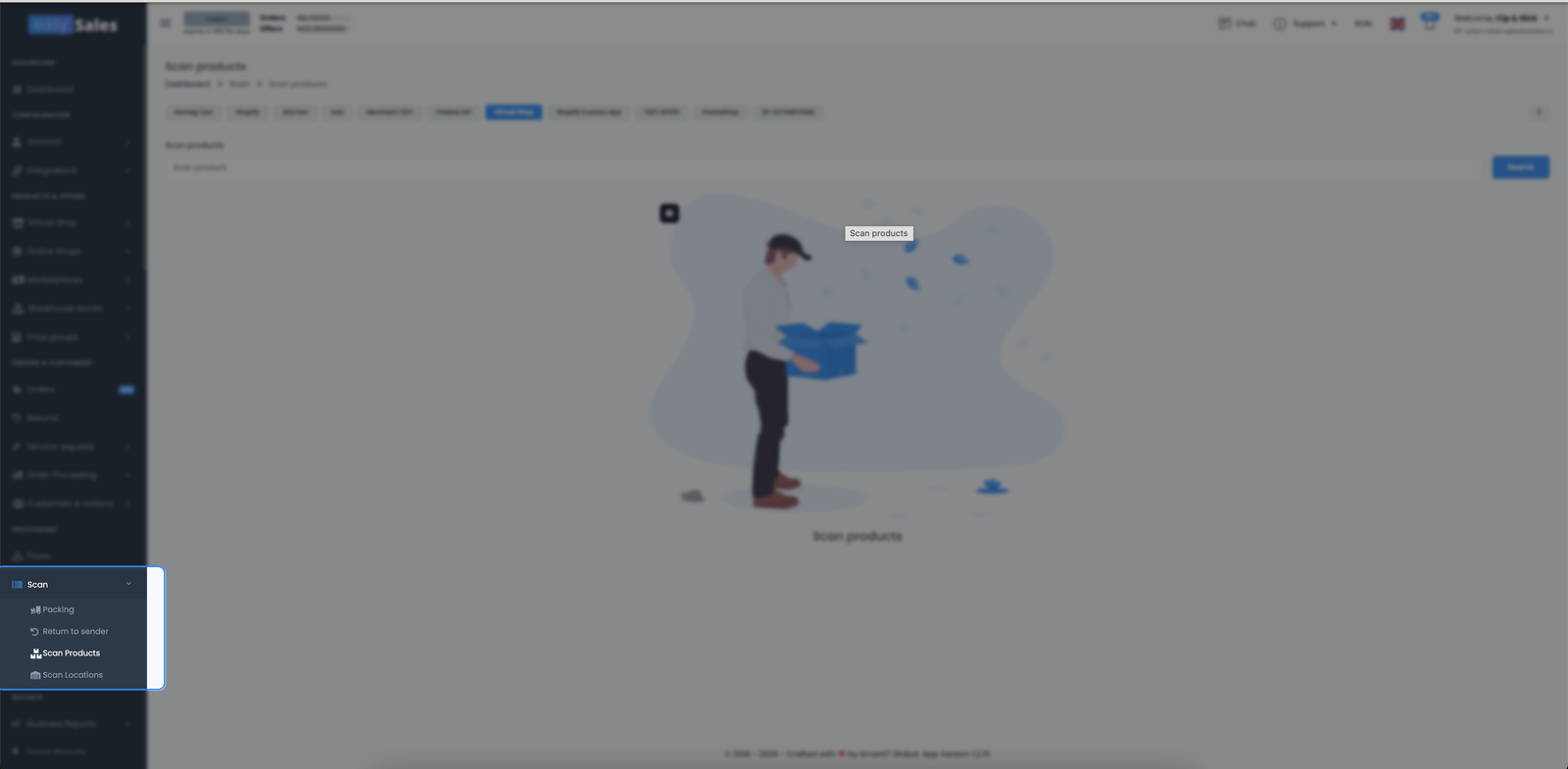
| Tool | What you scan → what it does |
|---|---|
| Scan Products | A product barcode → opens it to check and fix EAN, stock, location |
| Scan Locations | A location, then product EANs → tags shelf locations in bulk |
| Return to Sender | A returned parcel's AWB → records what's coming back |
| Packing | An AWB, then product EANs → picks & packs the order |
Scan Products — find and fix a product by barcode
Scan Products is the fastest way to pull up a single product and correct its key fields. Use it at the shelf when you need to check or fix a product without hunting through the catalog.
Open Scan → Scan Products, pick the shop the product belongs to, then scan or type its barcode. easySales matches on SKU, EAN, or any alternative barcode, so almost any identifier on the product works.
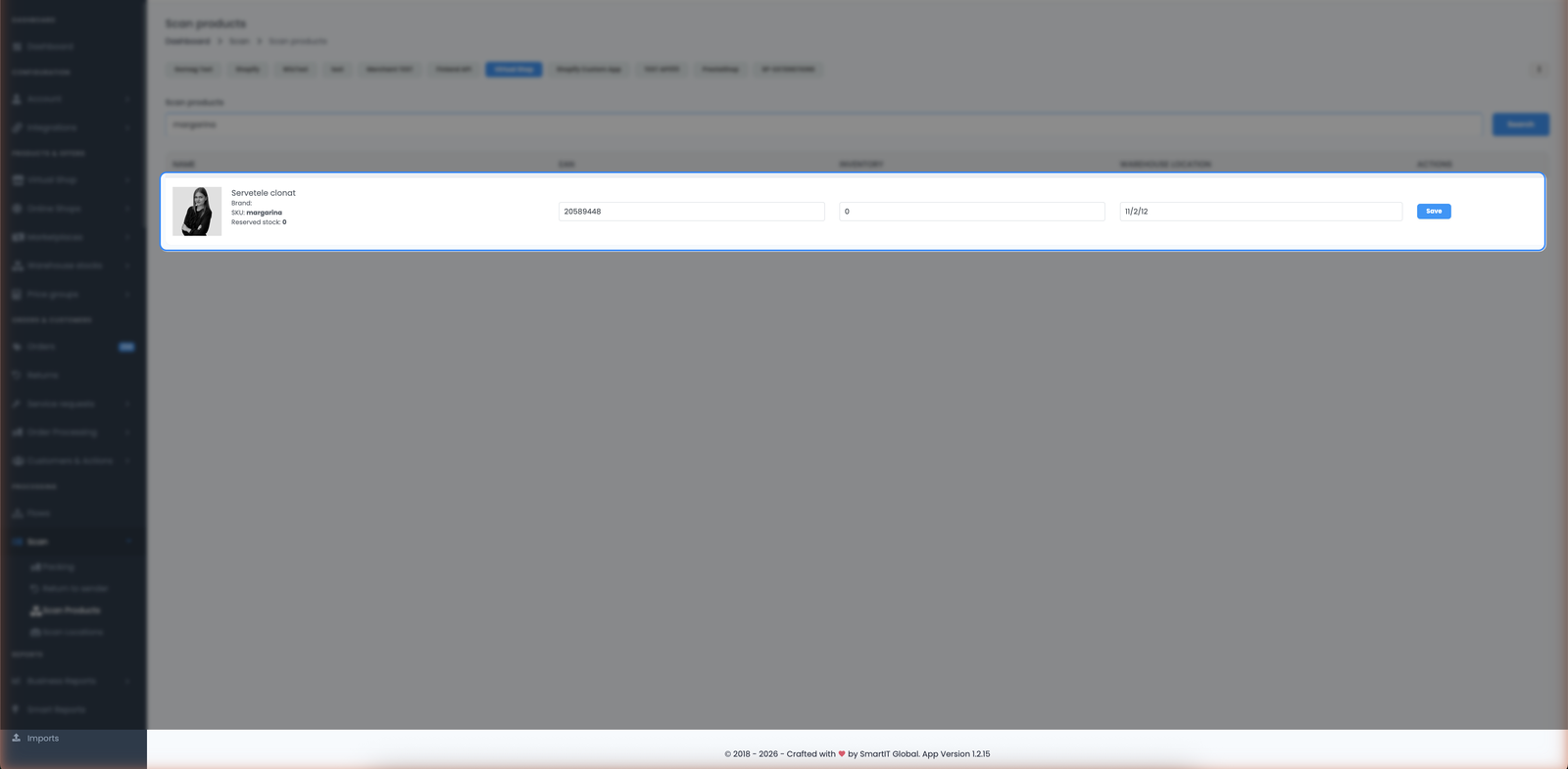
The matching product appears in a compact row where you can edit the fields that matter most on the floor — EAN, stock, and warehouse location — and save them on the spot. It's a lookup-and-correct tool, not a bulk editor: one product at a time, changed and saved in seconds.
Scan Locations — tag shelf locations in bulk
Scan Locations assigns physical shelf locations to your products by scanning. This is how you tell easySales where each item lives, so they're ready for the packing team.
The flow is two-stage:
- Open Scan → Scan Locations and enter the location code first (your shelf or bin identifier, e.g.
H4-7). - Pick the shop, then scan the EAN of each product that sits on that shelf. Each scanned product is added to a list under that location.
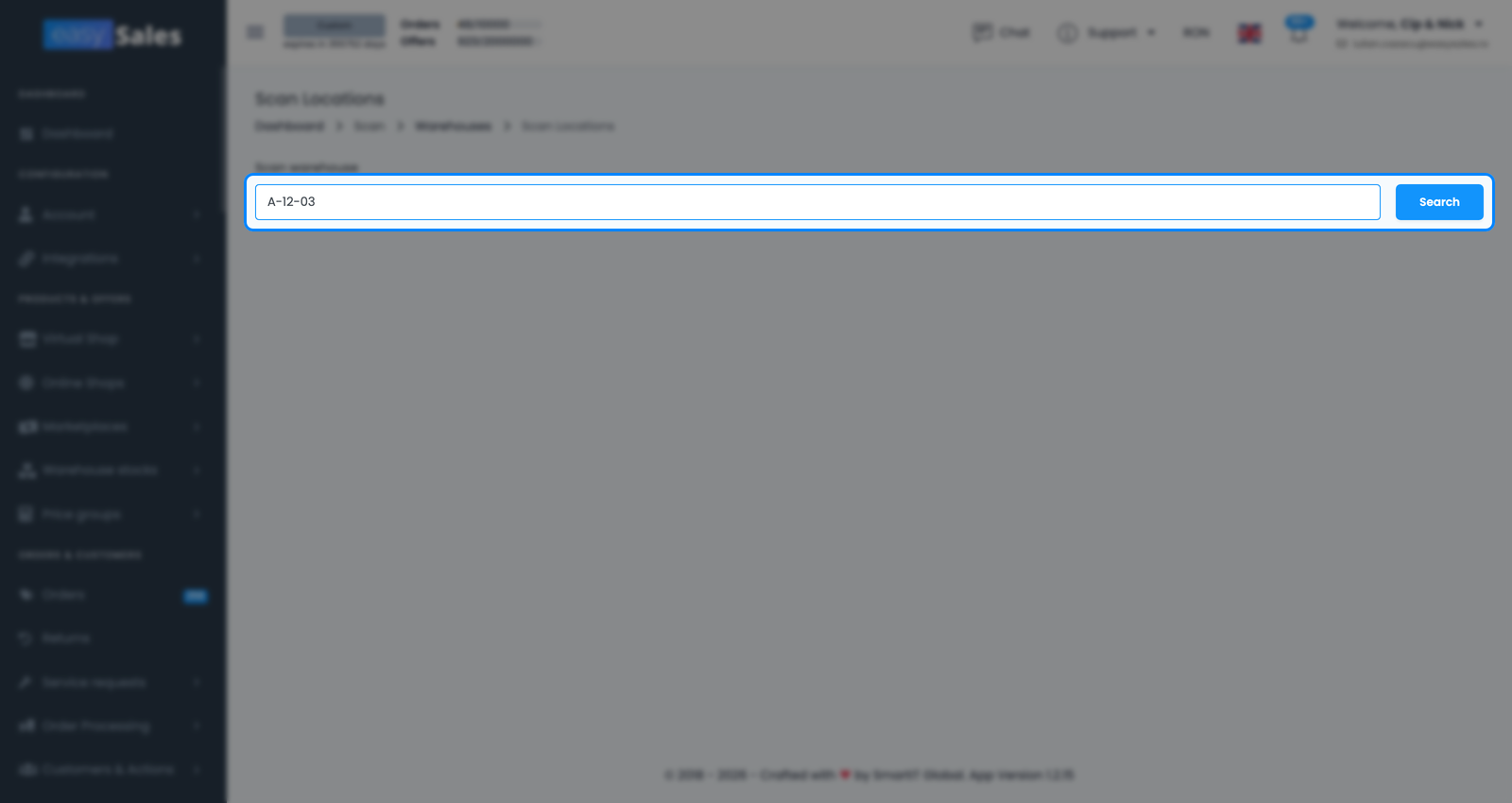
When the shelf is done, save the batch — easySales writes that location onto every scanned product at once (up to 20 per location). Matching is by EAN, including any alternative barcodes you've stored on the product, so products with more than one barcode still resolve.
Return to Sender — process parcels that came back
When a courier returns an undelivered parcel, Return to Sender records it cleanly instead of leaving you to reverse the order by hand.
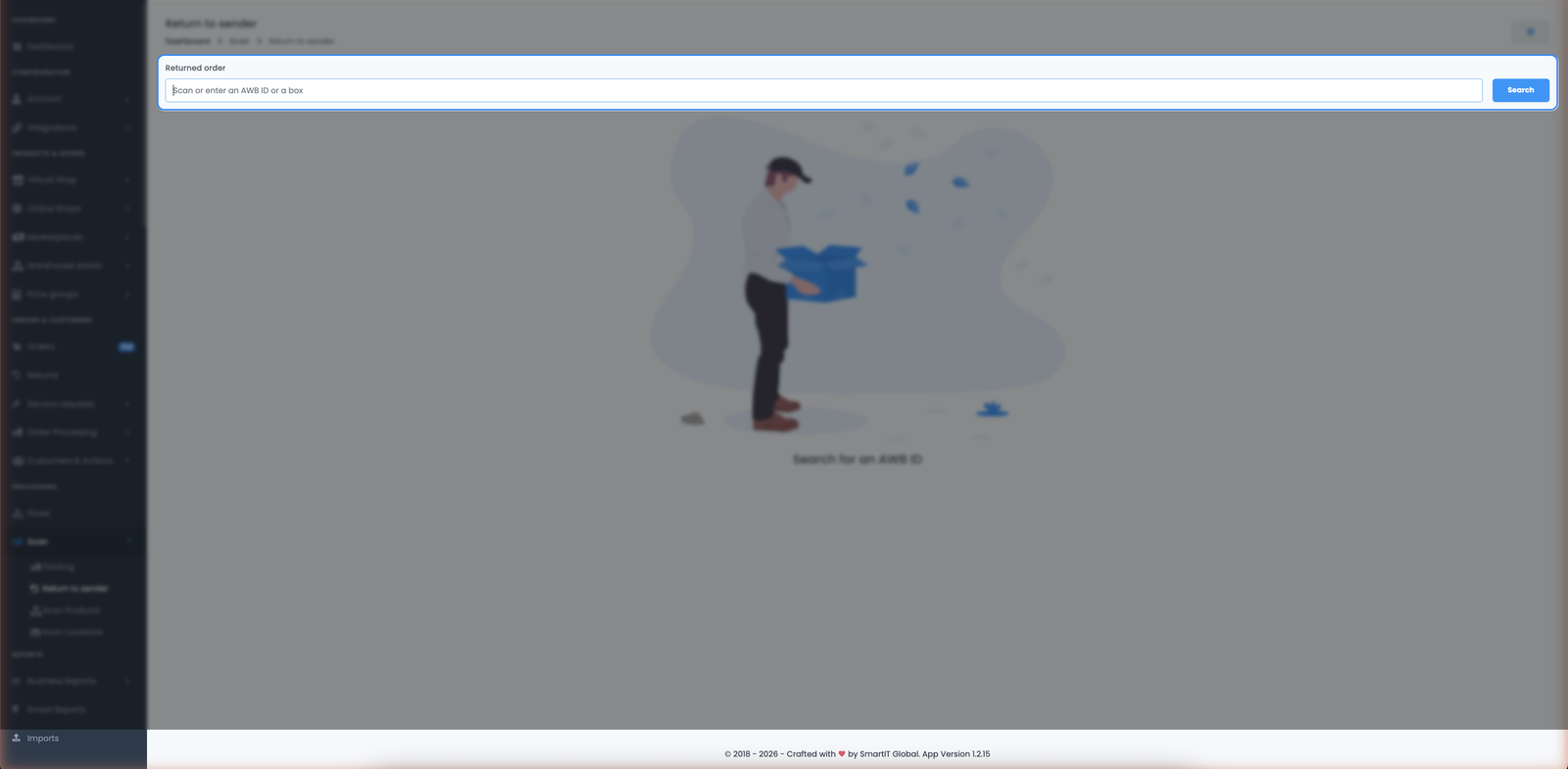
Open Scan → Return to Sender and scan the AWB barcode on the returned parcel. easySales finds the matching order and lists its products, each with a return quantity you can adjust. If you want to verify the physical contents, you can optionally scan each product's barcode to count it down. Click Finish scan when the parcel is accounted for.
Packing — scan AWBs to pick & pack
The fourth tool, Packing (Scan AWBs), is the high-volume pick-and-pack workflow: scan the AWB on the shipping label, the order opens, and you scan each product's EAN to check it off before it goes in the box. Because it's the most involved of the four, it has its own dedicated guide.
Scanners, EANs & tips
A few things that make scanning smooth across all four tools:
- What each tool matches on. Scan Locations resolves products by their EAN, including any alternative barcodes on the product. Return to Sender's optional product count matches on EAN or SKU (no alternative barcodes). Scan Products is the most forgiving — it matches on SKU, EAN, and alternative barcodes.
- Set locations once, reap them at packing. The warehouse locations you tag with Scan Locations show up in the packing screen's warehouse column, so pickers walk the shortest path to each item.