How to connect Teamdeals with easySales: a complete setup guide

Send your products to Teamdeals through the easySales feed: the connection settings, adding Teamdeals offers, the Feed URL in your Teamdeals account and the columns of the feed.
What connecting Teamdeals gives you
Teamdeals is a Romanian deals site that sells products at large discounts. Connected to easySales, it receives your products through a feed: a file easySales builds from your Teamdeals offers and keeps at a fixed address, the Feed URL. Teamdeals reads the file from there and imports your products, prices and stock.
Three things to know before you begin:
- The feed holds only the offers you create for Teamdeals. Until you add Teamdeals offers to your products, the feed is empty and Teamdeals imports nothing.
- Orders stay in Teamdeals. Teamdeals orders do not come into easySales. Handle them in your Teamdeals account, and invoice and ship them from there.
- No login is needed. You do not enter any Teamdeals username or password in easySales. Teamdeals only needs your Feed URL.
Before you start
A Teamdeals seller account
Where you add the Feed URL and handle your orders.
Products with a brand, images and a price
Offers without them are left out of the feed.
Characteristics for sex, colour and size
Optional — named sex, culoare and marime.
Step 1 — Connect Teamdeals in easySales
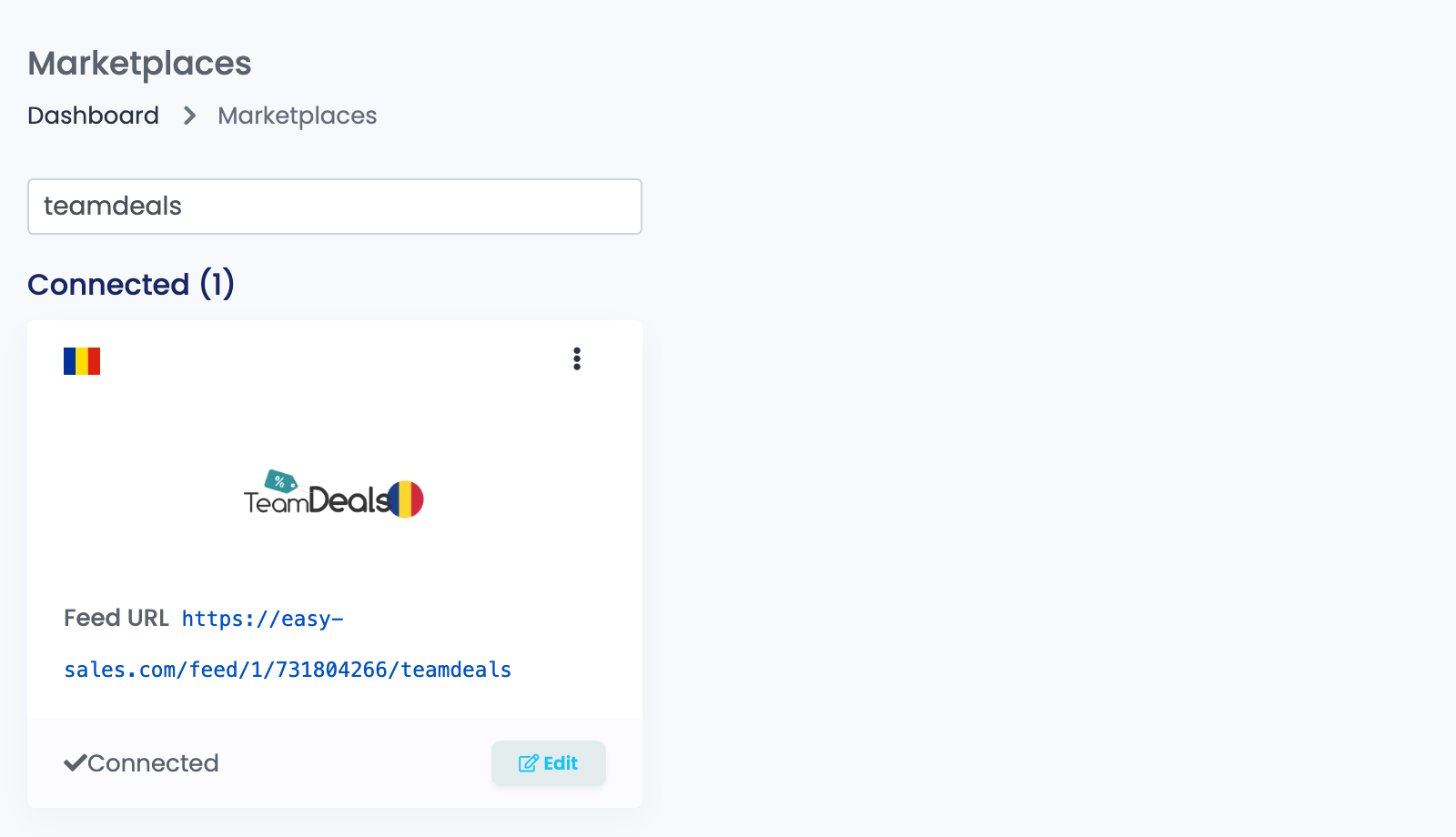
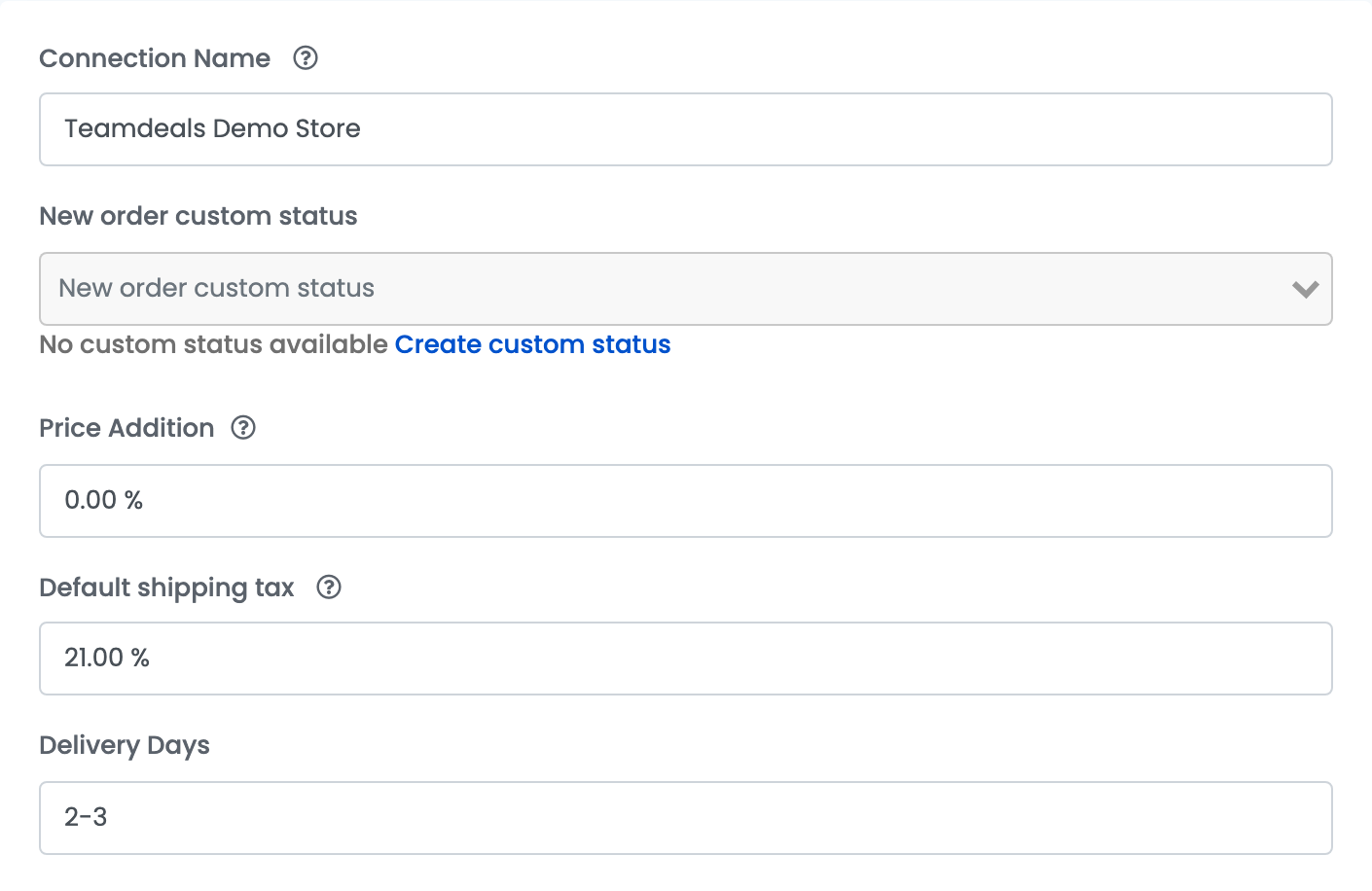
Go to Integrations → Marketplaces, search for teamdeals and press Connect on the Teamdeals card — or Edit, if you have connected it before. Fill in the form:
| Field | What goes in it |
|---|---|
| Connection Name |
A name you will recognise, for example Teamdeals Demo Store.
|
| Price Addition | A percentage added to your product prices on Teamdeals. Leave 0 to sell at your easySales prices. |
| Delivery Days |
The delivery time sent with every product, for example 2-3.
|
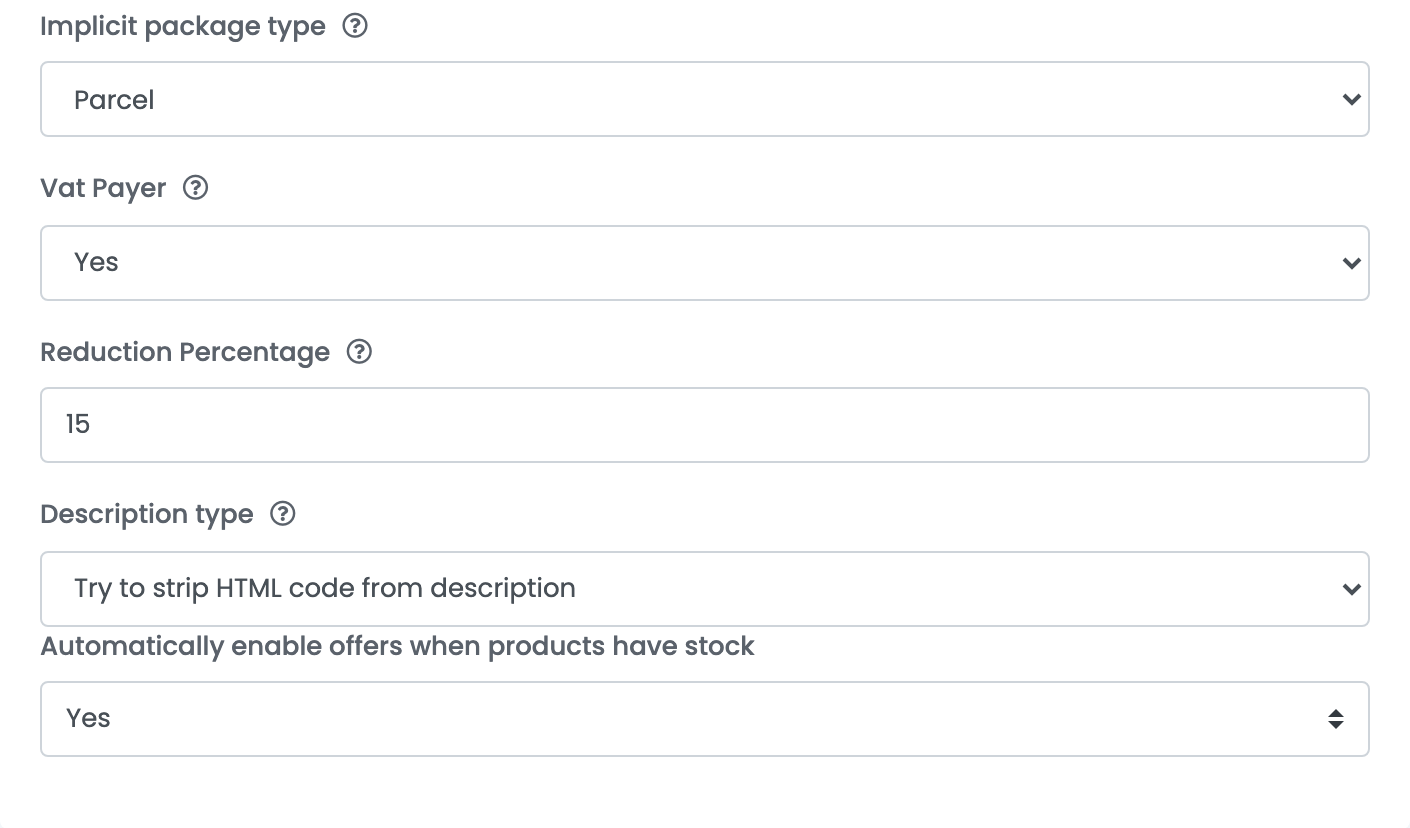
| Vat Payer | Yes if you are registered on Teamdeals as a VAT payer: prices then include VAT. No sends prices as they are. |
| Reduction Percentage |
The percentage added to your sale price to form the full price on Teamdeals, for example 15.
|
| Description type | Auto generate from characteristics writes the description from the product's characteristics. Try to strip HTML code from description sends your shop description without its HTML code. |
| Automatically enable offers when products have stock | Yes turns your Teamdeals offers back on by themselves when their product is in stock again. |
| New order custom status, Default shipping tax, Implicit package type | Not used by Teamdeals: leave them as they are. |
Press Save. The Feed URL of the connection now appears on the Teamdeals card.
Step 2 — Add your products as Teamdeals offers
- Go to Products, select the products you sell on Teamdeals and choose Add offer(s) on → Teamdeals.
- Follow the offers in Marketplaces → Offers, on the Teamdeals tab.
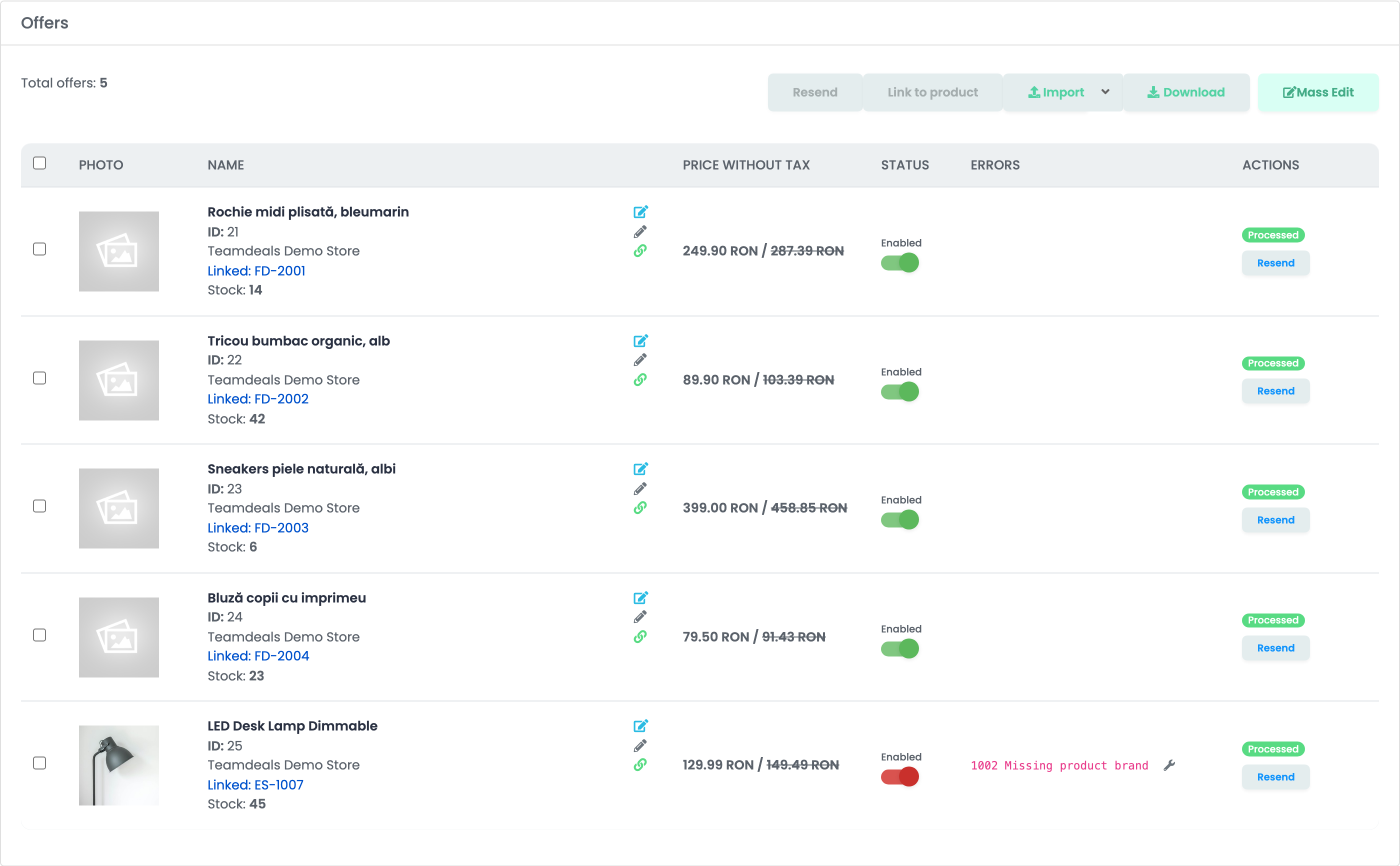
Only enabled offers without errors go into the feed. An offer with an error, such as 1002 Missing product brand, is left out until you correct the product and press Resend on the offer's row.
Step 3 — Add the Feed URL in Teamdeals
- Copy the Feed URL from the Teamdeals card in easySales.
- In your Teamdeals seller account, go to Importă produse → Adaugă feed and paste the Feed URL.
- Match each column of the feed to the Teamdeals field it holds, then finish the import.
The feed is a text file without a header row, with one product per line and these columns, in this order:
| Column | What it holds |
|---|---|
| 1 | Category — the product's first category in easySales |
| 2 | Brand |
| 3 | SKU |
| 4 | Name |
| 5 | Description |
| 6 | Price |
| 7 | Reduction percentage |
| 8 | Weight, in grams |
| 9 | Delivery days |
| 10 | Stock |
| 11 | Main image |
| 12 |
Other images, separated by >
|
| 13 | Sex |
| 14 | Colour |
| 15 | Size |
How Teamdeals is kept up to date
easySales refreshes the feed at least once a day, with every eligible offer. Teamdeals reads it again on its own schedule and updates your products, prices and stock.
- Price: the offer's price — with VAT when Vat Payer is Yes. Teamdeals forms the full, crossed-out price from your Reduction Percentage.
- Stock: the product's stock in easySales, minus the stock reserved for open orders.
- Products: category, brand, name, description, weight, images and the sex, colour and size values.
When something does not work
| Problem | What to do |
|---|---|
| Teamdeals imports no products. | Check that you added Teamdeals offers to your products, and that they are enabled and have no errors on the Teamdeals tab. |
| 1002 Missing product brand | Add the brand to the product, then press Resend on the offer's row. |
| 1006 Missing product images, 1005 Invalid images data | Add images to the product, or replace the ones that cannot be read, then press Resend. |
| 1004 Invalid product price | Give the product a valid sale price, then press Resend. |
| Images or fields appear in the wrong place on Teamdeals. | Check the column matching of the feed in your Teamdeals account against the column list above. |
| The description is empty. | With Auto generate from characteristics, the product needs characteristics. Add them, or choose Try to strip HTML code from description. |