How to connect SMSAPI with easySales: a complete setup guide
Send your customers order SMS through SMSAPI: which card to choose for smsapi.ro or smsapi.pl, the token and callback, signing in, testing, your sender name and notification rules.
What connecting SMSAPI gives you
SMSAPI is a prepaid SMS service. Connected to easySales, it sends your customers text messages about their orders: an order confirmation, the AWB with a tracking link, an invoice, a cancellation, a return. The messages go out automatically when the event happens, or from an automation flow, or by hand from the order page.
Two SMSAPI cards — pick the one for your account
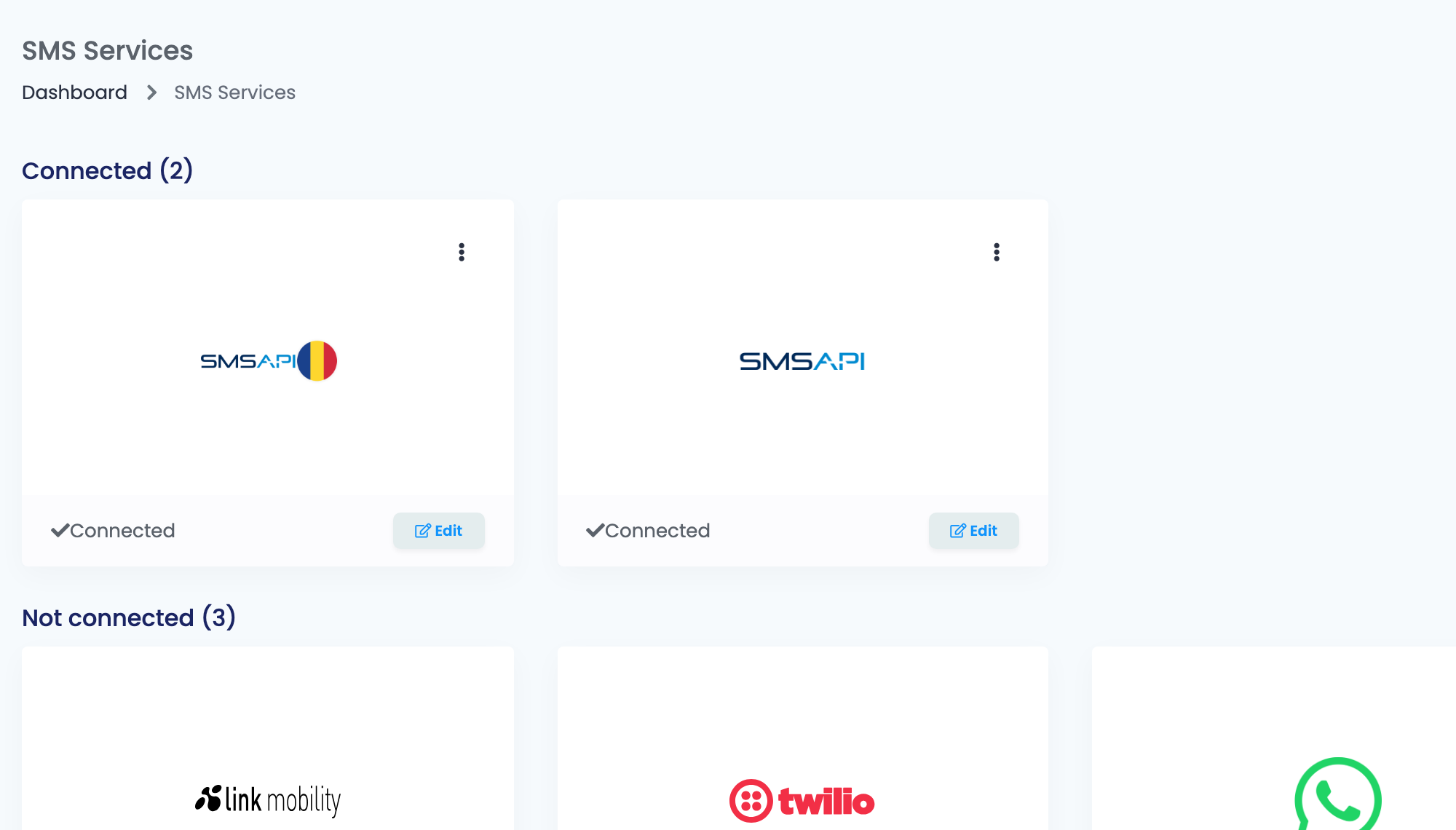
SMSAPI runs two separate services, and easySales has a card for each:
- The SMSAPI card with the Romanian flag (SmsApi Romania) is for accounts on portal.smsapi.ro. You connect it with an API token and add a delivery callback.
- The SMSAPI card without a flag (SmsApi) is for accounts on smsapi.pl. You connect it by signing in to SMSAPI from easySales — there is no token to copy.
An account on one service does not work on the other card. Follow the part of this guide for your card, then continue with the sender name and the notification rules, which are the same for both.
Before you start
An SMSAPI account
On portal.smsapi.ro or on smsapi.pl, with credit on it.
For portal.smsapi.ro: an API token
Created in the SMSAPI portal, with no expiry.
A sender name
Registered in your SMSAPI account and approved by SMSAPI.
SMSAPI Romania (portal.smsapi.ro)
Step 1 — Create an API token
- In portal.smsapi.ro, go to API Settings → API tokens (OAuth) and press Generate access token.
- Give it a name you will recognise, for example
SmsApi Romania easySales. - For the access token expiration date, choose Never, and enable all the permissions.
- Copy the token: you paste it into easySales in step 3.
Step 2 — Add the callback address
The callback is how SMSAPI tells easySales whether each SMS was delivered. Without it, SMS History never shows your messages as delivered.
- In portal.smsapi.ro, go to Callback URLs and press Add callback address.
- For Type, choose Callback address - SMS DLR.
- For URL, enter exactly
https://easy-sales.com/services/sms/external-webhooks/smsapi-ro/status-update— https, and no slash at the end.
Step 3 — Connect the card in easySales
Go to Integrations → SMS Services and press Connect on the card with the Romanian flag — or Edit, if you have connected it before. Enter an Alias you will recognise, paste the token into Token and press Save.
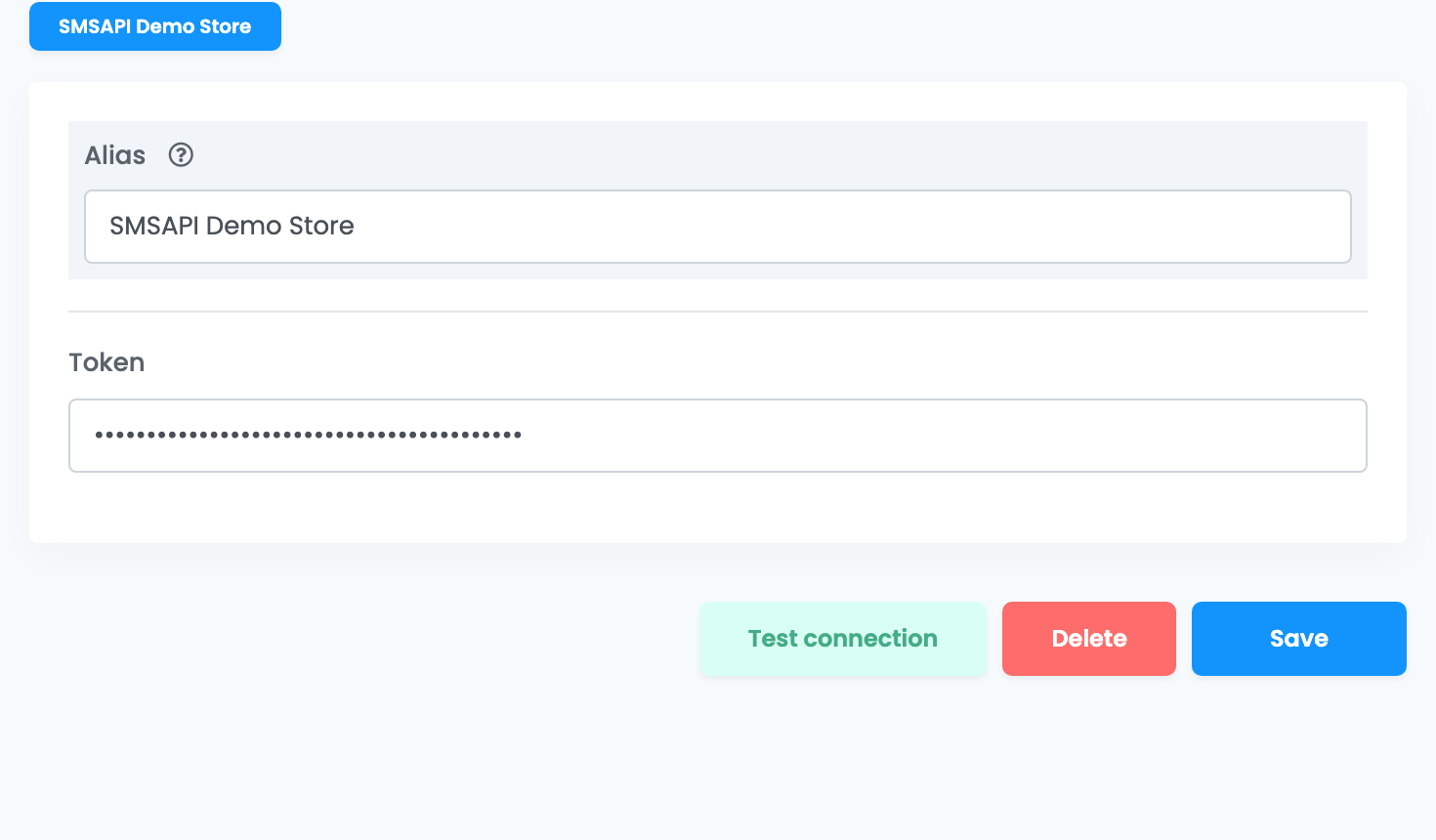
Save stores the token without checking it. To check it, open the saved connection and press Test connection: enter your own mobile number with its country code, digits only — for example 40722123456 — and press Continue. easySales sends a real SMS, charged from your SMSAPI balance; when it arrives, the connection works. If SMSAPI refuses, its reason is shown instead.
SMSAPI Poland (smsapi.pl)
Step 1 — Sign in to SMSAPI from easySales
- Go to Integrations → SMS Services and press Connect on the SMSAPI card without a flag.
- Press Auth. The SMSAPI login page opens: sign in with your smsapi.pl account and allow easySales to send SMS from it.
- SMSAPI sends you back to SMS Services, where the card is now connected.
Step 2 — Name the connection
Open the connection again, enter an Alias you will recognise — you choose the connection by it in your notification rules — and press Save.
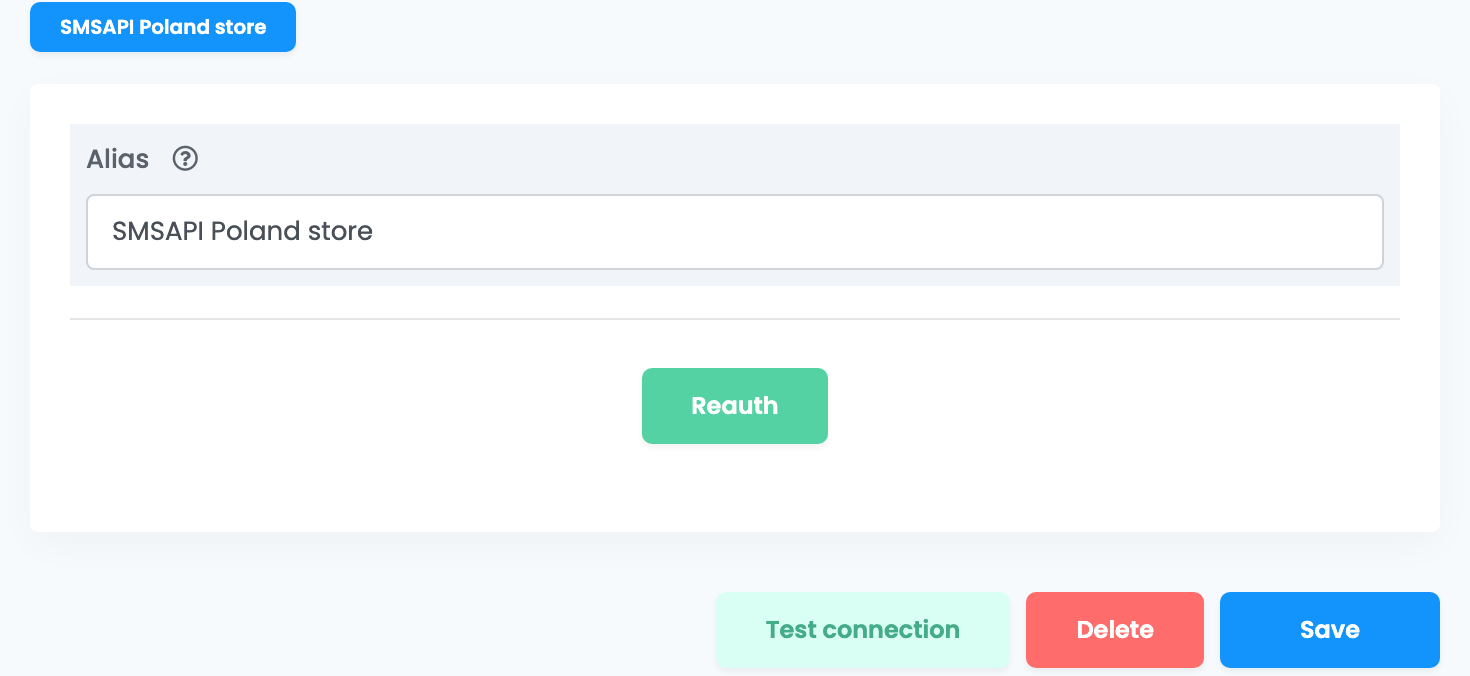
Press Test connection to send yourself a test SMS: enter your mobile number with its country code, digits only — for example 48601234567 — and press Continue. The test SMS is real and is paid from your SMSAPI balance.
Your sender name
Customers see the SMS come from the default sender name of your SMSAPI account. To send under your shop's name, register it in your SMSAPI account — Sender names on portal.smsapi.ro, Pola nadawcy on smsapi.pl — and set it as the default once SMSAPI has approved it. A sender name has 4 to 11 characters — letters, digits and a few signs such as ., &, @ or a space. Customers cannot reply to a sender name.
Choose which messages go out
Notification rules send an SMS when something happens to an order: an AWB is created, the order is created, invoiced, cancelled or finished, the delivery status changes, a return is created. First write the message in Customers → Templates, on the SMS tab, then create the rule in Customers → Notifications, under the event you want.
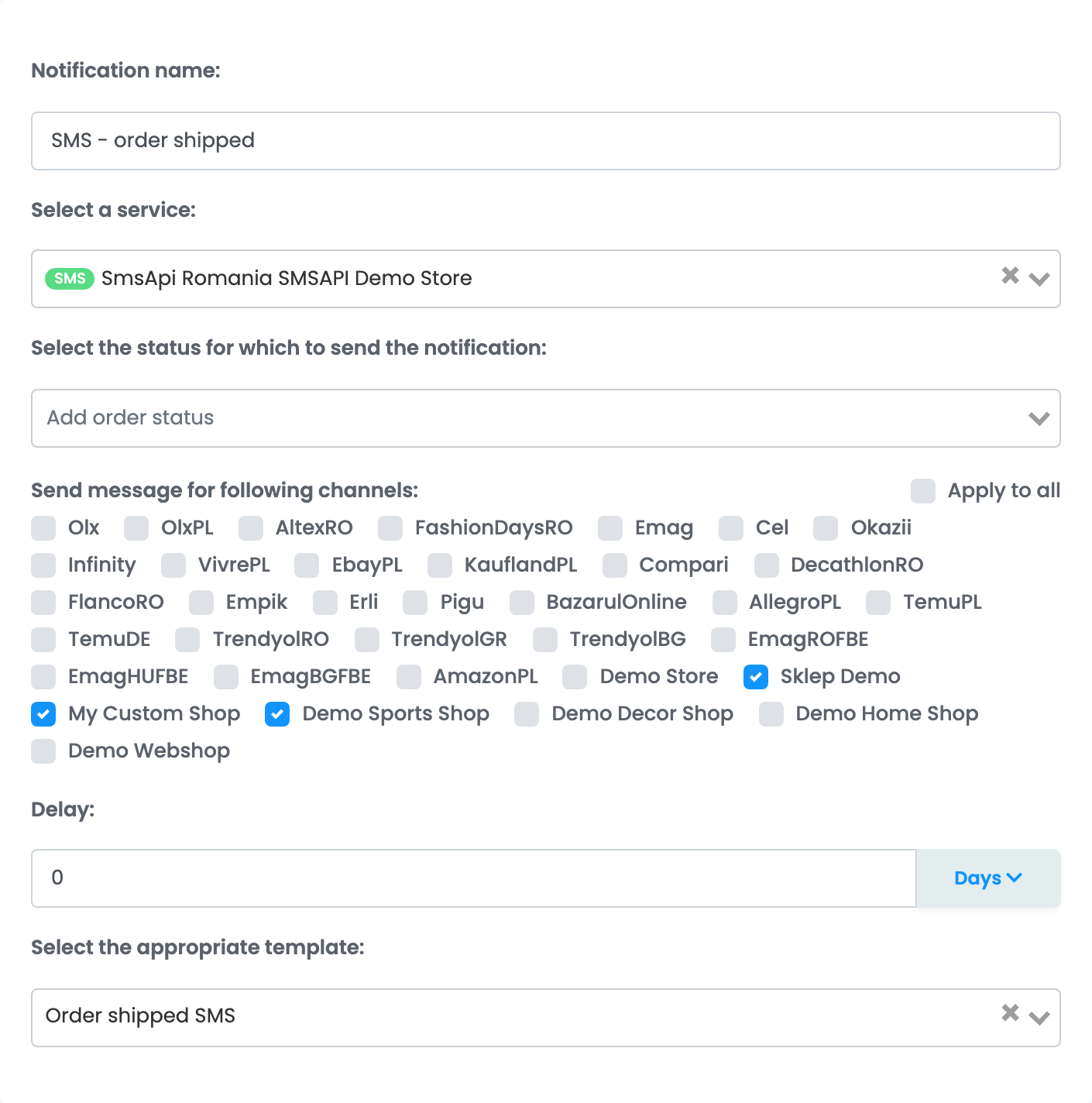
- Select a service — the SMS service the rule sends through: the SMSAPI card you connected, and the connection's Alias.
- Send message for following channels — tick every marketplace and shop whose orders should get the SMS. Orders from a channel that is not ticked get nothing.
- Select the appropriate template — the text of the SMS.
Messages can also go out from an automation flow, with the action Send order sms notification, or by hand from the order page, with Notify user. The SMS goes to the customer's phone number, written in international format from the country of the shipping address.
Checking what was sent
The messages easySales sends are listed in Customers → SMS History, with the order, the customer and the text. With the SMSAPI Romania card and its callback in place, the status moves to Delivered when the SMS reaches the customer's phone, or to Undelivered when the network could not deliver it.
When an SMS is not sent
The messages you are most likely to see, on Test connection or in SMS History:
| Message | What to do |
|---|---|
| Cannot send sms, account balance is low | Your SMSAPI credit has run out. Top up your balance in your SMSAPI account. |
| Sending date does not fulfill the time limit set on your account | Your SMSAPI account only allows sending during certain hours. Change the sending hours in your SMSAPI account, or delay the notification so it goes out inside them. |
| No correct phone numbers | The order has no usable phone number — it is empty or hidden by the marketplace. Add the customer's phone number to the order. |
| Message is too long. | The text needs more SMS parts than your SMSAPI account allows. Shorten the template, and leave out special characters. |