How to connect Magyar Posta (MPL) with easySales: a complete setup guide
Connect Magyar Posta (MPL) to easySales: the API credentials, customer code and agreement number, the service and label format, the sender and IBAN, closing each day's labels automatically, insurance, pickup points and MPL's most common refusals.
What connecting MPL gives you
With Magyar Posta connected, easySales creates MPL labels for your orders — one at a time or in bulk — prints them, tracks the parcels and closes each day's labels with MPL for you. MPL collects in Hungary, so this integration is for parcels you send from a Hungarian address.
The one thing MPL does differently: labels have to be closed
A label created with MPL is not final until it is closed. MPL expects every day's labels to be closed once, so it knows what it is collecting — and until they are, it treats them as open and may phone you about it.
easySales can do this for you every day at an hour you choose. That setting is near the bottom of the connection form, and it is the one to get right.
Before you start
An MPL business contract
With its agreement number and your MPL client ID.
MPL API credentials
An API key and API secret for your MPL account.
A Hungarian sender address
MPL collects in Hungary; this is the address on every label.
Your bank account number
For cash-on-delivery payouts, as digits only.
Step 1 — Enter your MPL credentials
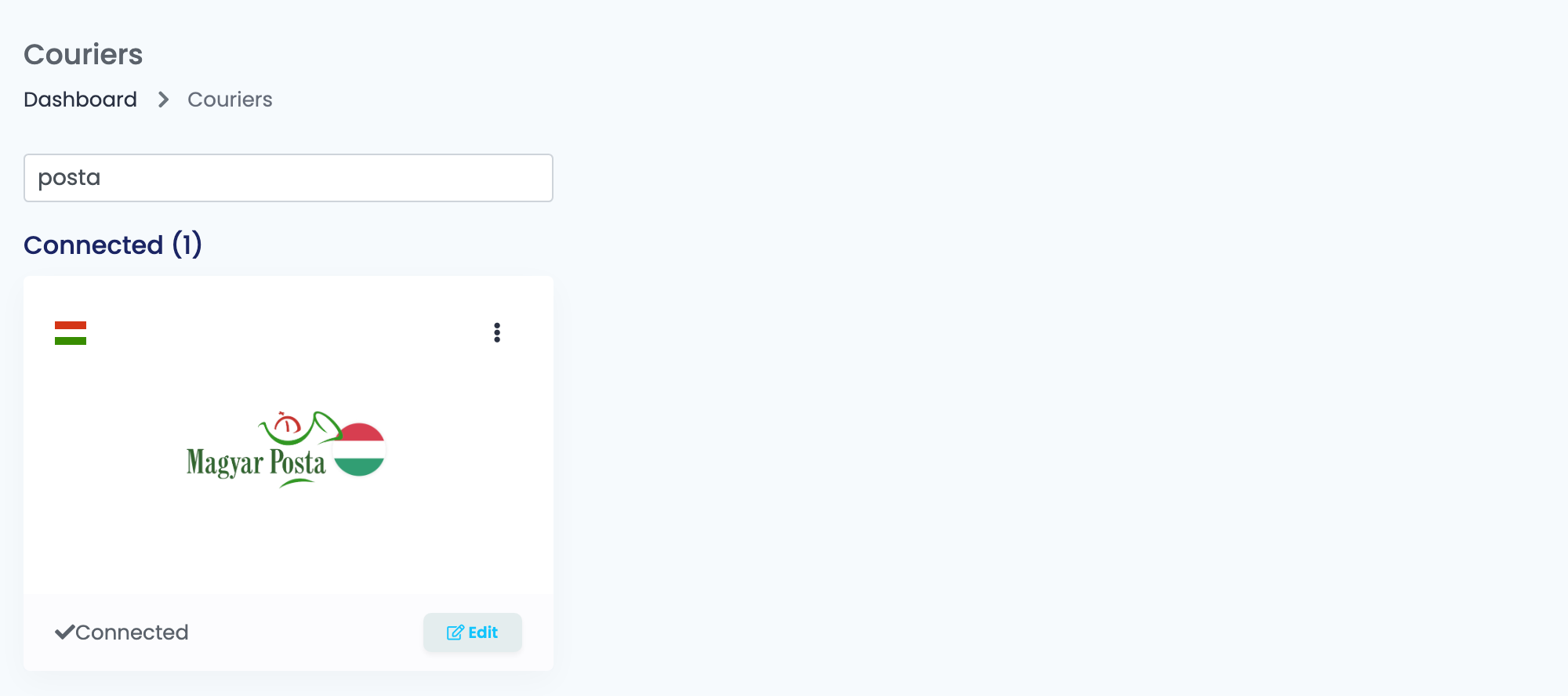
Go to Integrations → Couriers, search for posta and press Connect on the Magyar Posta card.
Fill in the first five fields and press Get Details.
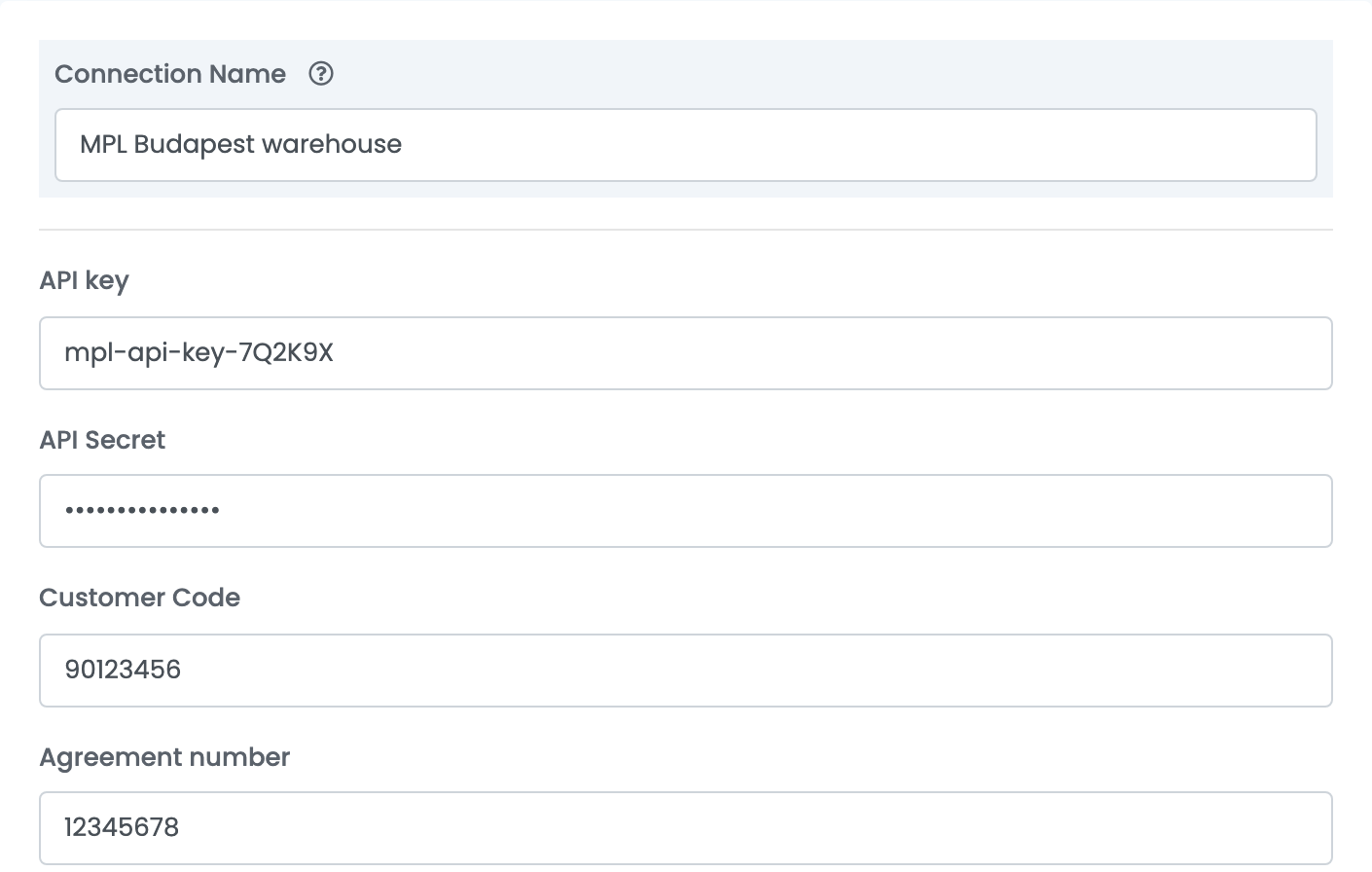
| Field | What to enter |
|---|---|
| Connection Name | Your own name for this connection — useful once you have more than one. |
| API key and API Secret | The API credentials of your MPL business account. |
| Customer Code | Your MPL client ID. |
| Agreement number | The number of your agreement with MPL: digits only, up to eight. |
Get Details checks the credentials with MPL. If one of them is wrong, you see MPL's message and nothing is saved; if they are right, the rest of the form opens.
Step 2 — Choose the service and the label
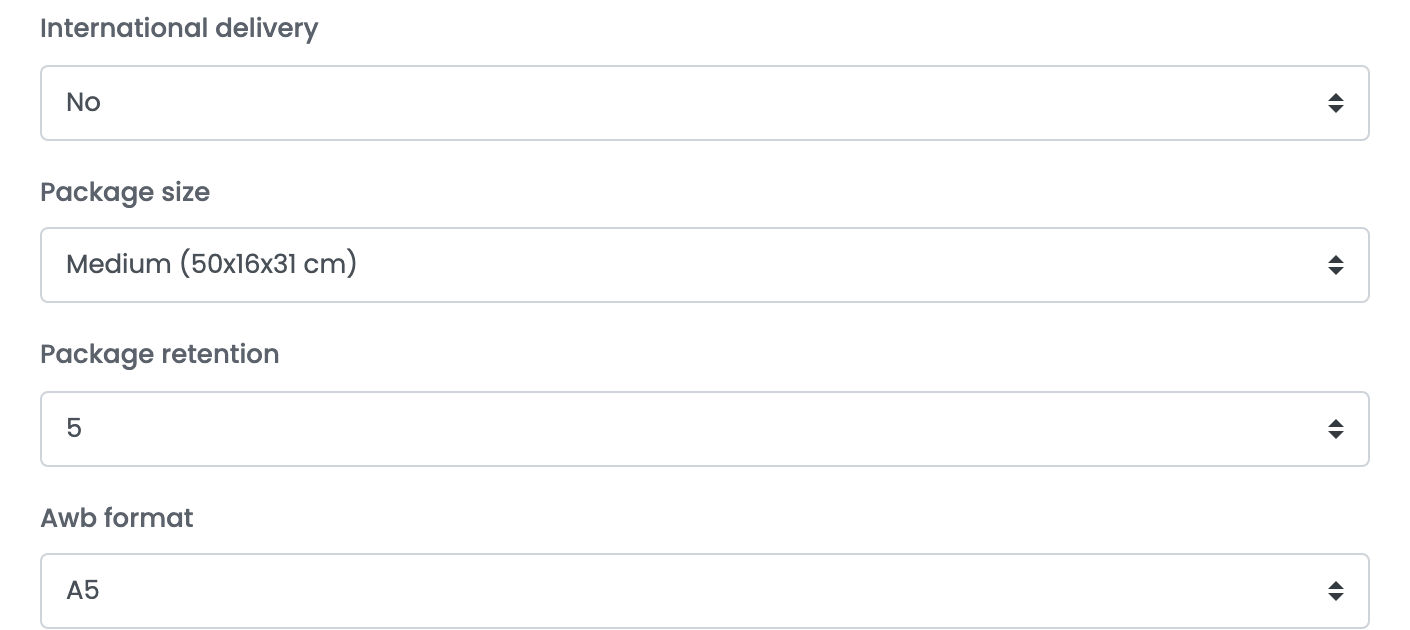
| Field | What it does |
|---|---|
| International delivery | No for parcels inside Hungary. Otherwise the international service this connection uses: International priority postal parcel, International postal parcel, International EMS express mail, Europe+ parcel, MPL Europe Standard or Inverse MPL Europe Standard. |
| Package size | S (31×7×25 cm), M (50×16×31 cm) or L (50×35×31 cm), used for every domestic parcel. Hidden for international services. |
| Package retention | How many days — 0, 5 or 10 — MPL keeps a parcel it could not deliver, for the customer to collect. |
| Awb format | The label format, from A4 to A6. Hidden for international services. |
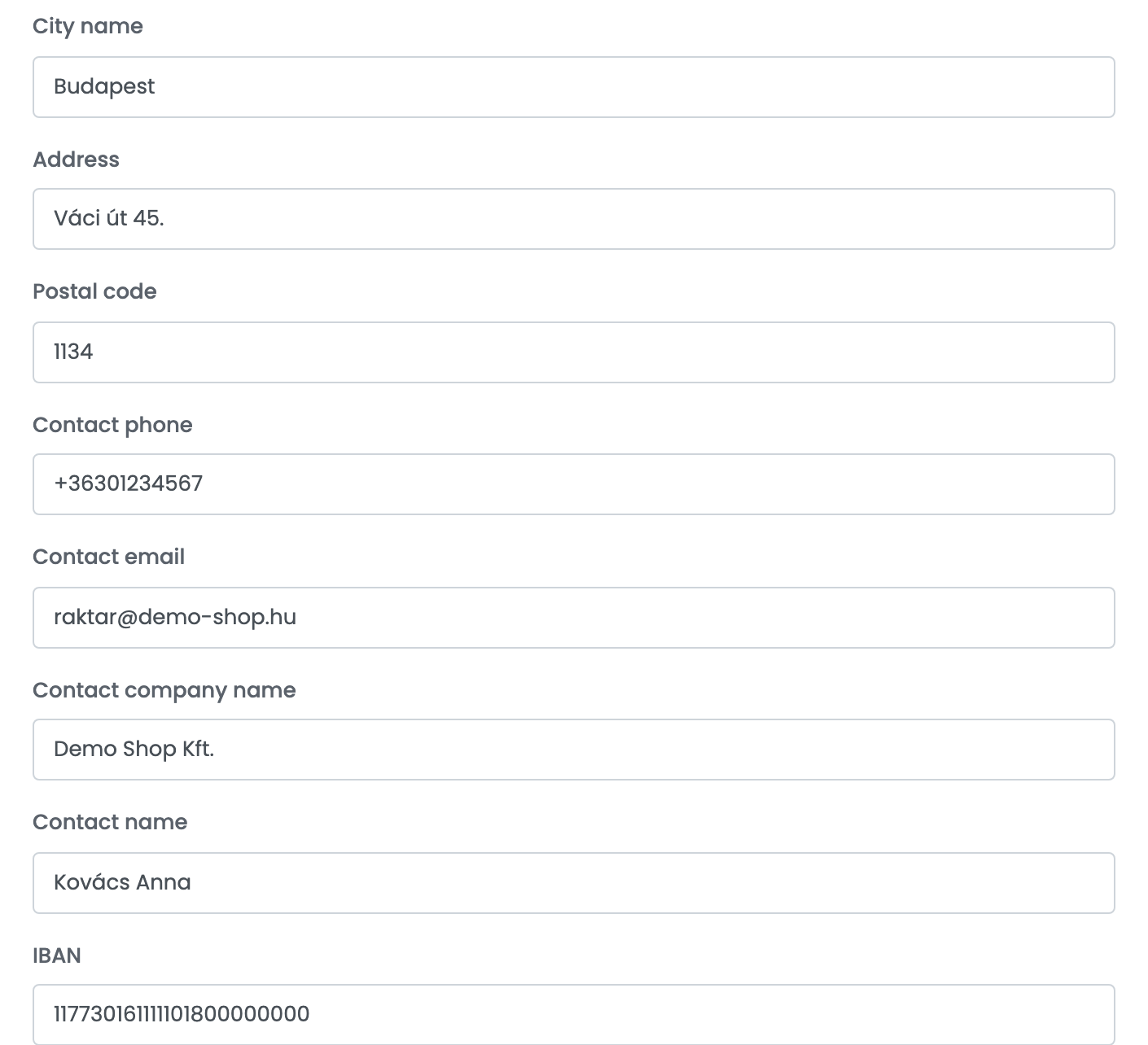
Step 3 — The sender
This is the address MPL collects from, and the details printed on the label as the sender.
Step 4 — Closing, insurance and extra services
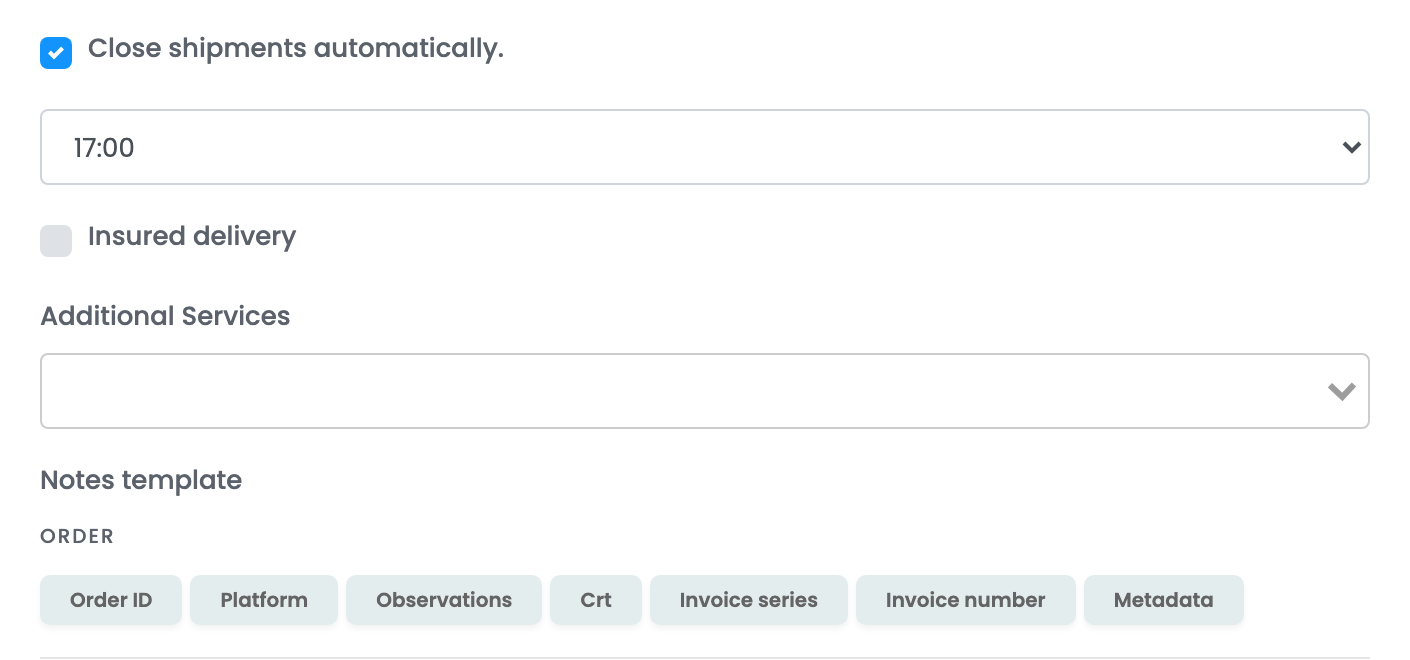
| Field | What it does |
|---|---|
| Close shipments automatically. | Closes the day's labels with MPL every day at the hour you choose below it. Turn it on. |
| Insured delivery | Declares the order's value on the label. With Conditional insured delivery, only orders above the threshold in HUF are insured. |
| Additional Services | Added to every label from this connection: 1 working day time guarantee, Voluminous handling, Fragile handling, Saturday delivery. |
| Notes template | What is printed in the label's notes — the order number, products and so on, built from the buttons below it. |
Press Save. The Magyar Posta card now shows Connected.
Creating labels
Open Orders, select the orders and use Generate AWB, or open a single order and generate its label there — that is also where you set more than one parcel for an order.
A few things are taken care of for you:
- Cash on delivery is added automatically when the order is paid on delivery, for the order's value.
- Pickup points. When the customer chose an MPL parcel terminal or post point, the label goes to that point instead of the home address, with no change to the connection.
- Weight. An order with no weight is sent as 1 kg.
Closing labels by hand
If you need to close before the automatic time — or you have not turned it on — select the orders in Orders, open Actions and press Close AWB. The option is there only when an MPL connection exists.
Closed labels are marked AWB Closed on the order. If MPL refuses to close one, the order shows Failed to close AWB: <number> at: <hour>, and you can close it again by hand.
When MPL refuses a label
MPL's reason appears on the order in English. The ones sellers meet:
| What you see | What to do |
|---|---|
The mandatory field "recipient.contact.name" do not contain any value.
|
The order has no customer name. Add it on the order and generate the label again. |
The mandatory field "recipient.address.postCode" do not contain any value.
|
The delivery address has no postal code. Add it on the order. |
The length of field "recipient.address.address" is invalid. (or …phone, …city)
|
That field is empty or too long for MPL. Correct it on the order. |
The specified recipient.address.parcelPickupSite cannot be found, or the associated deliveryMode (CS/PM/PP) is different…
|
The pickup point on the order is not one MPL recognises. Check the point the customer chose, or ship to the address. |
| A parcel-terminal delivery refused over the phone number | MPL needs a mobile number for parcel terminals. Put the customer's mobile number on the order. |
<Country> does not support "<service>" service. Supported services: …
|
The connection's international service does not go to that country. Use a connection with one of the services listed. |