How to connect Erli shipping with easySales: ERLI delivery methods
Create Erli labels for your Erli.pl orders from easySales: Auto delivery method, posting points, cash on delivery, printing, cancelling and Erli's errors.
What Erli shipping gives you
With the ERLI delivery methods (Metody Dostaw ERLI), Erli sells you the shipping label for an Erli order — InPost, DPD, DHL, Pocztex or ORLEN Paczka, at Erli's prices. Erli shipping creates these labels from easySales: you create the label from the order, print it, and the delivery status and tracking number follow Erli.
Three things to know before you begin:
- Leave Pickup Location empty — or make one connection per carrier. The posting point you choose is sent with every label, and Erli accepts a posting point only for the carriers it belongs to. Left empty, Erli uses the posting point you set for each delivery method.
- Keep Courier Account on Auto. With Auto, each label uses the ERLI delivery method the buyer chose, including the parcel locker.
- Only ERLI delivery methods, without cash on delivery. Orders paid on delivery, or sent with a delivery method from your own price list, ship with your own courier connection.
Before you start
Your Erli account connected to easySales
Under Integrations → Marketplaces. Erli shipping uses that connection.
ERLI delivery methods turned on in Erli
In your shop's delivery price list.
Posting points set in Erli
Where the carriers collect or you drop off the parcels.
Step 1 — Connect Erli shipping
Go to Integrations → Couriers, search for erli and press Connect on the Erli card. Your Erli account must already be connected under Integrations → Marketplaces.
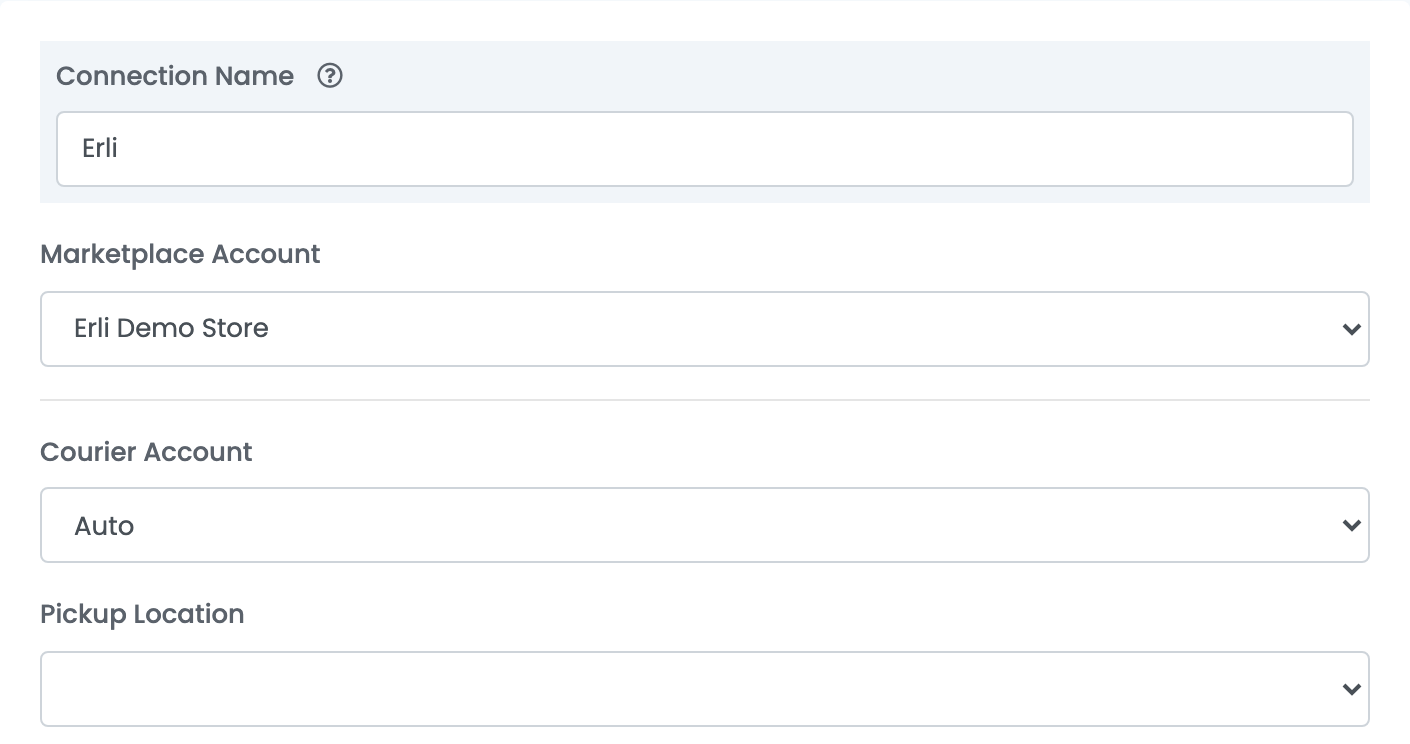
| Field | What goes in it |
|---|---|
| Connection Name |
A name you will recognise, for example Erli or Erli – InPost.
|
| Marketplace Account | The Erli connection whose orders this connection ships. With several Erli accounts, make one connection for each. |
| Courier Account | Auto: the delivery method the buyer chose. A fixed method is used on every order and fails on the orders it does not fit. |
| Pickup Location | Optional. The Erli posting point sent with every label — see Step 2. |
Press Save.
Step 2 — Choose how posting points work
Erli ties every posting point to the carriers it serves. A point for InPost does not work for a Pocztex order, and the other way round. You have two ways:
- One connection, Pickup Location empty. Erli takes, for each label, the posting point you set for that delivery method in your Erli account. This is the simplest way.
- One connection per carrier. Name each one after its carrier — for example
Erli – InPostandErli – Pocztex— and choose that carrier's posting point. When you create a label, pick the connection that matches the order's carrier.
Creating labels
- Quick create: in the orders list, choose Quick Create → Erli in the AWB column of an Erli order.
- From the order: in the order's Awbs section, press Create AWB and choose Erli. There you can change the parcels, their weight and the buyer's name, phone and locker before you create the label.
The parcel takes its size from the order's size template — or 10 × 10 × 10 cm — and the order's weight — 1 kg when the order has none. The sender address is your posting point's.
Erli prepares the label a moment after you create it. If printing right away shows Label is being generated by Erli. Please retry in a few minutes., print it again a minute later.
To cancel a label, delete the AWB in easySales: the parcel is cancelled at Erli too. If you booked a courier pickup for it, cancel the pickup in Erli first.
When something does not work
Erli's messages are shown as Erli error: followed by Erli's text, in Polish and English.
| Message | What to do |
|---|---|
| Nieprawidłowy punkt nadania dla wybranej metody dostawy. Invalid posting point for selected delivery method. | The posting point does not serve this order's carrier. Use a connection with that carrier's posting point, or one with Pickup Location empty. |
| Erli cannot create a label for the delivery method … | The order is paid on delivery or uses a delivery method from your own price list. Create the label with your own courier connection. |
| ValidationError: [0].shipping.receiver.lastName is not allowed to be empty | The buyer's name has one word. Write the first and last name on the order, or in the label window on the order page. |
| … length must be less than or equal to 30 characters long | Erli limits the street to 30 characters, the building number to 10 and the company name to 50. Create this label in your Erli account. |
| Nieprawidłowy typ odbioru dla wybranej metody dostawy. Invalid shipping type. | The fixed method of the connection does not fit the order. Set Courier Account to Auto. |
| Nie znaleziono dostawcy dla wskazanej grupy dostaw. … | That carrier is not available on your Erli account. Check your ERLI delivery methods in Erli, or use Auto. |
| Wystąpił ogólny błąd serwera. Cannot add parcel to other shops's order. | The order belongs to another Erli account. Use the connection of that account. |
| Label is being generated by Erli. Please retry in a few minutes. | Erli is still preparing the label. Print it again a minute later. |