How to connect Econt with easySales: a complete setup guide
Connect Econt to easySales: e-Econt username and password, Get Details, pickup location, cash-on-delivery account, delivery and payment settings, and the messages Econt returns.
What connecting Econt gives you
Econt is one of Bulgaria's largest courier networks. Connected to easySales, it creates the shipping label for an order from the order list or the order page — to the customer's address, an Econt office or an Econtomat — puts the tracking number on the order, sends it to the marketplace or shop the order came from and follows the delivery status.
Two things to know before you begin:
- The connection copies your e-Econt profile. When you press Get Details, easySales reads your pickup addresses and cash-on-delivery accounts from e-Econt, and the connection keeps what you pick from them. If you change them in e-Econt later, open the connection, press Get Details again, pick them again and save.
- A cash-on-delivery account is required. The connection cannot be saved without one, so set up your cash-on-delivery agreement with Econt before you connect.
Before you start
An e-Econt account
Its username and password connect easySales to Econt.
Your addresses in e-Econt
The addresses you ship from, saved in your e-Econt profile.
A cash-on-delivery agreement
With the bank account the collected money is paid to — the connection requires it.
Step 1 — Prepare your e-Econt account
- Log in to your Econt account at e-econt.com. If you do not have one yet, register at login.econt.com/register.
- Check that the addresses you ship from are saved in your profile — easySales offers exactly those as pickup locations.
- Set up your cash-on-delivery agreement with Econt, with the bank account (IBAN) the collected money is paid to.
Step 2 — Connect Econt in easySales
Go to Integrations → Couriers, search for econt and press Connect on the Econt card — or Edit, if you have connected it before.
Enter a Connection Name and the Username and Password of your e-Econt account, then press Get Details. easySales reads your profile from Econt and opens the rest of the form.
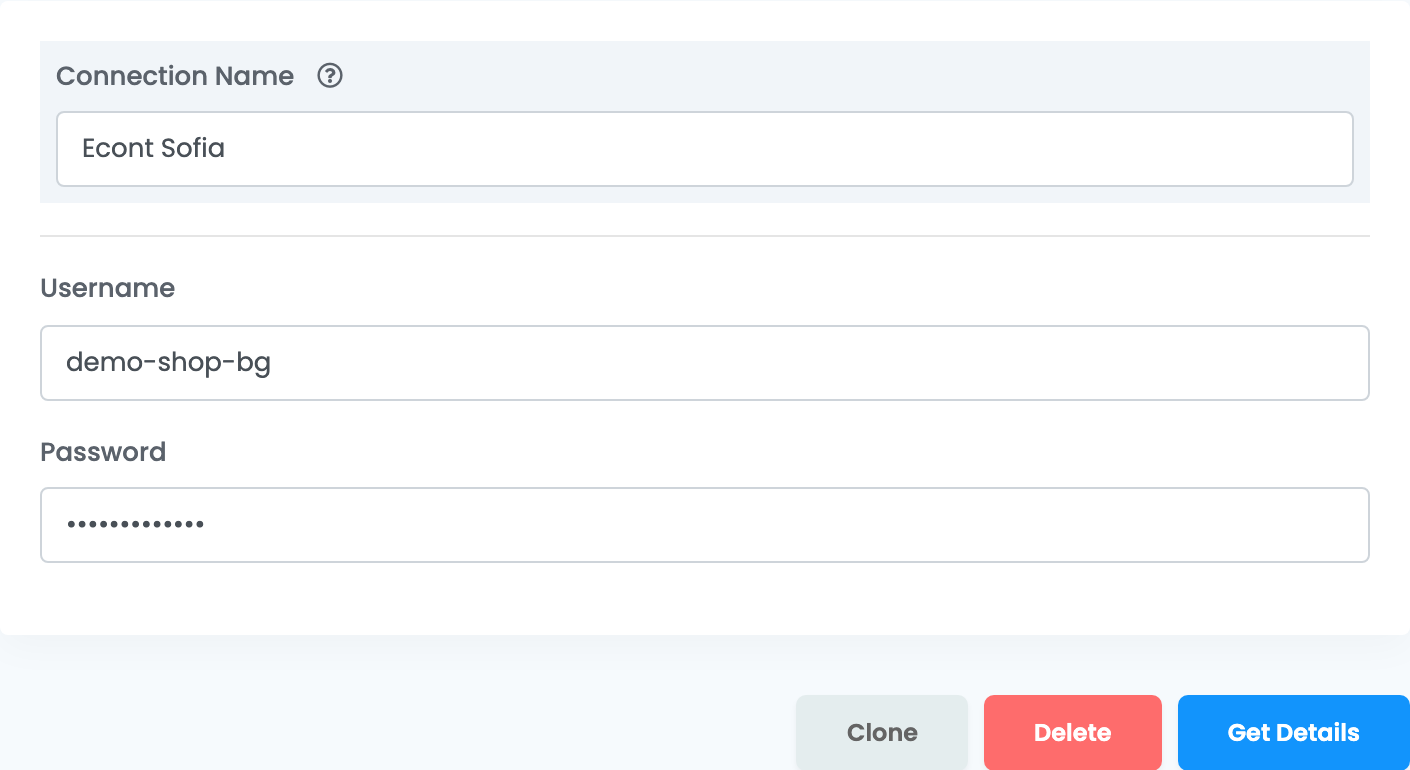
Save appears only after Get Details. The button is there every time you open the connection, and you press it each time before saving a change.
Step 3 — Pickup location and cash-on-delivery account
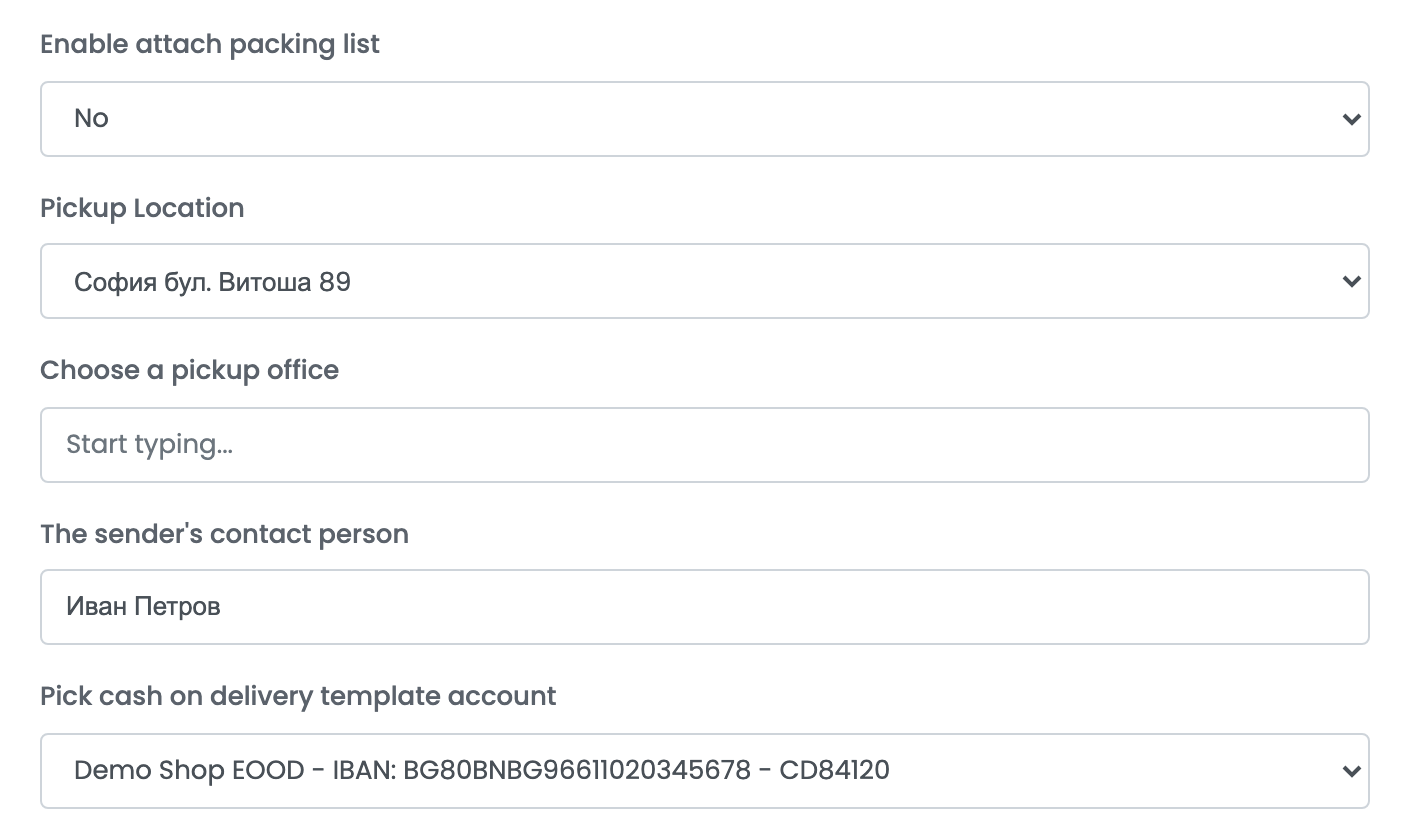
| Field | What it does |
|---|---|
| Enable attach packing list | Yes adds the list of products to the shipment. The cash-on-delivery amount must then equal the list's total, so leave the amount as easySales sets it. |
| Pickup Location | The address your parcels leave from, chosen from the addresses in your e-Econt profile. |
| Choose a pickup office | Optional. The Econt office where you hand in your parcels, if you bring them to an office. Type part of its name or town to search. |
| Pick cash on delivery template account | The cash-on-delivery agreement from your e-Econt profile, shown with its IBAN. The money collected from customers is paid according to it. Required. |
Step 4 — Delivery and payment
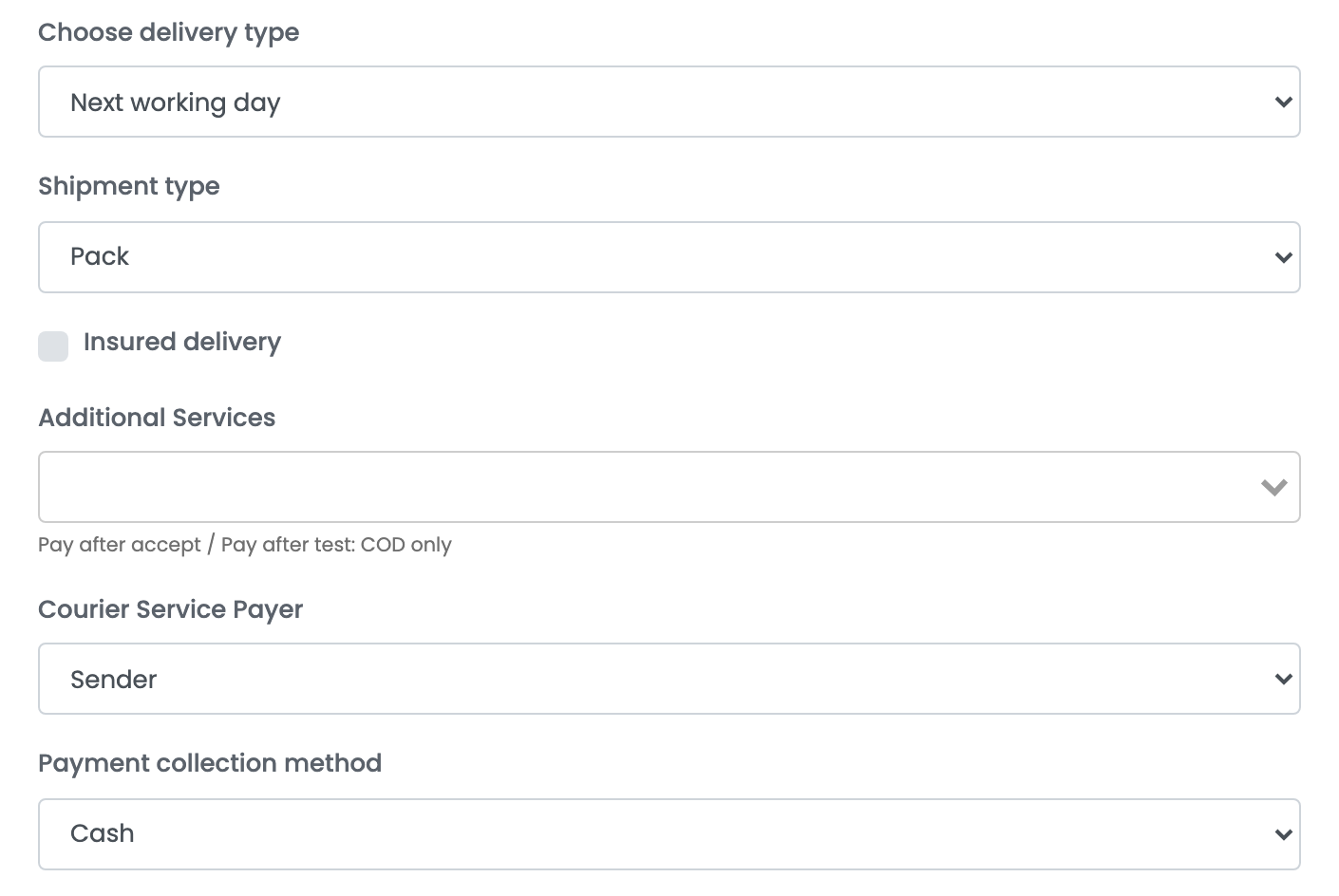
| Field | What it does |
|---|---|
| Choose delivery type | Next working day, or Next working day including Saturdays and public holidays, which Econt charges extra for. |
| Shipment type | Pack for ordinary parcels, Pallet or Cargo for larger goods. |
| Insured delivery | Declares the value of the products, VAT included, on every label from this connection. |
| Additional Services | Delivery to floor, Pay after accept (the customer checks the parcel before paying) and Pay after test (the customer may also try the product). The two payment services apply to cash-on-delivery orders only, and choosing Pay after test also chooses Pay after accept. |
| Courier Service Payer | Sender if you pay for delivery, Recipient if the customer pays it to the courier. |
| Payment collection method | Cash, or Credit under your contract with Econt. |
Press Save when you are done. To ship from a second address, open the connection, press Clone, then Get Details on the copy, give it its own name and choose the other Pickup Location.
Creating labels
- Quick create, from the order list, uses everything saved on the connection. The weight is the weight of the order's products, or 1 kg; when the order has packing boxes, each box is a parcel.
- From the order page you can choose where the parcel goes — Home Delivery, Offices or Lockers under Choose delivery type — pick the Econt office or Econtomat, and change the weight, the parcels, the cash-on-delivery amount, the insured value and the additional services before you create the label.
Cash on delivery is added when the order is paid on delivery: the amount is the order total. The order then carries Econt's tracking number, and its delivery status follows Econt's tracking.
When a label is refused
Econt's answer is shown on the order, in Bulgarian. The ones you are most likely to see:
| Message | What to do |
|---|---|
| Посочили сте платец получател на кредит, но не сте посочили клиентски номер. | The customer pays for delivery on credit, which needs an Econt client number. Set Payment collection method to Cash. |
| Сумата на наложения платеж е различна от сумата по описа. Моля, коригирайте сумите да са равни. | With the packing list on, the cash-on-delivery amount must equal the list's total. Leave the amount as easySales sets it, or turn Enable attach packing list off. |
| Несъответствие между населено място и пощенски код. | The town and the postal code of the delivery address do not match. Correct the address on the order page. |
| Необходимо е да добавите и номер на улица. | The delivery address has no street number. Add it on the order page. |
| Приемът е временно преустановен. | Econt is not accepting shipments to that address at the moment. Send the parcel to an Econt office instead, or ask Econt when delivery resumes. |