How to connect BigBang with easySales: Slovenia and Croatia
Sell on BigBang in Slovenia and Croatia with easySales: Shop ID and App token, VAT, auto-accepted orders, linking your existing offers and BigBang's messages.
What the BigBang connection does
BigBang is an electronics and home-appliance marketplace in Slovenia and Croatia. Connecting your BigBang seller account lets easySales send your products and offers to BigBang, keep their price and stock up to date, and bring BigBang orders in with the rest of your orders.
Three things to know before you begin:
- Offers you already have on BigBang must be linked to your products. They are imported unlinked. Until you link them, they receive no price or stock from easySales, and orders for them arrive without a product, so no stock is reserved.
- Set Default Tax Rate to your VAT: 22% for Slovenia, 25% for Croatia. easySales adds this VAT to the price it sends to BigBang. Left at 0, BigBang receives your price without VAT.
- Slovenia and Croatia are two cards on one BigBang account. Connect each country you sell in with the same Shop ID and App token.
Before you start
A BigBang seller account
With API access, for Slovenia, Croatia or both.
Your Shop ID and App token
From the BigBang seller back office.
Products with EAN, brand and GPSR details
BigBang needs them to accept new products.
Step 1 — Shop ID and App token
Go to Integrations → Marketplaces, search for bigbang and press Connect on the card of your country — BigBang Slovenia or BigBang Croatia.
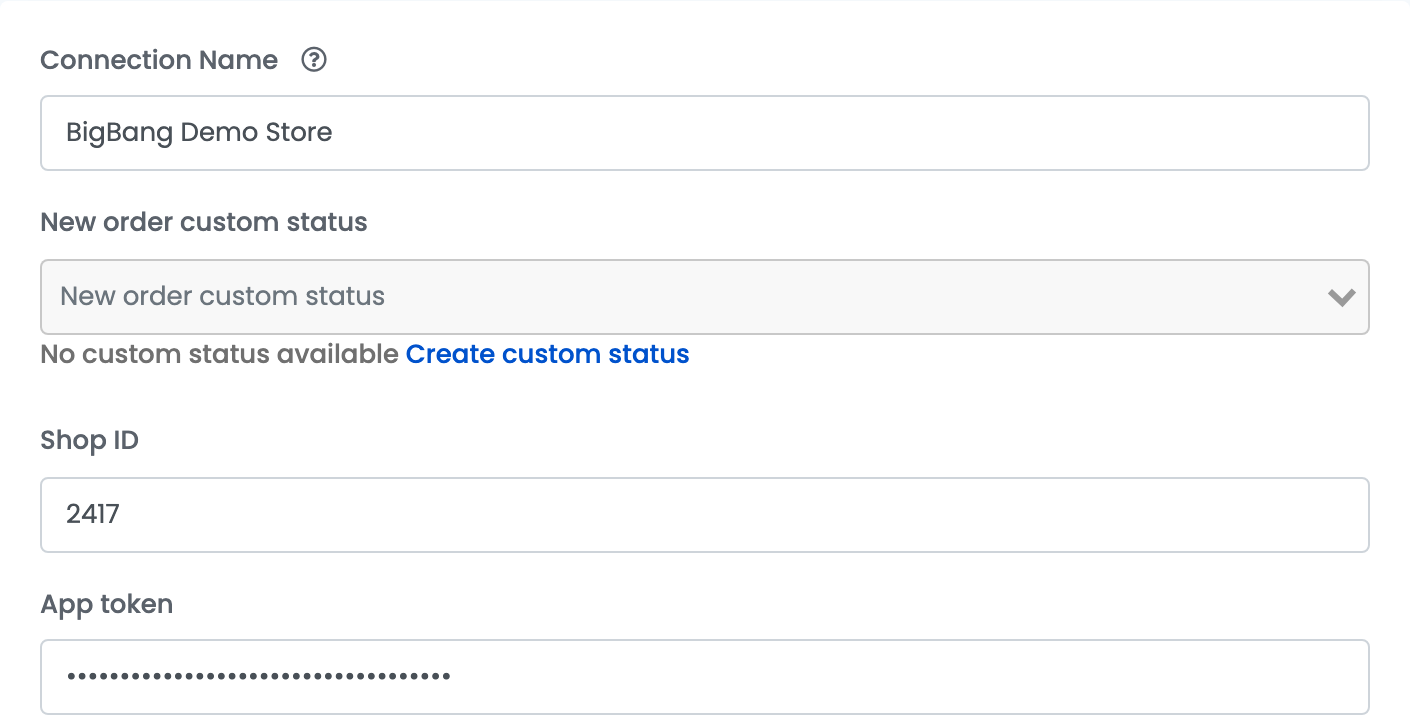
| Field | What goes in it |
|---|---|
| Connection Name |
A name you will recognise, for example BigBang Slovenia.
|
| New order custom status | Optional. The status new BigBang orders get in easySales. |
| Shop ID | Your shop's number, from the BigBang seller back office. |
| App token | The API key from the API Key tab of your user settings in the BigBang seller back office. Generating a new key there stops the old one, so update it here too. |
Press Continue. easySales checks the Shop ID and the App token with BigBang, then shows the rest of the settings and starts importing your existing offers and orders.
Step 2 — Prices, VAT and offer settings
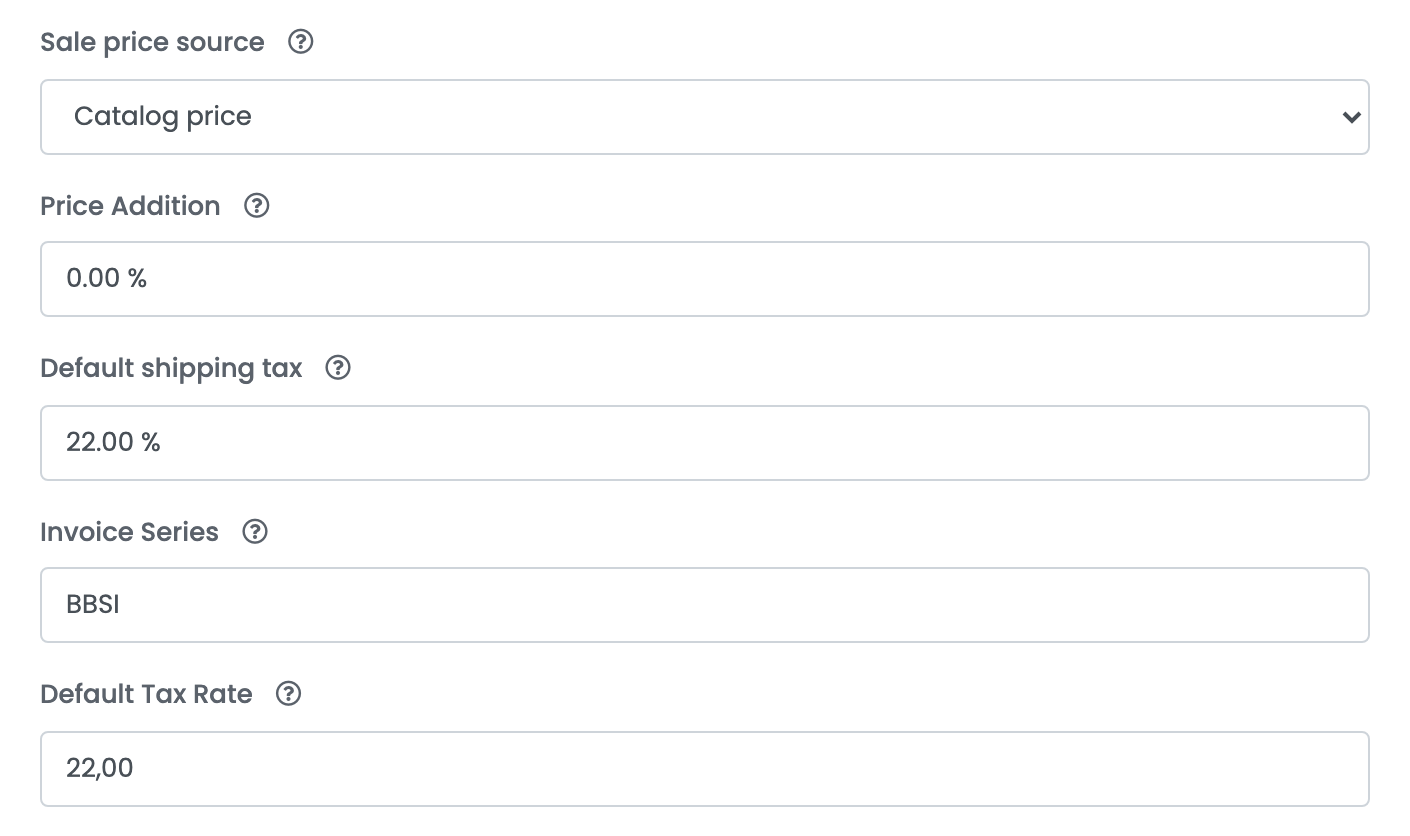
| Field | What goes in it |
|---|---|
| Sale price source | Where the price sent to BigBang comes from — your catalog price or a price group. |
| Price Addition | A percentage added to the price of new offers. |
| Default shipping tax | The VAT rate of the shipping cost on BigBang orders. |
| Invoice Series | Optional. The invoice series for BigBang orders. |
| Default Tax Rate | Your VAT: 22 for Slovenia, 25 for Croatia. Added to the price sent to BigBang. |
| Logistic class | The BigBang shipping class of your offers. Required. |
| Condition | The condition of your products. Required. |
| Delivery Days | The days you need to ship an order. |
Further down, the GPSR fields fill in the product-safety details of new offers: the manufacturer's name, address, e-mail and country, and the EU distributor. Fill in all four manufacturer fields, country included.
Press Save.
Step 3 — Orders and stock settings
Open the Additional settings tab:
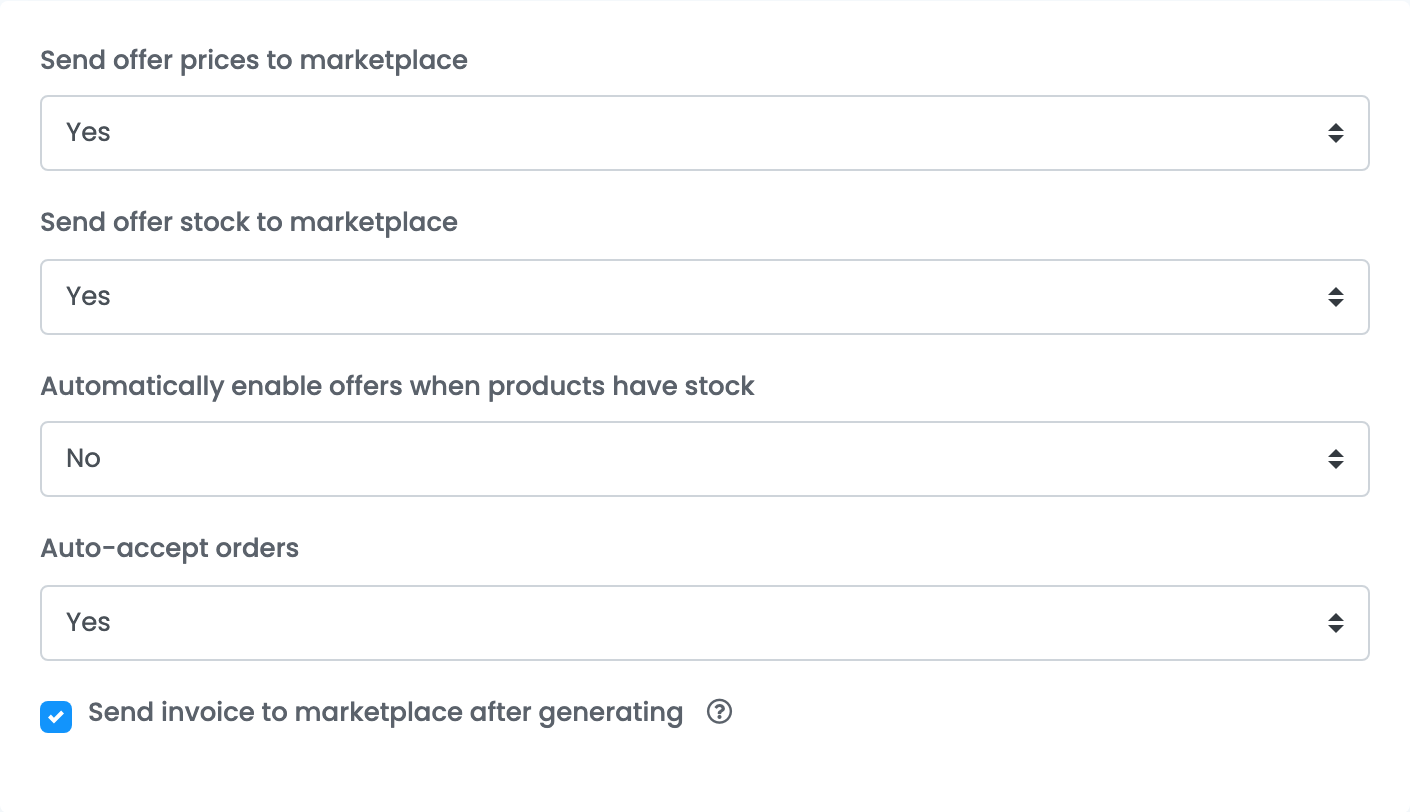
- Send offer prices to marketplace and Send offer stock to marketplace: keep Yes, so BigBang always shows your current price and stock.
- Auto-accept orders: keep Yes. BigBang shows the buyer's address only after the order is accepted, so easySales accepts each new order and imports it once BigBang confirms the payment. With No, orders come in only after you accept them in BigBang.
- Send invoice to marketplace after generating: when ticked, the invoices you create in easySales are sent to BigBang.
Step 4 — Link the offers you already have on BigBang
Your existing BigBang offers are imported into Marketplaces → Offers, on the BigBang tab. An imported offer is greyed out and marked Unlinked until you attach it to a product in easySales.
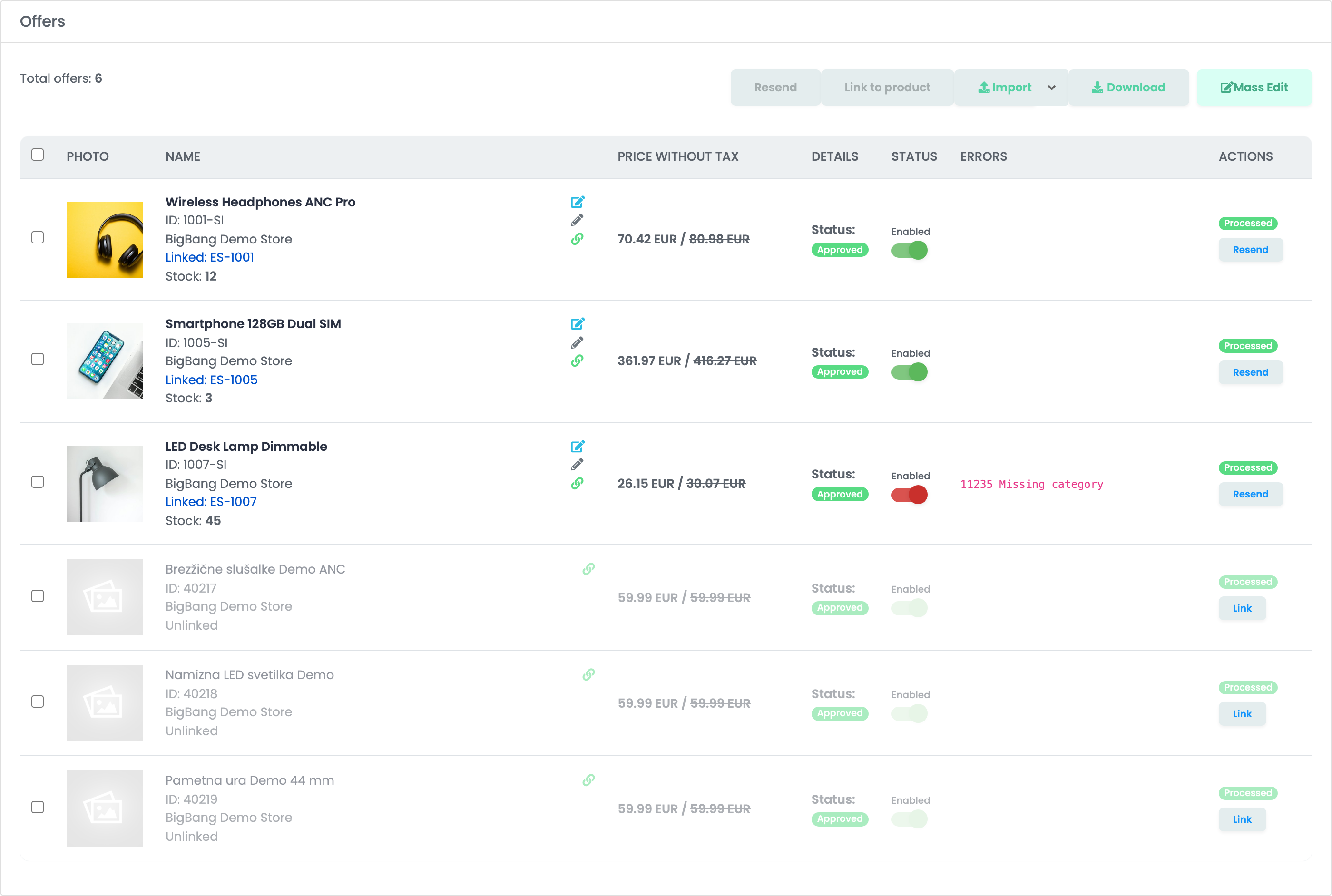
- Link, on the offer's row, attaches that one offer to a product you choose.
- Link to product does the same for the offers you have selected.
Once an offer is linked, easySales sends it the product's price and stock, and new orders for it arrive with the product attached. Link the offers on each country's tab.
Sending new products
For a product that is not on BigBang yet, map your categories to BigBang's under Categories first. easySales then sends the product — name, description, images, EAN, brand, category and characteristics — and the offer waits until BigBang approves it.
Orders
New orders come in every few minutes. When an order gets an AWB in easySales, the tracking number goes to BigBang and the order is marked as shipped there. Cancelling the order in easySales cancels it on BigBang.
When something does not work
| Message | What to do |
|---|---|
| Authentication failed due to invalid credentials | Copy the Shop ID and the App token again from the BigBang seller back office. |
| This is not BigBang HR marketplace or shop_id is invalid, shop_id could be: … | Use the Shop ID BigBang suggests, or ask BigBang to enable this country on your account. |
| 11235 Missing category | The product has no BigBang category. Map its category under Categories. |
| 11230 Product reject by BigBang — The attribute 'nameManufacturerSafety' … is required | Fill in the GPSR manufacturer's name, address, e-mail and country on the connection or the offer. |
| 11241 Invalid brand | BigBang does not know the brand. Use the brand name exactly as BigBang lists it. |
| 11243 Invalid name | BigBang accepts a product name of at most 150 characters. Shorten it. |
| You are not allowed to import products for the … category | That category is not enabled for your shop. Ask BigBang to enable it, or choose another category. |