How to move your order history to a new system
What transfers, what does not, and what you actually need. A practical plan for changing order-management systems without losing continuity.
The most common reason sellers stay in a system they dislike is not "it is good". It is "I have three years of history in there".
That is a real concern, and it is worth taking apart — because in practice it involves far less data than it feels like.

First: what do you need the history for
Before planning anything, answer one question — what do you actually use old orders for? In practice there are three reasons, and each has different requirements:
- Customer service and returns. You care about the last several months, because that is how long warranties run and how long things actually come back. You need the order contents and contact details.
- Accounting and control. Here what matters is invoices — and those live in your accounting software and in KSeF, not in your order-management system. This is the most common misconception: much of the history you are worried about does not live where you think it does.
- Sales analysis. You need totals and trends, not every row. An exported file covering the last few years is enough to compare seasons.
Separating those three usually shrinks "I have to move everything" down to "I need the last year or so at hand, plus one file with the rest".

Most of the history you are worried about does not live where you think. Invoices are in your accounting program. Buyer message threads stay on the marketplace.
Reviews and ratings belong to your platform account rather than to the tool you handle it through — changing systems does not touch them.
What moves well
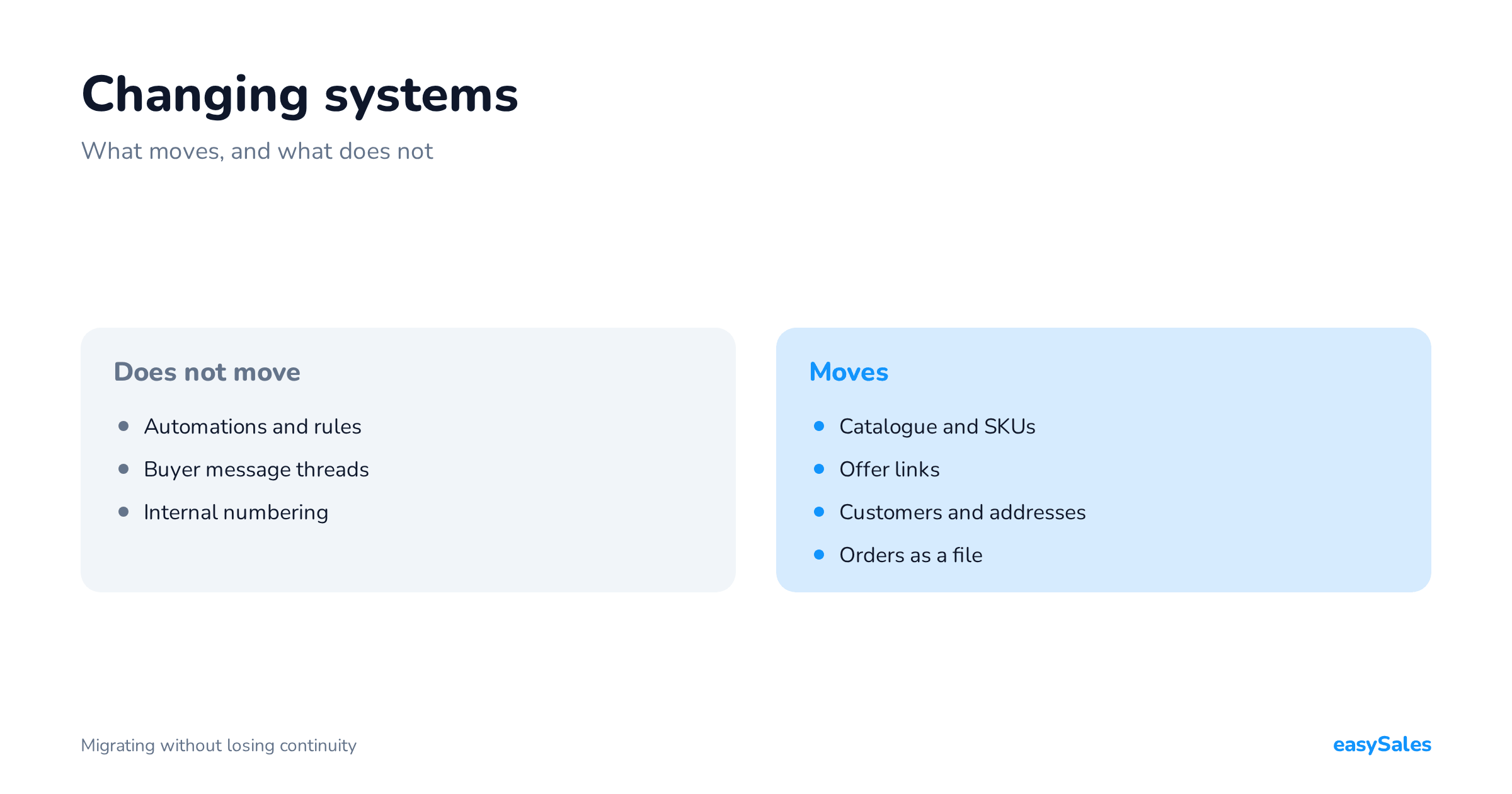
The product catalogue
SKUs, names, descriptions, prices, attributes, images. This transfers best of all, because it is structured and current.
Links to existing offers
Offers already listed on a marketplace do not need relisting: a new system can attach to them by offer id or SKU.
That matters, because relisting wipes an offer's history and its standing.
Customers and addresses
With the caveat that this is personal data, moved on the same legal basis you collected it under.
Changing tools is not a new purpose, but it does need to be tidy.
Orders as data
As an export. Practically every system lets you pull orders out to CSV or XLS.
What an order import actually carries
"Export to CSV" is a vague promise, so it is worth knowing which fields actually travel with an order. The file-based order import in easySales maps 47 columns across six groups — the full set you need for after-sales work:

- The order identifier — a single column that fills both the marketplace number and the number shown in your own panel. That way an order from before the migration can still be found using the number the buyer quotes.
- Date and status — when the order was placed, and the status it should land in. This matters more than it looks: an imported order from six months ago should not drop into the queue to be packed.
- Buyer details — name or company name, email, phone, tax id, registration number, and whether the buyer is a business or a private person and VAT-registered or not.
- Address — street, city, postal code, country and region.
- Order lines — SKU, quantity, net price, gross price, VAT rate and line total.
- Payment and currency — payment method and currency, plus invoice series and bank account details where you need them.
Two things are worth taking from that list. A line with no matching SKU still imports — with its name, quantity and price — but it is not linked to a product in your catalogue.
First, order lines are matched on SKU, so the catalogue has to be in the system before the orders are — otherwise the import creates orders with no products on them.
Second, there are no fields for status history or for buyer message threads.
You are moving an order's final state, not its journey — and in practice that covers everything you actually go back to an old order for.
Attaching offers instead of relisting them
This is the part of a migration where it is easiest to hurt yourself, so it deserves its own section.
An offer that has been live on a marketplace for two years carries sales history, reviews and standing in the results.
Relisting it throws all of that away — you get a new offer id and start from zero, even though the product is identical.

So the correct order is: load the catalogue first, then attach the existing offers to the products, and only then let the system send anything to the channel.
Attachment works by offer id or by SKU, and amounts to teaching the system which product in your catalogue corresponds to which live offer.
Three situations where attaching trips
Matching is automatic only when the catalogue and the offers speak the same language. Three cases where they do not:
- SKUs differ between channels. The same product is listed as "ABC-123" on one channel and "abc123" on another, because that is how it happened the first time. SKU matching will not work, and it has to be fixed — ideally before the migration, since it is housekeeping you will want anyway.
- Variants. A multi-variant offer has to find every one of its variants in the catalogue. If the old system glued variants into a single product, separating them is its own task and deserves its own time.
- Archived offers. Ended and withdrawn offers do not need attaching. Filter them out so they do not drag down the match rate and add noise to the report.
The practical rule: before you switch stock and price sending on, read the match report and count how many offers were left unpaired. Every unmatched offer is either a product missing from the catalogue or a SKU to fix.
Both are better found now than on the day the system starts pushing stock.
What does not move, and is better known early
Automations
Rules, flows, message templates and conditions are logic expressed in one tool's model, and there is no interchange format for them. They have to be rebuilt.
The good news: that is usually hours rather than days, and it is the best possible moment to drop the rules that only existed to work around something that is no longer there.
Marketplace message history
Buyer message threads stay on the platform — and remain available there whatever system you use.
Internal numbering
A new system assigns its own identifiers. Invoice numbering is a separate matter and that one does need continuity — govern it in your accounting software, not in your order system.

The biggest risk in a cut-over: two systems, one stock level
If you remember one thing from this article, make it this one.
During the transition you have two systems connected to the same channels, and there is only one stock level — the physical one, on the shelf.
If both systems have stock sending enabled, they start overwriting each other.
It looks like this: the old system sends "I have 10", the new one sends "I have 8" moments later, then the old one says "10" again.
The offer flickers between two values, and you find out when you sell something you do not have.
The other direction is worse — a system that does not know your warehouse yet sends zeros and switches your offers off in the middle of the day.
The safe cut-over sequence
The rule is simple and has no exceptions: at any given moment, exactly one system sends stock to a given channel. In practice that means this sequence:
- Connect the new system in a mode where it only pulls orders and sends neither stock nor prices.
- Check that stock in the new system matches reality — the warehouse, not what the old system displays.
- Turn stock sending off in the old system.
- Only now turn it on in the new one.
Between steps three and four nobody updates stock for a few minutes, and that is completely fine. Two hours of both doing it at once is much worse.
The same applies to prices if you use automatic price changes, and to sending shipping statuses back. One sender per channel, always.
How to move order history — a plan that works
- Export orders to a file before you change anything. Even if you never import it, it is your backup and it costs nothing. Do it today, whatever you decide.
- Move the catalogue and attach the offers in the new system, without switching operations over yet.
- Rebuild the automations — start with the ones touching shipping and invoices, because those save the most time.
- Run both in parallel for one week. New orders in the new system, old ones finished in the old one. That is the simplest way to avoid a single cut-over day where everything has to work at once.
- Switch the old system off only when its last order is closed. Returns from the final week are the only real reason to keep both.
One question comes up in every migration: what to do with orders that are half-fulfilled on the day you switch.
The answer is simpler than it looks — leave them where they were created.
An order moved between systems mid-pick is the simplest way to get a shipment wrong. Nobody saves time on it, and the risk is real.
So you cut over on new orders rather than on all of them at once. The old ones finish in the old system, and only then do you switch it off.
The parallel week, day by day
"Run both systems in parallel" is good advice that says nothing about what to actually do on Wednesday.
Below is a schedule that works for a seller with two or three channels. If you have more, stretch it out — but do not change the order.

Monday — catalogue and attachment. Load the products, attach the offers, read the match report. The new system sends nothing yet. The old one runs as normal.
Tuesday — pulling orders. Turn order collection on in the new system.
For one day the same orders exist in both, and that is deliberate: you compare whether everything agrees — order count, totals, buyer details, shipping costs.
Wednesday — stock. Check stock in the new system against the warehouse, turn stock sending off in the old one, turn it on in the new one.
From this point the new system owns offer availability.
Thursday — shipping and documents. Take the first orders all the way through in the new system: label, status, invoice.
Do it on real orders, not test ones — test orders always look better than reality.
Friday — automations. Switch the rebuilt rules on one at a time and watch each one fire for the first time.
A rule that runs once a day needs a day to prove it works — which is why you enable them at the end of the week rather than the start.
The following week — finishing off. The old system now only receives returns and complaints against orders that were created in it. Nothing new arrives there.
Switching off. Once the last order in the old system is closed and your usual returns window has passed, you can turn it off.
Take one final export first — the same one you took at the start, only complete.
You can back out at any point during the parallel period. The old system still has the catalogue and can still send.
That is the only reason it gets switched off at the end rather than on day one — and why it is not worth deleting until the last return is closed.
What to check after the cut-over
The list below takes half an hour and catches the things that are easy to miss, because nothing shouts when they are wrong.
Check this straight after the cut-over
- That prices did not change. The most common unpleasant case is a catalogue loaded with net prices where the channel expects gross. Compare a few offers live, on the marketplace page, not in the panel.
- That offers kept their old ids. If one has a new id, it was relisted — the sooner you catch it, the fewer of them there will be.
- That stock has a single source. Change a stock level by hand in the warehouse and check it arrives on the channel. If it does not arrive, or arrives as a different number, you have two sources instead of one.
- That invoice numbering is continuous. Your accounting software governs this, but check it right after the cut-over, not a month later.
- That shipping statuses go back to the channel. Send one parcel and see whether the tracking number appeared on the marketplace side.
- That automations fire once. A rule rebuilt twice by accident sends two identical messages to the same customer.
That review is the only thing separating "we moved" from "we moved and everything works".
How long it actually takes
For a seller with one or two channels and a tidy catalogue: a few days, most of which is waiting for synchronisation rather than working.
For a seller with several accounts, their own shop and elaborate rules: one to two weeks, and this is where it is worth asking for help rebuilding the automations.
What usually takes longest is not the migration but the decision. And the cost of waiting is real — you pay it every month.
To see what connecting channels looks like, start here: easySales integrations. We run the migration with you, and we do not charge for it.