How to connect Shoptet with easySales: a complete setup guide
Connect your Shoptet shop to easySales: the Shop ID, the order of the steps, the easySales add-on for Hungarian, Czech and Slovak shops, what syncs each way and common refusals.
What connecting Shoptet gives you
Shoptet is the online-shop platform of many Czech, Slovak and Hungarian webshops. Connected to easySales, your Shoptet shop sends its products and orders to easySales: the products become your easySales catalogue, ready to be listed on marketplaces, and the orders arrive in easySales, where you issue their invoices and AWBs. easySales sends the stock back to Shoptet and tells Shoptet when an order is completed or cancelled.
Three things to know before you begin:
- Save the shop in easySales first, then install the easySales add-on in Shoptet. easySales does not ask for a password or an API key: the connection is made when you install the easySales add-on in your Shoptet admin, and the add-on finds your shop in easySales by its Shop ID. If the shop is not saved in easySales yet, the add-on has nothing to connect to. The add-on's own description in Shoptet suggests the reverse order — follow the order in this guide.
- The Shop ID is your Shoptet e-shop number. It is the number shown in the header of your Shoptet admin, the same as in your shop's
myshoptet.comaddress — for example579096in579096.myshoptet.com. - Hungarian shops install the Hungarian add-on; Czech and Slovak shops install the Czech one. Shoptet offers the easySales add-on according to your Shoptet plan.
Before you start
Your Shoptet admin login
To install the easySales add-on.
Your Shop ID
The e-shop number shown in the Shoptet admin.
A unique code on every variant
easySales identifies each product by it.
Step 1 — Add the shop in easySales
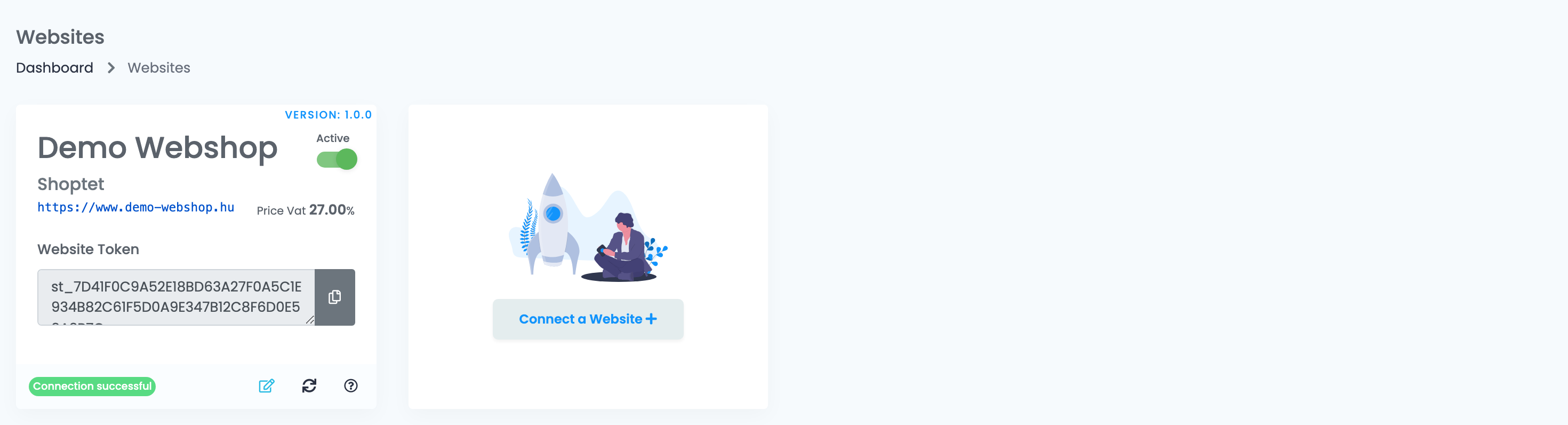
Go to Integrations → Websites and press Connect a Website.
Fill in the shop's details:
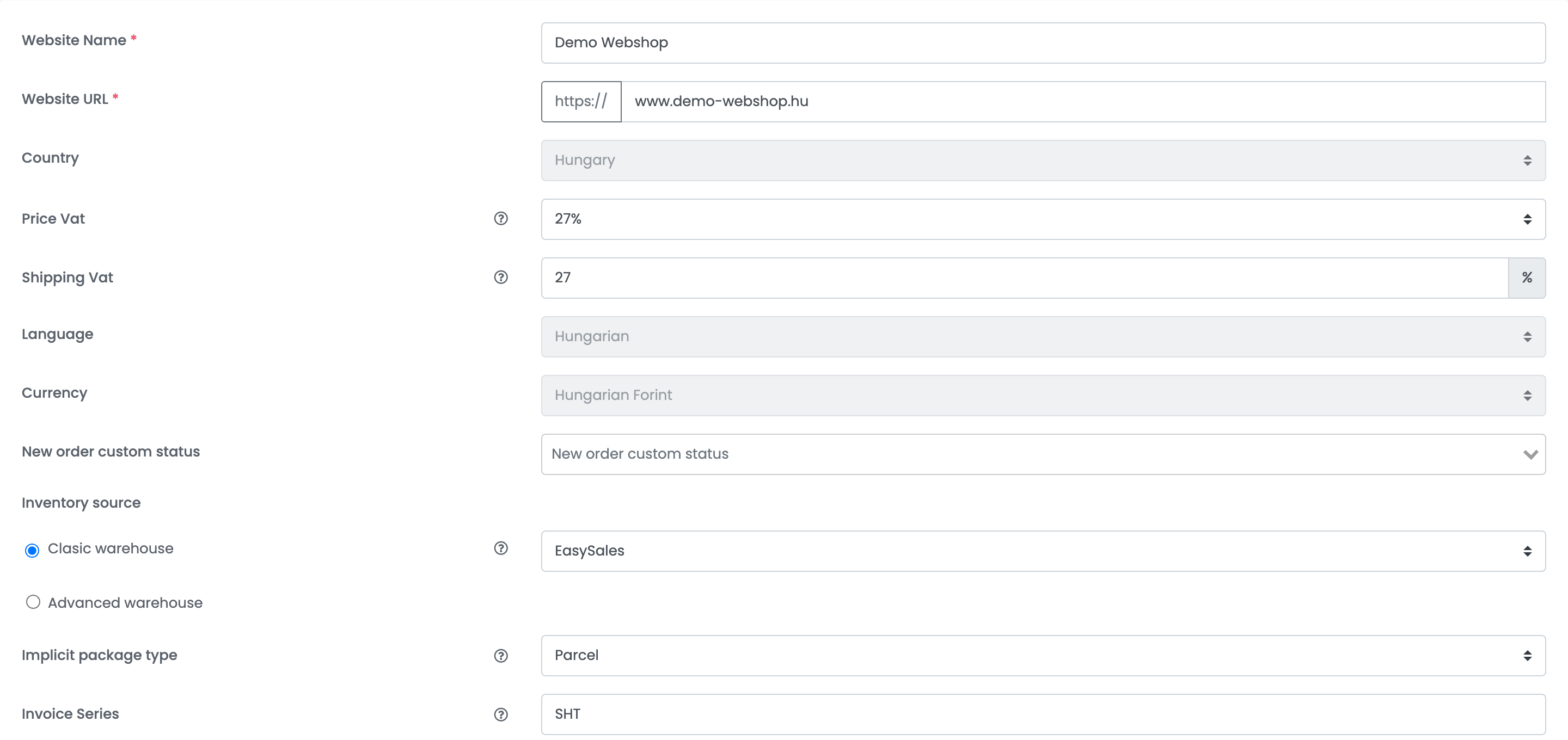
| Field | What goes in it |
|---|---|
| Website Name | A name for the shop, used inside easySales. |
| Website URL |
Your shop's address — your own domain or the myshoptet.com address.
|
| Country | The shop's country. |
| Price Vat | The VAT rate included in your Shoptet prices, for example 27% in Hungary or 21% in Czechia. |
| Shipping Vat | The VAT rate of shipping, used when Shoptet sends none with the order. |
| Language, Currency | The shop's language and currency. |
| New order custom status | Optional: the custom status new Shoptet orders get in easySales. |
| Inventory source | Where the shop's stock is kept: Clasic warehouse with a source such as EasySales, or Advanced warehouse. |
| Implicit package type | The package type new orders get, used when you create their AWBs. |
| Invoice Series | The series of the invoices you issue for this shop's orders. |
Step 2 — Choose Shoptet and enter the Shop ID
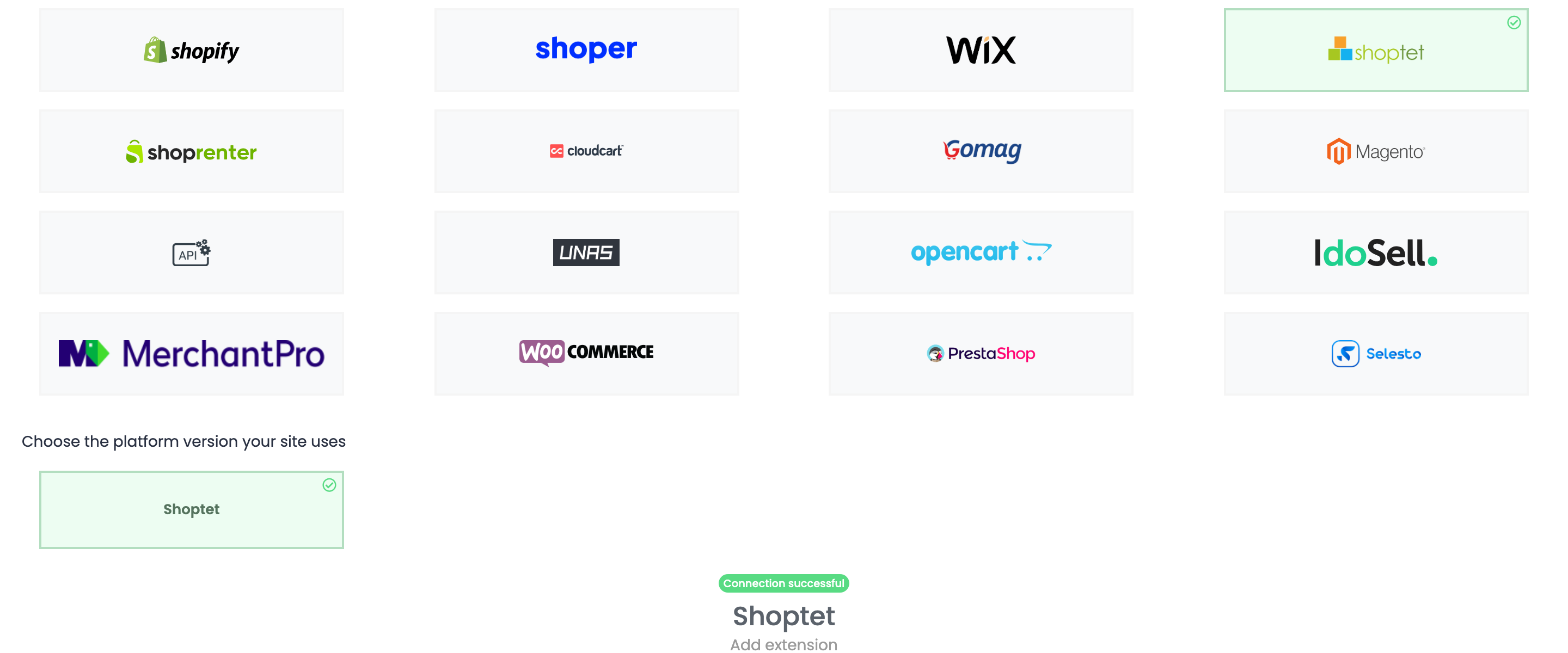
Below the details, choose the Shoptet tile, then the Shoptet version.
On the Details tab, enter the Shop ID and press Save.

Step 3 — Install the easySales add-on in Shoptet
- Log in to your Shoptet admin.
- Open the add-on store: Fiók → Kiegészítők és szolgáltatások in a Hungarian shop, Účet → Doplňky a služby in a Czech or Slovak one.
- Find easySales and install it.
When the add-on is installed, easySales starts reading your shop's categories, products and orders.
What syncs
| From Shoptet to easySales | From easySales to Shoptet |
|---|---|
| Categories and products, with prices, images, descriptions and parameters | Stock |
| New and updated orders | The order status, when you complete or cancel an order |
- Products: every variant becomes a product of its own in easySales, identified by its code (SKU). Each code must be unique; a product whose code changes in Shoptet arrives as a new product.
- Order statuses from Shoptet: an order Shoptet marks Teljesített / Vyřízena arrives as completed, Visszavont / Stornována as cancelled, and every other status as new.
- Payment: cash on delivery (Utánvét, Dobírkou, Hotově, Készpénz) and bank transfer (Banki átutalás, Převodem) are recognised; every other payment method arrives as online payment.
When something is refused
Products and orders easySales could not accept are listed in the shop's website errors, with the reason:
| Message | What to do |
|---|---|
| The selected product.categories.0 is invalid. | The product's category has not arrived yet. It clears by itself once the categories have synced. |
| The order.customer.name field is required when order.customer.legal entity is 0. | The order has no customer name. Complete it in Shoptet. |
| The order.shipping address.city field is required. | The order's shipping address is incomplete. Complete it in Shoptet. |