How to connect Selesto with easySales: online shop setup
Connect your Selesto shop to easySales: the API key, unique product codes, what syncs each way — orders, statuses, products, prices and stock — and fixes.
What the Selesto connection does
Selesto is a Polish online-shop platform. Connecting it to easySales brings your shop's products and orders into easySales, keeps the stock in step between the shop and your other sales channels, and marks orders as completed, cancelled or returned in Selesto when you do it in easySales.
Three things to know before you begin:
- easySales connects with an API key from your Selesto admin. You generate it under Ustawienia / Integracje / Pozostałe / API Selesto — it starts with
sk_. - Every variant needs its own product code (Kod), unique across the shop. easySales identifies products by it. A product without a code is not imported, and of two products with the same code, only the first one comes in.
- Products and prices stay managed in Selesto. easySales reads them from the shop; it does not create products or change prices there.
Before you start
Admin access to your Selesto shop
To generate the API key.
A unique code on every variant
Kod, filled in and different for each variant.
Your shop's address
Your own domain or the selesto.eu address.
Step 1 — Generate the API key in Selesto
- In the Selesto admin, go to Ustawienia → Integracje → Pozostałe → API Selesto.
- Add an application for easySales and generate its API key.
- Copy the key. It starts with
sk_.
Step 2 — Add the shop in easySales
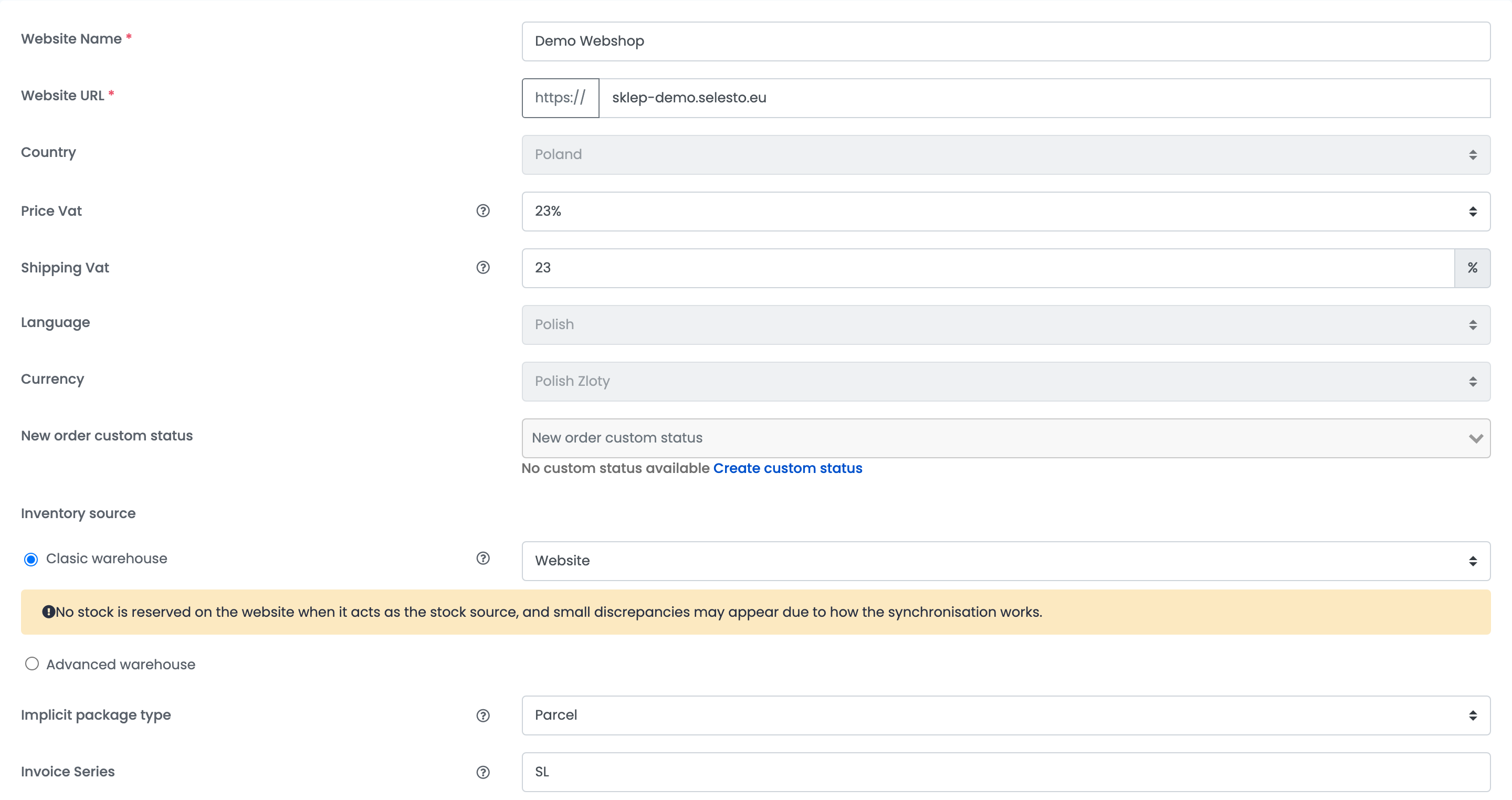
Go to Integrations → Websites and press Connect a Website. Fill in the shop's details:
| Field | What goes in it |
|---|---|
| Website Name | A name for the shop, used inside easySales. |
| Website URL |
Your shop's address — your own domain or the selesto.eu address.
|
| Country | The shop's country, Poland. |
| Price Vat | The VAT rate included in your Selesto prices, usually 23%. |
| Shipping Vat | The VAT rate of shipping. |
| Language, Currency | The shop's language and currency. |
| New order custom status | Optional: the custom status new Selesto orders get in easySales. |
| Inventory source | Where the shop's stock is kept: Clasic warehouse with a source such as Website or EasySales, or Advanced warehouse. |
| Implicit package type | The package type new orders get, used when you create their AWBs. |
| Invoice Series | The series of the invoices you issue for this shop's orders. |
Step 3 — Enter the API key
Below the details, choose the Selesto tile, then the Selesto version. On the Details tab, paste the key into API Key and press Save.
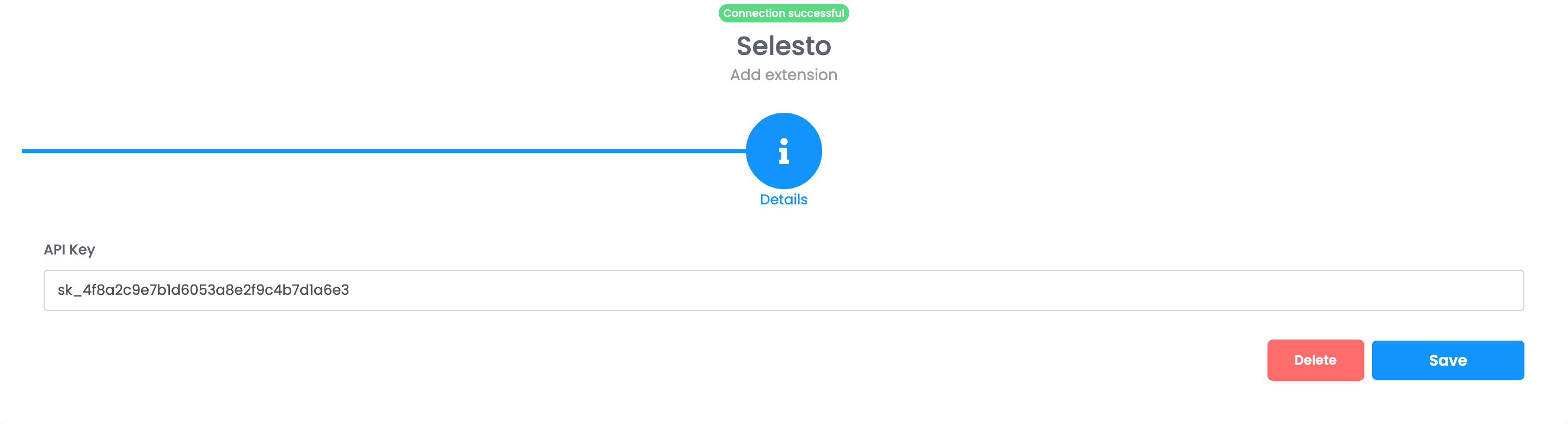
easySales checks the key with your shop. When the connection succeeds, it starts reading your shop's categories, products and orders.
What syncs
| From Selesto to easySales | From easySales to Selesto |
|---|---|
| Categories and products, with prices, images, descriptions and attributes | Stock |
| Confirmed orders and their status changes | Completed, Canceled and Return statuses |
| Stock, with Website as the stock source | — |
- Orders come in every minute, once Selesto confirms them. Pickup-point deliveries — InPost, ORLEN Paczka, DPD Pickup — arrive with their point.
- Order statuses from Selesto: new and sent orders arrive as New, completed ones as Completed, cancelled ones as Canceled and returns as Return.
- Order statuses to Selesto: when you complete, cancel or return an order in easySales, Selesto marks it the same way. Other statuses are not sent.
- Products and prices are read every 30 minutes. A discount set in Selesto becomes the sale price in easySales. Each product comes in with its main category.
- Stock: with Website as the stock source, easySales reads the shop's stock every 30 minutes and sends each change made in easySales — such as a sale on a marketplace — back to Selesto. With EasySales or an advanced warehouse as the source, easySales sends the shop its available stock.
Not exchanged: tracking numbers, invoices and returns. Add the tracking number in Selesto if your buyers should see it there.
When something does not work
| Message | What to do |
|---|---|
| Connection failed. Make sure easySales module is properly configured. If you need assistance, please contact us. | Check the API key and the Website URL. Generate a new key in Selesto if you are not sure the old one is active. |
| The product.sku field is required. | The product or one of its variants has no code (Kod) in Selesto. Fill it in; the product comes in at the next import. |
| A product is missing in easySales, with no message | Another product uses the same code. Give each variant its own code in Selesto. |