How to connect MerchantPro with easySales: a complete integration guide
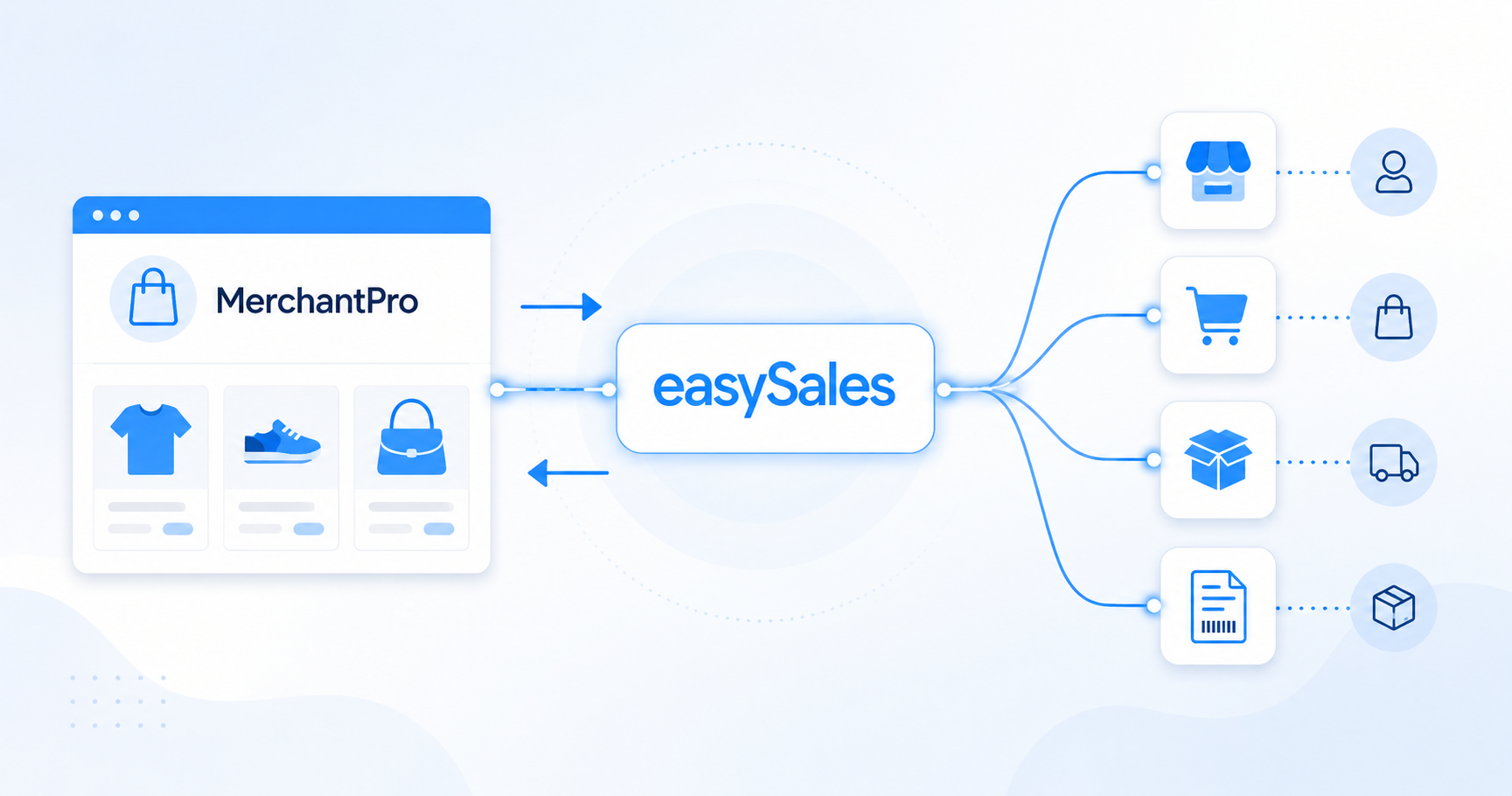
Connect your MerchantPro store with easySales using API credentials — no module to install. Create an API user in MerchantPro, start the wizard in easySales, and paste the combined token. Centralize orders, sync stock and prices, generate invoices and AWBs automatically, and reuse the same catalog as offers on every marketplace you sell on.
Why connect MerchantPro with easySales
Sell on MerchantPro and want one place to manage orders, generate invoices, push AWBs to couriers, and reuse the same products as offers on marketplaces? easySales handles all of it from a single dashboard.
Once connected, easySales pulls products, variants, and prices from MerchantPro and centralizes incoming orders. From there you generate invoices, create AWBs with any supported courier, and turn those products into offers on eMAG, Allegro, Kaufland, Trendyol, and 80+ other channels. Stock and order status stay in sync in both directions.
MerchantPro connects through API credentials, not a downloadable plugin. You create an API user inside MerchantPro — which gives you an API User string and an API password — start the wizard in easySales, and paste them as a single token — no module to install, no FTP access, no theme changes.
How the MerchantPro connector works
easySales connects to your MerchantPro store over its API, authenticated with the API user and password you create in MerchantPro and paste into easySales as one combined token. easySales uses that token to read your catalog and orders, and MerchantPro notifies easySales when an order or a stock level changes — so new orders and stock movements reach easySales in near real time.
The connection is one-directional in terms of credentials: easySales calls MerchantPro, never the other way around. Your MerchantPro admin password and store data stay inside MerchantPro. You can revoke access at any time by regenerating the API credentials in MerchantPro.
Interactive tour
Don't feel like reading? Take the interactive tour.
Prerequisites — what to prepare before you start
A few requirements keep products from being skipped at import.
MerchantPro admin access
You need admin permissions on the store to create the API user and password used to authenticate easySales.
A live, publicly reachable store
easySales calls your MerchantPro store to read the catalog and orders, so the shop must be reachable from the public internet — not behind HTTP basic auth, IP allow-lists, or a maintenance-mode page.
Unique SKU per product and variant
Two products or variants with the same SKU collide — only one is imported. Audit and de-duplicate before connecting, including across variant combinations sold separately.
Numeric stock per product
Stock has to be a numeric value on every product. Products with empty or non-numeric stock are skipped at import.
An easySales account
A trial works. You connect the store from Integrations → Websites.
Step 1 — Create an API user in MerchantPro
In your MerchantPro admin, open the API users page and click Add API user. Give it a recognizable internal reference (for example easySales), grant it read/write permission, and make sure it's enabled. MerchantPro then shows two values for that user: the API User (a long string that acts as the key) and an API password (the secret). Copy both — you'll combine them into a single token in easySales in Step 3.
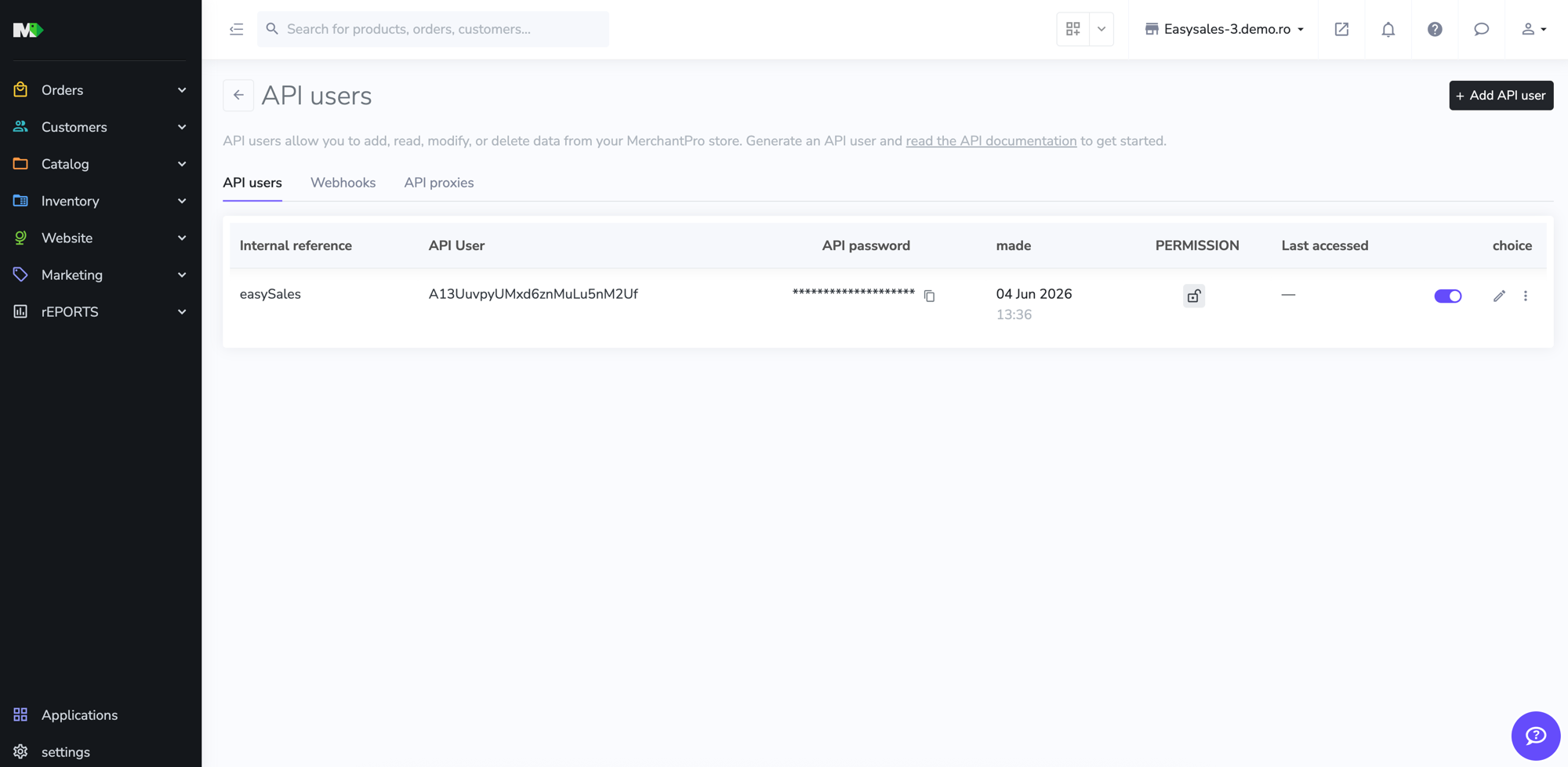
If your store has optional MerchantPro services enabled — for example Multiple categories per product — note which ones, so you can declare them in easySales and have the data imported correctly.
Step 2 — Start the wizard in easySales and configure the site
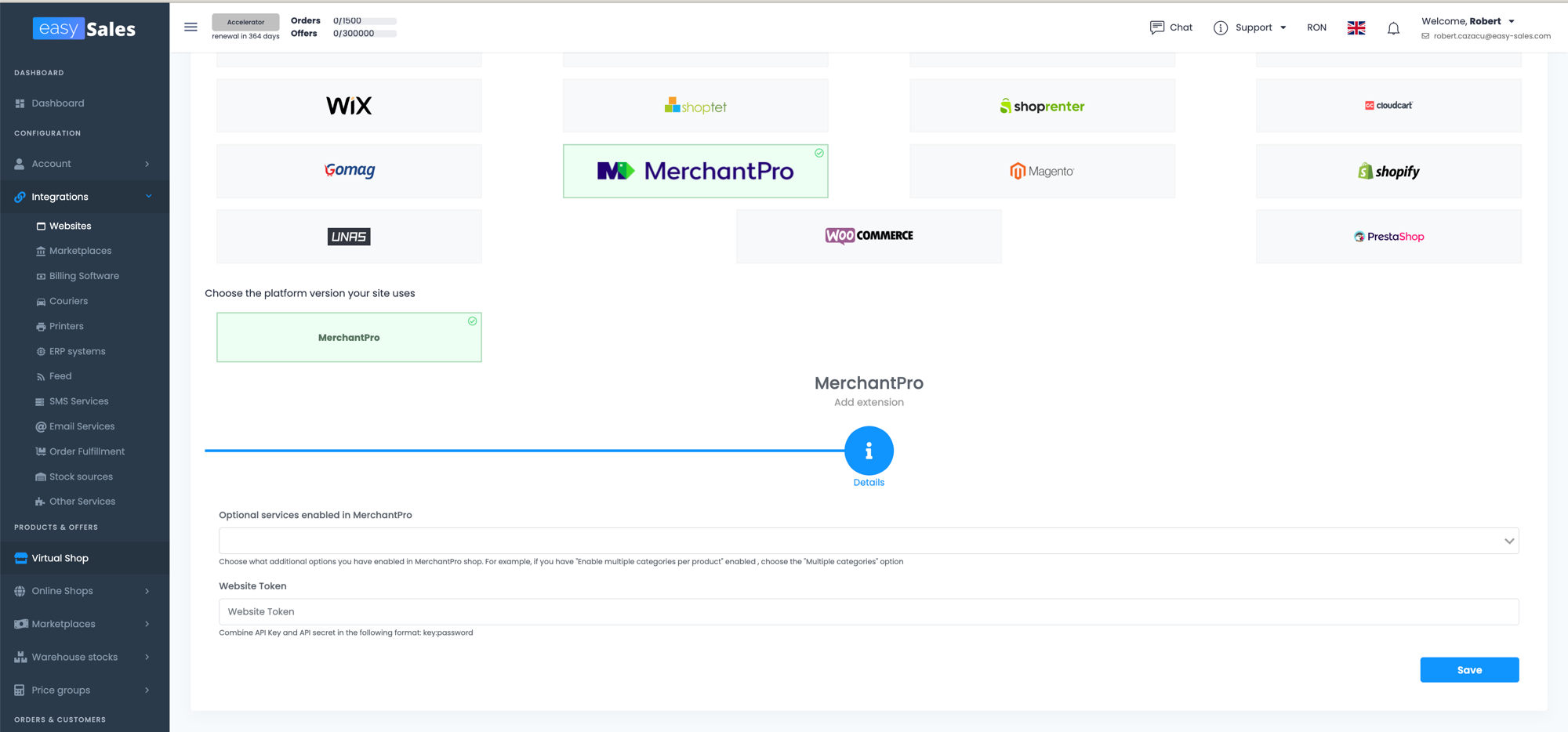
In easySales, go to Integrations → Websites, then select MerchantPro from the platform grid and confirm the version. Fill in the site details — the form collects everything easySales needs to drive the integration.
Website name and URL
- Website name — a label you choose. Only visible inside easySales.
- Website URL — your MerchantPro store. Use the exact URL where the shop runs, including
https://and thewwwprefix if your domain uses it.
VAT and VAT for shipping
If you're a VAT payer, enter the rate for your products and a separate rate for shipping (for example 21 for the current Romanian standard rate). Leave blank if you're not. The rate you set here is what easySales uses on invoices and on outbound marketplace offers, and it's also applied to shipping and discount lines on imported orders — set both fields so order totals reconcile.
Language and currency
Pick your store's language and currency (RON, BGN, HUF, PLN, or EUR). These act as defaults for imported products and as a fallback when an order doesn't carry an explicit currency. They never override individual orders — each order keeps the currency MerchantPro reported.
Product stock source
The most important decision on the form. It tells easySales where the authoritative stock value lives:
- Website — MerchantPro is the source of truth. easySales reads stock from MerchantPro and never overwrites it.
- easySales — easySales is the source of truth. Stock changes inside easySales (sales, manual edits, marketplace deductions) are pushed to MerchantPro.
- Connected integration — your stock lives in a third-party system already wired to easySales (billing software like SmartBill, Oblio, Fakturownia or FacturisOnline; an ERP such as NexusERP or Sedona; a fulfilment partner). easySales reads stock from that integration and pushes it to MerchantPro. Connect the integration and declare its warehouse first — you can't pick this option otherwise.
Running a multi-warehouse operation? Switch to Advanced warehouse mode. Instead of binding the store to one stock source, pick one or more easySales warehouses and define how their stock is aggregated, prioritized, or split per channel.
Step 3 — Add optional services and paste your token
The MerchantPro step of the wizard collects two things: the optional services your shop has enabled and the token easySales uses to authenticate.
Optional services enabled in MerchantPro
Select the additional MerchantPro options your shop uses. The only one available today is Multiple categories per product — enable it here if you've enabled it in MerchantPro, so products carry all their categories into easySales instead of just the primary one.
Website Token
Combine the credentials from Step 1 into a single token in this exact format:
Paste the result into the Website Token field and continue. easySales validates the token live against MerchantPro before saving — if the API user, password, or store URL is wrong, you'll see an error on this step rather than a silently broken connection. Once it validates, save to finalize.
What happens automatically after you connect
Saving the connection kicks off the initial import and turns on continuous sync.
- Your product catalog is imported — products and their variants appear in Online Shops → Products, where you can browse, edit, and turn them into offers for marketplaces.
- Incoming MerchantPro orders appear in your Orders screen, where you generate invoices, AWBs, and run automation flows.
- Order and stock changes from MerchantPro reach easySales in near real time, so the two systems stay aligned without manual refreshes.
- Stock syncs according to the source you picked. If you chose easySales, stock pushes run continuously and your MerchantPro store reflects centralized inventory.
| From MerchantPro → easySales | From easySales → MerchantPro |
|---|---|
| Orders (create, update, cancel) | Stock updates |
| Products and variants | Order status changes |
| Stock levels | Delivered status (optional) |
| Product prices | AWB and courier details |
| Categories | — |
| Order discounts | — |
| Customer details and addresses | — |
| Locker IDs from the order | — |
Fine-tuning your MerchantPro connection
After saving, open the MerchantPro website's Preferences tab. Three groups of settings are worth a quick pass.
Order Behavior
- Allow reopening completed orders — by default, terminal statuses cannot revert to an active state. Enable if you need to reopen orders.
- Allow reopening cancelled orders — same logic for cancelled orders (useful when a temporarily cancelled unpaid order is finally paid).
Synchronization
- Fetch orders — automatic import of new MerchantPro orders.
- Update order status on MerchantPro — push status changes from easySales back to MerchantPro so both systems stay in sync.
- Update product stock on MerchantPro — push easySales stock levels to your MerchantPro store. Turn off if MerchantPro is your stock source.
MerchantPro-specific options
- Fetch variant options as product properties — import each variant's option values (size, color, etc.) as product properties in easySales, so they carry through to marketplace offers.
- Fetch custom data as product properties — import MerchantPro custom fields as additional product properties.
- Discount items as individual lines — import order-level discounts as separate lines instead of folding them into product prices. Turn this on if your discounts arrive attributed to the wrong line.
- Send delivered status — when a courier confirms delivery, push the delivered status back to the order in MerchantPro so your store reflects fulfilment without manual updates.
Click Save at the bottom of the page to apply your changes.
You're connected — what's next
Once orders start arriving, the next step is automation. Set up flows to generate invoices, create AWBs, and send tracking notifications. If you also sell on marketplaces, turn your MerchantPro catalog into offers and let easySales push them out.
Connect your MerchantPro store in minutes
Try easySales free for 14 days. No credit card and no code changes.