How to connect Global24 with easySales: a complete setup guide
Ship from Poland abroad with Global24 and easySales: the API login from Global24, one carrier per connection, label format, your address, labels and cash on delivery.
What connecting Global24 gives you
Global24 ships parcels from Poland to other European countries. You hand your parcels to Global24 in Poland; Global24 carries them to the destination country and passes them to a local carrier there — for example DHL in Germany, Post AT in Austria, Colissimo in France or Correos in Spain. With Global24 connected, easySales creates these shipments for your orders: it sends the recipient to Global24, receives the label and puts the AWB on the order.
Three things to know before you begin:
- Global24 gives you the login. The Username and Password are the API login Global24 issues after you sign your agreement with them. Ask Global24's sales team at sales@global24.com.
- One connection is one carrier. The carrier, its service and the package type belong to the connection and go on every label it creates. To ship with a second carrier, add a second connection.
- Global24 checks the login with the first label. Saving the connection does not contact Global24. Create a label for a test order to make sure the login works.
Before you start
An agreement with Global24
With the carriers and countries you ship to.
Your Global24 API login
The username and password Global24 gives you for the integration.
Your address in Poland
Where you ship the parcels from.
Step 1 — Your Global24 login and the carrier
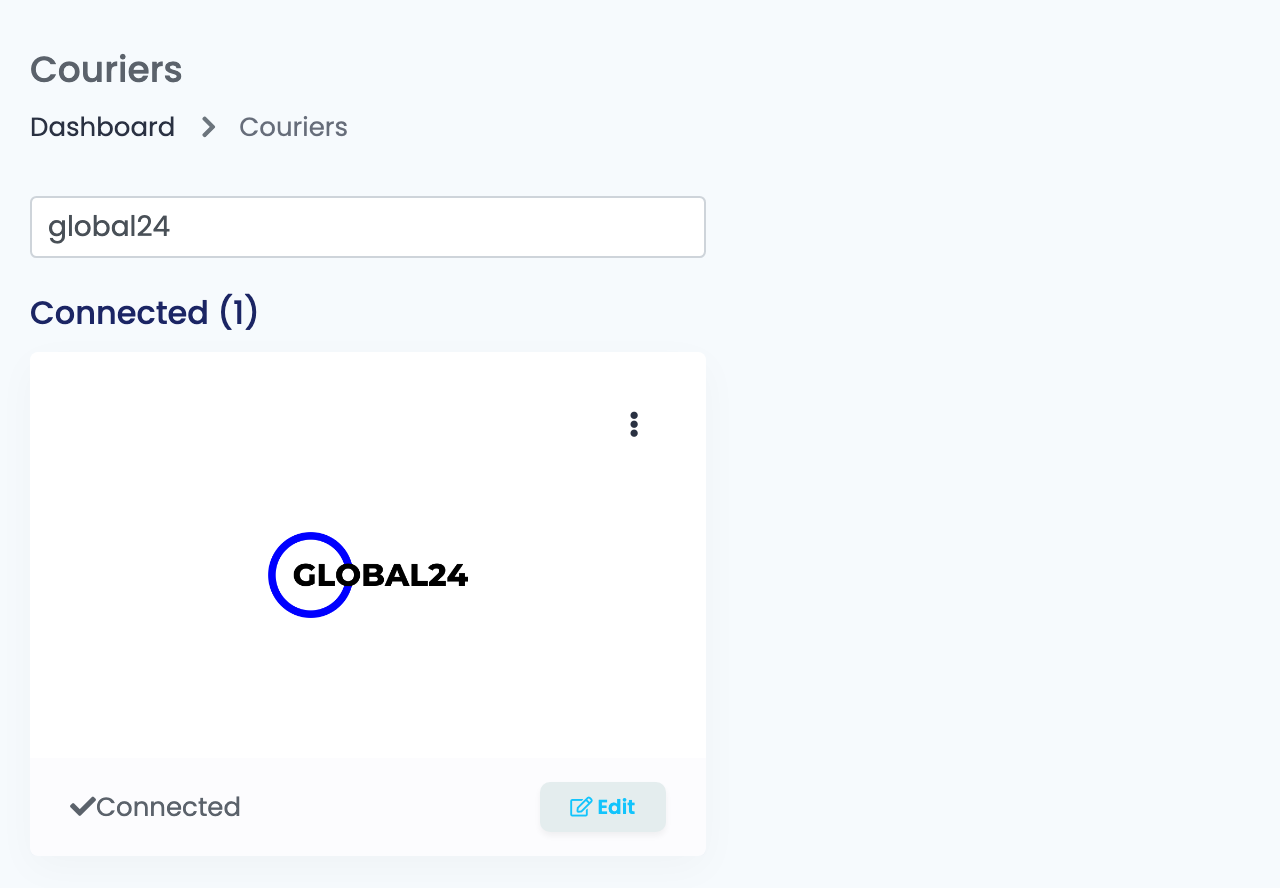
Go to Integrations → Couriers, search for global24 and press Connect on the Global24 card. Enter a Connection Name you will recognise, the Username and Password from Global24, and choose the carrier in Courier Account.
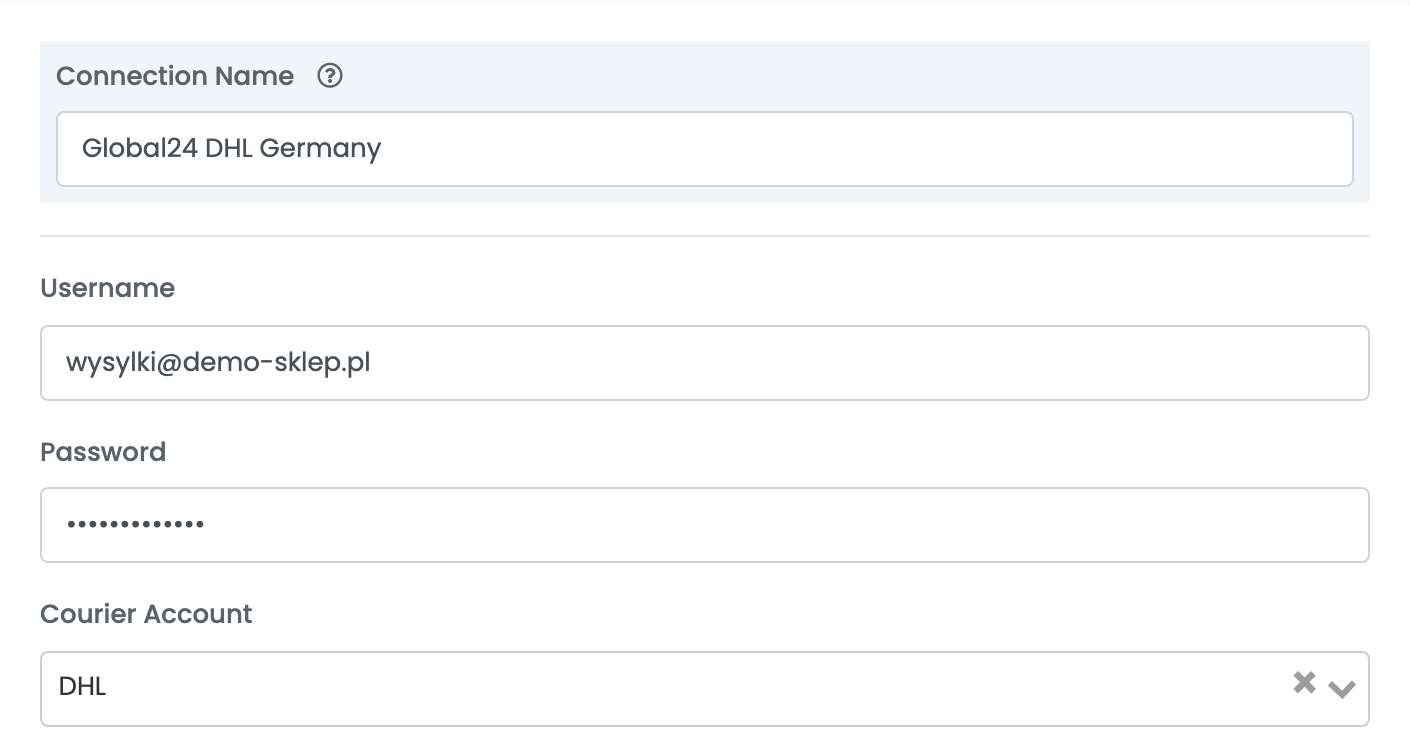
Once you choose the carrier, two more lists appear below it: the carrier's service, and then the package type. Choose the ones your Global24 agreement includes for that carrier — for DHL, for example, DHL Standard.
Step 2 — Label format and your address
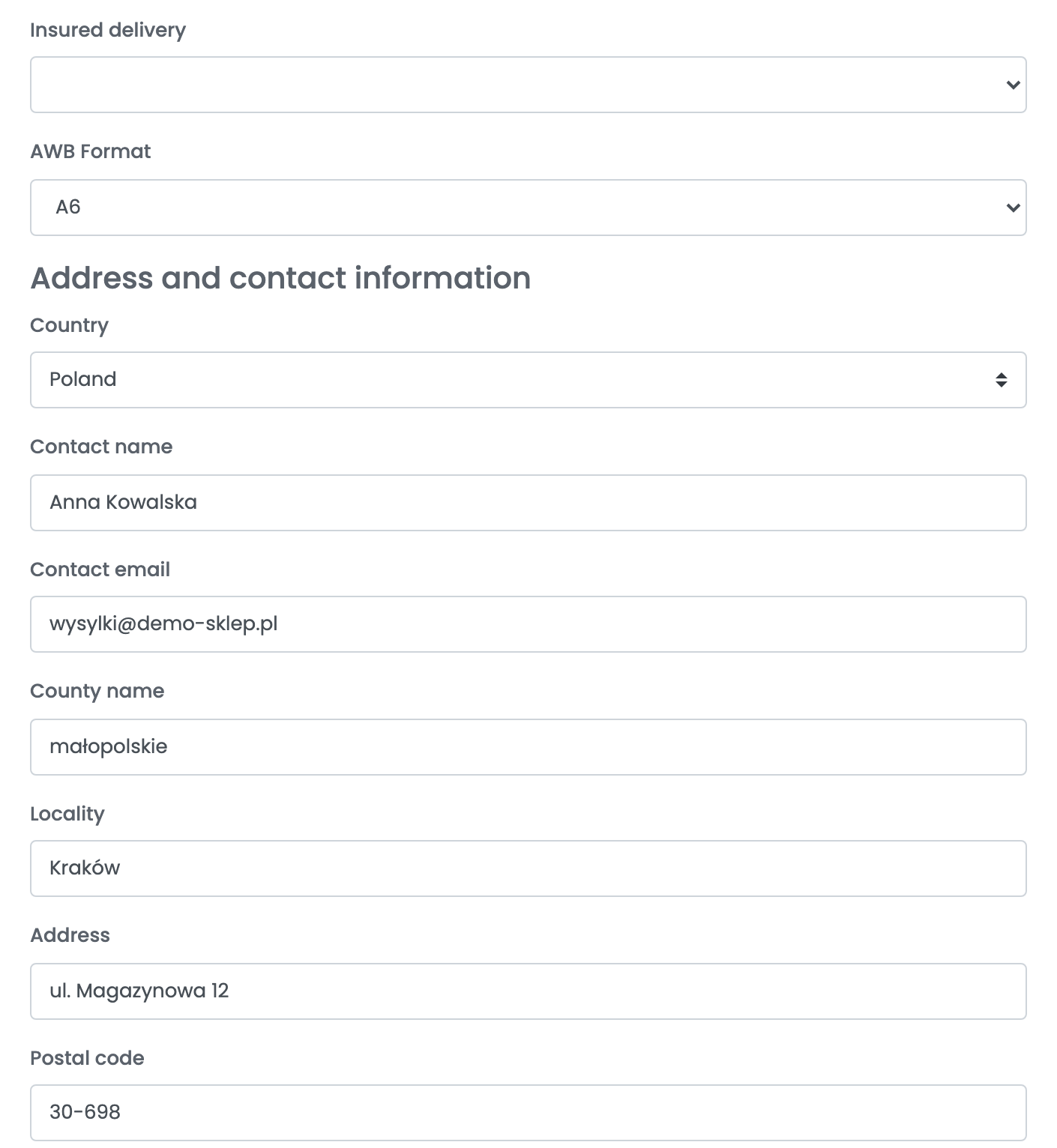
| Field | What goes in it |
|---|---|
| Insured delivery | Leave it empty: Global24 offers insurance only with some carriers. |
| AWB Format | A4 for an office printer, A6 for a label printer. |
| Country, County name, Locality, Address, Postal code | Your address in Poland, where you ship the parcels from. |
| Contact name, Contact email | The person Global24 contacts about your shipments. |
Press Save. For a second carrier, choose Connect another courier account in the card's ⋮ menu, or open the connection and press Clone, then change the carrier.
Creating labels
- Quick create: in the orders list, choose Quick Create → Global24 in the AWB column. The label is created with the connection's carrier, service and package type, and the order's weight — 1 kg when the products have none.
- From the order: in the order's Awbs section, press Create AWB and choose Global24. You can change the recipient, the weight and the number of parcels.
The label arrives on the order, with the AWB of the shipment. On the label, Global24 prints the address of its point in the destination country as the sender.
Cash on delivery
easySales sends the order total as cash on delivery for orders paid on delivery, when the connection's carrier accepts it:
- DHL — in EUR.
- Colissimo — in EUR, up to 1,500.
For other carriers, a cash-on-delivery order is refused with COD payments not supported for this courier. Global24 pays the collected amounts to the bank account in your Global24 profile.
When something does not work
| Message | What to do |
|---|---|
| 202 Unknown error. If appears contact Goglobal24 administrator. | Check the Username and Password with Global24 — ask them to reset the API login if needed — and the recipient's phone number on the order. |
| COD payments not supported for this courier. | The connection's carrier does not take cash on delivery. Ship the order with a DHL or Colissimo connection, or without cash on delivery. |
| Currency not supported for COD payments. | Colissimo takes cash on delivery only in EUR. Ship the order without cash on delivery, or sell it in EUR. |
| COD value exceeds the maximum allowed. | Colissimo accepts cash on delivery up to 1,500 EUR. |