How to connect FedEx with easySales: a complete setup guide
Connect FedEx to easySales without API keys: the account number and address, the EULA and account validation by PIN or invoice, the service, label format, pickups and common refusals.
What connecting FedEx gives you
With FedEx connected, easySales creates FedEx shipments for your orders: it sends the sender and the recipient to FedEx, receives the label as a PDF, puts the AWB on the order and follows the parcel's delivery status from FedEx tracking.
Three things to know before you begin:
- You don't need any API keys. You enter your FedEx account number, accept the FedEx licence agreement and validate the account from easySales. FedEx then issues the keys to easySales by itself. You don't need a project on the FedEx developer portal.
- The address must be the one FedEx has for your account. FedEx validates the account against the address you enter, so type it exactly as it appears on your FedEx account and invoices.
- One connection uses one FedEx service. Every label from a connection goes out with its Shipping service and Package size. For another service, add a second connection.
Before you start
A FedEx account number
Nine digits, on your FedEx invoices and in your fedex.com profile.
The address FedEx has for the account
Typed exactly as FedEx has it.
A way to receive the PIN
The phone or e-mail address on your FedEx account — or a recent FedEx invoice.
Step 1 — Account number and contact address
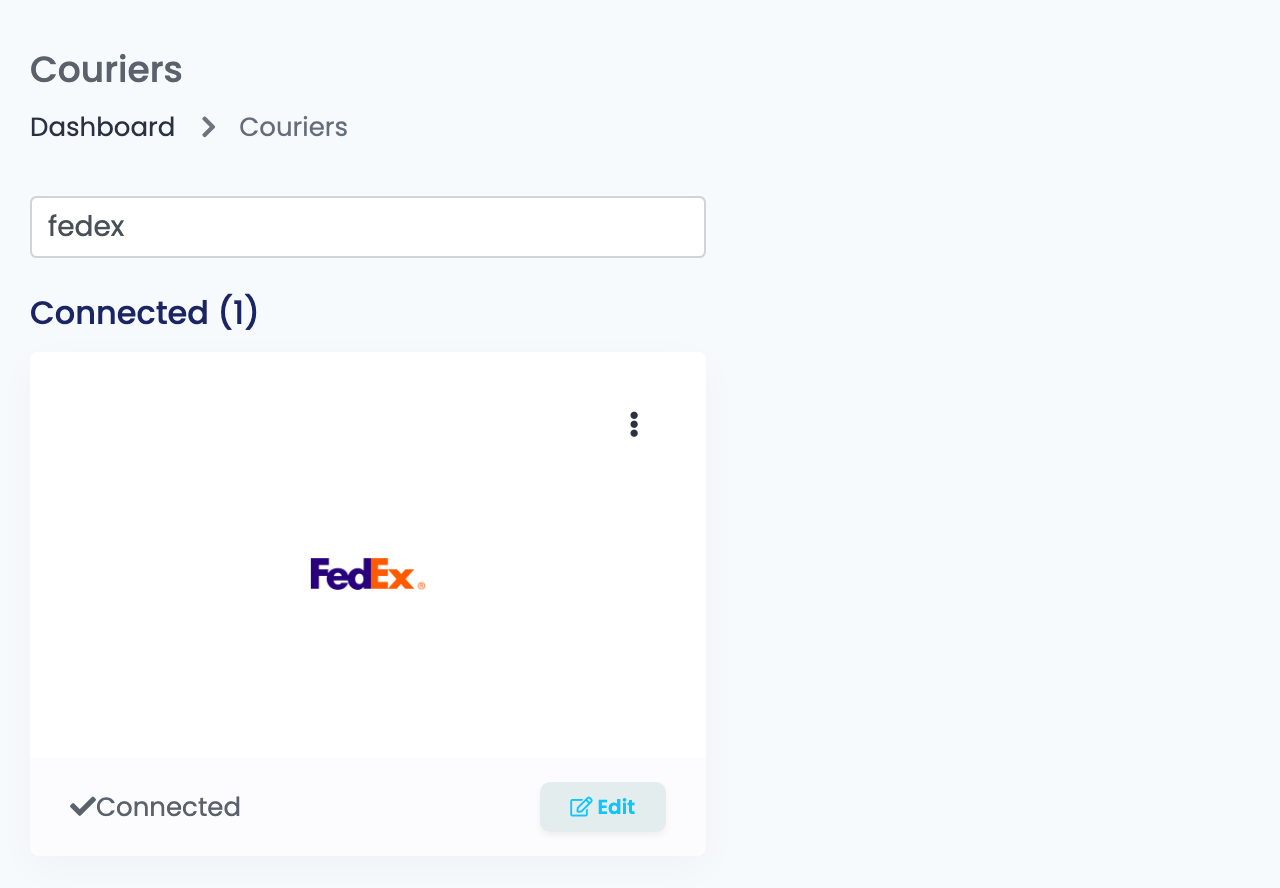
- Go to Integrations → Couriers, search for
fedexand press Connect on the FedEx card. - Enter a Connection Name you will recognise and your nine-digit Account number.
- Leave I already have FedEx API credentials (Child Key / Child Secret) unticked.
- Under Contact informations, fill in Country, County, City name, Address, Postal code, Contact phone, Contact email, Contact company name and Contact name.
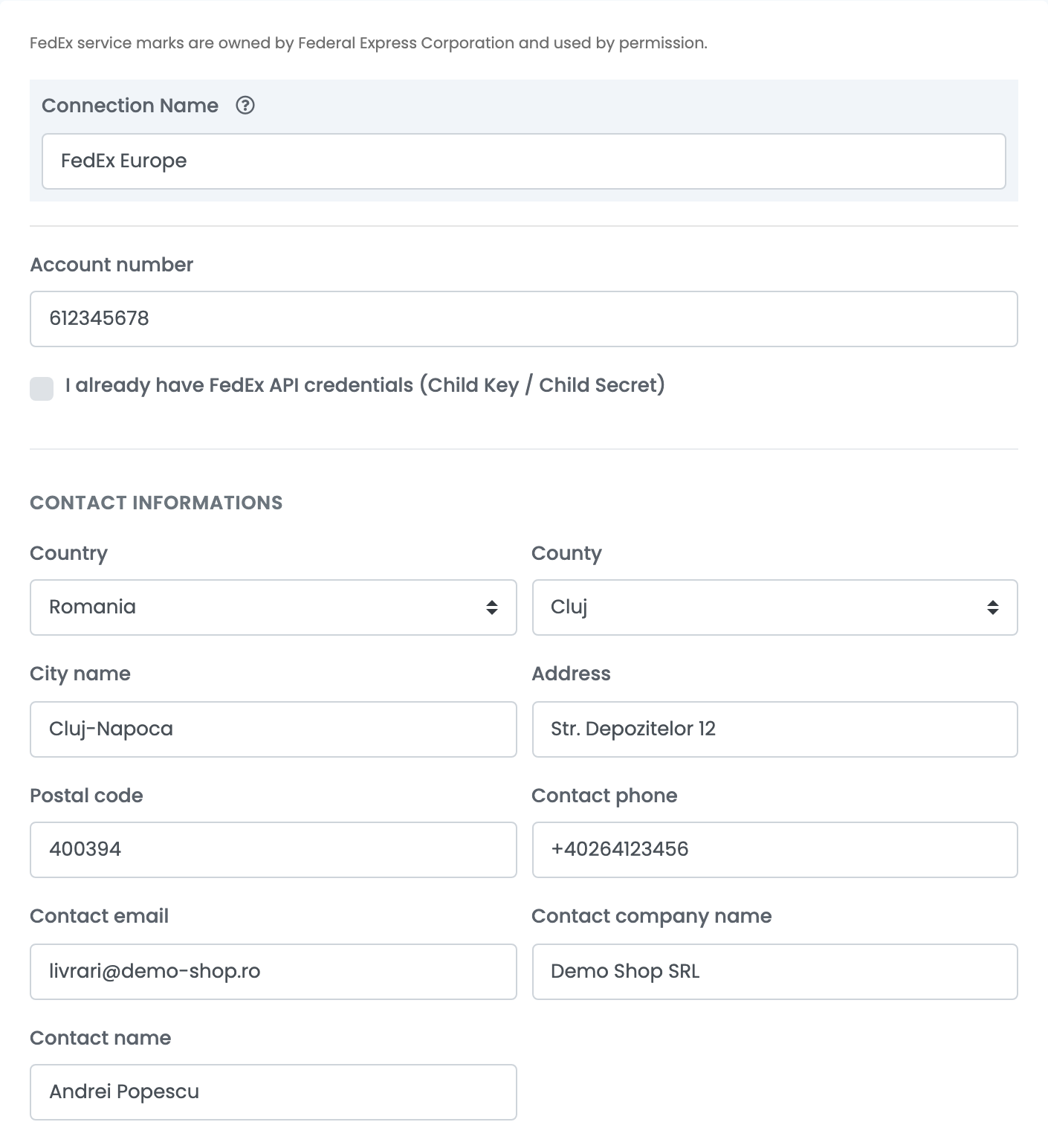
The contact address is also the sender address on every label and the address FedEx collects from.
Step 2 — Validate your FedEx account
Under FedEx account validation:
- Press View and accept EULA. Read FedEx's End User License Agreement to the end, then press Accept EULA.
- Press Validate FedEx account. FedEx checks the account number against the address.
- Confirm that the account is yours, in one of two ways:
- Validate with PIN: choose SMS, Phone call or Email, press Send PIN, enter the six-digit PIN FedEx sends you and press Confirm PIN.
- Validate with invoice: enter the Invoice number, Invoice date, Currency and Amount of a FedEx invoice from the last 90 days, and press Validate invoice.
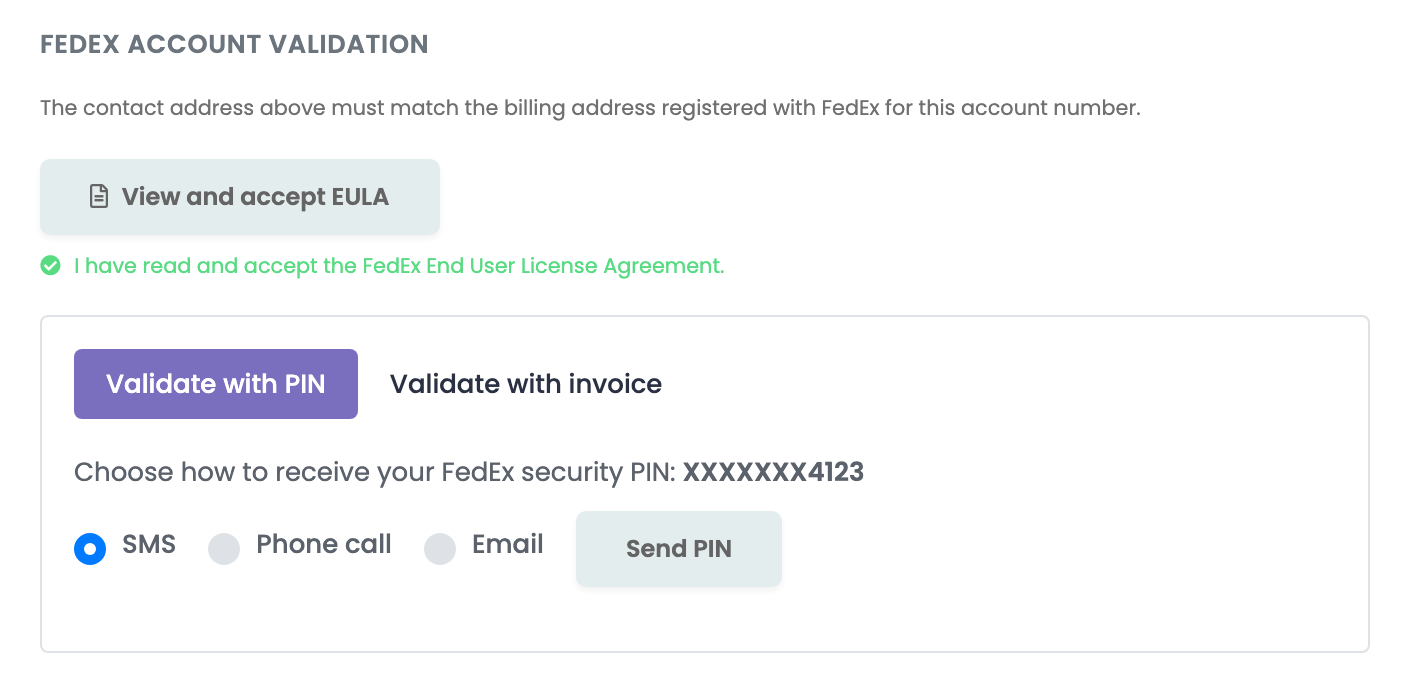
When the line Your FedEx account is validated and connected. appears, go on to step 3 and press Save without leaving the page.
Step 3 — Service, label and pickup
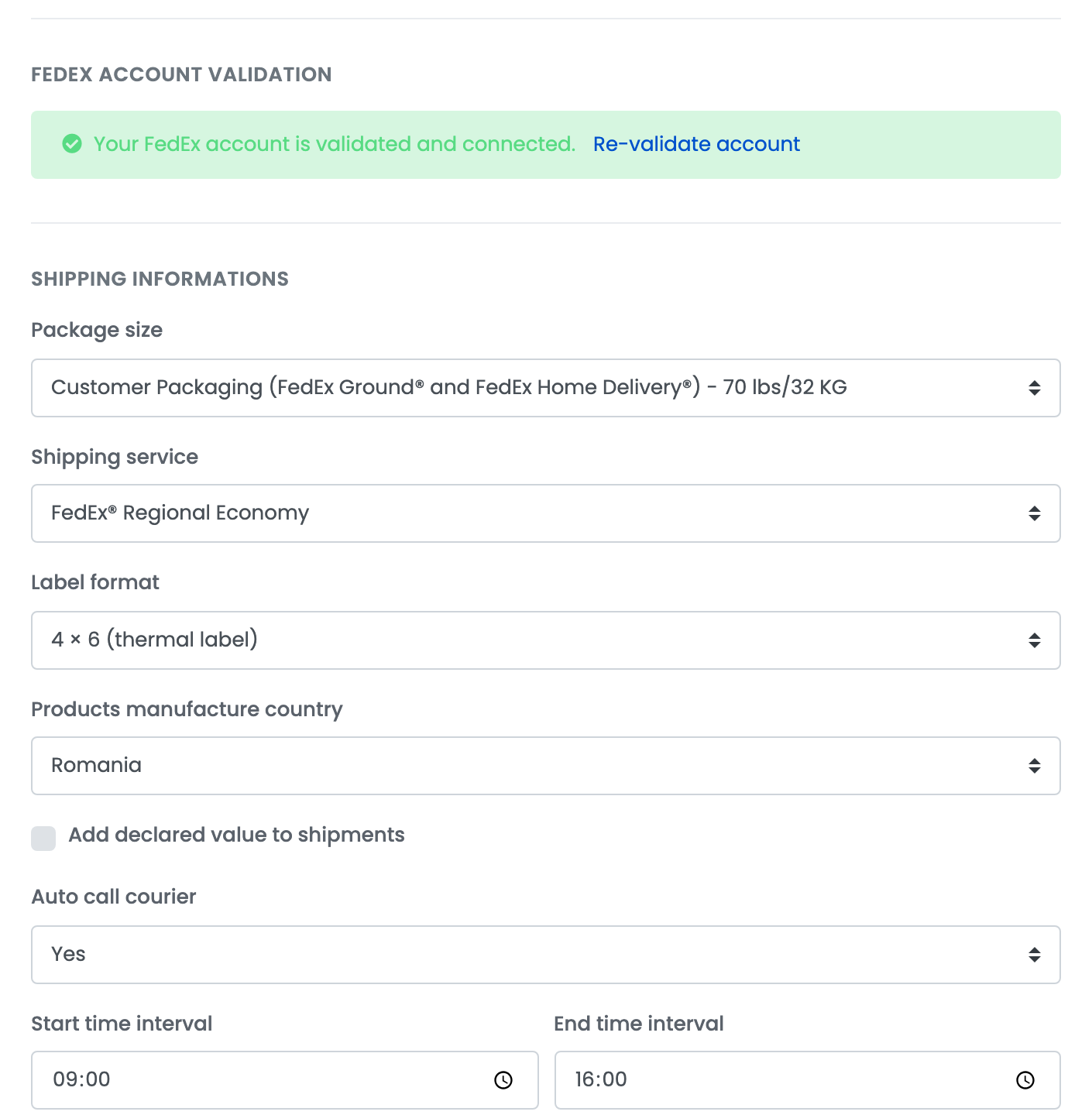
| Field | What goes in it |
|---|---|
| Package size | Customer Packaging for your own boxes, or the FedEx packaging you use: envelope, Pak, box or tube. |
| Shipping service | The FedEx service every label of this connection uses, for example FedEx® Regional Economy between EU countries, or FedEx International Priority® further away. Choose a service included in your FedEx account. |
| Label format | 8.5 × 11 (full page) for an office printer, 4 × 6 (thermal label) for a label printer. |
| Products manufacture country | The country your products are made in, declared on shipments that need it. |
| Add declared value to shipments | Tick it to declare the order total as the value of each shipment. |
| Auto call courier | Yes books a FedEx pickup at the contact address for the day of the label, between Start time interval and End time interval. Leave it on No if FedEx collects from you on a schedule. |
Press Save.
For a second service or pickup address, choose Connect another courier account in the card's ⋮ menu, or open the connection and press Clone.
Creating labels
- Quick create: in the orders list, choose Quick Create → FedEx in the AWB column. The label is created with the connection's service and package size and the order's weight.
- From the order: in the order's Awbs section, press Create AWB and choose FedEx. You can change the recipient, set several parcels or envelopes, choose a FedEx location instead of the street address, and add Saturday delivery or Saturday pickup.
The label arrives as a PDF on the order, and easySales updates the order's delivery status from FedEx.
When FedEx refuses a label
The reason is shown on the order:
| Message | What to do |
|---|---|
| This service type is not available for the destination. Please update and try again. | The connection's Shipping service does not deliver to this country. Create the label with a connection that uses another service. |
| Invalid postal code/ZIP for the country selected. Please correct and try again. | Correct the postal code of the order's shipping address. |
| Weight Value is required and cannot be less than 1. Please update and try again. | Create the label from the order page and set the weight of each parcel to at least 1 kg. |
| Invalid credential combination | Open the connection, press Re-validate account, validate the account again and press Save. |