How to connect euShipments with easySales: a complete setup guide
Connect euShipments to easySales: Client ID and API token, one connection per destination country and carrier, services, AWB refusals, and euShipments fulfilment and stock.
What connecting euShipments gives you
euShipments is a Bulgarian logistics company that ships parcels across Europe through a local carrier in each country — for example GLS in Germany, InPost in Poland or Cargus in Romania. Connected to easySales, it creates the AWB for an order from the order list or the order page, puts the carrier's tracking number on the order, sends it to the marketplace or shop the order came from and follows the delivery status.
Two things to know before you begin:
- One connection ships with one carrier, to one country. Each connection has a single Courier, chosen from the carriers euShipments has activated on your account. To ship to several countries, make one connection per destination country, and create each order's AWB with the connection for its delivery country.
- Your API details come from euShipments. You need a Client ID and an API token, which euShipments issues on request.
Before you start
A contract with euShipments
Ask for an offer at eushipments.com if you do not have one yet.
Client ID and API token
Both issued by euShipments on request.
Carriers activated
One carrier for each country you ship to, activated by euShipments on your account.
Step 1 — Ask euShipments for API access
- Write to euShipments at office@eushipments.com, or call +359 700 70 755, and ask for API access for easySales.
- euShipments sends you your Client ID — the ID of your company in euShipments — and an API token.
- Tell euShipments which countries you ship to, so they activate a carrier for each of them on your account.
Step 2 — Connect euShipments in easySales
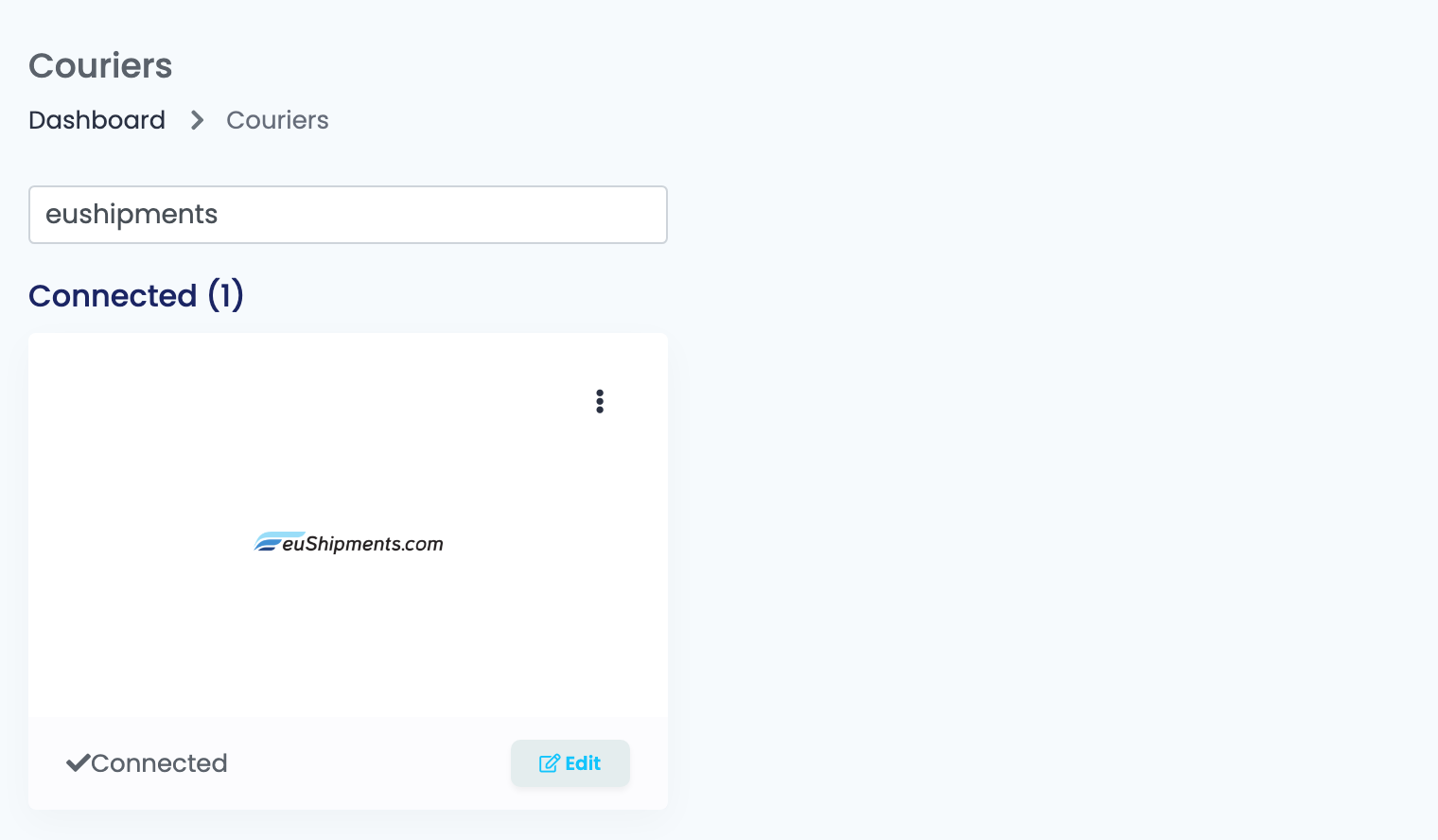
Go to Integrations → Couriers, search for eushipments and press Connect on the euShipments card — or Edit, if you have connected it before.
Fill in the connection details and press Get Details:
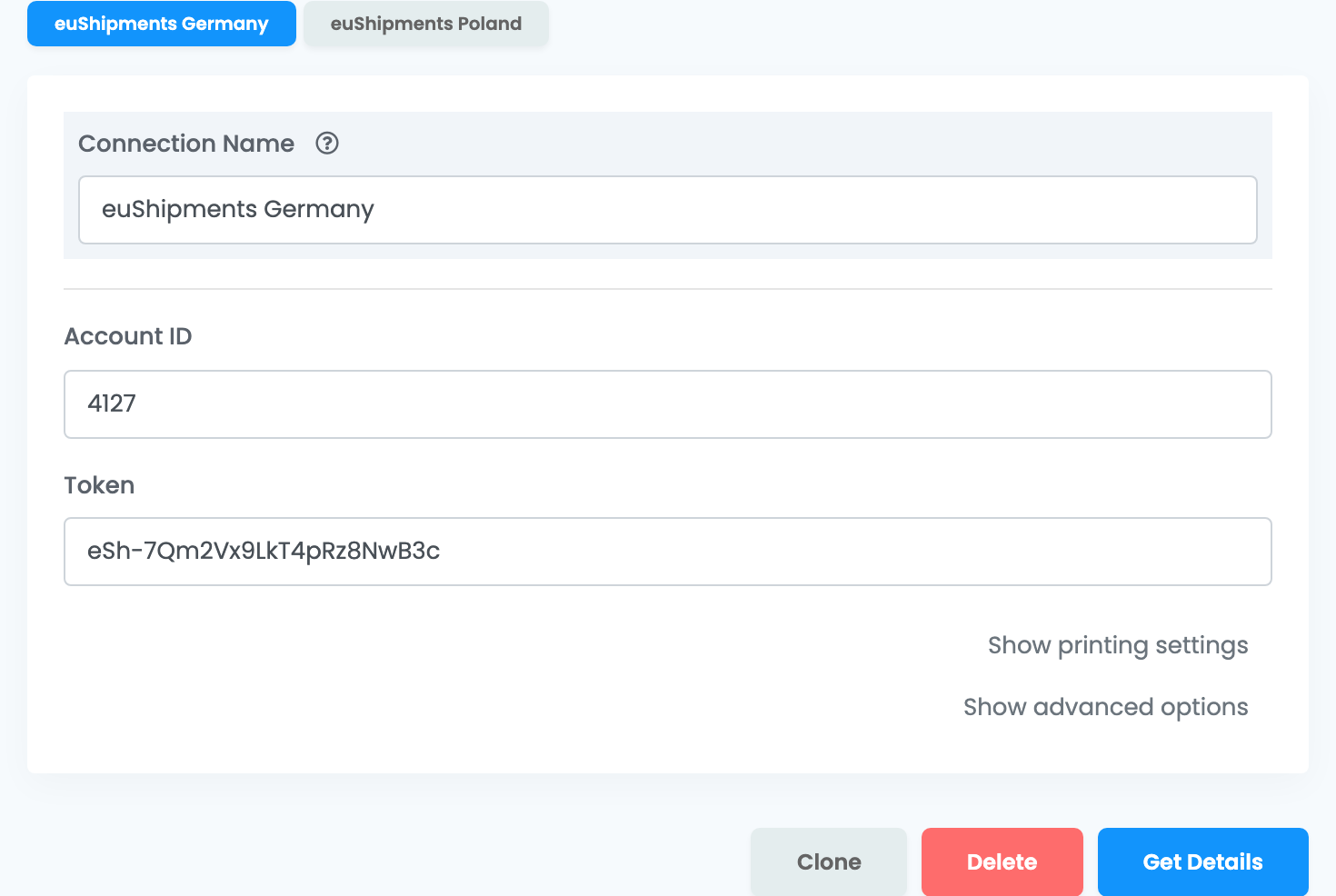
| Field | What goes in it |
|---|---|
| Connection Name |
A name that says where the connection ships, for example euShipments Germany.
|
| Account ID | Your euShipments Client ID. |
| Token | The API token from euShipments. |
Get Details asks euShipments for the carriers on your account. The rest of the form and the Save button appear only after it — also every time you open a saved connection again.
Step 3 — Choose the carrier and save
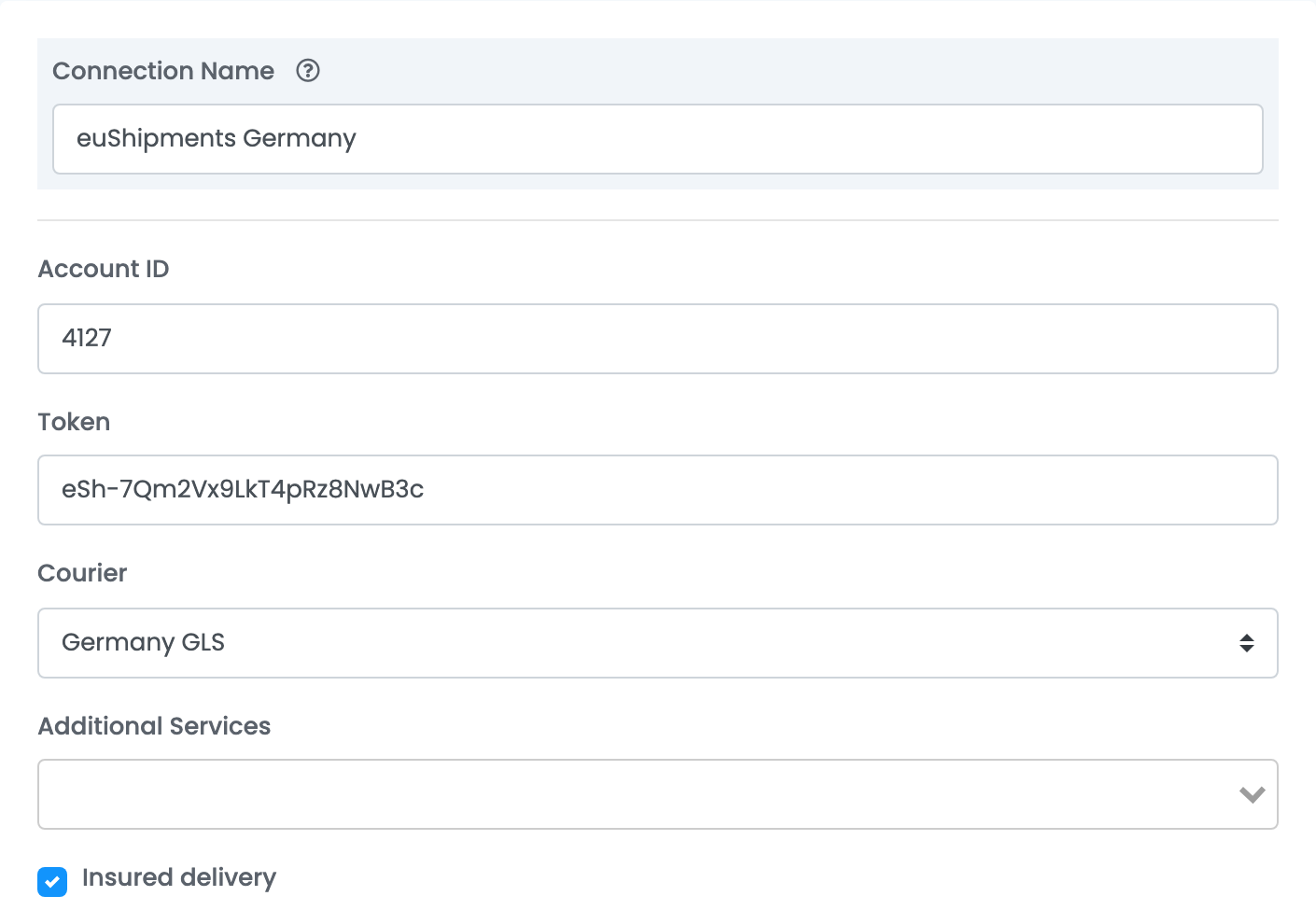
| Field | What it does |
|---|---|
| Courier |
The euShipments carrier this connection ships with, shown as country and carrier — for example Germany GLS or Poland Inpost. Only the carriers euShipments has activated on your account are listed.
|
| Additional Services | Open Package lets the customer open the parcel at delivery; Fragile marks it as fragile. What you choose is added to every AWB from this connection. |
| Insured delivery | Insures every parcel from this connection for the order total, converted into the carrier's currency. |
Press Save. For the next country, add another connection: choose Connect another courier account from the ⋮ menu on the euShipments card, or open this connection and press Clone. Give each connection a name that says its country, press Get Details and choose that country's carrier.
Creating AWBs
- Quick create, from the order list, uses everything saved on the connection. The weight is the weight of the order's products.
- From the order page you can change the weight and the parcels, choose the city from the list euShipments suggests, and pick a pickup point for carriers that deliver to one.
When the order carries a pickup point that euShipments knows, quick create delivers the parcel there. Cash on delivery is added when the order is paid on delivery; the amount is the order total, converted into the carrier's currency. The order then carries the carrier's tracking number, and its delivery status follows euShipments' tracking.
When an AWB is refused
The reason is shown on the order. The ones you are most likely to see:
| Message | What to do |
|---|---|
| Not found the city. Please check zip code, city name and region! | euShipments does not recognise the delivery city, for example a county name written in place of the city. Create the AWB from the order page and choose the city from the list euShipments suggests. |
| Wrong location. The courier does not work with the chosen country. | The connection's carrier does not deliver to the order's country. Create the AWB with the connection for that country. |
| Invalid data in 'Delivery Zip Code' | The postal code does not match the delivery address. Correct it in the order's delivery address. |
| The recipient.phone number field is required. | The order has no customer phone number. Add it to the order. |
| InPost: the sender phone number is not a Polish number - it must be 9 digits, with or without the 48 prefix. | The sender phone in your euShipments company profile is not Polish. Ask euShipments to correct it. |
| InPost: the recipient phone number is not a Polish number - it must be 9 digits, with or without the 48 prefix. | Correct the customer's phone number on the order to a Polish number of 9 digits. |
| No carriers are attached to this EuShipments account. Please configure carriers in the EuShipments dashboard before connecting. | Shown when you press Get Details: no carrier is active on your account yet. Ask euShipments to activate the carriers for the countries you ship to. |
euShipments fulfilment and stock
If euShipments also stores your products and ships your orders from its warehouse, two more connections are available. Each is optional and set up on its own, with the same Client ID and token or with another pair euShipments gave you.
- Order fulfilment — Integrations → Order Fulfillment, euShipments: enter an Alias, the Client ID and the Access token, press Get Details, choose a Courier if euShipments uses more than one carrier for a country on your account, and save. You then send an order to euShipments from the order page, under Order submissions. The products must already exist at euShipments under the same reference as in easySales — the SKU, or the stock code if your euShipments stock source uses it. euShipments ships the order, and its AWB appears on the order.
- Stock — Integrations → Stock sources, euShipments: enter a name for the connection, the Client ID and the Token. In the second Warehouse name field you can name one euShipments warehouse to read; left empty, the stock of all your euShipments warehouses is added up. Tick Use stock code as reference for inventory synchronization if euShipments knows your products by their stock code, then save.