How to connect Cel shipping with easySales: AWBs for Cel.ro orders
Create AWBs for your Cel.ro orders through Cel's own shipping: the courier account, sender address, the 1 kg minimum, invoices first and Cel's messages.
What Cel shipping gives you
Cel shipping lets you create the AWBs for your Cel.ro orders through Cel itself. Cel books the parcel with a courier account set up in your Cel account — for example Sameday, Cargus, FAN Courier or DPD — and returns the AWB, which you print from easySales like any other.
Three things to know before you begin:
- It works through your Cel connection and only for Cel orders. The courier has no login of its own: it uses your Cel marketplace connection, and the AWB is made on the Cel order itself.
- Cel refuses an AWB under 1 kg. Give your products a weight, so every order weighs at least 1 kg — or type the weight when you create the AWB from the order page.
- Send the invoice to Cel before you create the AWB. Creating the AWB also completes the order on Cel, and Cel does not complete an order without an invoice.
Before you start
Your Cel account connected to easySales
Under Integrations → Marketplaces. Cel shipping uses that connection.
A courier account and a sender address in Cel
Set up in your Cel seller account; easySales lists them.
Product weights
Cel needs at least 1 kg on every AWB.
Step 1 — Connect Cel shipping
Go to Integrations → Couriers, search for cel and press Connect on the Cel card. The button is active once your Cel marketplace connection exists.
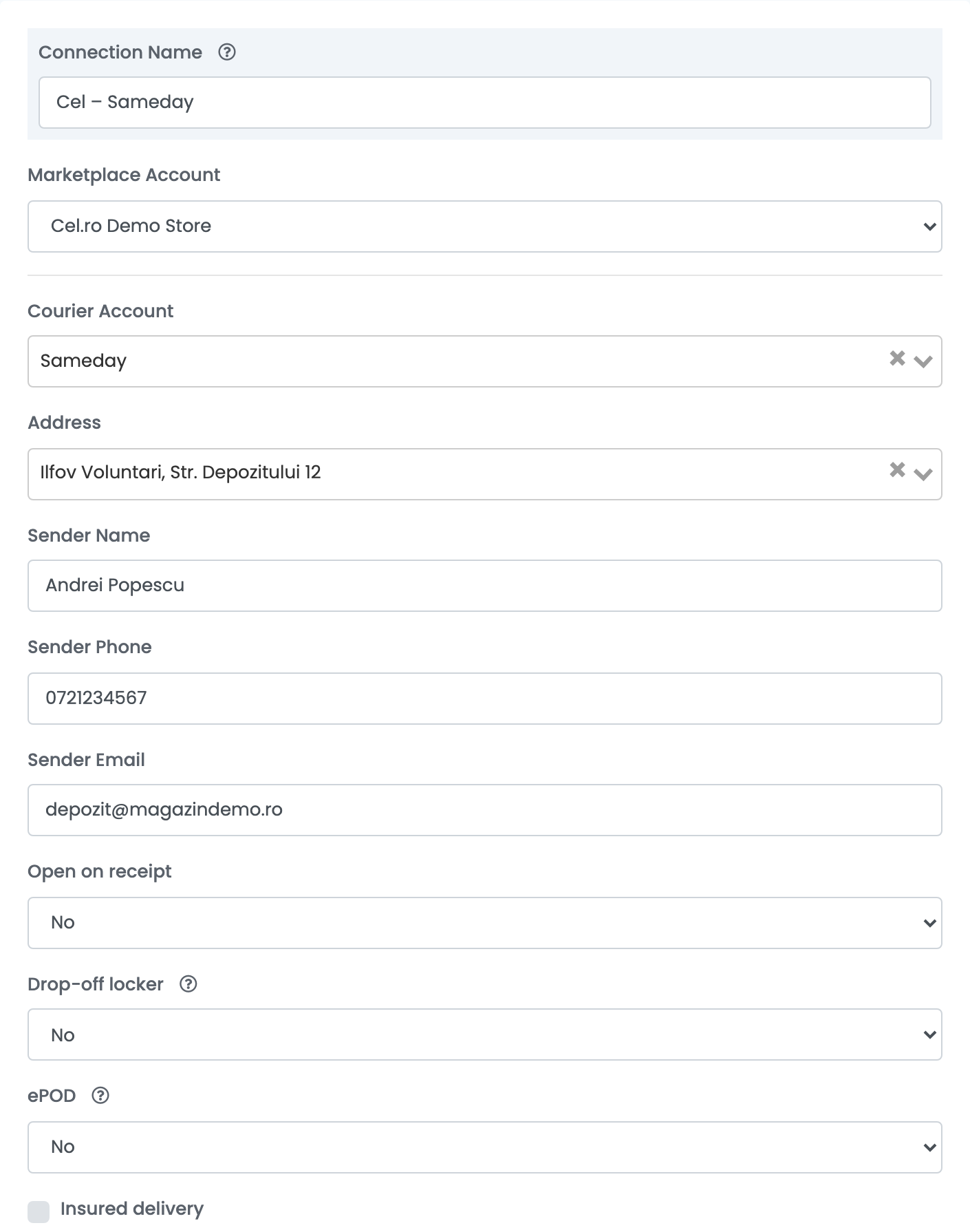
| Field | What goes in it |
|---|---|
| Connection Name |
A name you will recognise, for example Cel – Sameday.
|
| Marketplace Account | Your Cel marketplace connection. |
| Courier Account | The courier account from your Cel account that ships these orders. Its AWB format comes with it. |
| Address | The sender address from your Cel account. |
| Sender Name, Sender Phone, Sender Email | The contact the courier calls or writes to. |
| Open on receipt | Yes lets the buyer open the parcel before paying. |
| Drop-off locker | No: the courier collects from your address. Yes: you hand the parcels in at a locker — see Step 2. |
| ePOD | Yes sends the ePOD option set on the courier account in Cel with every AWB. |
| Insured delivery | Ticked, every AWB is insured for the value of the order's products, VAT included. |
Press Save. The Courier Account and Address lists come from your Cel account: if one you need is missing, add it in Cel, then open the connection again.
Step 2 — Hand-over: courier pickup or a locker
With Drop-off locker on No, the courier collects the parcels from your Cel address. To hand them in at a locker instead, set it to Yes and save; then open the connection again and choose the locker in Pickup Location. That locker is sent with every AWB of this connection.
Creating AWBs
- Quick create: in the orders list, choose Quick Create → Cel in the AWB column of a Cel order.
- From the order: in the order's Awbs section, press Create AWB and choose Cel. There you can change the weight, the parcels and the cash-on-delivery amount before you create it.
Each order gets one AWB. Orders paid on delivery get cash on delivery for the order's total. The label comes in the format of the courier account you chose — A4, A6 or 10x14.
When something does not work
Cel's messages are shown on the order as Cel sends them, in Romanian.
| Message | What to do |
|---|---|
| Greutatea nu este corecta. Trebuie sa aveti minim 1 kg | The order weighs less than 1 kg. Give the products a weight, or create the AWB from the order page with a weight of at least 1 kg. |
| Could not finalize order: Comanda nu are factura | The AWB was created, but Cel could not complete the order because it has no invoice. Send the invoice to Cel — next time, before the AWB. |
| Comanda nu mai poate fi modificata | Cel no longer accepts changes to this order. Check it in your Cel account. |
| Plata neconfirmata: … | Cel has not confirmed the online payment for this order yet. Try again once the payment is confirmed in Cel. |
| Localitate invalida / Orasul destinatarului este obligatoriu | The buyer's locality is missing or not recognised. Correct the shipping address on the order and create the AWB again. |
| Curierul ales nu livreaza in localitatea destinatarului | The courier of this connection does not deliver to that locality. Use a connection with another courier account. |
| Formatul AWB A6 este disponibil doar cu optiunea ePOD | Set ePOD to Yes on the connection. |
| Sesiune invalida: token creat de pe alta adresa IP | Temporary. Create the AWB again a little later. |