How to connect InPost Von Halsky with easySales: marketplace setup
Sell on InPost Von Halsky with easySales: the InPost login and the Organization ID, GPSR details, linking offers, orders and shipping with InPost.
What the InPost Von Halsky connection does
InPost Von Halsky is InPost's marketplace in Poland. Connected to easySales, it sends your offers to InPost Von Halsky with their prices and stock, and brings your orders into easySales within about a minute. You ship the orders with your own InPost connection — to a Paczkomat or by InPost courier.
Three things to know before you begin:
- After you log in with InPost, enter your Organization ID and press Save. The login alone does not finish the connection: until the Organization ID is saved, no offers or orders are exchanged.
- Ship with your InPost courier connection, using standard services. Orders arrive with the buyer's Paczkomat or for courier delivery; services with Allegro in their name are for Allegro orders only.
- Every offer needs the manufacturer's safety details (GPSR). Fill them in once on the connection, with the phone number in international format.
Before you start
An InPost Von Halsky seller account
And your Organization ID from InPost.
An InPost logistics contract
For Paczkomat and courier delivery.
Your InPost courier connected in easySales
Under Integrations → Couriers.
Step 1 — Log in with InPost
Go to Integrations → Marketplaces, search for inpost and open the InPost Von Halsky card. Press Connect, log in with your InPost Von Halsky seller account and allow easySales access. You are brought back to the list of marketplaces.
Step 2 — Enter the Organization ID
Open the InPost Von Halsky card again. The Main settings tab now shows the connection's fields:
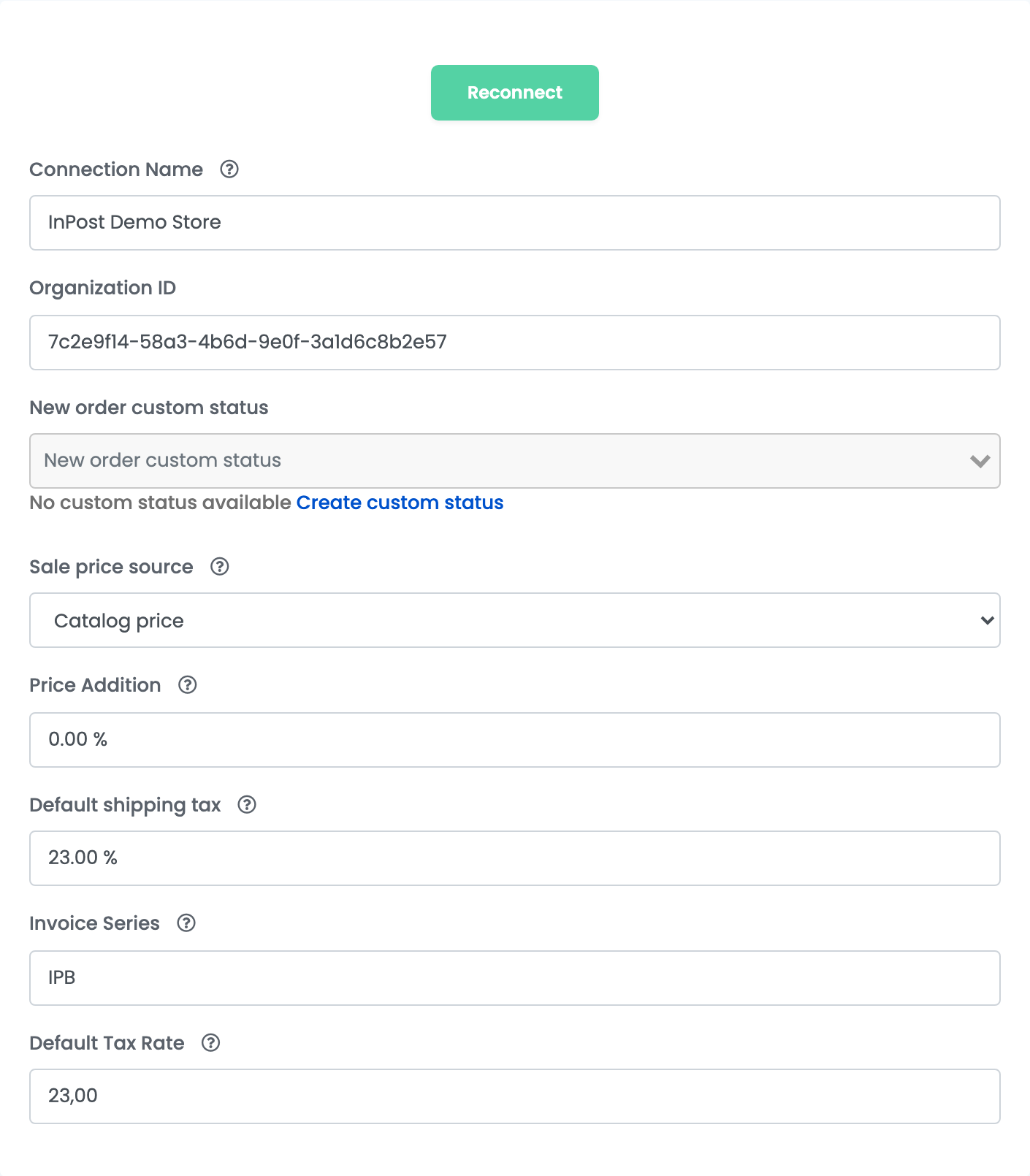
| Field | What goes in it |
|---|---|
| Connection Name |
A name you will recognise, for example InPost Demo Store.
|
| Organization ID |
Your shop's ID from InPost — a code like 7c2e9f14-58a3-4b6d-9e0f-3a1d6c8b2e57. If you do not have it, ask your InPost representative. Required.
|
| New order custom status | Optional: the custom status new orders get in easySales. |
| Sale price source | Where the offer price comes from: Catalog price, your product's sale price, or a price group. |
| Price Addition |
A percentage added to the price on InPost Von Halsky, or 0.
|
| Default shipping tax | The VAT rate of shipping. |
| Invoice Series | Optional: the series of the invoices you issue for these orders. |
| Default Tax Rate |
The VAT rate of your products, usually 23.
|
Press Save.
Step 3 — Additional settings
On Additional settings, choose what easySales sends to InPost Von Halsky and fill in the manufacturer's safety details:
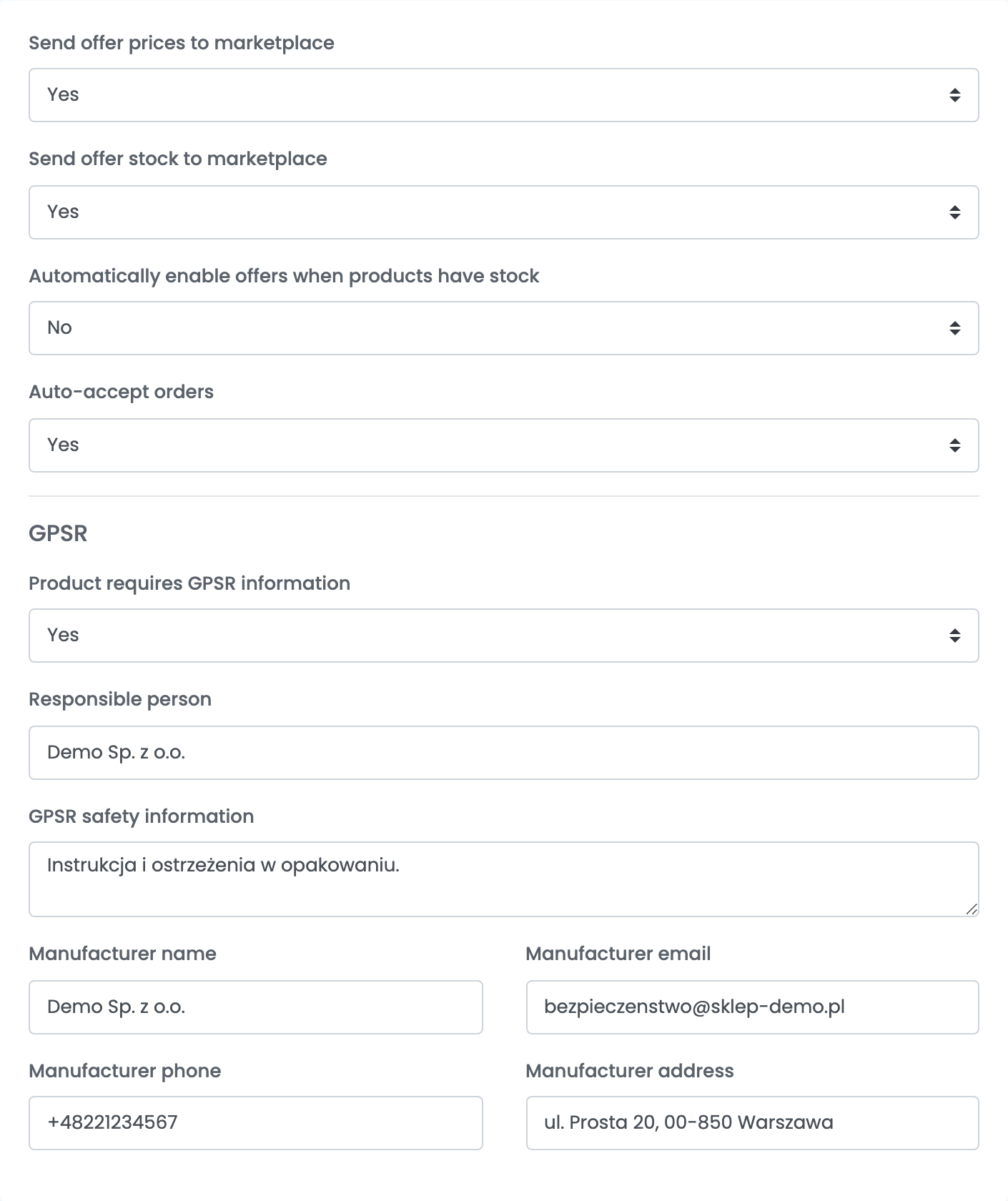
| Field | What it does |
|---|---|
| Send offer prices to marketplace, Send offer stock to marketplace | Yes keeps prices and stock on InPost Von Halsky in step with easySales. |
| Automatically enable offers when products have stock | Yes sends an offer again when its product comes back in stock. |
| Auto-accept orders | Yes accepts new orders automatically. |
| Product requires GPSR information | Leave it on Yes: InPost Von Halsky needs the manufacturer's details on every offer. |
| Responsible person, GPSR safety information | The person responsible for the products in the EU, and the safety notes. |
| Manufacturer name, Manufacturer email, Manufacturer phone, Manufacturer address |
Used for offers that have no details of their own. Name and email are required; write the phone in international format, for example +48221234567.
|
Press Save.
Offers
Offers that are already on InPost Von Halsky come into easySales unlinked. Open Offers, choose the InPost Von Halsky tab and press Link on each to tie it to your product; from then on, its price and stock follow the product.
A new offer needs an InPost Von Halsky category — the most specific one — with its mandatory attributes, a brand, a name, a description, an EAN or manufacturer number, and images at addresses InPost can open. The price is your product's sale price plus the Price Addition.
Orders and shipping
New orders arrive within about a minute. An order shows as New, then as received once accepted, and as cancelled when the buyer or InPost cancels it. Orders for a Paczkomat arrive with the buyer's locker.
Create the AWB from your InPost courier connection: Paczkomatowa standardowa for orders to a Paczkomat and Kurier standard for courier delivery. To cancel or refuse an order, do it in your InPost Von Halsky seller panel.
When something does not work
| Message | What to do |
|---|---|
| Missing GPSR manufacturer details | Fill in Manufacturer name and Manufacturer email on the offer or under Additional settings. |
| … gpsr.manufacturer.phone: must match … |
Write the manufacturer's phone in international format, with + and no spaces, for example +48221234567.
|
| Product rejected by InPost Von Halsky … 404 Not Found from GET … | InPost could not download one of the images. Check that the image addresses open in a browser. |
| Missing category | Choose an InPost Von Halsky category for the offer — the most specific one. |
| Missing brand | Fill in the product's brand. |
| Missing EAN or manufacturer number | Fill in the product's EAN or its manufacturer number. |
| Receiver email should have allegro domain | The AWB was created with an Allegro service. Use Paczkomatowa standardowa or Kurier standard on your InPost connection. |