How to connect Infinity shipping with easySales: AWBs for Infinity orders
Create AWBs for your Infinity orders on Infinity's own courier account: the location ID, your pickup address, creating AWBs and common messages.
What Infinity shipping gives you
Infinity shipping creates AWBs for your Infinity orders on Infinity's own courier account. You do not need a courier contract of your own: Infinity gives you a location ID, registers your pickup address, and its contract decides which courier collects and delivers the parcel.
Three things to know before you begin:
- It is only for Infinity orders. Orders from your other sales channels ship with your own couriers.
- The location ID and the pickup address come from Infinity. easySales lists only the pickup locations Infinity registered for your ID; it cannot add one.
- Issue the invoice before the AWB. The AWB reaches Infinity only when the order already has its invoice.
Before you start
Your Infinity account connected to easySales
Under Integrations → Marketplaces.
Your Infinity courier location ID
From Infinity.
Your pickup address registered by Infinity
Ask Infinity to add it for your location ID.
Step 1 — Connect Infinity shipping
Go to Integrations → Couriers, search for infinity and press Connect on the Infinity card.
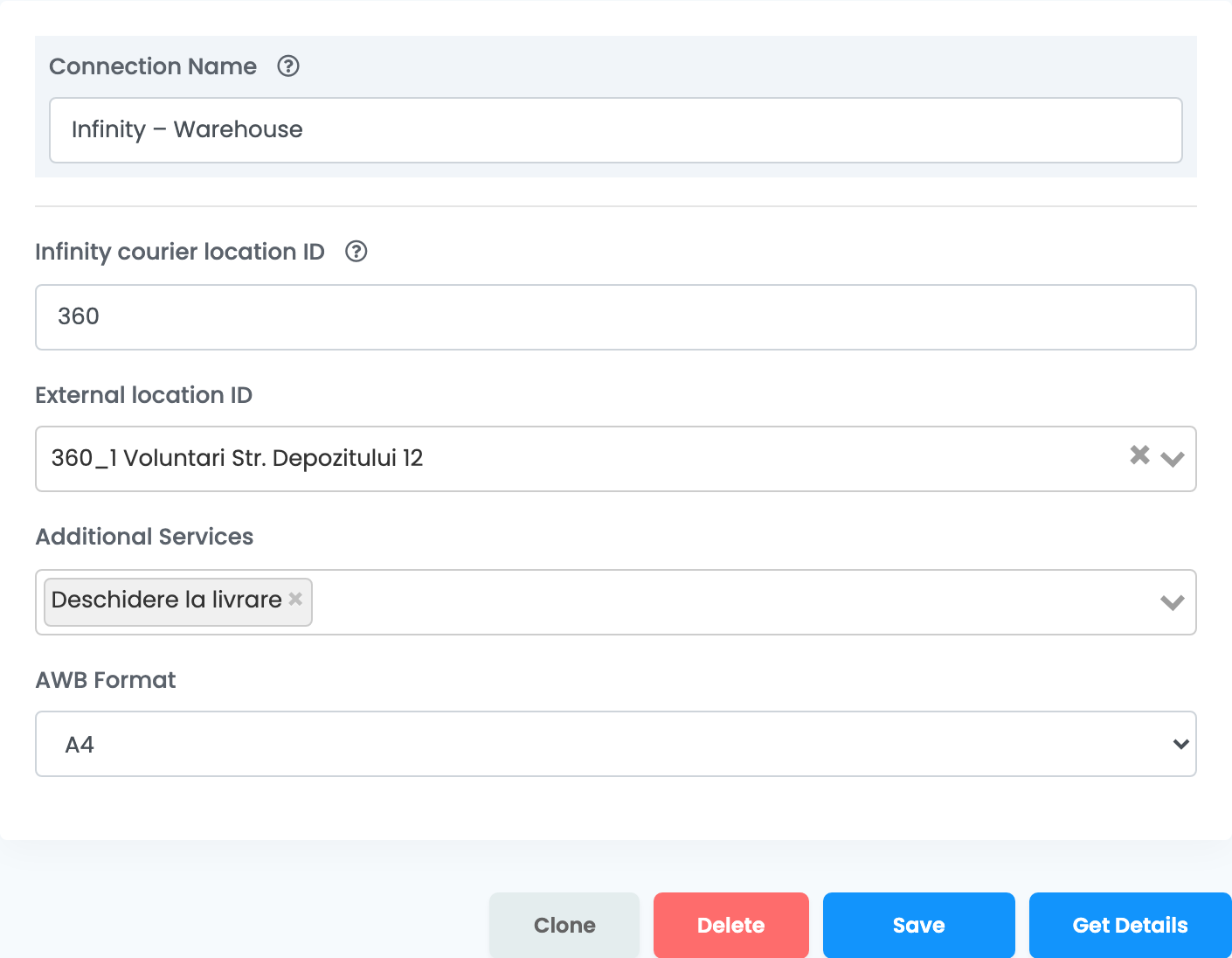
- Enter a Connection Name and your Infinity courier location ID.
- Press Get Details. easySales loads the pickup locations Infinity registered for your ID.
- Choose your pickup location in External location ID, set the other fields and press Save.
| Field | What goes in it |
|---|---|
| Connection Name |
A name you will recognise, for example Infinity – Warehouse.
|
| Infinity courier location ID |
The number Infinity gives you, for example 360. Digits only.
|
| External location ID |
Your pickup address, as Infinity registered it — for example 360_1 Voluntari Str. Depozitului 12. It appears after Get Details.
|
| Additional Services |
Optional: Deschidere la livrare lets the buyer open the parcel at delivery.
|
| AWB Format | The label size: A4 or A6. |
Creating AWBs
- Quick create: in the orders list, choose Quick Create → Infinity in the AWB column of an Infinity order.
- From the order: in the order's Awbs section, press Create AWB and choose Infinity. There you can change the parcels, their weight, the cash on delivery amount and the services.
The parcel's weight is the order's weight, or 1 kg when the products have no weight. Cash on delivery is added when the order is paid on delivery. Delivery is to the buyer's address; there are no lockers or pickup points. The AWB and its tracking link go to Infinity, and the status of the delivery updates in easySales.
When something does not work
| Message | What to do |
|---|---|
| Infinity labels can only be created for Infinity orders. | The order comes from another sales channel. Ship it with one of your own couriers. |
| Unable to upload awb: Missing invoice | The order had no invoice when the AWB was made. On Infinity orders, issue the invoice first, then the AWB. |
| Judetul selectat nu se află în lista curierului. | The buyer's county is not recognised. Create the AWB from the order and choose the county from the list. |
| Localitatea completată nu se află în lista de localități ale curierului. | The buyer's locality is not recognised. Create the AWB from the order and choose the locality from the list. |
| Niciun curier eligibil: … | No courier on Infinity's contract accepted the parcel for this address. Check the address and the weight, then ask Infinity. |