How to connect 2Ship with easySales: couriers, services and AWBs
Create AWBs through 2Ship from easySales: the WS Key, your 2Ship location, one courier and service per connection, product weights and common messages.
What the 2Ship connection does
2Ship is a shipping platform that gives you several couriers through one account — for example DPD, Cargus or Sameday. Connected to easySales, it creates AWBs for your orders with the courier and service you choose, prints the label and follows the delivery.
Three things to know before you begin:
- One connection is one courier and one service. If you ship with two couriers through 2Ship, create two connections, for example
2Ship – DPDand2Ship – Cargus. - Choose only a service your 2Ship account has. The list shows the courier's services; one that is not on your 2Ship contract is refused when you create the AWB.
- The WS Key comes from 2Ship. Ask 2Ship support for it — it is not your 2Ship password.
Before you start
A 2Ship account
With the couriers and services you ship with.
Your 2Ship WS Key
From 2Ship support.
Products with a weight
Quick create sends the weight of the order's products.
Step 1 — Connect 2Ship
Go to Integrations → Couriers, search for twoship and press Connect on the 2Ship card.
- Enter a Connection Name and your WS Key.
- Press Get Details. easySales loads your 2Ship locations and couriers.
- Choose the Sender, the Courier and the Services, then press Save.
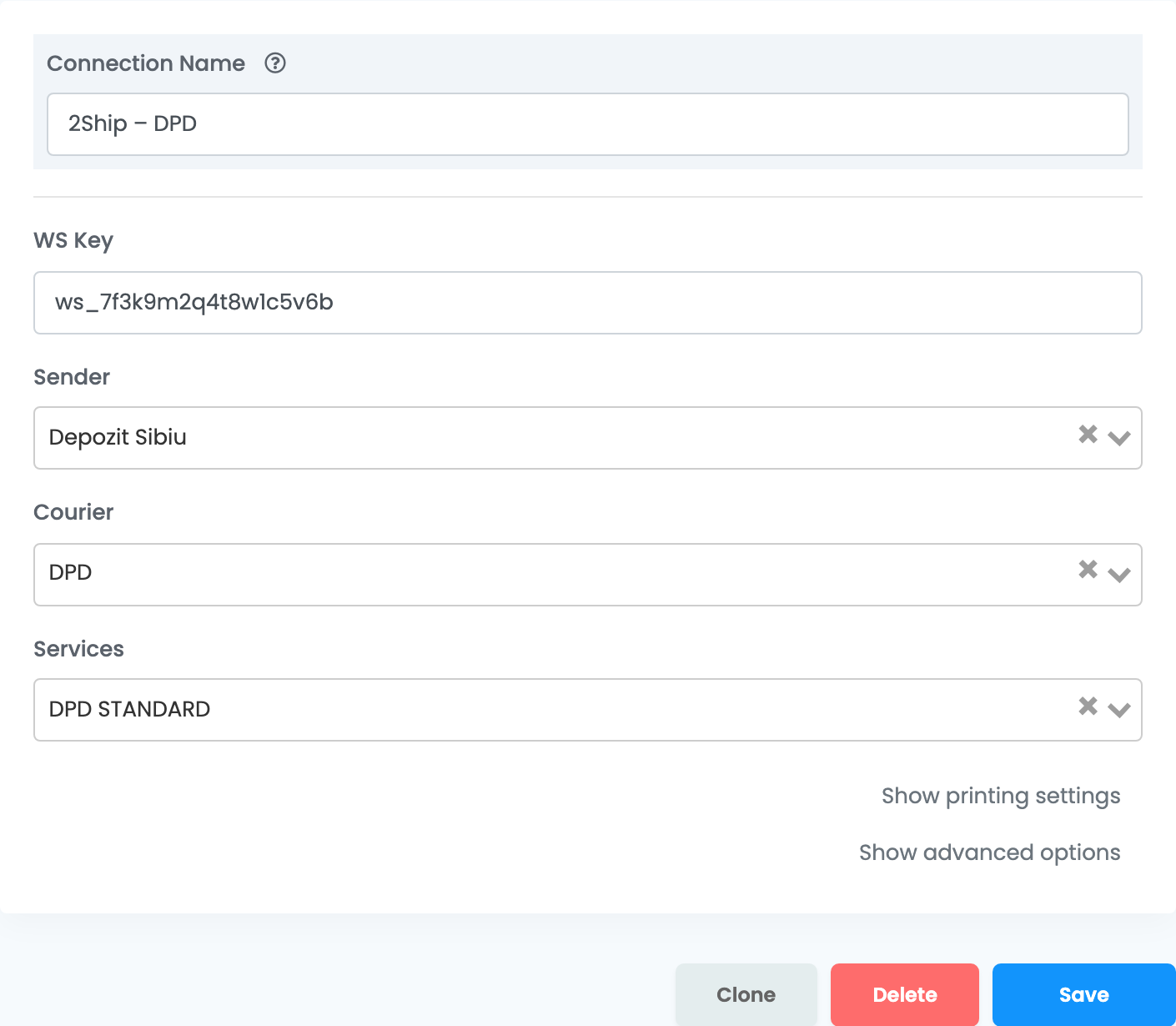
| Field | What goes in it |
|---|---|
| Connection Name |
A name you will recognise — the courier helps, for example 2Ship – DPD.
|
| WS Key | The key from 2Ship support. |
| Sender |
Your 2Ship location, for example Depozit Sibiu. The sender address on the AWB is the one saved for it in 2Ship.
|
| Courier | The courier for this connection, from those active on that 2Ship location. |
| Services |
The courier's service for this connection, for example DPD STANDARD. Choose one your 2Ship account has.
|
Creating AWBs
- Quick create: in the orders list, choose Quick Create → your 2Ship connection in the AWB column. The AWB uses the connection's courier and service and ships to the buyer's address.
- From the order: in the order's Awbs section, press Create AWB and choose 2Ship. There you can change the weight, the parcels, the cash on delivery amount, the courier and the service, see the Estimated cost, and send the parcel to a locker or a courier office.
The parcel's weight is the weight of the order's products, so give your products a weight before you use quick create. Cash on delivery is added when the order is paid on delivery. The label comes from 2Ship, and the status of the delivery updates in easySales.
When something does not work
| Message | What to do |
|---|---|
| Package 1 weight cannot be zero! | The order's products have no weight. Give your products a weight, or create the AWB from the order and enter the weight there. |
| Error at processing | 2Ship could not create the AWB with this service or address. Check that your 2Ship account has the service chosen on the connection, and that the order has a postal code and county. |
| Please select a valid service. | You changed the courier on the order without choosing its service. Choose a service of that courier. |
| Credentials provided where invalid! | The WS Key is not right. Copy it again from 2Ship, or ask 2Ship support for it. |