How to connect Skroutz with easySales: a complete integration guide
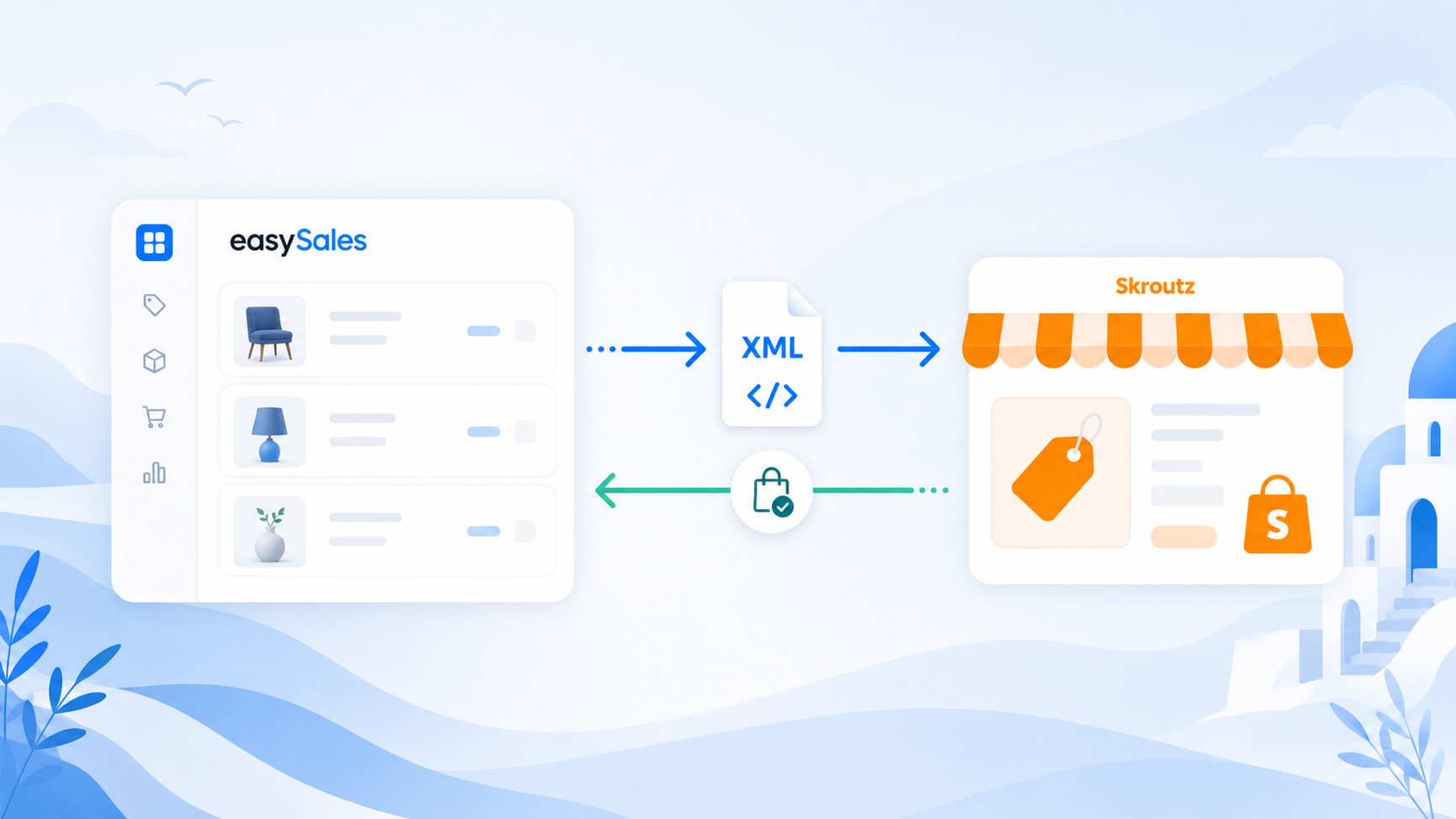
Sell on Skroutz, the largest Greek marketplace, and manage it from one dashboard. easySales publishes your catalog to Skroutz through a product feed, receives your Skroutz orders automatically, and pushes acceptance, tracking, and invoices back with your Merchant API token. This guide walks you through connecting Skroutz, listing your products, and understanding how orders, shipping, and invoicing work.
Why connect Skroutz with easySales
Skroutz is the largest marketplace and price-comparison platform in Greece, and selling on it means keeping listings, orders, and invoices in order. easySales brings Skroutz into a single dashboard alongside the rest of your sales channels, so you manage one catalog and one order stream instead of switching between screens.
Once connected, your Skroutz orders flow into easySales ready to invoice, process with automation flows, and ship. Your catalog goes the other way: easySales publishes your products to Skroutz and keeps their prices and stock up to date, so you maintain one catalog instead of editing each Skroutz listing by hand.
How the Skroutz connector works
Skroutz is a hybrid integration — part feed, part live API — so it helps to understand the split before you start.
- Your catalog goes out through a product feed. easySales builds an XML product feed with your listings — names, descriptions, brands, EANs, categories, images, prices, VAT, stock, weight, and characteristics — and refreshes it on a recurring schedule. Skroutz reads that feed to create and update your listings.
- Orders come in through a webhook. Skroutz posts each new and updated order straight into easySales, where it lands under Orders & Customers → Orders ready for invoicing and flows.
- Order actions go back through your Merchant API token. The token you paste into the connection lets easySales act on your Skroutz orders — accepting or rejecting them, sending tracking details, and uploading invoices back to Skroutz.
Because the catalog side runs on a feed, a couple of things work differently from a pure API marketplace. Changes you make in easySales aren't instant on Skroutz — they travel with the next feed refresh. And the flow is one-way in places: easySales does not read your offers' status back from Skroutz, and existing Skroutz listings are not imported into easySales.
Prerequisites — what to prepare before you start
A few things need to be in place before your first sync.
An active Skroutz seller account
You need a live Skroutz seller account, ready to receive your product feed and send you orders. If you don't have one yet, email international-sales@skroutz.gr to register.
Products with a weight set
Skroutz offers are built from your easySales products, and Skroutz requires a weight on every one — set it in kilograms before you publish.
Your Skroutz Merchant API token
Skroutz issues this after validating your product feed, so you don't need it on day one — you connect first and add the token later.
An invoice series ready
A billing series that matches your invoicing software, so imported Skroutz orders are numbered correctly from the start.
Step 1 — Connect Skroutz in easySales
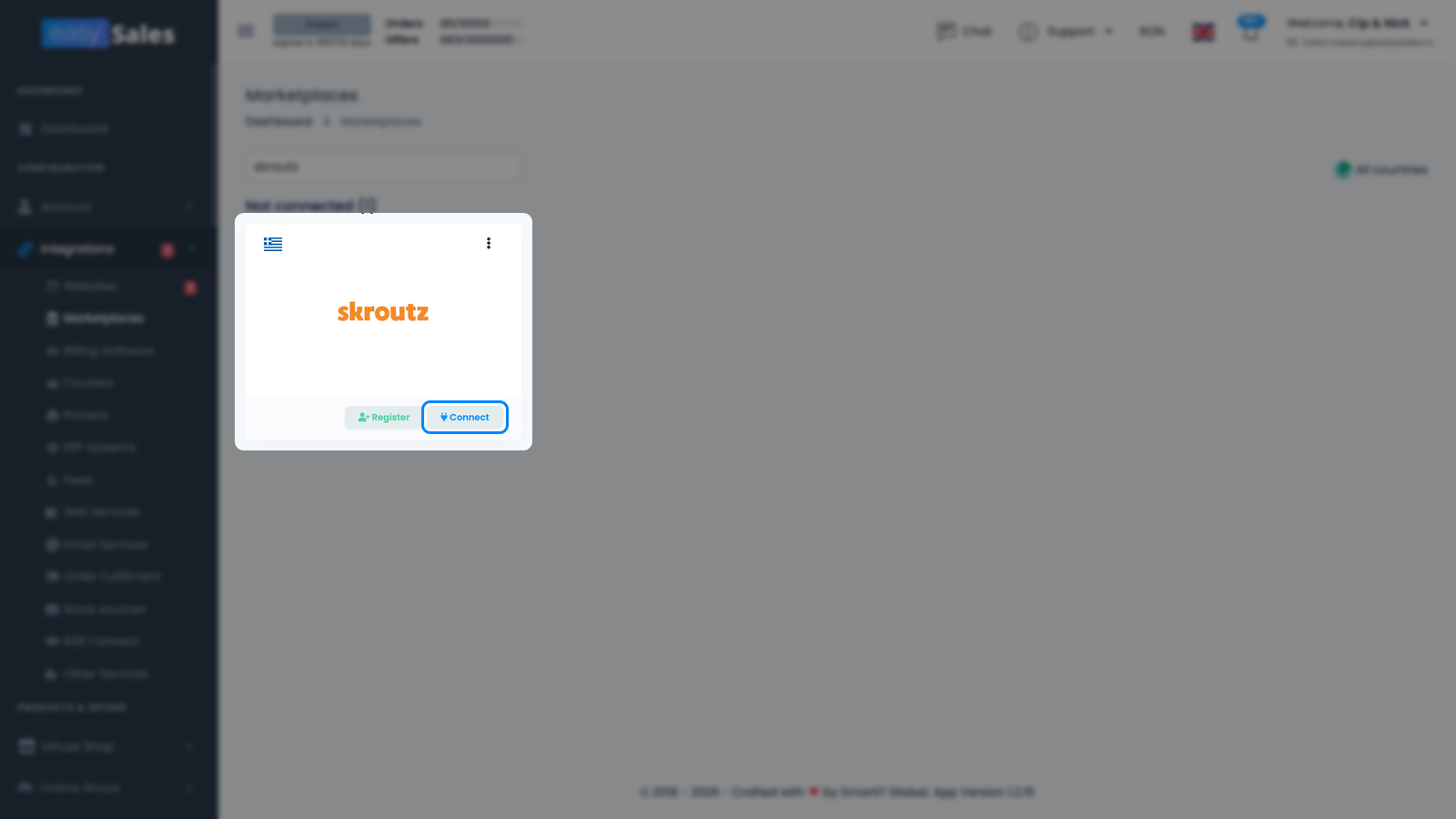
In easySales, from the sidebar go to Integrations → Marketplaces, find the Skroutz card, and click Connect on it. The Skroutz settings form opens with two tabs: Main settings (the core configuration) and Additional settings (sync behavior). You'll work in Main settings first.
On the Main settings tab, fill in how easySales should build your feed, price your offers, and handle your orders:
- Connection Name — a label you choose for this connection. Only visible inside easySales.
- Price Addition — an optional percentage added on top of your product price when a new offer is published to Skroutz. It applies to newly created offers.
- Default shipping tax — the VAT rate applied to the shipping line on your Skroutz orders.
- Default Tax Rate — the default VAT percentage applied to your offers and orders. Set it to 0 if you're not a VAT payer.
- API Token — your Skroutz Merchant API token. Leave it empty for now; Skroutz issues it after they validate your product feed, and you'll come back to paste it in (see Step 4).
- Invoice Series — the default billing series assigned to imported Skroutz orders, matching the series you use in your invoicing software.
- Implicit package type — whether your parcels default to envelope or parcel.
- Size attributes and Color attributes — the product characteristics Skroutz reads as the size and color of a variation. Mapping these is what lets Skroutz group your variants into a single family (see Step 3).
- Characteristics excluded from offers — any characteristics you don't want written into your Skroutz feed.
- Display the characteristics in the product description and Product documentation in local language — control how characteristics and product text appear on Skroutz.
- Delivery Days — the handling time published with your offers.
- Finalize order on AWB generation and shipping options — covered in the orders section below.
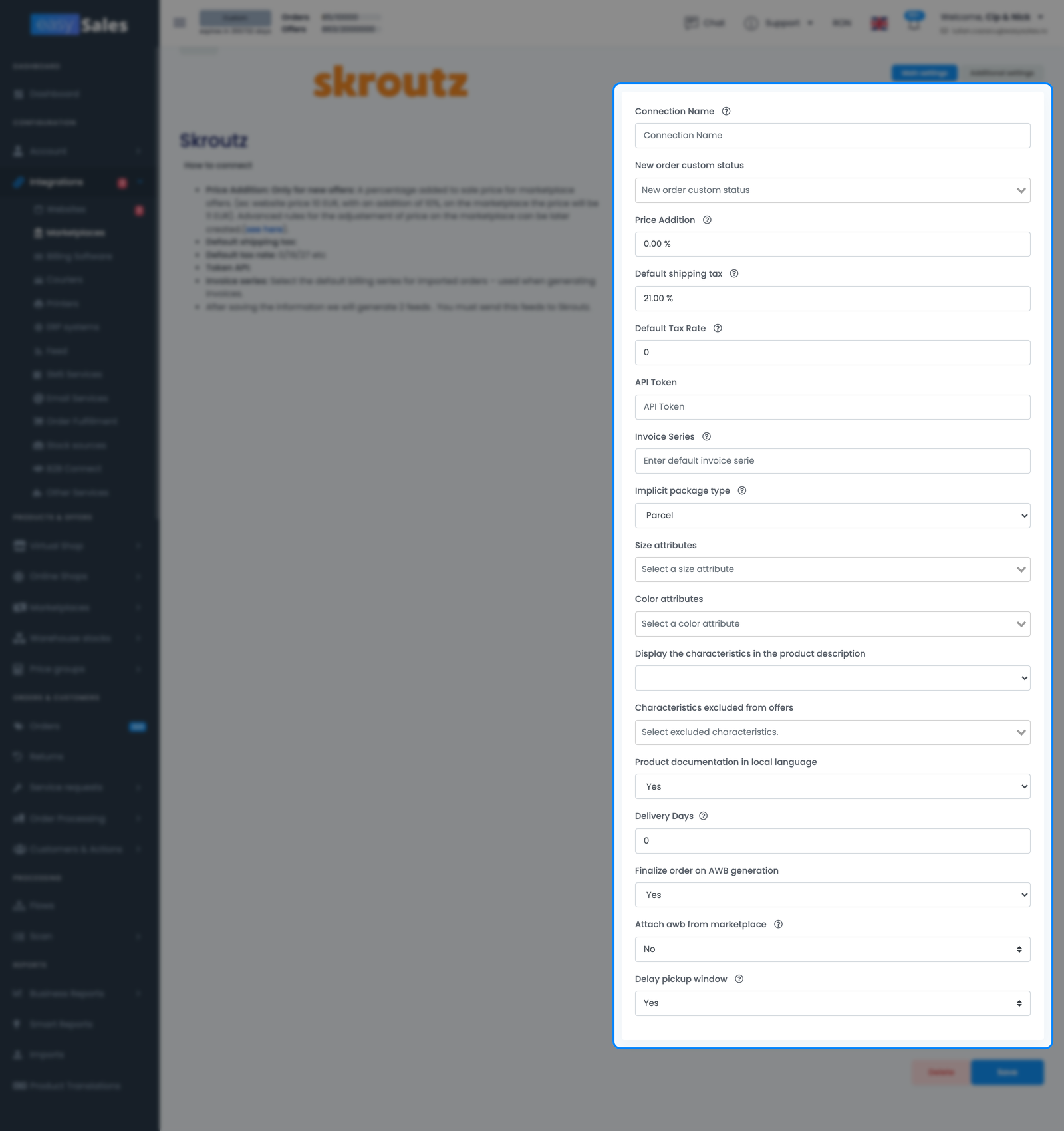
Click Save to create the connection.
Step 2 — List your products and send your feeds to Skroutz
Connecting the account doesn't put your catalog on Skroutz by itself — you choose which products to list.
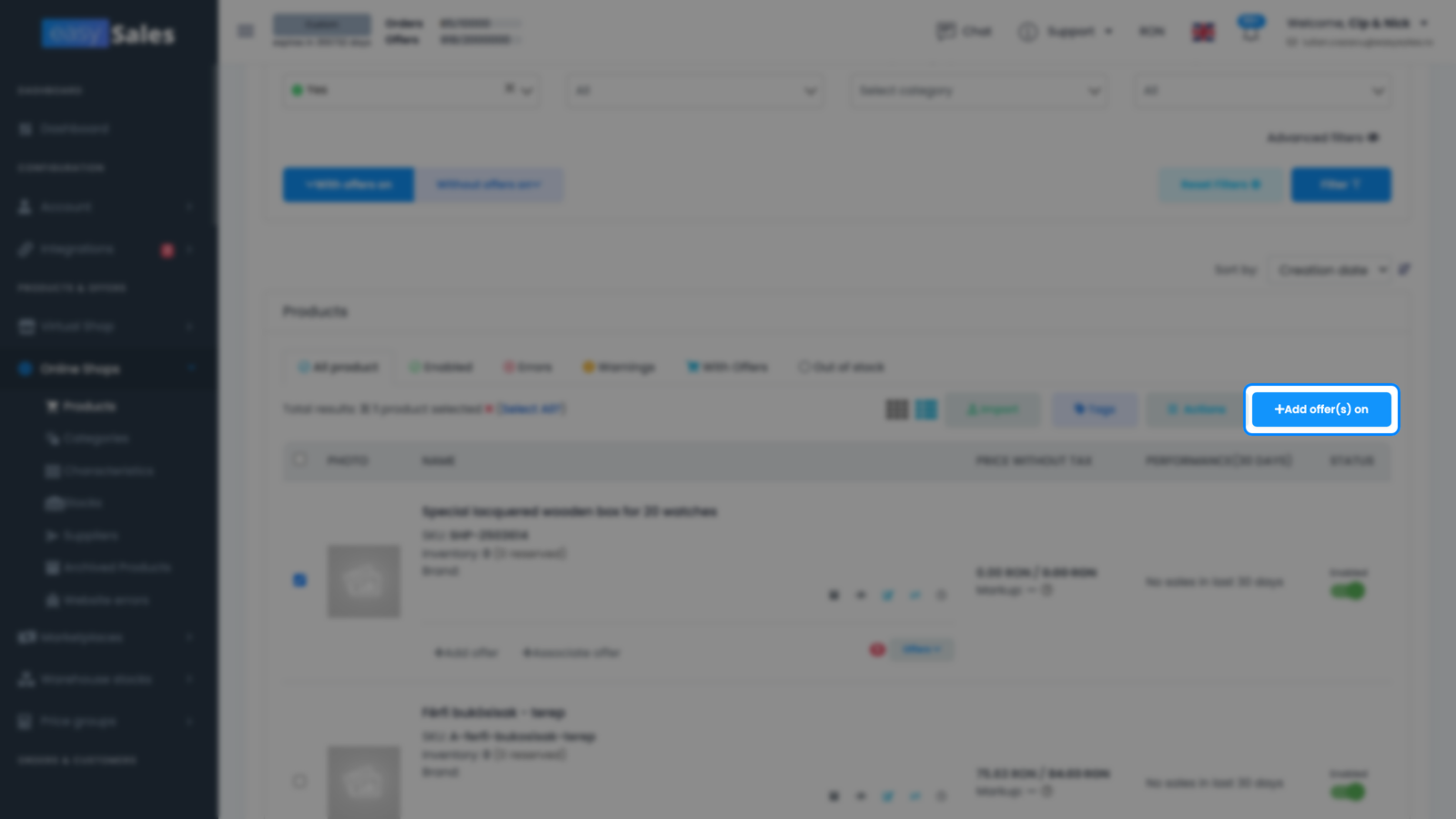
From the sidebar, go to Online Shops → Products, select the products you want to sell on Skroutz, and from the bulk-actions bar use the Add offer(s) on action, choosing your Skroutz connection. easySales creates a Skroutz offer for each product, linked to it in your catalog. From then on the offer travels in your product feed, and its stock and price stay tied to the source product. Only offers that are active, synced, and linked to a catalog product are written to the feed. Your published offers appear under Marketplaces → Offers, on the Skroutz tab, where you can review and edit them.
When you save the connection, easySales generates two feeds that make the integration work. Both appear on your Skroutz card in Integrations → Marketplaces:
- Feed URL — the XML product feed Skroutz reads to build and update your listings.
- Orders URL — the address Skroutz posts your orders to.
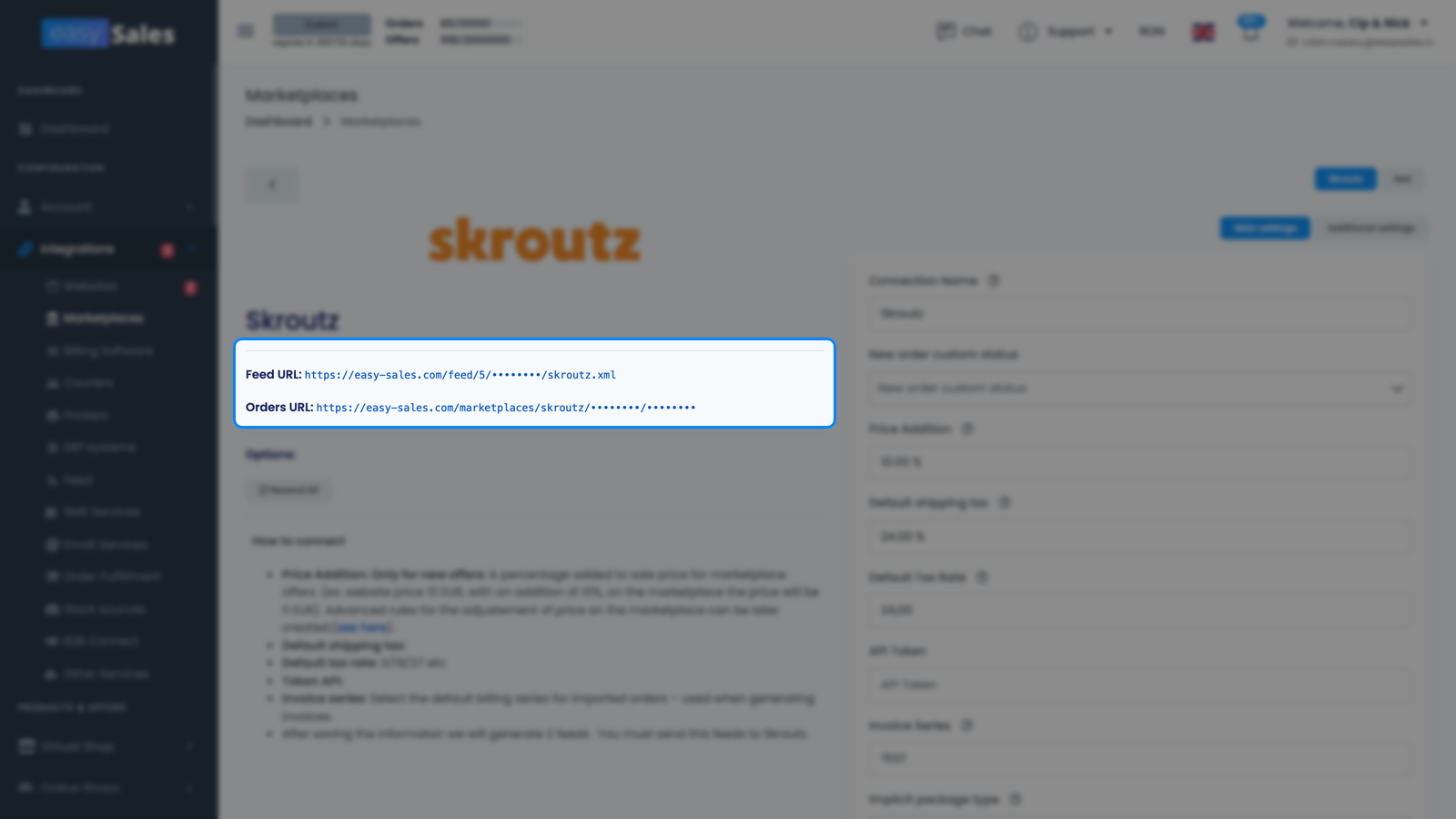
easySales doesn't register these URLs automatically — you copy them from your Skroutz card and hand them to Skroutz, and each one goes to a different place in your Skroutz Merchants account:
- Feed URL — submit it under Services → XML file: validate your feed, then use Send XML link. Skroutz's team runs additional checks and completes the review.
- Orders URL — on Skroutz, open Services → Skroutz Marketplace and scroll down to Integration with the online store → Order webhooks: paste the URL into the Webhook URL field and tick Enable, so Skroutz starts posting your orders to easySales.
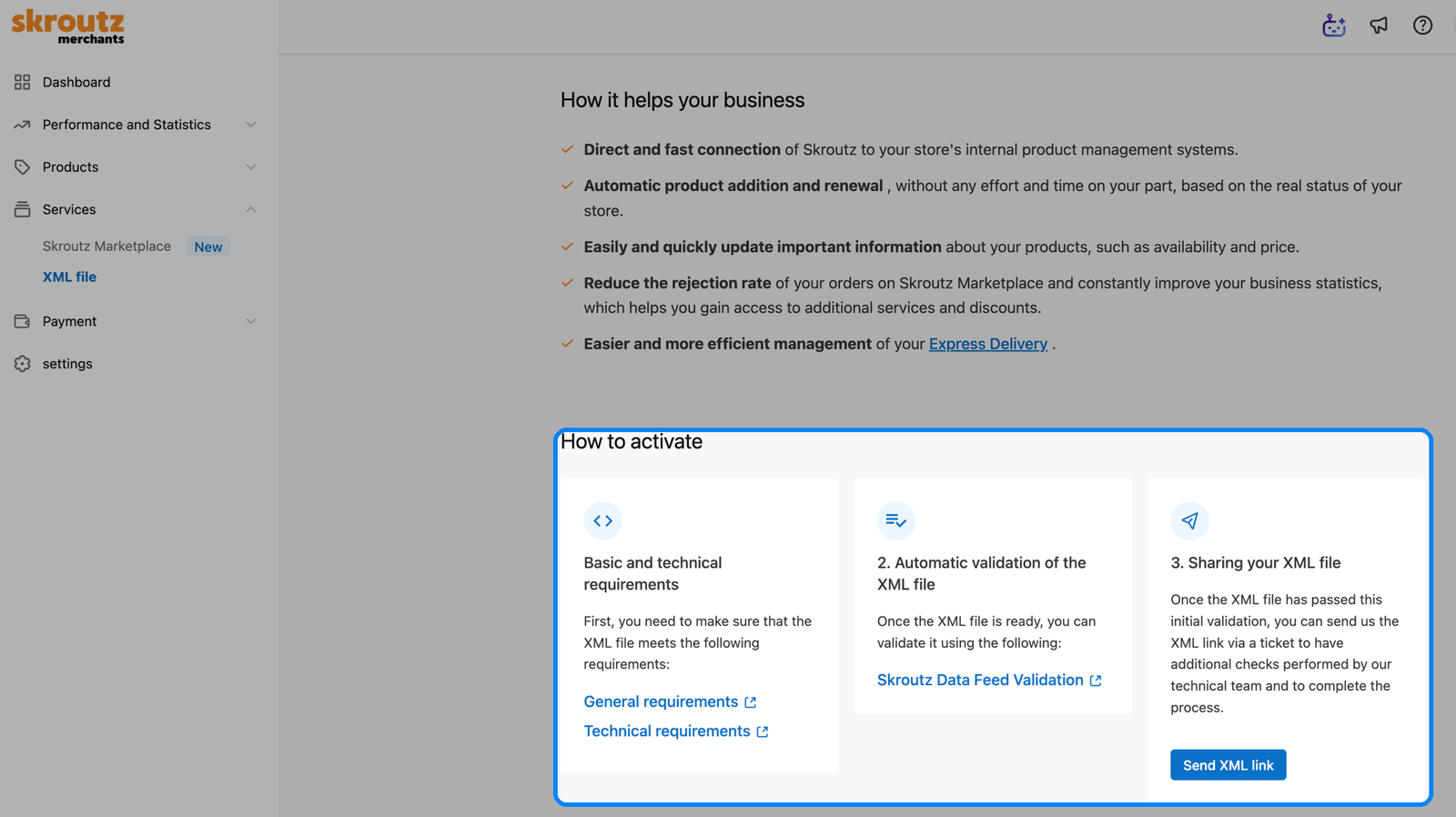
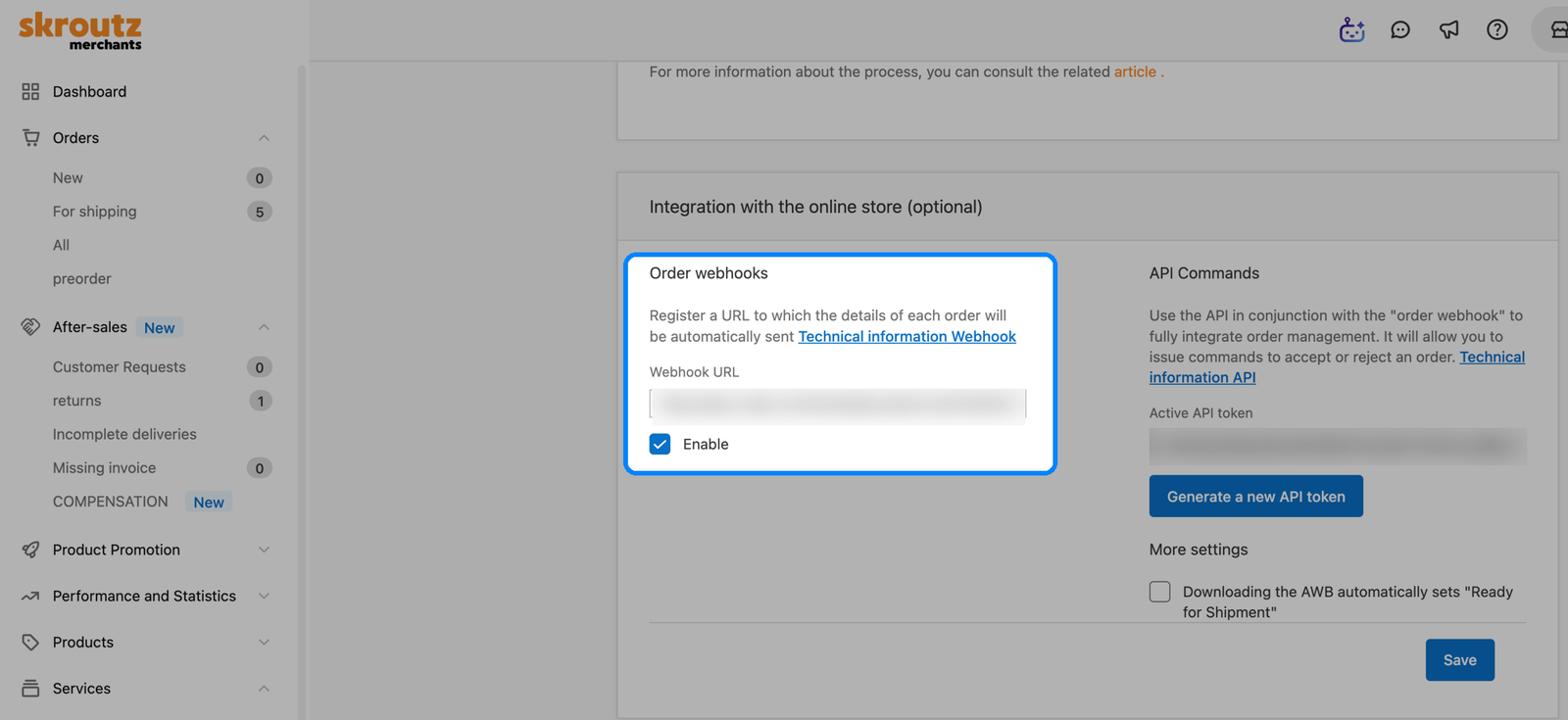
Going live is an operational step that can take a little while rather than happening instantly. A connected feed with no orders yet is normal while Skroutz is still onboarding your feed.
Grouping variations into a family
If you sell a product in several sizes or colors, Skroutz can show the variants as a single family listing instead of separate products. easySales builds that grouping entirely from your own product data — the product family and its characteristics — plus one small mapping you set on the connection. Here's how the pieces fit together:
- The family comes from your product structure. Variants that belong together must share a parent product in easySales (the same variation family). easySales carries this over automatically when the products are already grouped on your source shop; otherwise you set the variation on each offer manually or via an Excel import. Variants that don't share a parent are sent to Skroutz as standalone listings, and the family listing takes its name from the parent product.
- The size and color values are read from the product's characteristics. Each variant's size — and its color — comes straight from that product's own characteristics, for example a "Size" characteristic with the value "M" or a "Color" characteristic with the value "Blue". You don't re-enter them for Skroutz; they're pulled from the product.
- You map which characteristic is the size and which is the color. On the connection's Main settings tab, use Size attributes to tell easySales which characteristic holds the size, and Color attributes for the color. This mapping is what turns your product characteristics into Skroutz's size and color dimensions.
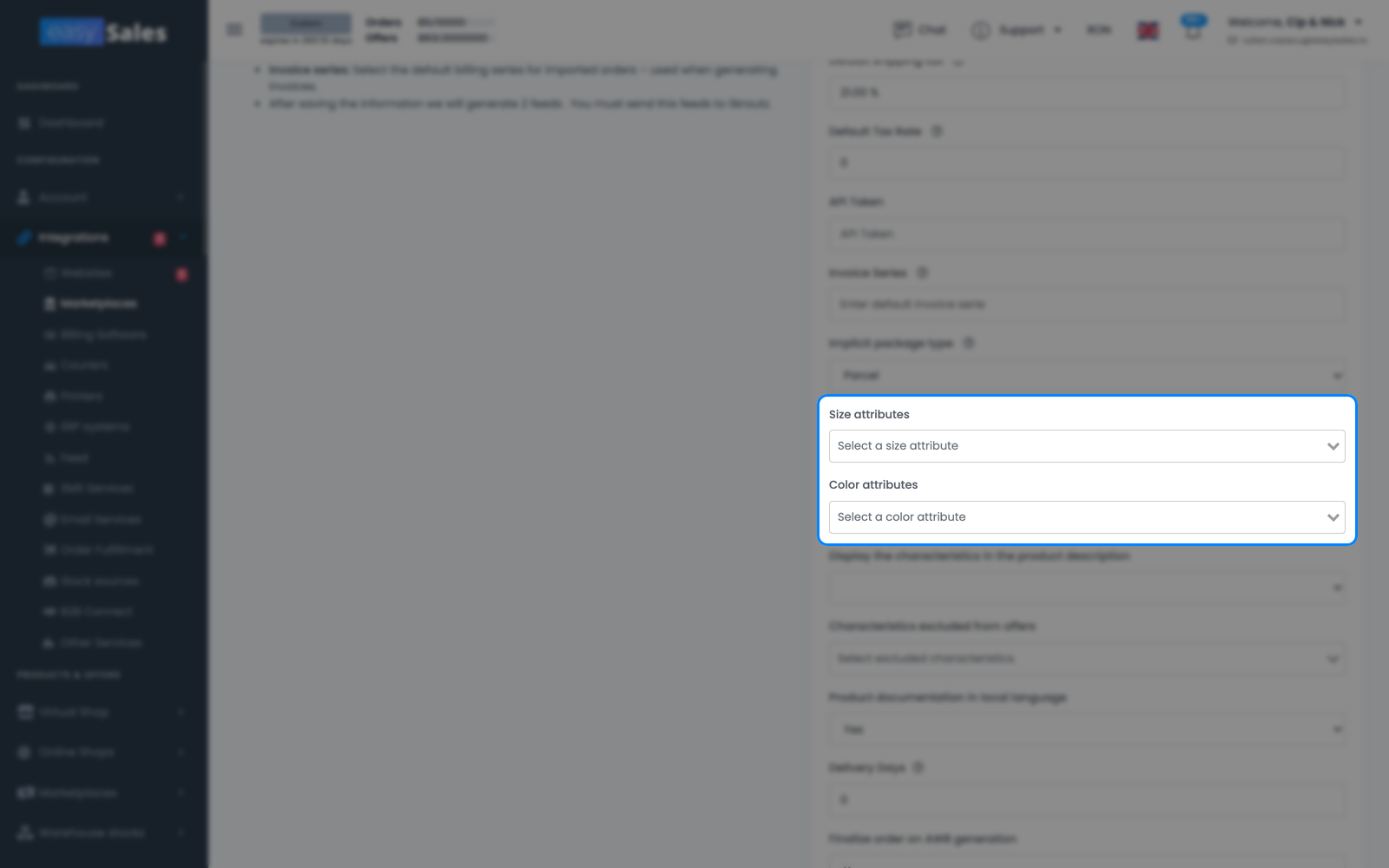
Two conditions decide whether a family actually forms:
- A size attribute must be mapped. The family is built around the size dimension — if you haven't mapped a Size attribute, or a product has no value for it, that product goes out as a standalone listing instead of joining a family. Mapping a Color attribute on its own doesn't create a family; it only adds the color dimension to variants already grouped by size.
- The size or color value must not be in the offer title. Variants in a family share the same product name and the size lives in its own field, so don't write "… – M" or "… Blue" into the title — otherwise Skroutz can't group them cleanly.
Mapping the attribute only tells easySales which characteristic to read — you still have to fill that characteristic's value on each product. easySales never invents a size, so a product whose size characteristic is empty is sent with no size and won't join a family. This is the most common reason a size is missing from a Skroutz feed. If several products are missing the value, fill it in bulk with Mass edit from your Skroutz offers list. For a product that genuinely has no size, enter the literal value One Size (in English) on that characteristic — Skroutz expects that exact text, and easySales sends it as-is. Once the values are in place, easySales generates the Size Variations automatically for products that are already grouped as variants — no extra setup.
Step 3 — Fine-tune the sync
The Additional settings tab controls how easySales syncs with Skroutz after the connection is live.
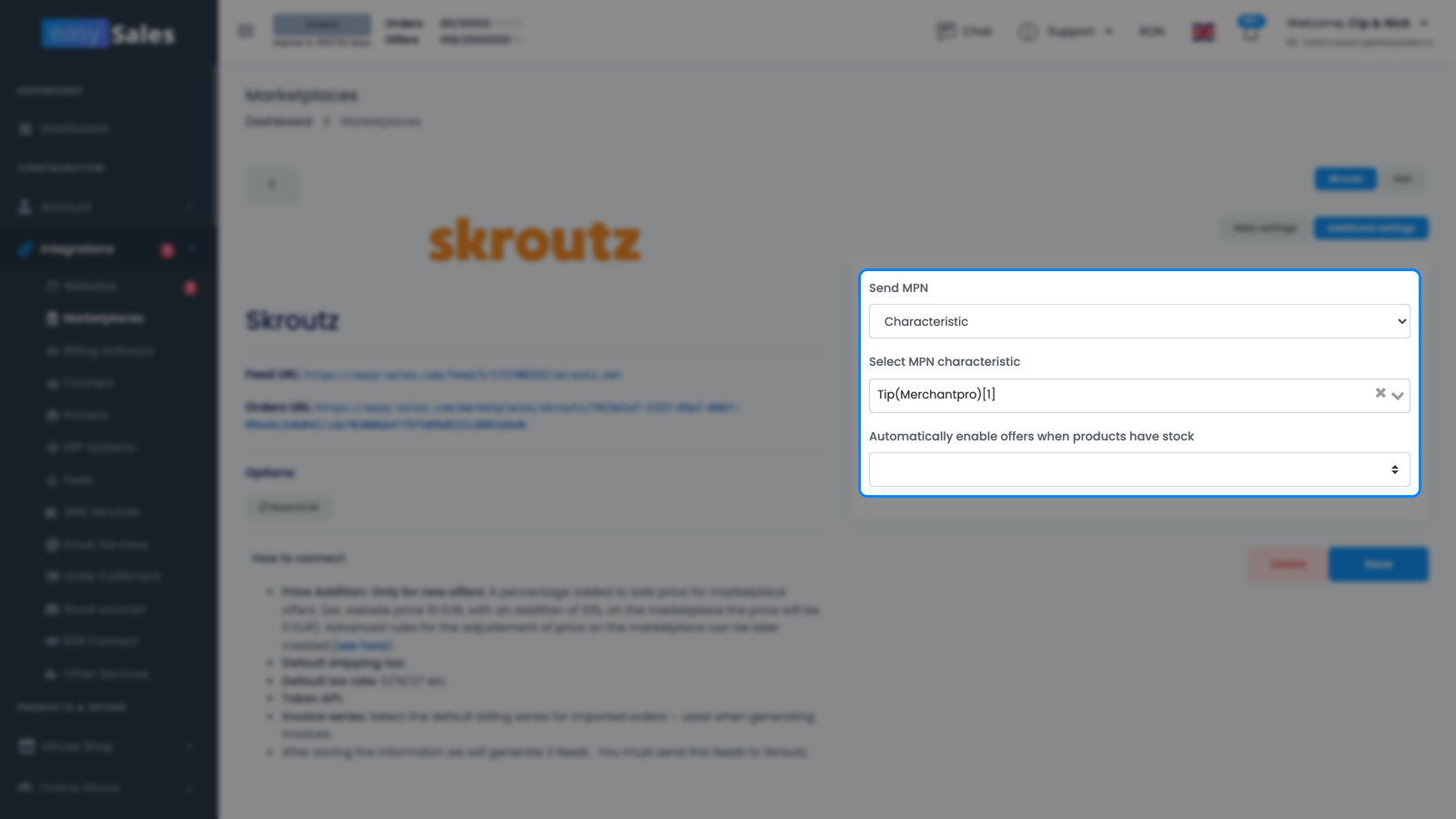
- Send MPN — choose what easySales sends to Skroutz as the product's MPN (manufacturer part number). There are four options: send nothing, the offer's SKU, the Parent SKU (the SKU of the parent product — handy for grouped variants that should share one MPN), or the value of a specific characteristic. If you pick Characteristic, a second field appears where you select which characteristic to send.
- Automatically enable offers when products have stock — reactivate offers automatically once a product is back in stock above zero.
Step 4 — Add your API token once Skroutz validates the feed
This is the part that trips sellers up, so it's worth calling out clearly. Skroutz doesn't hand you a Merchant API token up front — they issue it after they've validated the product feed you sent them. So the sequence is:
- Connect Skroutz in easySales and list your offers (Steps 1–2).
- Send your Feed URL and Orders URL to Skroutz.
- Once Skroutz approves your feed, generate your Merchant API token in your Skroutz Merchants account under Products → API, using Generate a new API token. Skroutz keeps only one active token at a time, so generating a new one replaces any previous key.
- Back in easySales, open your Skroutz connection, paste the token into the API Token field on Main settings, and save.
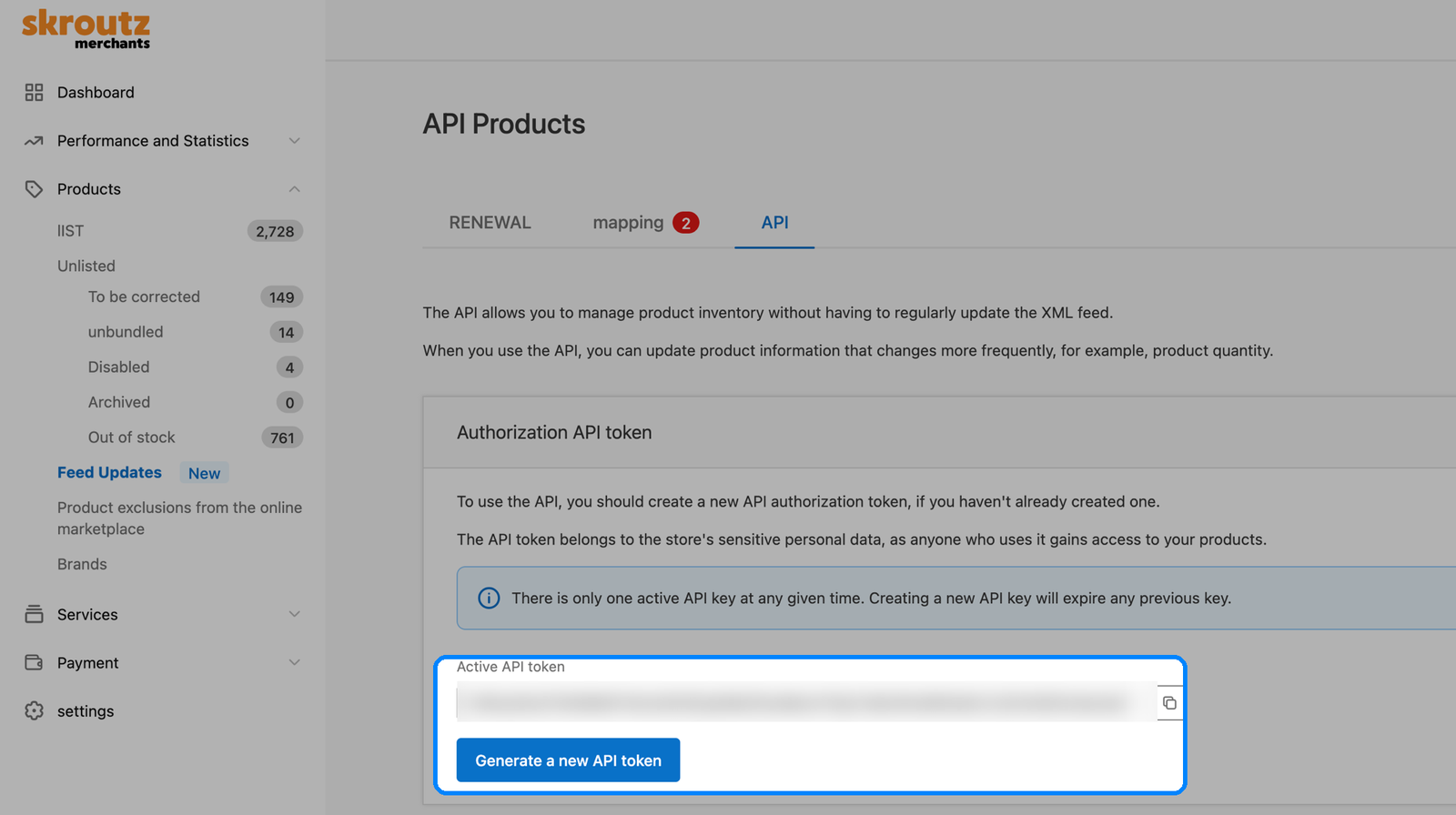
Until the token is in place, orders can still arrive, but easySales can't accept them or send tracking and invoices back to Skroutz — those actions all authenticate with the token. If you see orders coming in but not being accepted, an empty API Token is the first thing to check.
How Skroutz orders, shipping and invoices work
Orders are the part of Skroutz that runs on its own. easySales doesn't pull orders from Skroutz — Skroutz pushes each order to your Orders URL, so Skroutz is in control of delivery. easySales imports each one, matching products by EAN and pricing everything in euro. Once your API token is in place, easySales accepts the order back on Skroutz automatically and reserves a courier pickup window. The Delay pickup window setting decides which slot it books: on by default, it takes the latest available window; turn it off to book the earliest one.
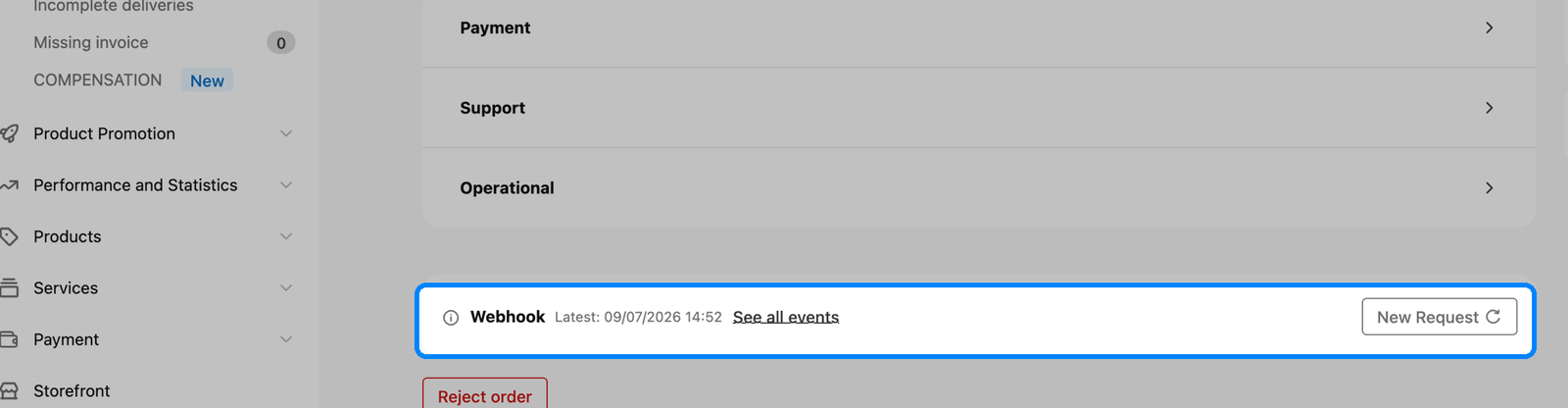
Because delivery is push-based, if an order ever doesn't reach easySales you can re-send it yourself from Skroutz: open that order in your Skroutz Merchants account and, in its Webhook panel, click New Request to push it again.
Shipping works one of two ways, and you choose per connection:
- Skroutz supplies the label. Turn on Attach awb from marketplace and easySales attaches the shipping voucher Skroutz issues for the order, so you don't generate a separate AWB.
- You generate the AWB. Generate the shipping label in easySales as usual, and easySales sends the tracking details back to Skroutz. Skroutz recognises a fixed set of couriers for this — DPD, DHL, GLS, ACS, Speedex, ELTA, and Geniki Taxydromiki — so use one of those for tracking to register on Skroutz.
Invoices are sent back too: when you generate an invoice for a Skroutz order, easySales uploads the PDF to Skroutz automatically. Finalize order on AWB generation is on by default, so easySales also marks the order finalized once its shipping label is attached — turn it off if you'd rather manage that status yourself.
| From Skroutz → easySales | From easySales → Skroutz |
|---|---|
| Orders (new and updated) | Product listings — name, description, brand, category |
| The shipping label (AWB), when you let Skroutz ship | EAN, images, weight, and characteristics |
| — | Price in euro (with VAT) and stock availability |
| — | Order acceptance / rejection and tracking updates |
| — | Invoices (uploaded to Skroutz) |
You're connected — what's next
With orders arriving, the next step is automation: set up flows under Processing → Flows to generate invoices and process orders as they come in. Keep an eye on your offers under Marketplaces → Offers, on the Skroutz tab, where any that fail validation are flagged — and reach out to support if anything looks off.
Connect Skroutz and sell across Greece from one dashboard
Try easySales free for 14 days. No credit card required.